
Asus ROG Swift PG32UCDM3
Introduction
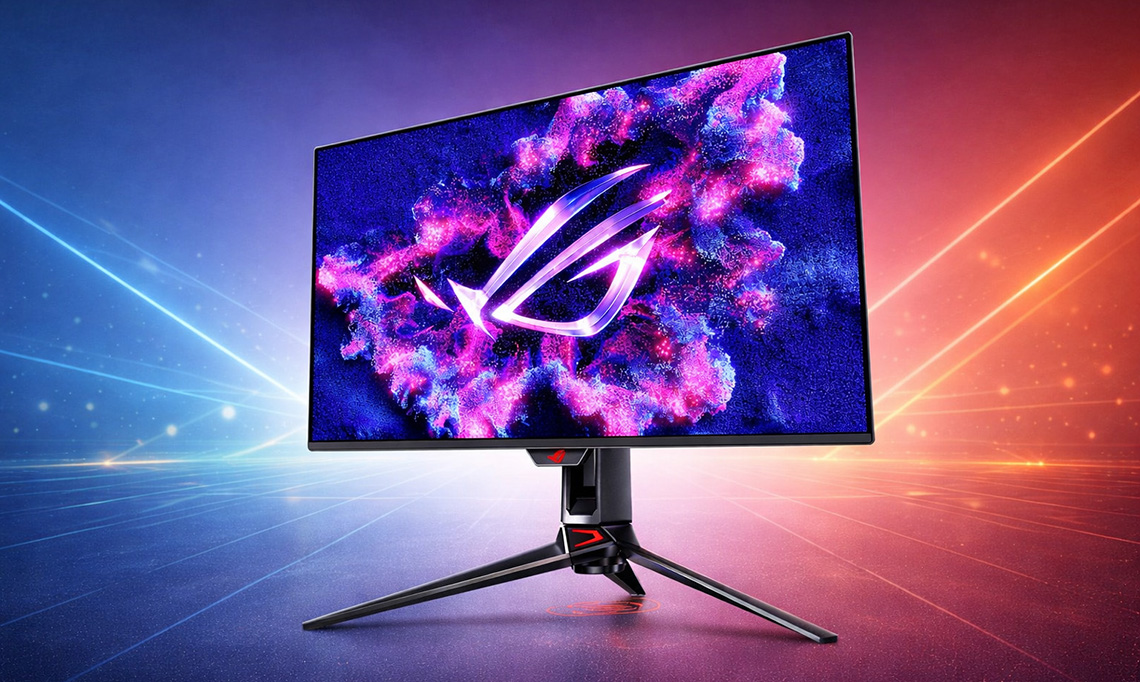
Asus are announcing today their latest 32″ QD-OLED monitor, another update to their super-popular PG32UCDM model which was released in early 2024 and that we reviewed at the time. This is actually the third version of this screen they’ve launched, following on from the PG32UCDMR (R = revision) which we saw back at Computex last year, and this new model is the third generation of the screen – called the “PG32UCDM Gen 3”, or “PG32UCDM3” for short.
It’s still a 31.5″ sized monitor with a 3840 x 2160 “4K” resolution and a 240Hz refresh rate. Like the earlier two versions it’s built around a Samsung Display QD-OLED technology panel, but it now features an updated Gen 4 panel with a range of improvements and enhancements. We’ll explain the changes on offer from this new 4th Gen panel in a moment, as well as compare the specs and features between all 3 versions so you can understand what has changed between each model.
Most notably though, this new version offers improved SDR and HDR brightness which includes VESA DisplayHDR 500 True Black certification thanks to the new 4th Gen panel. It also features a new ‘BlackShield Film’ coating which is designed to enhance the panel hardness and scratch resistance, while also improving blacks in brighter room conditions. We’ll explore that a lot more later too.
See also: 5th Gen QD-OLED Review
Check out our review of the new Asus ROG Swift PG34WCDN, a 34″ ultrawide monitor with a new 5th Gen QD-OLED panel, unveiled today and being showcased at CES 2026
[View here]
Asus CES 2026 Coverage
Key Specs

- 31.5″ (32″ class), flat format
- 4th Gen Samsung Display QD-OLED panel
- Semi-glossy panel coating with ‘BlackShield Film’
- 3840 x 2160 “4K” resolution
- 240Hz refresh rate, adaptive-sync for variable refresh rates
- Wide colour gamut covering 99% DCI-P3
- VESA DisplayHDR 500 True Black certification, with 1000 nits peak brightness spec
- HDR10 and Dolby Vision HDR format support
- OLED Care Pro features including Neo Proximity Sensor
- 1x DisplayPort 2.1a (UHBR20), 2x HDMI 2.1, 1x USB type-C (90W power delivery)
- 3x USB-A data ports, 1x headphone connections, KVM switch, PiP / PbP support
- Adjustable stand with tilt, height and swivel (no rotate)

New 4th Gen QD-OLED Panel with BlackShield Film
One of the headline updates to this new model is a shift to a 4th Gen QD-OLED panel from Samsung Display, incorporating their latest EL 3.0 OLED material which helps improve both panel brightness and life-span. Samsung Display don’t officially refer to their panels by generation any more, so this is our own naming scheme based on previous updates.
Samsung Display have been updating their ‘Electroluminescent Layer’ (EL) every 2 years so far and it’s considered one of the significant fundamental changes between generations. This EL gen 3.0 was first featured on their 27” 4K resolution panel from 2025 (as featured on the Asus PG27UCDM for example), and that was the only panel produced last year which uses it.
We’ve also recently reviewed two new 34″ ultrawide monitors (one from Asus and one from MSI) which use a new QD-OLED panel based on this EL 3.0 material, and so this is the second new 2026 panel they’ve produced that’s based on their latest OLED material, now in 32″ size.

EL 3.0 helps improve efficiency by more than 30%, resulting in no increase to power consumption over previous panels and no additional heat generation, which allows panel brightness to be increased without any additional risk of burn-in. That means this new monitor is certified to the VESA DisplayHDR 500 True Black tier, a step up from the TB400 tier that most previous QD-OLED panels have reached. Last year we had seen Samsung Display’s 27” 1440p 500Hz panel reach this higher certification tier, although that actually didn’t use their EL 3.0 material but had an optimized panel structure that allowed some improvements to brightness. Anyway, the EL 3.0 material used here for the updated 32″ panel allows for an improved brightness spec and HDR certification. The peak luminance spec remains at 1000 nits though on this new panel.
For SDR there’s also an improvement in the maximum luminance spec from 250 nits to 300 nits spec with the new panel. Keep in mind as well that as per our studies and detailed article on the topic, an OLED panel that reaches 300 nits luminance would be perceptually equivalent to an LCD panel that reaches around 510 nits, due to the improved contrast of the OLED panel, and the panel itself can be certified under the Samsung Display TrueBright 500 tier as a result.

If you want to know loads more about the theory, measurements and certification behind this then check out our detailed article, as this can be useful when trying to compare OLED brightness against a traditional LCD screen you might be considering upgrading from.
Samsung Display also told us that this new EL 3.0 panel structure also has significant durability improvements with around 2x the durability from older generation panels expected which is great news for those concerns about life-span.
BlackShield Film
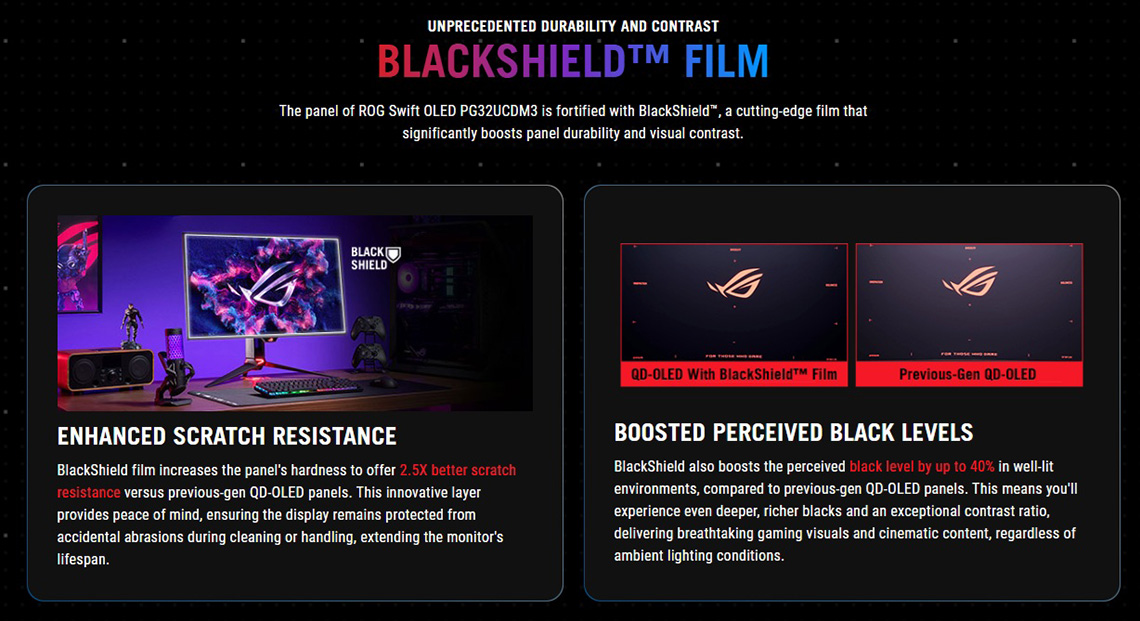
The second big change of note with this new v3 model is an improvement to the panel coating and finish, something which Asus call ‘BlackShield Film’. It’s a new coating applied by Samsung Display which we’ve also seen added to Asus’ new 34″ ultrawide PG34WCDN which we’ve reviewed recently, although the branding for ‘BlackShield Film’ is Asus’. We’re told by Samsung Display that this film will be added to new panels where required moving forward, so to distinguish this new panel with the earlier Gen 4 27″ 4K panel, maybe we’d mark this as “Gen 4 + Film” or similar. We’ll provide a more thorough update on QD-OLED generations, technologies and naming schemes in the near future after CES.
This new BlackShield Film is designed to help address two areas that have been problematic on QD-OLED panels before.
Panel hardness increased from 2H > 3H
2.5x better scratch resistance
Firstly it now offers increased panel hardness, which is increased from a rating of 2H to 3H and now offers 2.5x times better scratch resistance apparently. We’ve never had issues with scratches ourselves during all our testing of QD-OLED monitors, but some people have reported problems and so this will be a welcome change to the coating hardness to those who may be concerned.
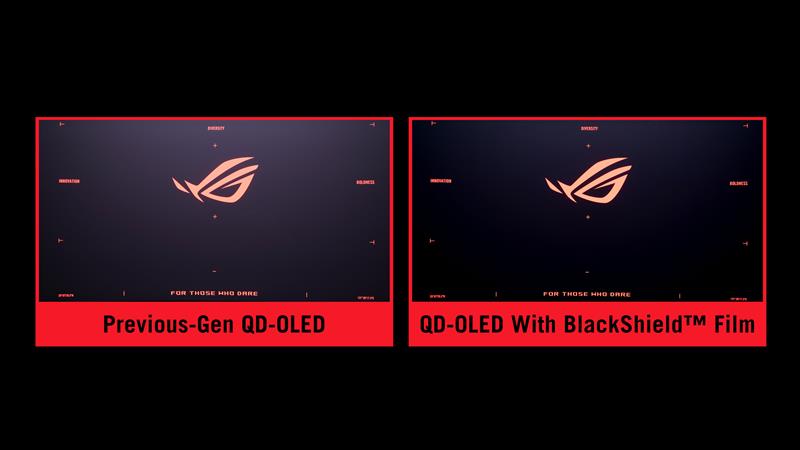
Improved black depth in brighter rooms
The second benefit of the new coating, and one we’re more excited about, is that it is designed to help improve perceived black depth in well-lit rooms, which is achieved through a combination of the coating update and adjustments to the colour layers and light absorption of the panel.
QD-OLED Black depth improvements explored
As some background, in the presence of direct ambient lighting blacks typically turn grey or purple even on QD-OLED panels, and that has long been a challenge for this technology, and one of the main drawbacks compared with competing WOLED panels. It’s caused by the lack of a polarizer and the inadvertent activation of the Quantum Dot layer on the QD-OLED panel, and if you’re using the monitor in a bright room, or with light sources that face the screen, it can sometimes spoil your image and the otherwise amazing contrast you’d expect from an OLED panel.
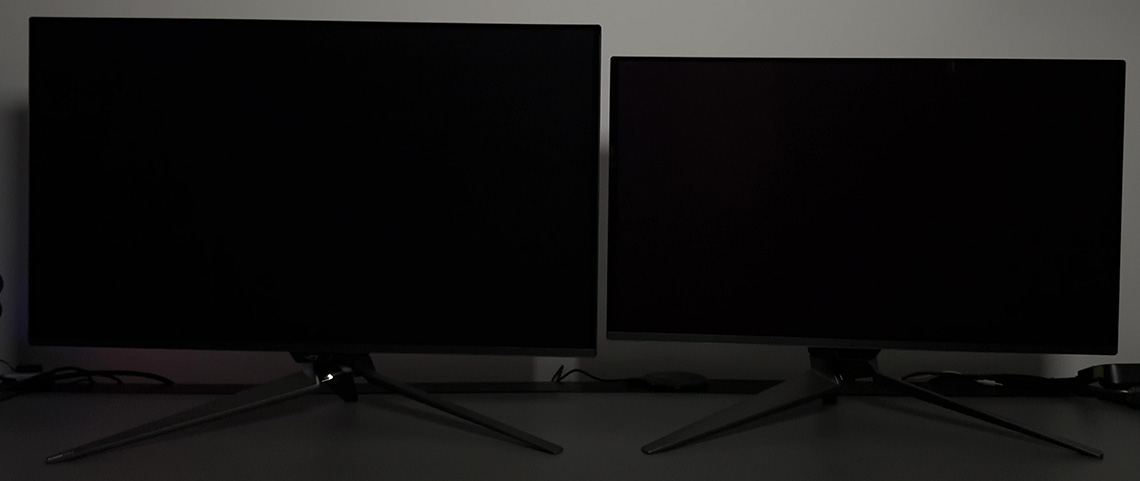
ROG Swift PG32UCDM3 (left) vs ROG Swift PG27UCDM (right)
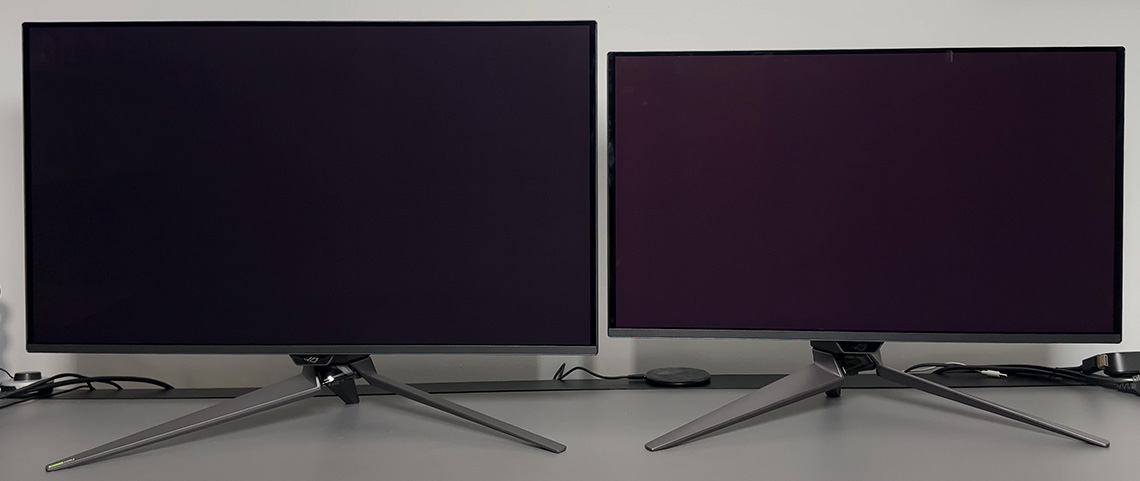
ROG Swift PG32UCDM3 (left) vs ROG Swift PG27UCDM (right)
The new coating can’t solve this fully, but it does a pretty decent job of improving the perceived black depth in practice, even in brighter room conditions or under direct lighting. In addition one key additional advantage seems to be that the pinkish-purple tint is now eliminated and you get a darker grey instead of a light grey or purple colour which in turn helps with the perceived contrast of the image.
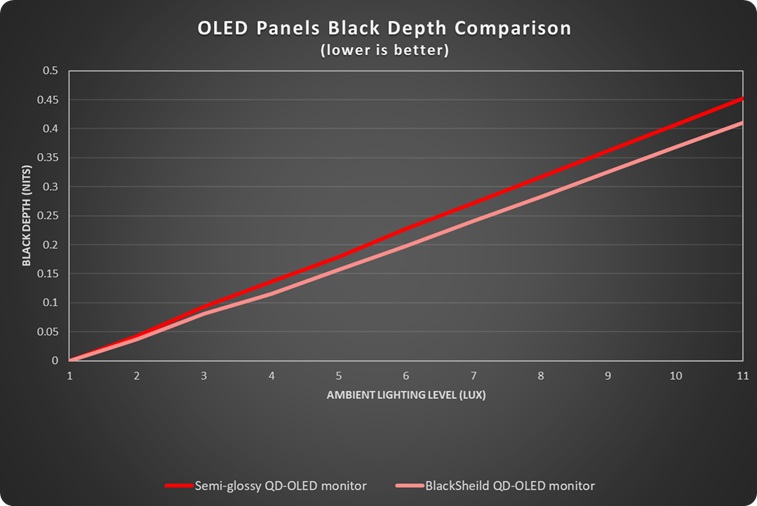
We measured up to an 11% improvement in black luminance using our previous measurement approach. Note that Asus talk about a 40% improvement in perceived black depth, and we’re exploring how this is calculated in case we can measure this ourselves in the future.
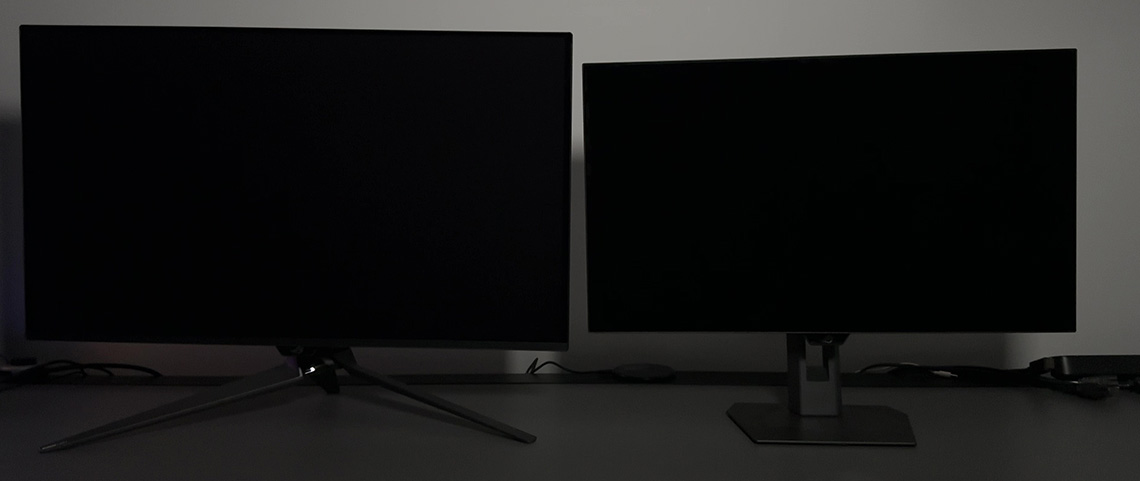
ROG Swift PG32UCDM3 (left) vs ROG Strix XG27AQWMG (right)
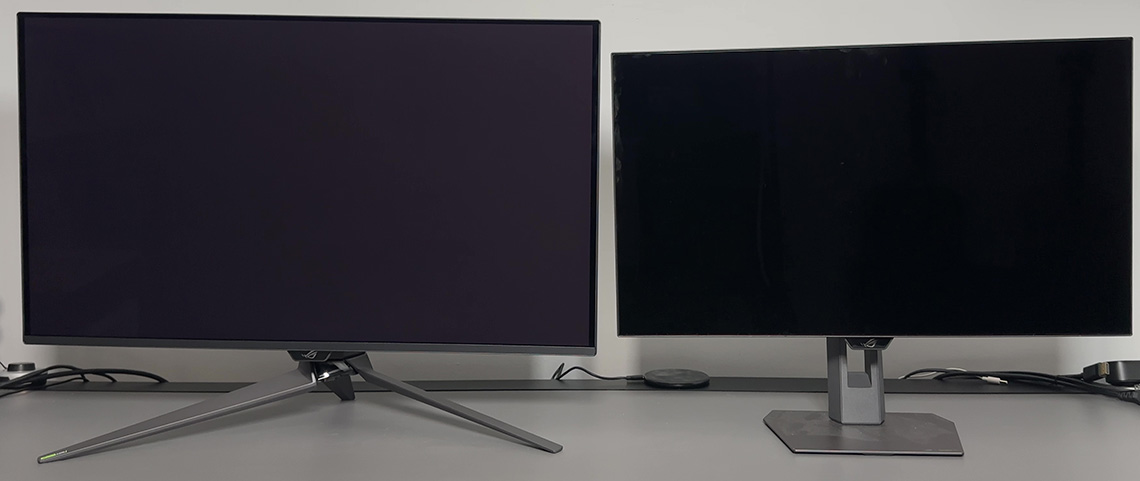
ROG Swift PG32UCDM3 (left) vs ROG Strix XG27AQWMG (right)
It’s a good improvement but QD-OLED panels still remain a step behind the best WOLED panels, such as the glossy coated 4TH Gen WOLED panel used on the Asus ROG Strix XG27AQWMG in this comparison as you can see from the comparison photos above, and the measurements data below.
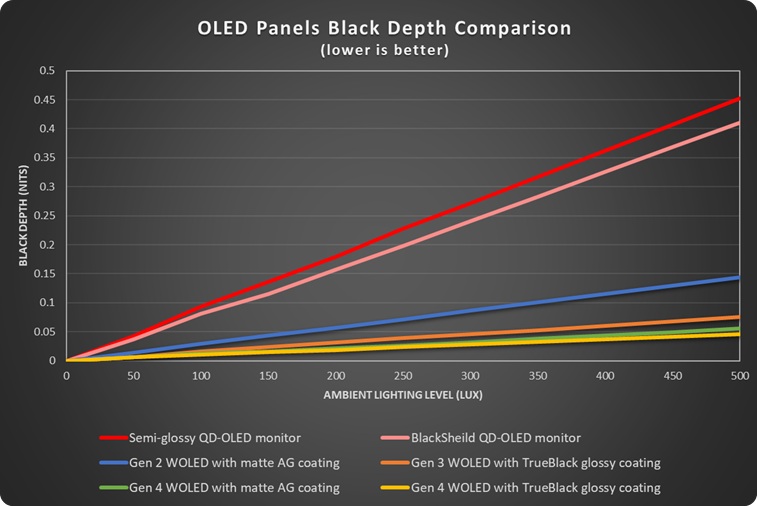
Note that the coating doesn’t change the visual appearance of the panel which remains semi-glossy with no grain, a glossy appearance, but with some moderate anti-reflective capabilities as per pervious QD-OLED panels. It looks the same as the previous QD-OLED coating in those areas in side by side testing.
5th Gen QD-OLED also now available
While there’s a decent upgrade here with the shift to a 4th Gen panel with EL 3.0 material and the addition of the new BlackShield Film, we should also reference the first 5th Gen QD-OLED monitors we’ve tested recently, and that are also being announced today at the same time as this screen. For example the Asus ROG Swift PG34WCDN which is reviewed here.
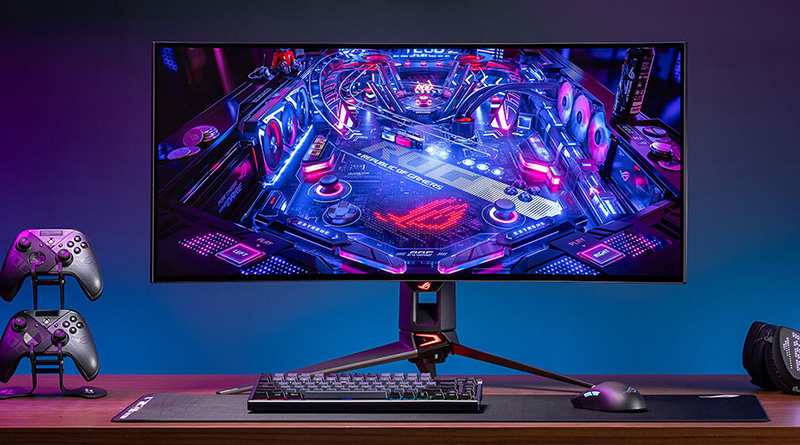
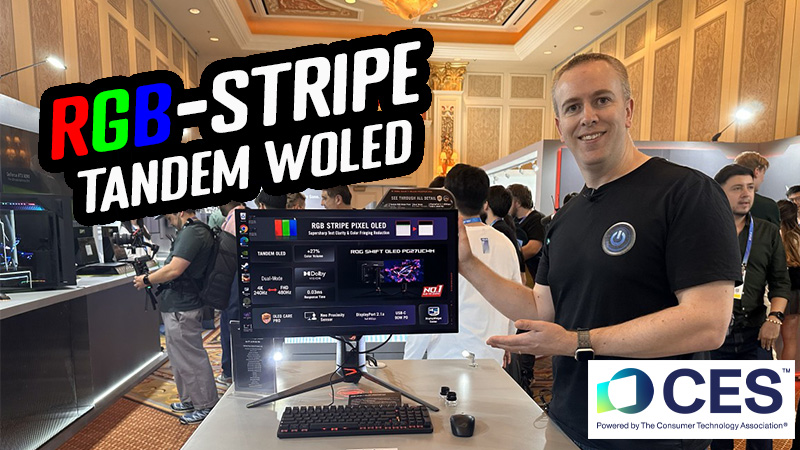
Those new 34″ ultrawide panels add even more updates than can be found on the Gen 4 panel, including a true RGB stripe sub-pixel layout and an increased peak brightness spec of 1300 nits. Those two updates from what we’re calling the Gen 5 panels are not available here on the PG32UCDM though unfortunately.
Sub-pixel layout update – is it needed here?
The need for a true RGB stripe layout is less important on this 31.5″ panel due to its increased pixel density (~140 PPI vs 110 PPI on the 34″ panel), and this panel already offers very good text clarity and very minimal fringing artefacts. There was more of an update required on the 34″ panel to warrant that switch to an RGB-stripe layout, with an older diamond-shaped sub-pixel shape and triangular layout, and a lower pixel density than this 31.5″ panel.
Samsung Display are only just shifting to an RGB stripe layout on their QD-OLED monitor panels, and we suspect there will also be some initial challenges refining their Pico Inkjet process to deposit the QD’s in a higher pixel density. True RGB stripe will come in time I’m sure, but it’s not a major issue here to be without it we don’t think given the higher pixel density. We’d have obviously welcomed that layout, but it’s absence is less of an issue on this panel.
Peak brightness
The reason for the lower peak brightness spec on this model (1000 nits) compared with the 34″ panel (1300 nits) is presumably also down to the pixel density differences, and the same reason why their 27″ 4K panel (166 PPI) from 2025 didn’t offer any brightness improvements, despite the switch to their EL 3.0 material. On that 27″ 4K panel the peak brightness remained 1000 nits, and it only met the True Black 400 certification tier still, but it was the EL 3.0 material which allowed them to continue to meet that brightness performance, maintaining parity with their previous, lower pixel density panels.
There’s a mid-way improvement here with the 31.5″ 4K panel as it’s got a slightly lower pixel density, now offering True Black 500 certification but maintaining the same 1000 nits peak brightness. It’s only the lower density panels still like their new 34″ ultrawide panel which can offer both TB500 certification and an increased 1300 nits peak brightness at this time.
| Panel size | Panel Gen | Pixel Density | Peak brightness spec | HDR certification |
| 27″ 4K | 4th | 166 PPI | 1000 | True Black 400 |
| This 32″ 4K | 4th | 140 PPI | 1000 | True Black 500 |
| New 34″ ultrawide | 5th | 110 PPI | 1300 | True Black 500 |
- We’re hoping to get updates from Samsung Display on all their 2026 QD-OLED technologies and panels at CES, so stay tuned for further updates on that in the near future.
Version Differences

Let’s briefly compare the key feature and spec differences between the 3 different versions of the PG32UCDM that have been released so far (all other unlisted specs remain the same):
| Feature / Spec | PG32UCDM | PG32UCDMR | PG32UCDM3 |
| Year released | Q1 2024 | H2 2025 | H1 2026 |
| Panel technology | 3rd Gen QD-OLED EL 2.0 | 3rd Gen QD-OLED EL 2.0 | 4th Gen QD-OLED EL 3.0 |
| Coating | Semi-glossy | Semi-glossy | Semi-glossy with ‘BlackShield Film‘ |
| DisplayPort | 1.4 (with DSC) | 2.1a (UHBR 20) | 2.1a (UHBR 20) |
| USB-C | 65W power delivery 90W max with brightness limit | 90W power delivery | 90W power delivery |
| OLED Care | OLED Care | OLED Care Pro Neo Proximity Sensor | OLED Care Pro Neo Proximity Sensor |
| HDR certification | True Black 400 | True Black 400 | True Black 500 |
| Audio | Headphone out SPIDF | Headphone out | Headphone out |
| Power supply | External brick | Integrated | Integrated |
The most obvious differences since the original PG32UCDM model was released in early 2024 are the additional of a DisplayPort 2.1a connection (UHBR20), improvement to the USB-C power delivery and the addition of their Neo Proximity Sensor for OLED Care. Those 3 features were added to the PG32UCDMR last year, and are still present on this new PG32UCDM3. Note that the SPDIF audio output seems to be the only feature that has been removed since the original version. Those are decent feature updates over the original version already.
Then the obvious changes from the R model to this new v3 model are the switch to a Gen 4 QD-OLED panel which can offer improved brightness and HDR 500 True Black certification, and the addition of the BlackShield Film coating that we’ve talked about earlier for improving black depth in brighter rooms.
Design and Features

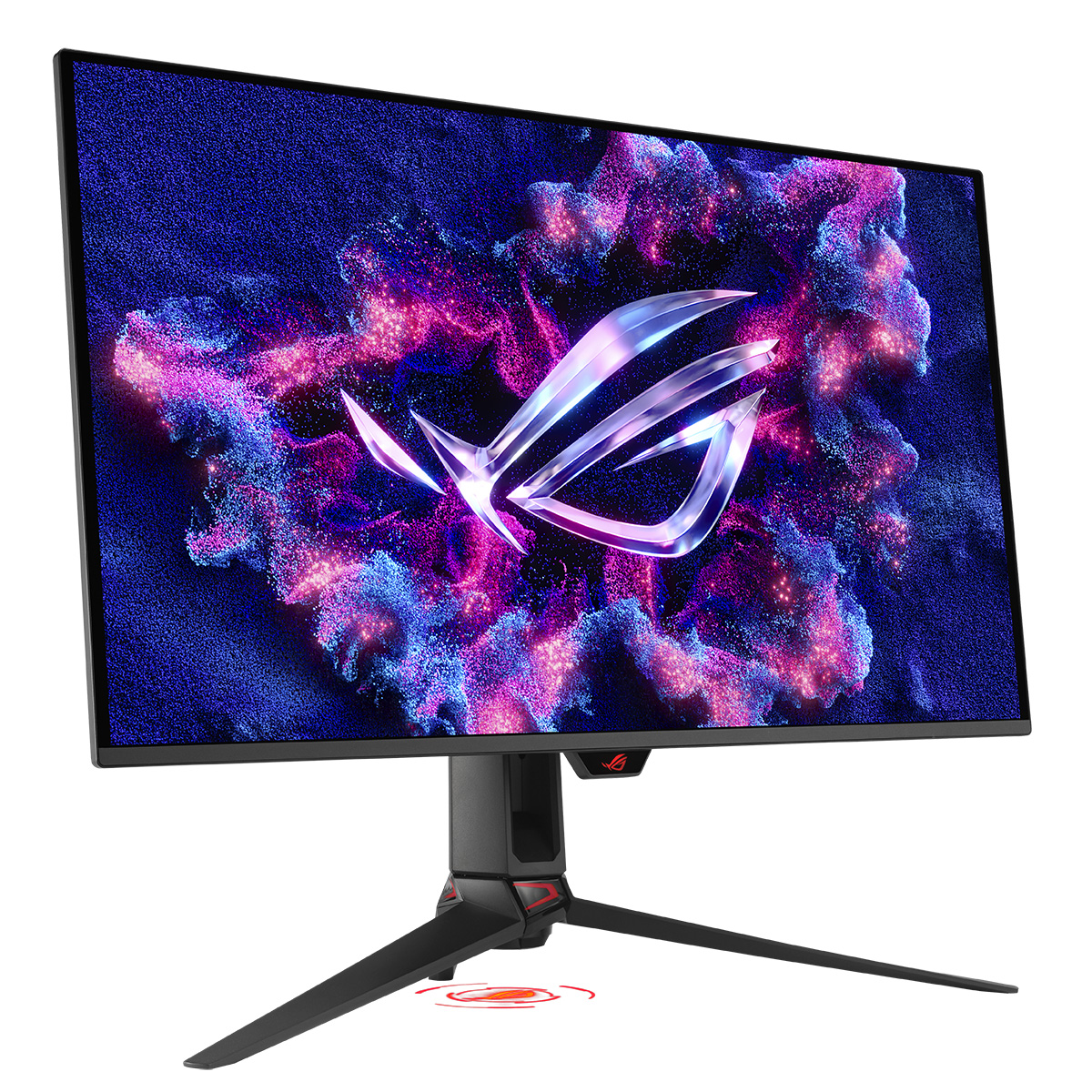
The PG32UCDM comes in a familiar ROG styling, with a 3-side borderless panel and an overall thin edge around all 4 sides. This border measures ~11mm along the sides, ~8.5mm along the top, and ~13mm along the bottom edge. There is a small “chin” on the bottom edge of the screen where the OSD control joystick is located on the back, with an ROG logo on the front that glows red normally, but can be disabled from the OSD menu if you want.

The stand is thick and sturdy with a matte black plastic finish arm, and dark grey metal feet. This provides a wide and stable base for the fairly large screen, without being too deep as well. There is a cable tidy hole in the arm of the stand too.
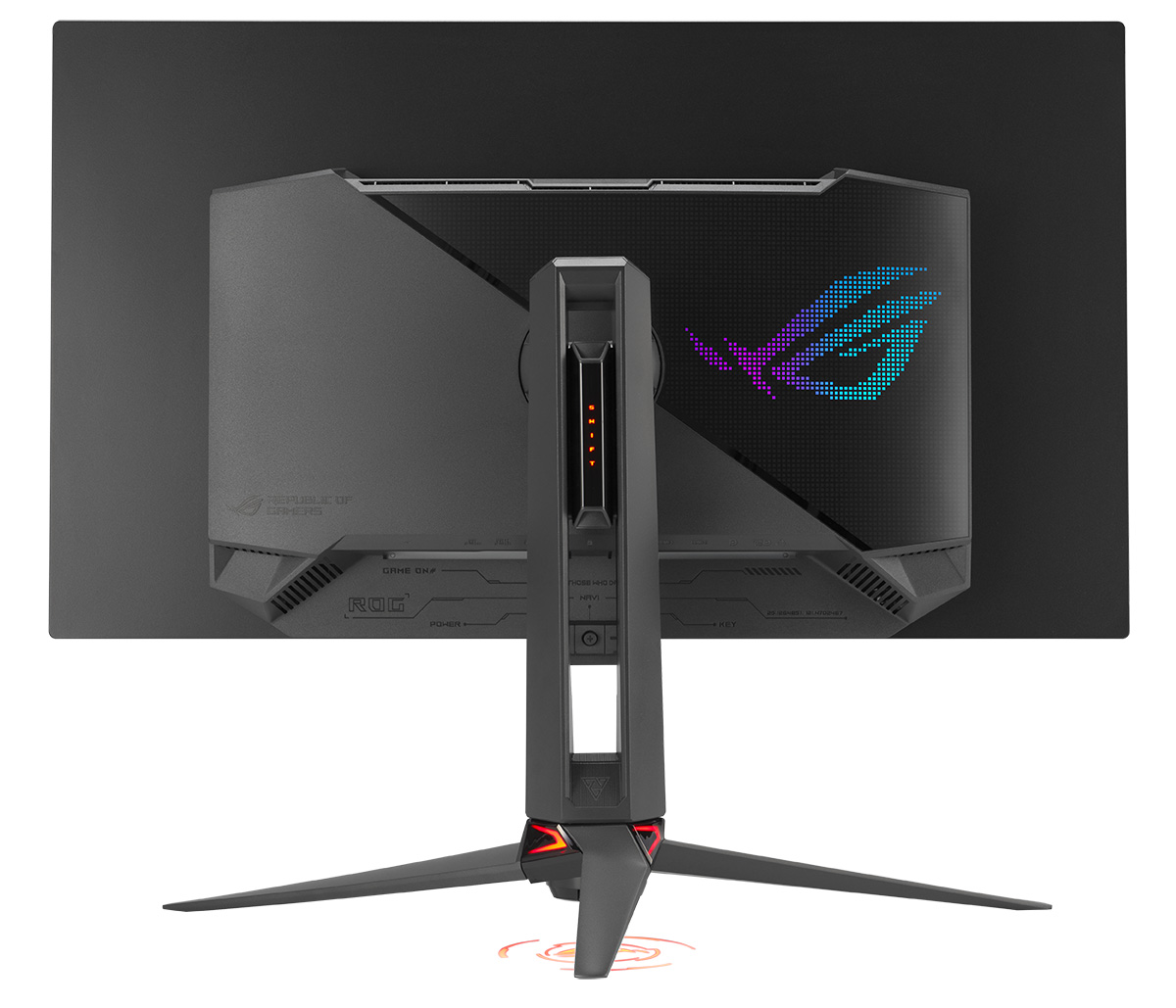
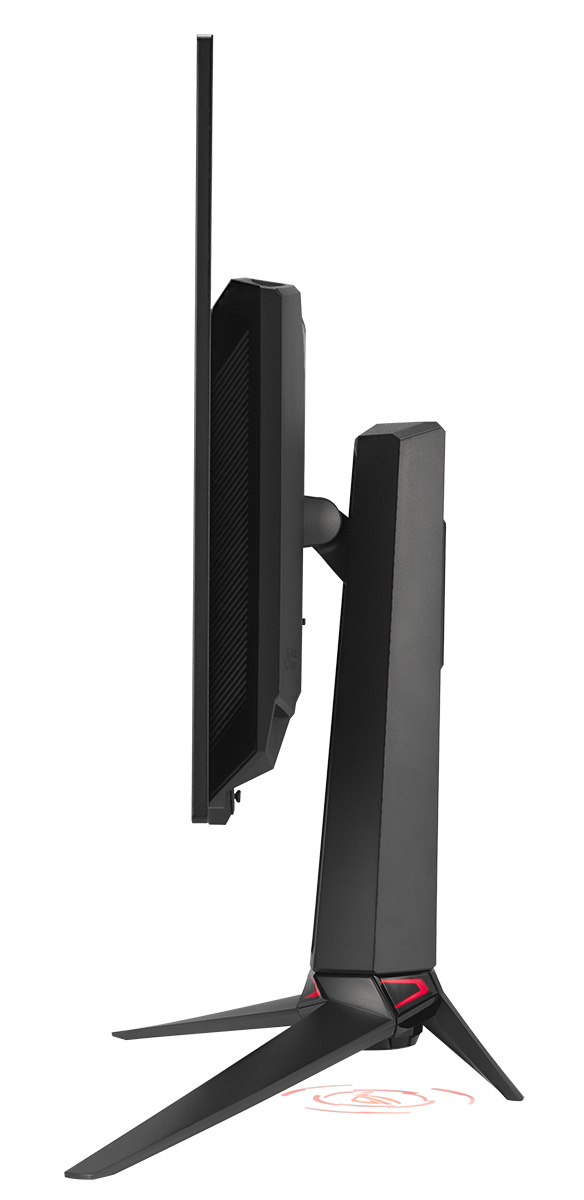
The back of the screen is encased in a matte black plastic with a familiar design. There’s an ROG logo lighting feature on the back, as well as a logo projector from the bottom of the stand. Both can also be disabled from the OSD menu if needed.
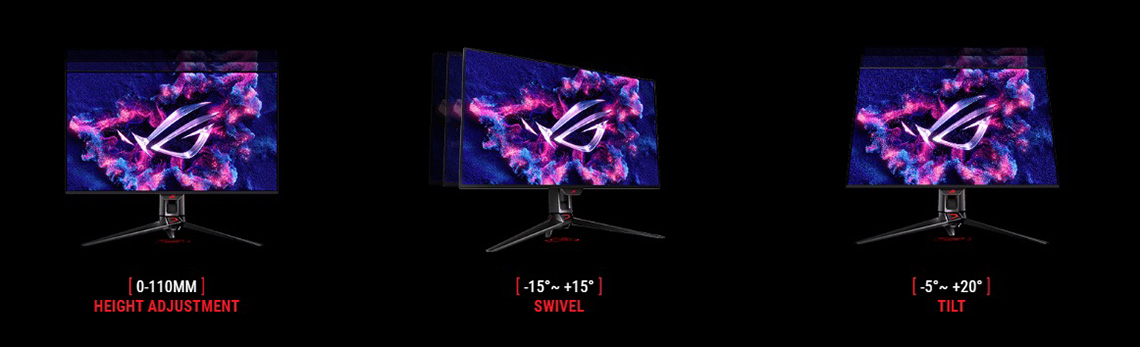
There’s a good range of ergonomic adjustments from the stand with tilt, height and swivel, but there’s no rotate on this model. They’re all really smooth to operate, and easy enough to move although tilt is a little stiff. The screen remains very stable on the desk and the whole design feels strong and sturdy with practically no wobble.
On-screen menu
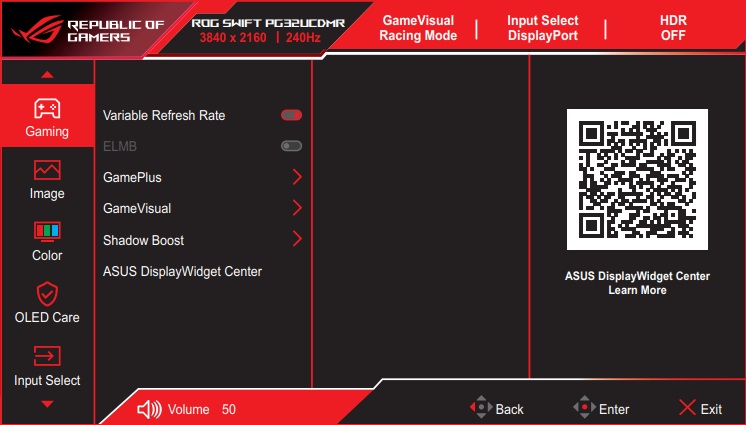
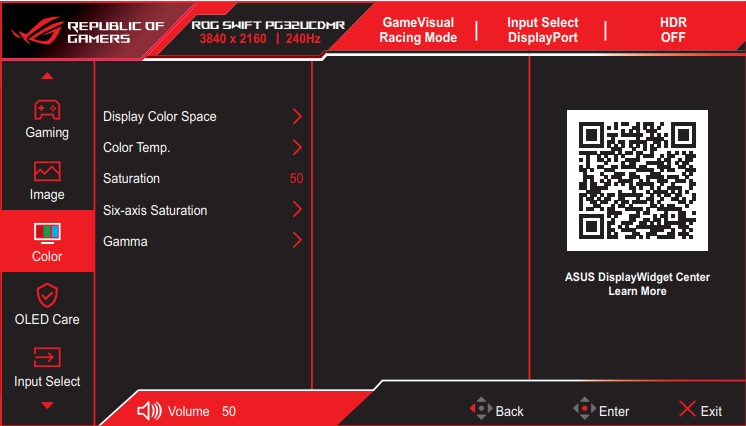
The OSD is controlled primarily through a small joystick toggle on the back of the screen’s “chin” section on the bottom edge. There are also two pressable buttons, one either side of the joystick. One gives you quick access to the pixel clean function by default, while the other is the power on/off button. You can edit the left hand button via the menu to have a shortcut for something else though if you want. A nice touch is that if you press the power button, it prompts you to confirm you definitely want to turn the screen off, to avoid those accidental power-offs.
| OSD Menu | |
| Joystick toggle controller |  |
| Quick and snappy | |
| Intuitive to use | |
| User updatable firmware | |
There is also some quick access to key settings via the directions on the joystick which you can customise in the menu, or if you press the joystick in you can enter the main menu. Navigation is quick, snappy and intuitive thanks to the joystick controller. There were a decent range of settings and options available too. The screen supports user-updatable firmware.
DisplayWidget Center
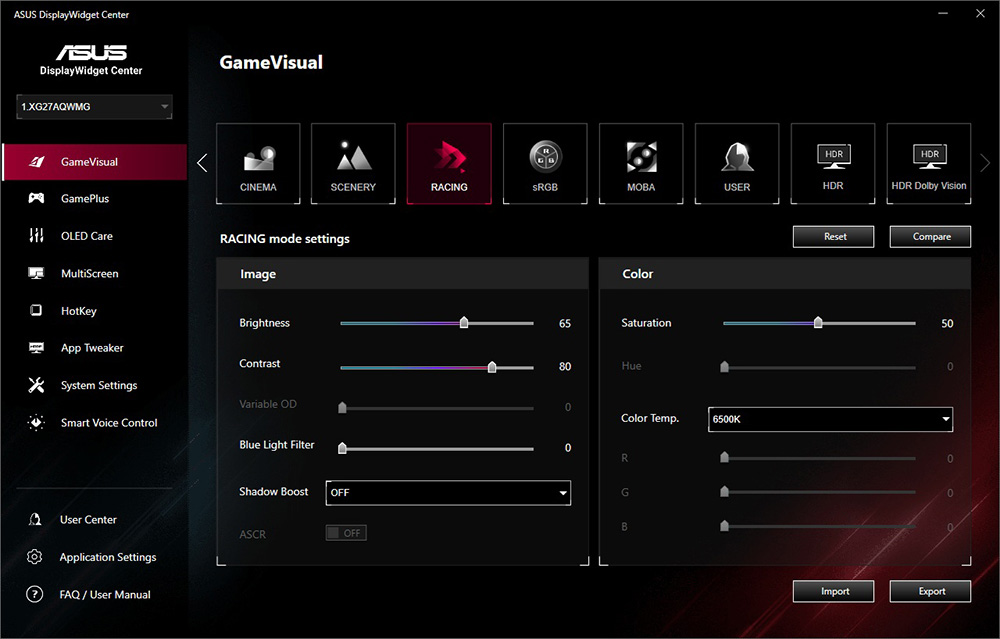
There’s also support for Asus’ DisplayWidget Center software, which we explored recently in our detailed article here, and which is useful for configuring your screen, or making use of additional features like auto-switching modes depending on the app or content you’re viewing, setting up hot key shortcuts, or activating automatic firmware updates. Do check that out if you own any Asus monitor.
Connectivity
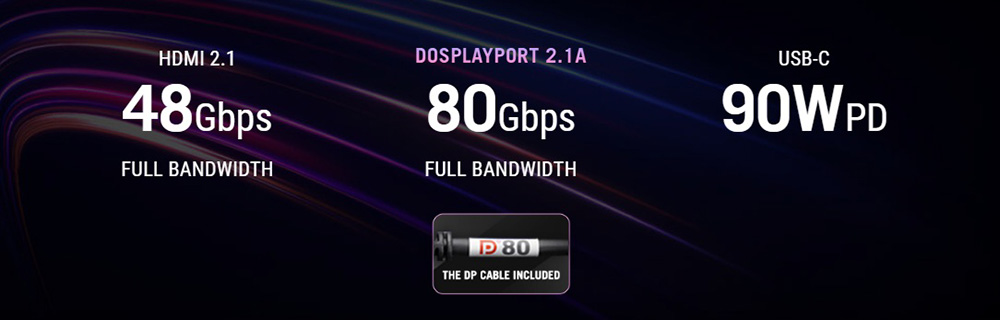
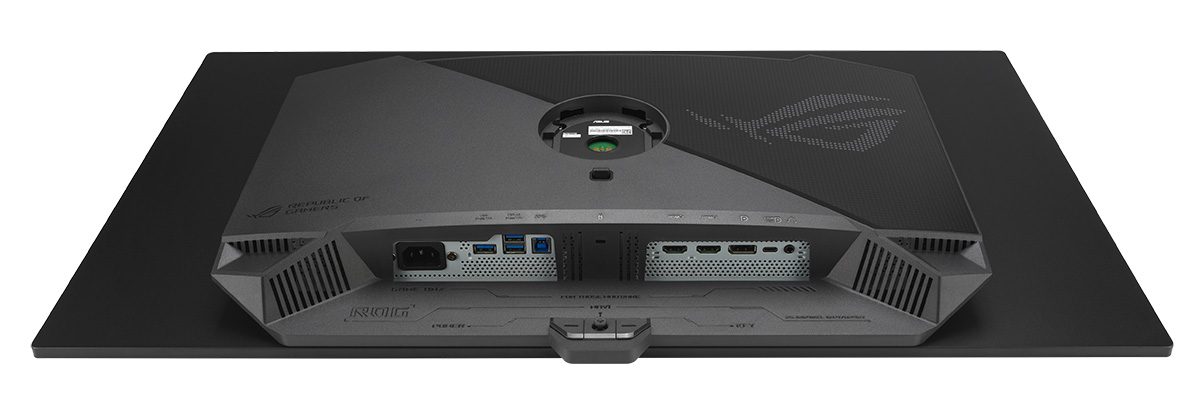
The PG32UCDM3 offers 1x DisplayPort 2.1a (with UHBR20 bandwidth), 1x USB type-C (with DP Alt mode, 90W power delivery and data), and 2x HDMI 2.1 video connections, along with a headphone jack and 3x USB-A data ports. This model has an integrated power supply, so there’s no need for an external brick like on the original PG32UCDM model. Note also that Asus have removed the SPDIF audio output that was featured on the original model.
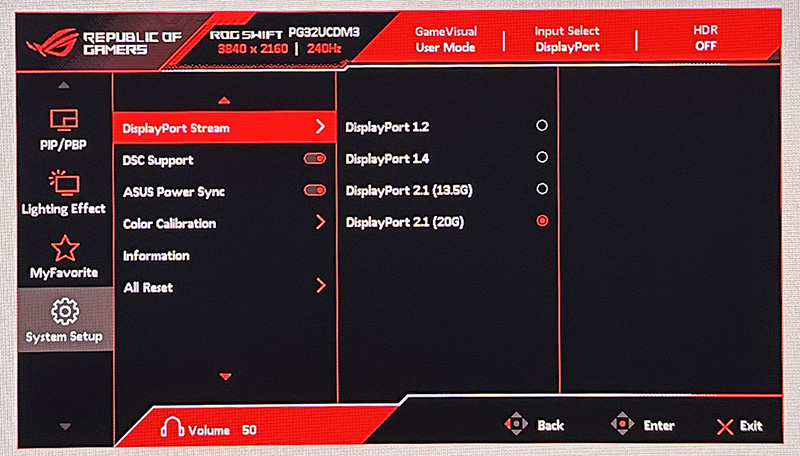
With DP 2.1 (UHBR 20) available, the screen can be powered at its full spec (4K 240Hz, 10-bit) without needing to use DSC if you have a compatible graphics card, such as an RTX 50 series. DSC can be disabled from the OSD menu if you wish, although there’s very little practical benefit in doing so to be honest. Older systems with DP 1.4 connections will use DSC to power the full spec. If you were to disable DSC you’d be limited to 97Hz refresh rate for 4K, 10-bit.
OLED Care

One challenge with OLED panels in general is the inherent risk of image retention and burn-in. It’s a technology more suited to dynamic and changing content, which is why these are largely positioned as gaming and multimedia screens. There is more of a risk of image retention if you are using these screens for lots of static desktop and office use though. Display manufacturers provide a range of measures to help mitigate that risk, and maintain the panel over time and we will talk about the OLED Care measures in a moment.
Asus include a 3 year warranty with the monitor, including burn-in cover which gives some added peace of mind around usage and image retention risks. This is the same as on their other recent OLED monitors.
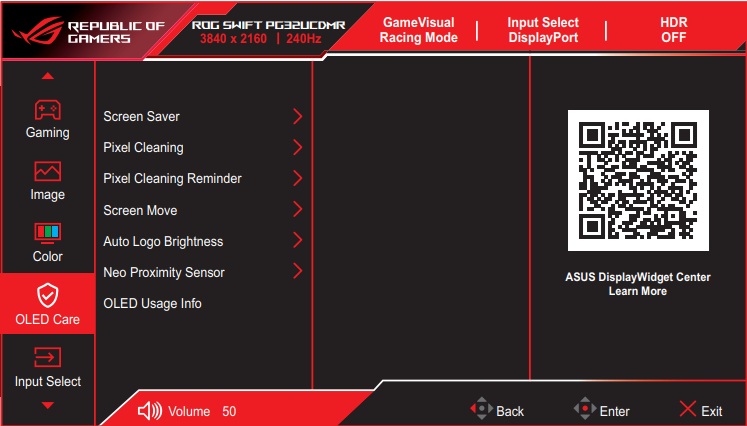
To help mitigate the risks of image retention Asus provide an impressive and expanded set of OLED care options within the OSD menu under their ‘ROG OLED Care Pro‘ features. Familiar options include the pixel shift / screen move which moves the image slightly a few pixels at a time periodically (you can turn this off fully if you want). There’s also a screen saver which dims the screen if there is no change to the image for an extended period of time. There’s also an image cleaning cycle which will run automatically from time to time, or you can run manually in the menu if you want.
| OLED Care and Warranty | |
| Warranty period | 3 years |
| Burn-in cover | |
| Screen saver | |
| Pixel / screen shift | |
| Logo dimming | |
| Taskbar detection | |
| Boundary detection | |
| Motion sensor | |
| Other OLED care features | Outer dimming control Global dimming control |
An ‘auto logo brightness’ section includes options for ‘logo detection’, as well as ‘taskbar detection’ and ‘boundary detection’. Boundary detection dynamically detects the boundary of the black bars and reduces the brightness and also slightly shifts the pixel of the near borders.
Neo Proximity Sensor
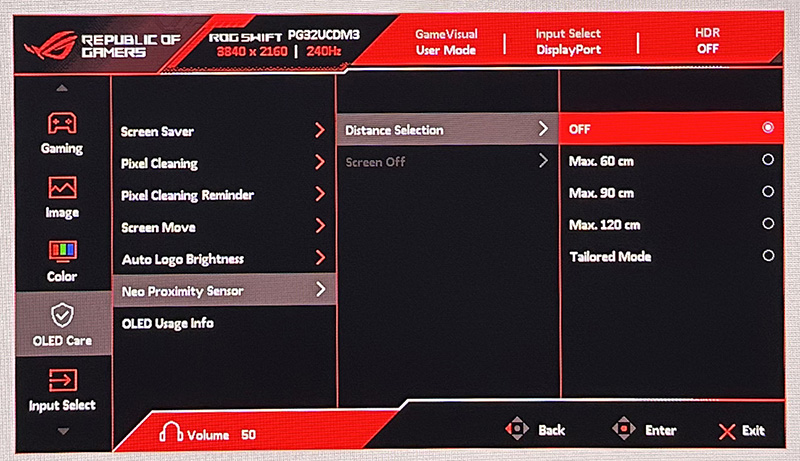
One other new technology Asus have added to the screen that we’ve seen on several of their newer models is their Neo Proximity Sensor. This is a highly sensitive TOF sensor which allows users to set their preferred usage distance. When the user steps out of range, the monitor will switch to a black image (i.e. turn off the pixels) to reduce the risk of burn-in, and restores on-screen content when you return to it. You can also customize the detection distance quickly and easily.

- Additional reading: Helping Avoid OLED Burn-in and Flicker – Exploring the Latest Asus OLED Technologies for 2025
Brightness and Contrast
For this testing we disabled the OLED care features in the OSD menu as those can have a small impact to screen brightness in certain situations. We would recommend enabling as many of those features as possible to mitigate risks of burn-in, although you may need to experiment for your particular usage to ensure none are distracting or problematic.
Uniform Brightness = OFF

Out of the box the screen operates with the ‘Uniform Brightness’ (UB) setting turned off, which is a feature we’ve seen many times now on Asus OLED screens that if enabled would help maintain a consistent screen brightness regardless of the content you show and your Average Picture Level (APL).
On this screen the ‘off’ mode operates with ABL dimming at all brightness settings, although this will be more noticeable if you are running at higher brightness levels. If you’re running at the maximum brightness setting then the screen can reach up to 514 nits maximum, but the ABL dimming may be distracting for office and desktop uses for most people, although may not be as problematic for dynamic content like games and multimedia. You may want to try using this mode for SDR dynamic content as it could reach higher luminance levels than the uniform brightness mode and give you a more impactful image.
- Useful reading – OLED Dimming Confusion – APL, ABL, ASBL, TPC and GSR Explained
Uniform Brightness = ON

Uniform Brightness mode behaves accurately with the same luminance being retained regardless of the APL window size being tested and the content being displayed, even at maximum brightness setting. The screen can reach up to 297 nits at maximum brightness setting in this UB mode which is very good for a QD-OLED panel and a modest step up from earlier gen models which typically reach up to around 260 nits. The original PG32UCDM reached 265 nits by the way, so there’s a 12% increase in luminance here on the new model. It’s in line with the 300 nits spec for this new panel also.
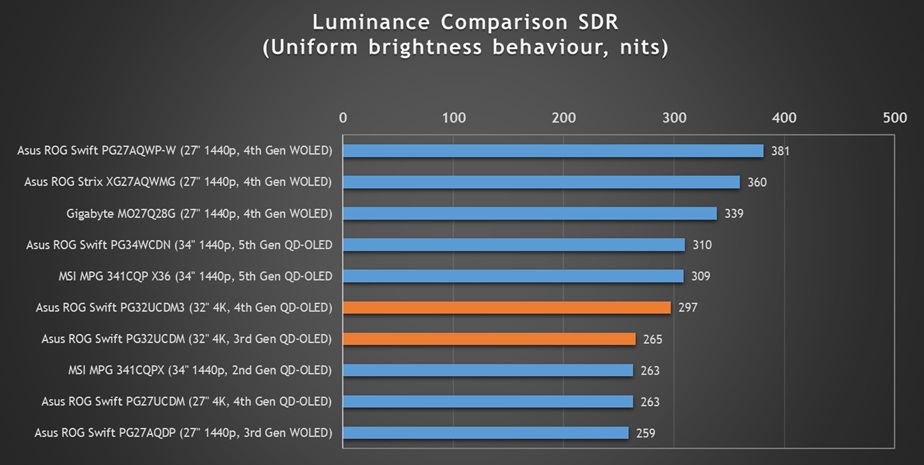
We have seen some modern WOLED monitors reach even higher luminance in SDR, namely those with a 4th Gen Tandem WOLED panel, reaching up to 340 – 380 nits maximum. It feels like maybe a bit more could have been squeezed out of these new Gen 4 / 5 QD-OLED panels with SDR luminance, although the small step up is still welcome of course.
| Black depth and contrast | Uniform Brightness OFF | Uniform Brightness ON |
| Max luminance (nits) | 514 nits | 297 nits |
| Min Luminance (nits) | 25 nits | 15 nits |
| Uniform / No ABL |  | |
| Remains uniform in Windows desktop | | |
At the lowest setting the screen could reach down to a low 15 nits when using either mode, affording you very good flexibility for darker room conditions too.
Perceived brightness – TrueBright 500
We should also keep in mind that the perceived brightness of OLED monitors is greater than traditional LCD monitors thanks to their higher contrast ratio, something we explored in our detailed article. We shouldn’t rely only on luminance measurements to compare between these different technologies and consider real-world brightness.
Based on the principles explained in our article, this OLED monitor, with a maximum luminance of 297 nits (in UB mode) would have the same approximate perceived brightness as a traditional LCD that reaches ~510 nits luminance. The underlying panel can therefore be certified under the ‘TrueBright 500’ tier. This is a potentially more useful comparison if you’re comparing between OLED and LCD monitors than considering only luminance specs.
Testing Methodology Explained (SDR)

Performance is measured and evaluated with a high degree of accuracy using a range of testing devices and software. The results are carefully selected to provide the most useful and relevant information that can help evaluate the display while filtering out the wide range of information and figures that will be unnecessary. For measurement, we use a UPRtek MK550T spectroradiometer which is particularly accurate for colour gamut and colour spectrum measurements. We also use an X-rite i1 Pro 2 Spectrophotometer and a X-rite i1 Display Pro Plus colorimeter for various measurements. Several other software packages are incorporated including Portrait Displays’ Calman color calibration software – available from Portrait.com.
We measure the screen at default settings (with all ICC profiles deactivated and factory settings used), and any other modes that are of interest such as sRGB emulation presets. We then calibrate and profile the screen before re-measuring the calibrated state.
The results presented can be interpreted as follows:
- Gamma – we aim for 2.2 gamma which is the default for computer monitors in SDR mode. Testing of some modes might be based on a different gamma but we will state that in the commentary if applicable. A graph is provided tracking the 2.2 gamma across different grey shades and ideally the grey line representing the monitor measurements should be horizontal and flat at the 2.2 level, marked by the yellow line. Depending on where the gamma is too low or too high, it can have an impact on the image in certain ways. You can see our gamma explanation graph to help understand that more. Beneath the gamma graph we include the average overall gamma achieved along with the average for dark shades (0 black to 50 grey) and for lighter shades (50 grey to 100 white).
- RGB Balance and colour temperature – the RGB balance graph shows the relative balance between red, green and blue primaries at each grey shade, from 0 (black) to 100 (white). Ideally all 3 lines should be flat at the 100% level which would represent a balanced 6500K average colour temperature for all grey shades. This is the target colour temperature for desktop monitors, popular colour spaces like sRGB and ‘Display DCI-P3’ and is also the temperature of daylight. It is the most common colour temperature for displays, also sometimes referred to as D65. Where the RGB lines deviate from this 100% flat level the image may become too warm or cool, or show a tint towards a certain colour visually. Beneath this RGB balance graph we provide the average correlated colour temperature for all grey shades measured, along with its percentage deviance from the 6500K target. We also provide the white point colour temperature and its deviance from 6500K, as this is particularly important when viewing lots of white background and office content.
- Greyscale dE – this graph tracks the accuracy of each greyscale shade measured from 0 (black) to 100 (white). The accuracy of each grey shade will be impacted by the colour temperature and gamma of the display. The lower the dE the better, with differences of <1 being imperceptible (marked by the green line on the graph), and differences between 1 and 3 being small (below the yellow line). Anything over dE 3 needs correcting and causes more obvious differences in appearance relative to what should be shown. In the table beneath the graph we provide the average dE across all grey shades, as well as the white point dE (important when considering using the screen for lots of white background and office content), and the max greyscale dE as well.
- Luminance, black depth and contrast ratio (static) – measuring the brightness, black depth and resulting contrast ratio of the mode being tested, whether that is at default settings or later after calibration and profiling. We aim for 120 cd/m2 luminance which is the recommended luminance for LCD/OLED desktop monitors in normal lighting conditions. Black depth should be as low as possible, and contrast ratio should be as high as possible.
- Shadow detail – this is evaluated with the screen configured to a 200 nits white luminance for consistency between different monitors, and viewed in a dimly lit room. This first 16 greyscale shades are measured using our UPRTek MK550T spectro device (0.002 nits lower limit) for shades near-black, and the results are plotted on a graph relative to a target gamma curve (usually 2.2 gamma). Where the measurement line crosses the 0.01 nits point on the Y-axis is typically the visual threshold for where we would start to be able to detect luminance compared with black (0.00 nits). We combine these objective measurements with visual tests using a grey shade test pattern to determine the first visible shade, and then rank the shadow detail performance accordingly.
- Gamut coverage – we provide measurements of the screens colour gamut relative to various reference spaces including sRGB, DCI-P3, Adobe RGB and Rec.2020. Coverage is shown in absolute numbers as well as relative, which helps identify where the coverage extends beyond a given reference space. A CIE-1976 chromaticity diagram (which provides improved accuracy compared with older CIE-1931 methods) is included which provides a visual representation of the monitors colour gamut coverage triangle as compared with sRGB, and if appropriate also relative to a wide gamut reference space such as DCI-P3. The reference triangle will be marked on the CIE diagram as well.
- dE colour accuracy – a wide range of colours are tested and the colour accuracy dE measured. We compare these produced colours to the sRGB reference space, and if applicable when measuring a wide gamut screen we also provide the accuracy relative to a specific wide gamut reference such as DCI-P3. An average dE and maximum dE is provided along with an overall screen rating. The lower the dE the better, with differences of <1 being imperceptible (marked by the green area on the graph), and differences between 1 and 3 being small (yellow areas). Anything over dE 3 needs correcting and causes more obvious differences in appearance relative to what should be shown. dE 2000 is used for improved accuracy and providing a better representation of what you would see as a user, compared with older dE methods like dE 1994, as it takes into account the human eye’s perceptual sensitivity to different colours.

Default Setup (SDR)
The screen comes out of the box in the ‘Racing’ preset mode, with the wide gamut colour space active and with ‘Uniform Brightness’ mode disabled. For these tests we disabled all OLED Care features and switched from the power saving mode (which has limited OSD options) to the performance mode.
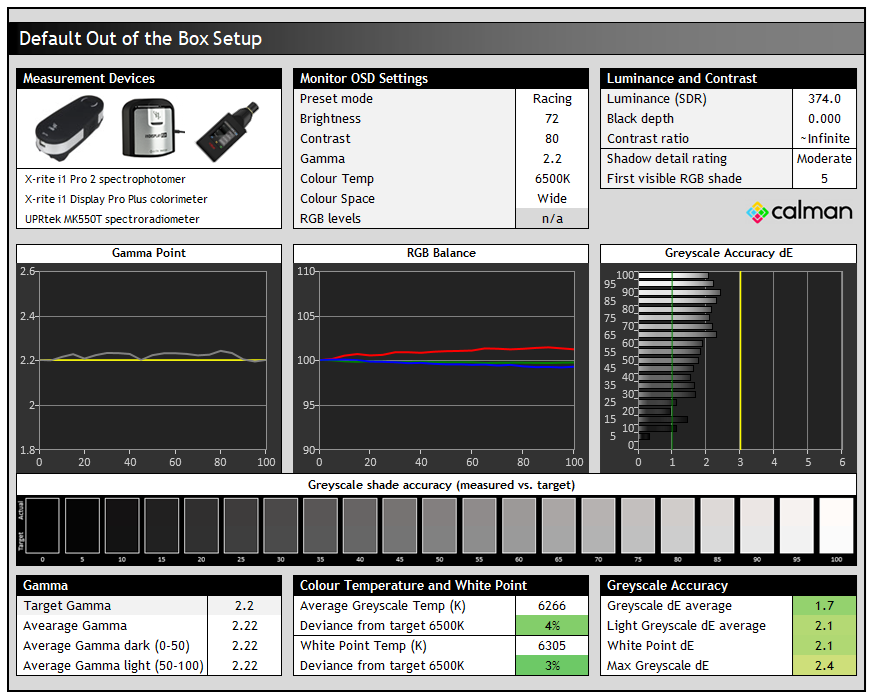
Gamma tracking was very good overall and we measured a 2.22 average. Shadow detail was moderate in this mode with the first visible RGB shade being 5 in our testing. The colour temp on the middle graph was also very good, with a slight weighting towards the red channel which created a very slightly warm tint to the greyscale (4% error), but left us with a good overall greyscale accuracy and a dE 1.7 average.
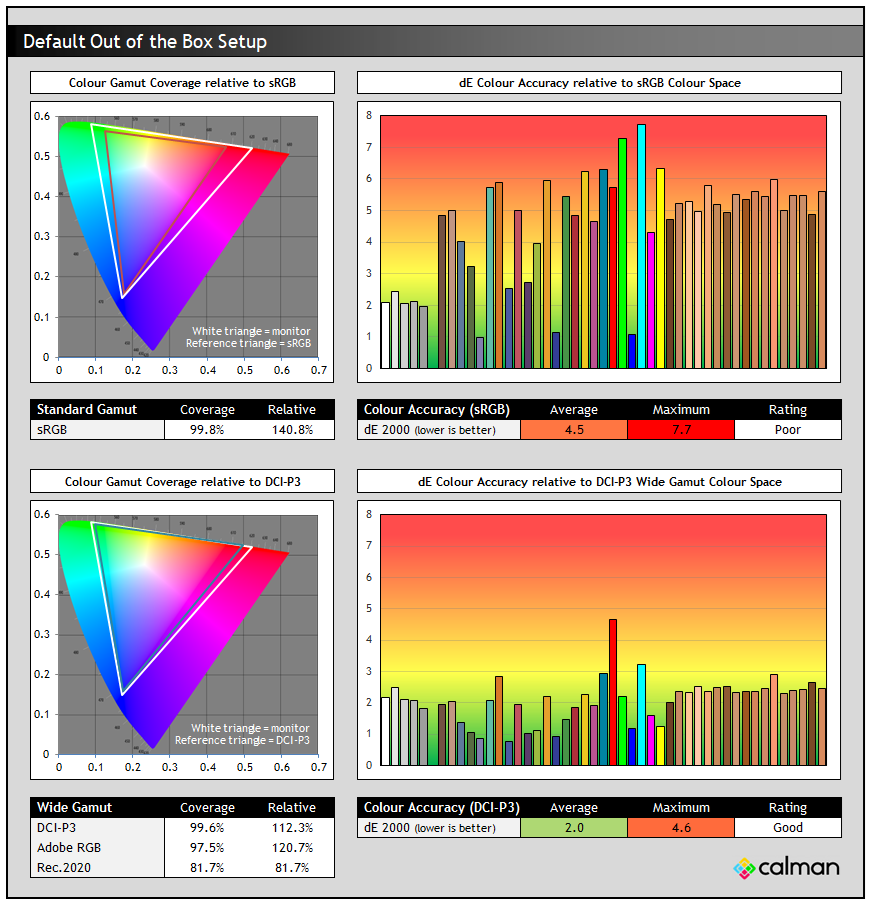
With the very wide native wide colour gamut active here, the accuracy of sRGB colours was poor, with a dE 4.5 average measured. This is normal for a wide gamut screen and to be expected and we will look if we can improve sRGB / SDR accuracy in a moment.
The native colour gamut of this panel extends a small amount beyond the DCI-P3 reference, especially in red shades as you can see from the bottom left CIE diagram, reaching ~112% relative coverage. With that closer match than to sRGB at least, the accuracy of DCI-P3 colours out of the box was rated as good, with a dE 2.0 measured. It deviated the most in those red shades where the native panel gamut extended the most beyond the DCI-P3 reference space.
sRGB Emulation Modes
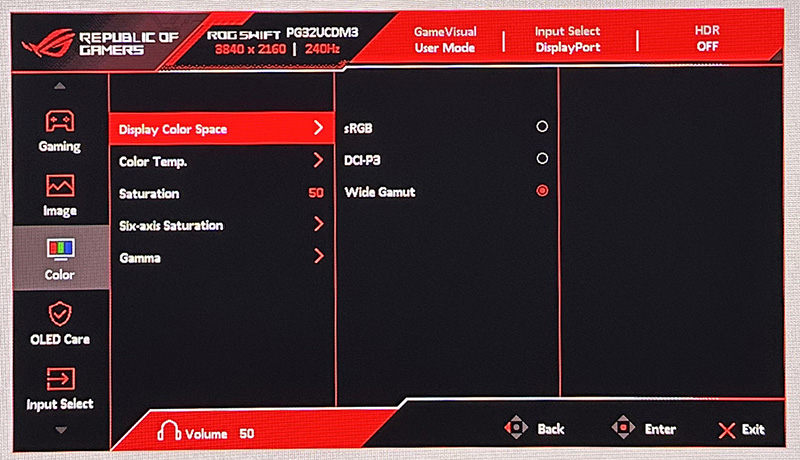
There are actually two ways to achieve an sRGB emulation mode as we’ve seen on other recent Asus OLED monitors. There’s an ‘sRGB Cal’ preset mode (which carries a specific factory calibration shown in the report in the OSD menu). That mode is available in the ‘Game Visual’ menu where nearly all settings are locked down, or there’s also a colour space setting that can be used from within the other presets, for instance the default ‘Racing’ mode which leaves all other settings accessible. We will test both approaches.
sRGB Colour Gamut option (in Racing preset)
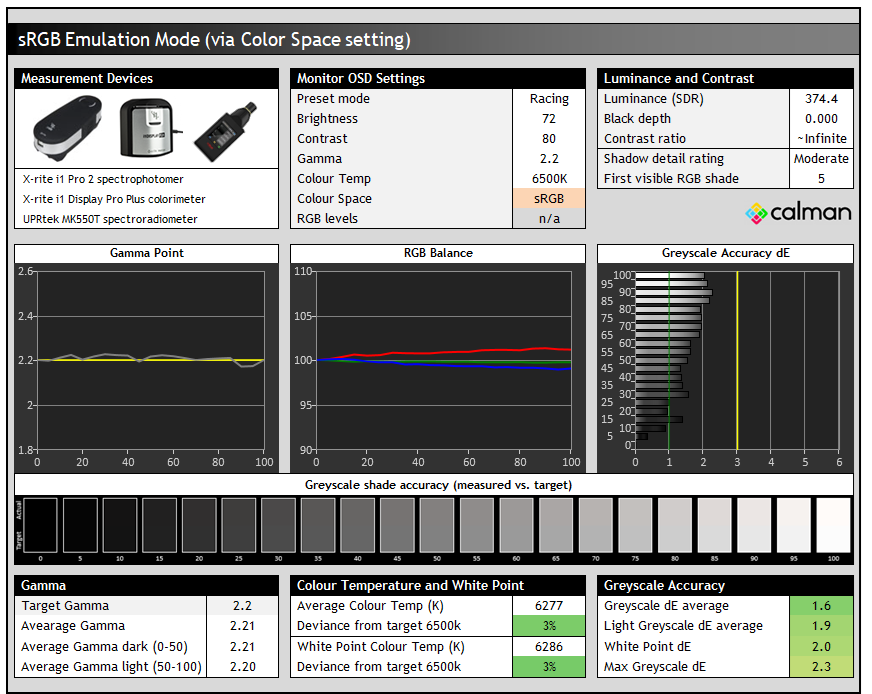
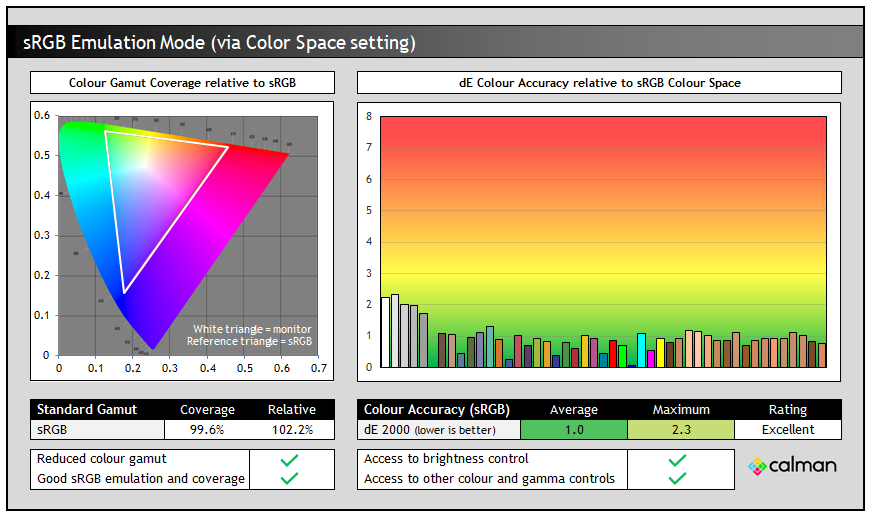
The Racing > sRGB colour space mode offered the same gamma and greyscale performance as the native wide gamut mode; to be expected given we’ve only changed the colour space settings. It had however improved a few areas quite nicely.
Most obvious was the clamping of the very wide native colour space back close to the sRGB reference, now measured at 99.6% absolute coverage which was great. As a result of this smaller active colour space, the accuracy of sRGB colours was now excellent as well, with dE 1.0 average measured.
sRGB Cal mode
The sRGB Cal mode in the ‘Game Visual’ menu provides an alternative approach for sRGB / SDR clamping. This mode is pretty much locked down when it comes to OSD menu controls, including the whole ‘color’ section of the menu being greyed out. You can still adjust brightness at least, but we’re fully at the mercy of Asus’ factory calibration here for this mode.
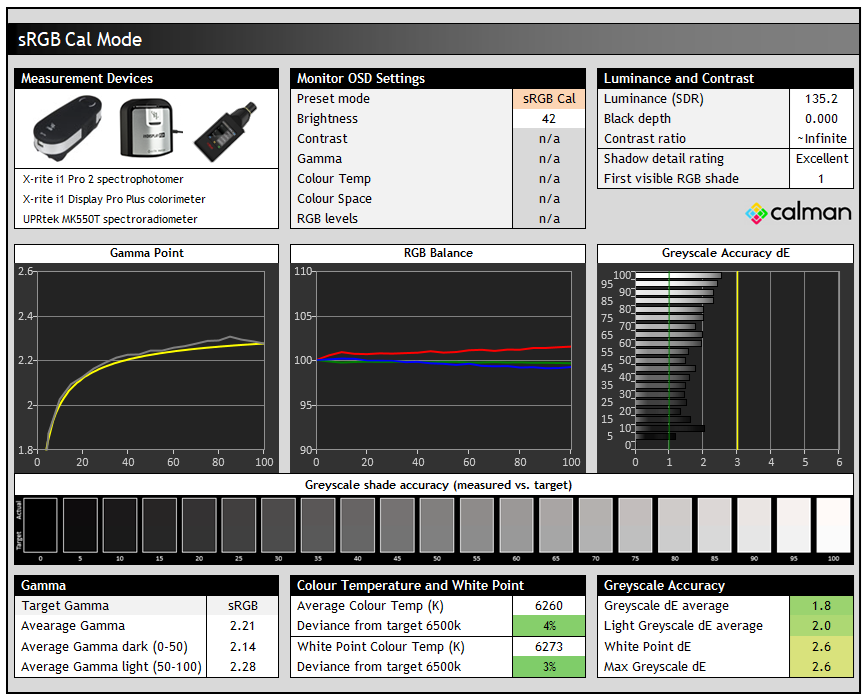
This mode offered the same colour temp and greyscale as the other modes, but the gamma has been configured to the slightly different sRGB gamma curve, instead of the 2.2. That has a positive impact on shadow detail which was now excellent, with the first visible RGB shade now being RGB 1. That alone might make his approach to sRGB clamping preferrable for many people.
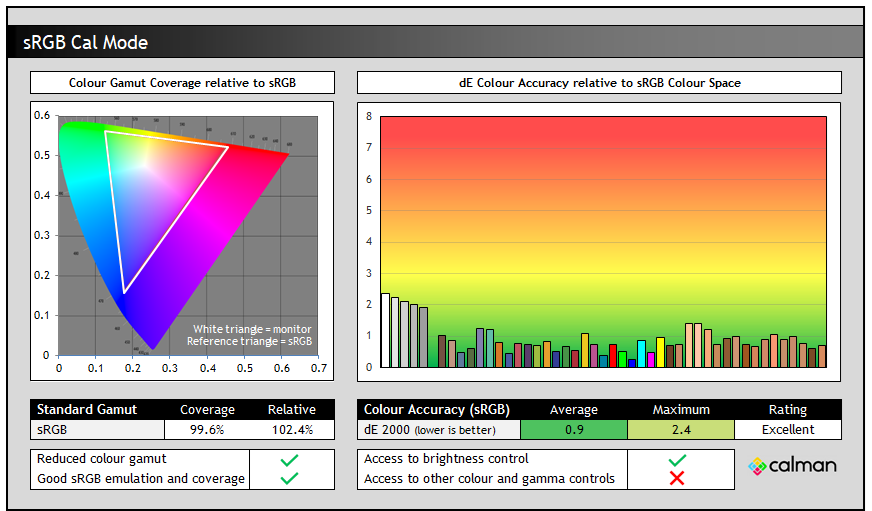
We had basically the same colour space clamping and colour accuracy in this dedicated preset mode as in the Racing > sRGB gamut configuration. The other approach gives much better flexibility in settings and controls, which are all locked down in this mode other than brightness – which you can thankfully adjust.
Both modes offer very similar colour accuracy and gamut clamping, but this sRGB Cal mode offers better shadow detail as it’s configured to the sRGB gamma curve. You’ve got a choice in which mode you want to use, depending on if you need to tweak other settings at all.
DCI-P3 Emulation mode

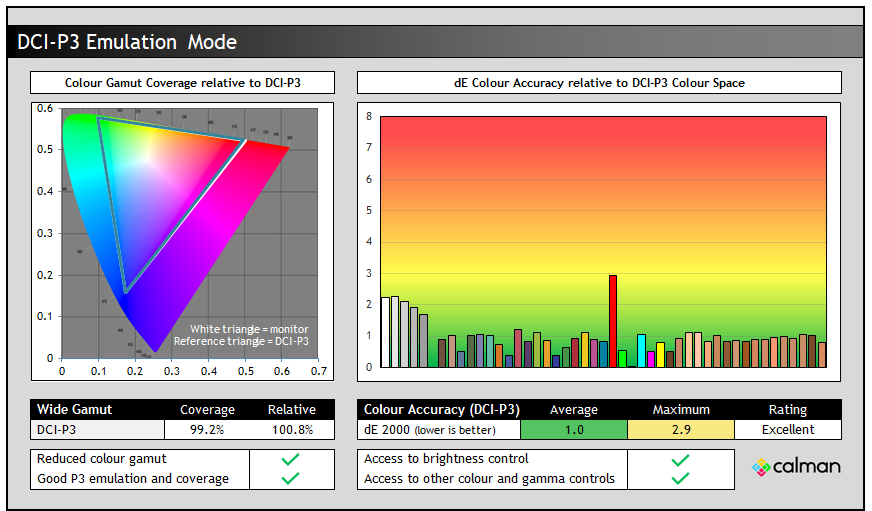
This mode is similar to the native wide gamut mode in terms of gamma, colour temp and greyscale performance, but clamps the native gamut back close to DCI-P3, with only a very minor amount of under-coverage at 99.2%. This results in improved colour accuracy for DCI-P3 colours which were now excellent with dE 1.0 average. This is a decent useable mode if you want to more closely match the DCI-P3 colour space.
Adobe RGB clamping
Note that there’s no Adobe RGB emulation mode provided by Asus, so if you want to work specifically with content in that colour space, such as for professional and photography applications, you will need to be able to profile the screen yourself using a calibration tool. We’d like to see Asus add this as an additional option in the menu on future monitors.
There isn’t quite full coverage of this colour space available from the panel, reaching ~96% absolute coverage but it’s pretty close, and you’d need to be able to cut back on the over-coverage (~121% relative coverage) for more accurately working with this colour space.
Calibration
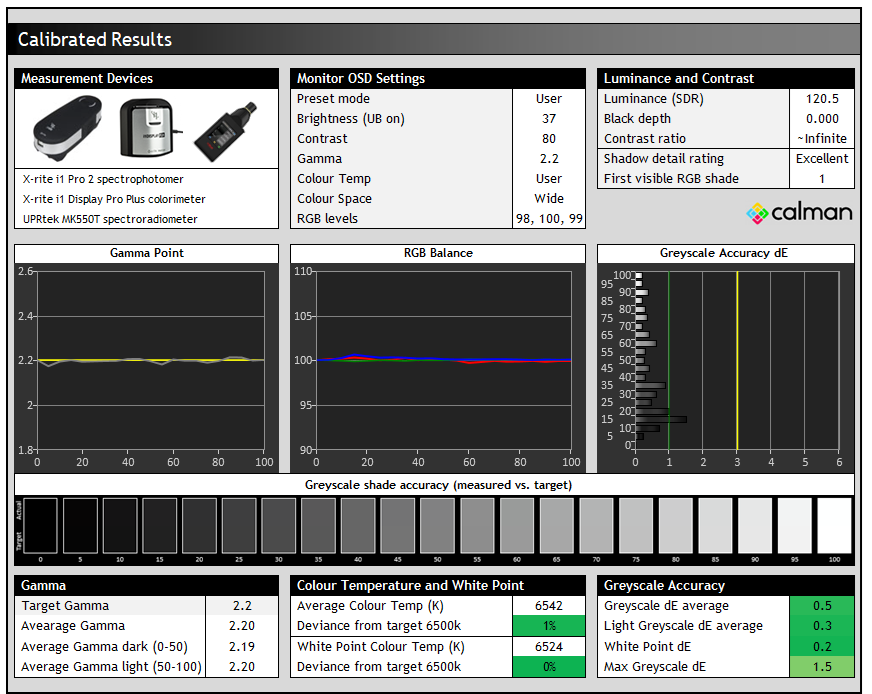
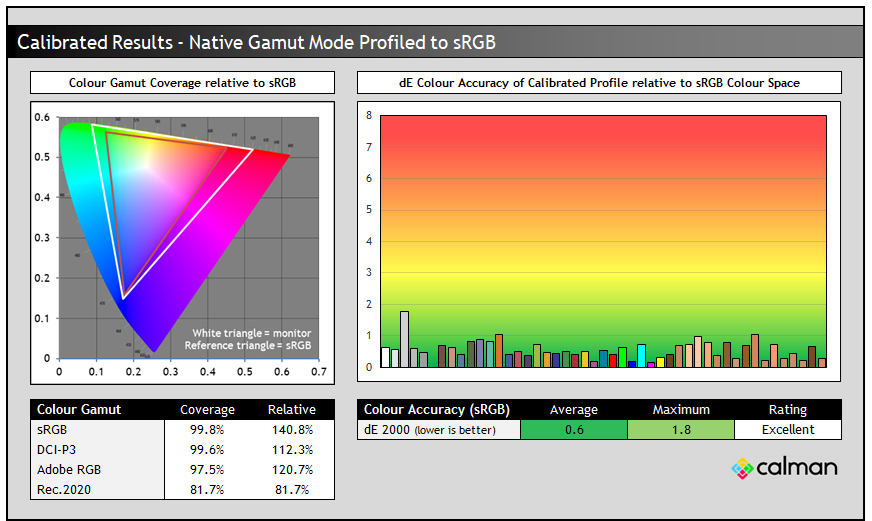
Calibration and profiling can produce some very good overall results and could be useful though if you wanted to operate the screen within its native wide gamut mode, but then map the colour space back to something else like sRGB or Adobe RGB for instance for colour-aware applications (e.g. Photoshop). You would need a suitable calibration device and software for this, or you could also try our calibrated ICC profile.
The screen was profiled to 2.2 gamma, 6500K colour temp and to the sRGB colour space. The screen was left in its native wide gamut mode, but this profile will be used in colour-aware applications to map back to sRGB in this instance. Overall the calibrated results were excellent as you’d hope.

ICC Profiles and Monitor Calibration Database
Find the recommended settings and a calibrated ICC profile for your display.
[View here]
Best Settings Guide
- On our Patreon Insider tier and above you can find our full ‘Best settings guide’ for this screen which includes all our recommended calibrated settings and ICC profile for SDR mode, as well as other best settings guidance for other configurations, modes, HDR, gaming and everything else.
- If you only want just our standard SDR settings and calibrated profile, that is available via our ICC database (without all the other best settings guide).
General and Office
Resolution and Scaling
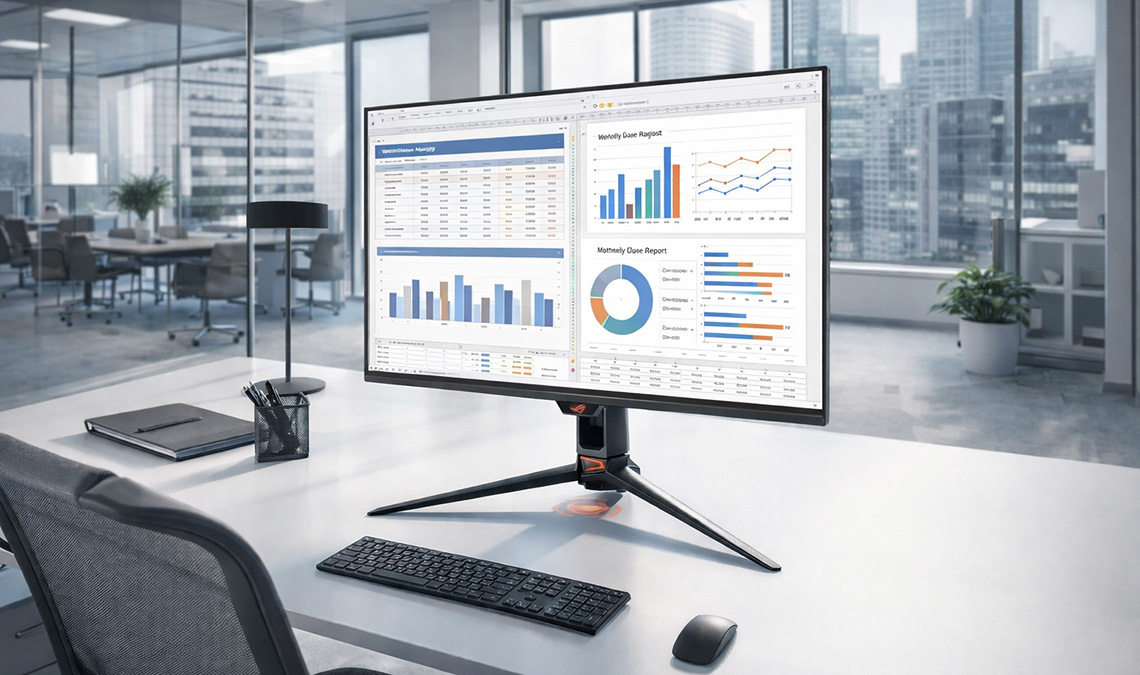
The fairly large screen size of 31.5″ provides a decent size upgrade from common 27″ screens, and this combined with the 3840 x 2160 “4K” resolution gives you a higher pixel density at 140 PPI. This 4K resolution is probably still a bit too high to use at native scaling (100%) for some people on a screen even of this pretty large size, although some people may find it ok. Text is small but if you’ve got good eye-sight and are up close then it’s still reasonable and does provide you then with a massive screen real estate and very sharp picture.
Other people will probably want to use operating system scaling to ensure fonts and text are a more sensible and readable size though. 150% is unnecessarily large despite being the “recommended” option detected by Windows, with 125% scaling offering a nice balance on a screen of this size we think. That gives you comfortable text size which is very similar to a 27″ 1440p screen, but does give you the equivalent desktop real-estate area of a 3072 x 1728 resolution. So that’s quite a nice jump up from common 2560 x 1440 resolution screens in this approximate size range. The extra pixel density of the 4K resolution will provide a very sharp and clear image for all uses including office and general applications. Just make sure that your software will support scaling effectively as it can sometimes be a bit difficult to get it right.
Keep in mind that not all Operating Systems and applications handle scaling the same. More recent versions of Windows tend to handle it all better, and recent versions of Mac OS are pretty solid as well. Some applications and games don’t handle scaling correctly and so you can end up with some things with very minute text and fonts and some things which don’t scale completely in every place. Keep this in mind if you’re selecting any super high resolution display as it could be an important factor. You need to ensure you have the necessary operating system and applications to handle scaling effectively for your needs. It does make life a bit more complicated than if you just ran at a native resolution and 100% scaling. If you have the necessary software and operating system then the 4K resolution provides a very sharp and crisp image though.
Sub-pixel Layout and Text Rendering
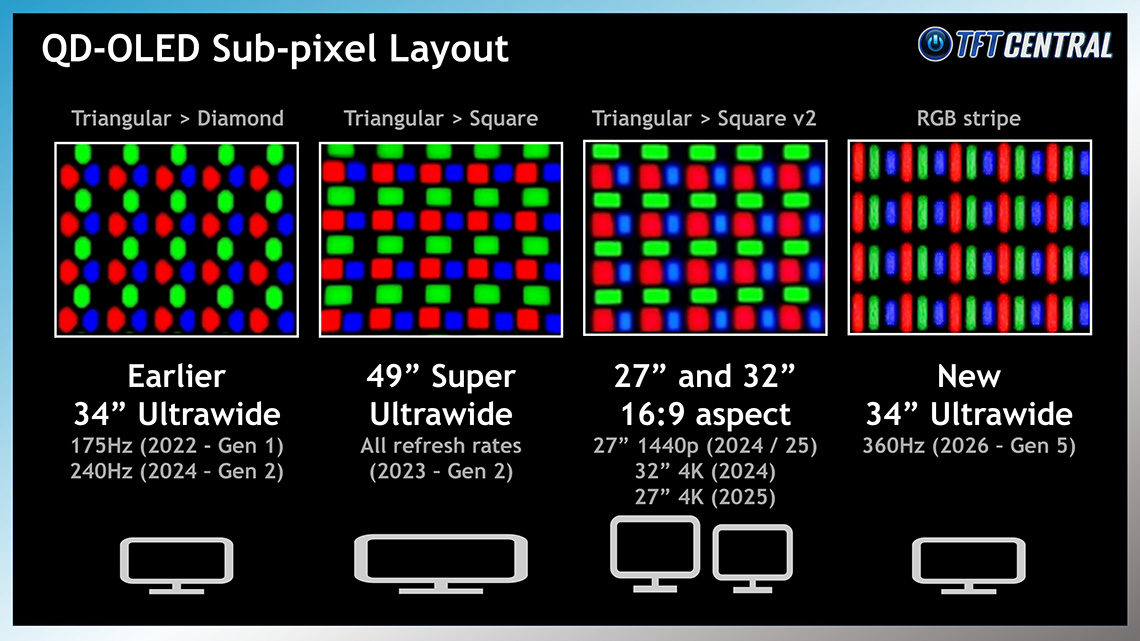
Because of the unusual triangular RGB sub-pixel layout, slight text fringing has been a challenge on QD-OLED monitors over the years. Samsung Display have taken steps to improve the shape of the sub-pixels since the very first QD-OLED panels were produced, shifting from a diamond shape to a squarer shape, and that’s what is used here on the 32″ panel. Those sub-pixels are arranged in a triangular layout still.
We talked a bit earlier about how there’s also now a 5th Gen QD-OLED panel being produced, which has a standard RGB stripe layout and helps eliminate fringing problems altogether. That is not used here unfortunately on this new 32″ panel, and it offers the same shape and layout as the previous 32″ Gen 3 panel from 2024.
This panel does however offer an increased pixel density thanks to the 4K resolution, and the result is very good text clarity and sharpness nonetheless. It was very hard to detect issues at all with text clarity and fringing from any normal viewing position, and we tested the screen at 100%, 125% and 150% scaling levels. As we’ve said in the past with previous 32″ 4K QD-OLED monitors, the combination of the improved sub-pixel shape and the higher pixel density seems has almost entirely eliminated the issue anyway, and we expect this to be perfectly fine for the vast majority of people even for office and text work.
Screen Brightness
| Brightness | |
| Maximum brightness (SDR) | 297 nits (UB mode) |
| Minimum brightness | 15 nits |
| Uniform brightness behaviour available | |
| Flicker free | |
| TrueBright certification tier | TrueBright 500 |
Thanks to the new QD-OLED EL3.0 material panel there’s a reasonable improvement in luminance for office and general applications (SDR), with the screen reaching up to 297 nits with the uniform brightness setting enabled which is optimal for desktop and office work to avoid any kind of ABL dimming. That’s a modest step up from the ~260 nits maximum common on most OLED monitors we’ve tested to date.
- Further useful reading: Comparing OLED and LCD Brightness and Exploring Samsung Display’s TrueBright Certification
Flicker-free performance
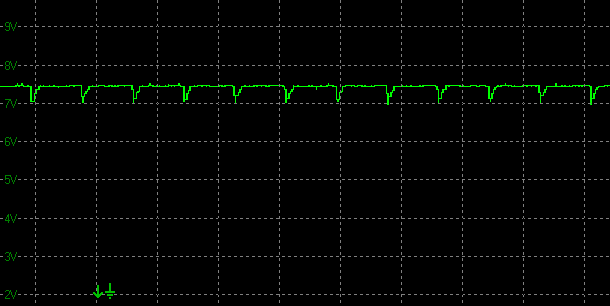
| Flicker | |
| Flicker free verified | |
| PWM / flicker frequency | n/a |
Useful Office Features
| Features | Notes | |
| USB type-C connectivity (DP Alt mode) | | 1x USB-C connection |
| USB type-C power delivery | | 90W |
| Daisy chaining support | | |
| KVM switch | | |
| PiP and PbP support | | |
| USB data ports | | 3x USB-A downstream ports |
| Easy access USB data ports | | |
| Integrated speakers | | |
| Audio output / headphone out | | Headphone output |
| Mic input | | |
| Integrated webcam | | |
| Ambient light sensor | | |
| Motion sensor | | Neo Proximity Sensor |
| Stand adjustments | | Tilt, height, swivel (but no rotate) |
| VESA mount support | | 100 x 100mm via provided bracket |
| Power supply | | Integrated, normal kettle lead |
| Tripod socket | | On the top of the stand |
| Firmware updates | | Supported |
| Fan-less design | | with custom heatsink |
This model has a wide range of additional features that make it well-suited to a range of use-cases, not just for gaming. There’s a USB type-C connection which offers a high 90W power delivery, integrated KVM switch and support for various PiP/PbP modes for handling multiple video inputs. If you want to know more about what all these productivity features are, check out our article and guide here.
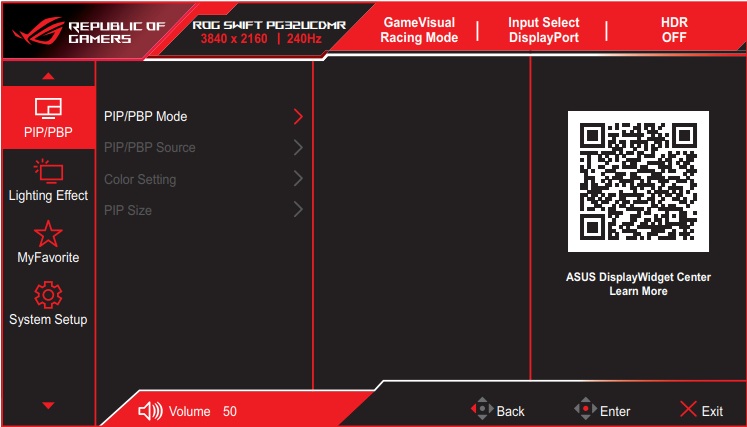
There are 3x USB data ports and a headphone connection along with a versatile stand, along with a motion sensor which helps with OLED Care and avoiding image retention. Note that there’s no integrated speakers on this screen, and Asus have also done away with the SPDIF audio output that was available on the original PG32UCDM. Although a headphone connection remains.
Blue Light and Eye Care Modes

| Blue light output | |
| Blue peak wavelength | 457 nm |
| Blue light portion | 26.44% |
| Low blue light modes available | |
| Low blue light mode temp | 5894K – 5442K |
The native panel spectral distribution is shown above at a calibrated 6500K white point, where the blue peak is at 457 nm. Asus provide a ‘Blue Light Filter’ setting in the OSD menu with 4 levels available. Each mode makes the image slightly warmer, with the maximum level 4 setting also having a locked brightness setting (set at 35% = 127 nits luminance).

HDR
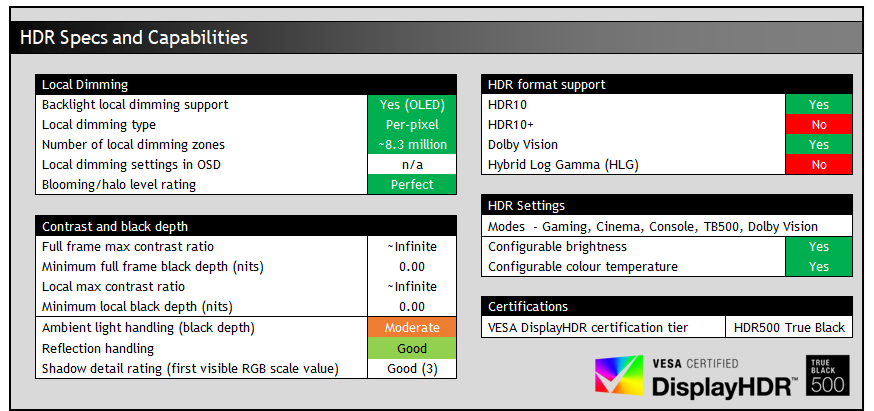
HDR hardware capabilities
Being an OLED panel, the PG32UCDM3 is well-equipped to handle HDR content from a hardware point of view with its per-pixel level dimming allowing for true blacks, a basically infinite contrast ratio and the avoidance of all blooming and halos. In these regards it can easily surpass any Mini LED backlit LCD monitor. However, it cannot reach the same luminance levels as Mini LED screens in brighter overall scenes, and carries a “peak brightness” spec of 1000 nits, which will then also lower as the content on your screen changes and the APL increases which is normal on this technology. This is one key area where Mini LED screens have the potential to look brighter and deliver a more impactful HDR experience in some situations.
As we talked about earlier, the new ‘BlackShield Film’ also helps with perceived black depth in brighter rooms which is a welcome improvement to this new panel, although optimal performance is in a darker room still for HDR. This is one of the most welcome changes though we think with this new v3 model.

HDR Demo and Test Video
Test and demo the HDR on your display using our handy compilation, highlighting black depth, contrast and peak brightness capabilities.
[View here]
HDR Modes and Operation
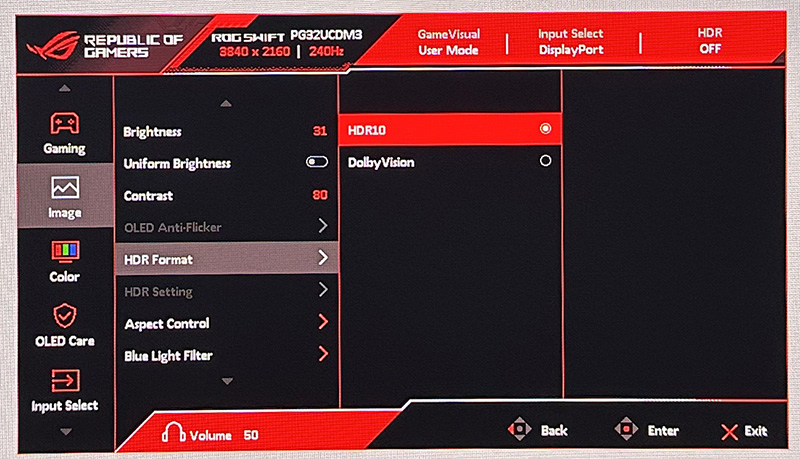
There are 4 HDR modes available within the OSD menu – Gaming, Cinema, Console and True Black 500. Most settings are locked by default, including for brightness, contrast and the whole colour menu. Asus do provide an option called “adjustable HDR” which once enabled allows you to make adjustments in those other areas if you want to make tweaks.
The screen can also support two HDR formats, HDR10 and Dolby Vision and you can switch between those modes in the menu depending on your input device. Dolby Vision HDR support and content from a PC is very limited and complicated to get working, so you’d almost certainly stick with the HDR10 mode for PC connections. If you’re connecting an external device like an Xbox Series X, or perhaps a streaming media device of some sort, those can support Dolby Vision more readily, so you can switch to that mode here if you want to use it.
HDR Testing Methodology Explained

Performance is measured and evaluated with a high degree of accuracy using a range of testing devices and software. The results are carefully selected to provide the most useful and relevant information that can help evaluate the display while filtering out the wide range of information and figures that will be unnecessary. For measurement, we use a UPRtek MK550T spectroradiometer which is particularly accurate for colour gamut and colour spectrum measurements. We also use an X-rite i1 Pro 2 Spectrophotometer and a X-rite i1 Display Pro Plus colorimeter for various measurements. Several other software packages are incorporated including Portrait Displays’ Calman color calibration software – available from Portrait.com.
We measure the screen at default settings (with all ICC profiles deactivated and factory settings used). The results presented can be interpreted as follows:
HDR accuracy section
- Greyscale dE – this graph tracks the accuracy of each greyscale shade measured from 0 (black) to 100 (white). The accuracy of each grey shade will be impacted by the colour temperature and gamma of the display. The lower the dE the better, with differences of <1 being imperceptible (marked by the green line on the graph), and differences between 1 and 3 being small (below the yellow line). Anything over dE 3 needs correcting and causes more obvious differences in appearance relative to what should be shown. In the table beneath the graph we provide the average dE across all grey shades, as well as the white point dE (important when considering using the screen for lots of white background and office content), and the max greyscale dE as well.
- RGB Balance and colour temperature – the RGB balance graph shows the relative balance between red, green and blue primaries at each grey shade, from 0 (black) to 100 (white). Ideally all 3 lines should be flat at the 100% level which would represent a balanced 6500k average colour temperature for all grey shades. This is the target colour temperature for desktop monitors, popular colour spaces like sRGB and ‘Display DCI-P3’ and is also the temperature of daylight. It is the most common colour temperature for displays, also sometimes referred to as D65. Where the RGB lines deviate from this 100% flat level the image may become too warm or cool. Beneath this RGB balance graph we provide the average correlated colour temperature for all grey shades measured, along with its percentage deviance from the 6500k target. We also provide the white point colour temperature and its deviance from 6500k, as this is particularly important when viewing lots of white background and office content.
- ST 2084 EOTF (PQ) tracking – this graph tracks the PQ curve in HDR mode, akin to gamma measurements in SDR. The yellow line represents the ideal PQ curve, while the grey line plots the monitors measured performance.
- Luminance, black depth and contrast ratio (top right hand table) – measuring the brightness, black depth and resulting contrast ratio of the mode being tested. The luminance figure captured here is from a standard 10% APL window area measurement, although further luminance measurements are included in a separate section to capture “peak brightness” and the luminance at other APL areas. This section also measures the black depth on the screen and the resulting contrast ratio.
For HDR, any local dimming is left enabled, and so we measure the black depth adjacent to a white test image and calculate the “local contrast ratio” from there. We also measure the black depth towards the edges of the screen, away from the white test area in order to calculate the “maximum full frame contrast ratio” across the whole panel. These figures will often be different on LCD screens with local dimming, as this dimming can be more effective for dark areas further away from light areas.
HDR colours section
- Gamut coverage (2D) – we provide measurements of the screens colour gamut for HDR relative to the very wide Rec.2020 colour space. Coverage is shown in absolute numbers as well as relative, which helps identify where the coverage extends beyond a given reference space. A CIE-1976 chromaticity diagram (which provides improved accuracy compared with older CIE-1931 methods) is included which provides a visual representation of the monitors 2D colour gamut coverage triangle as compared with Rec.2020. The higher the coverage, the better.
- dE colour accuracy – a wide range of Rec.2020 colours are tested and the colour accuracy dE measured. An average dE and maximum dE is provided along with an overall screen rating. These numbers are calculated based on the colour tone and hue, and ignore any luminance error. The lower the dE the better, with differences of <1 being imperceptible (marked by the green area on the graph), and differences between 1 and 3 being small (yellow areas). Anything over dE 3 needs correcting and causes more obvious differences in appearance relative to what should be shown. dE 2000 is used for improved accuracy and providing a better representation of what you would see as a user, compared with older dE methods like dE 1994, as it takes into account the human eye’s perceptual sensitivity to different colours.
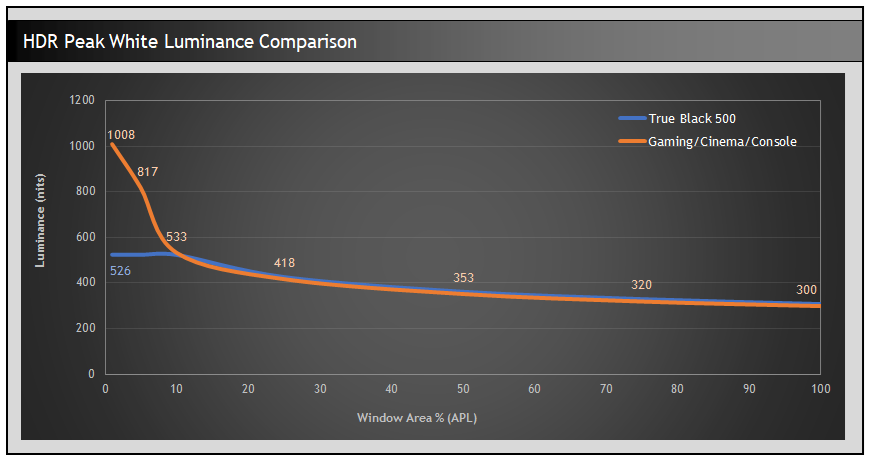
Peak white luminance reached up to the advertised 1000 nits when using the Console, Gaming and Cinema HDR modes, but is capped to around 530 nits when using the True Black 500 mode, a mode that’s designed for accuracy and to pass VESA’s certification process, also exhibiting less dimming overall due to the more consistent, but lower brightness. While it offers accurate EOTF performance which ensures detail is retained, it’s limited in its peak brightness capability and so most people will likely want to use one of the other 3 modes we think.
If you switch to the Dolby Vision format in the menu, you still have access to the 4 different HDR modes and they behave exactly the same in terms of luminance measurements.
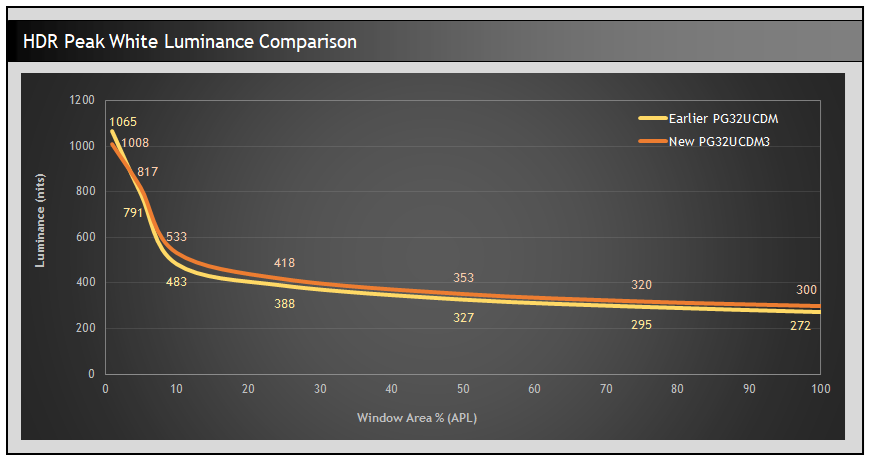
Thanks to the new 4th Gen QD-OLED panel and EL 3.0 material the peak white luminance is around 8% higher than the earlier 3rd Gen 240Hz panel of this size (as featured on the PG32UCDM and PG32UCDMR).

Comparing the 4 modes in real HDR content we can see that the Gaming and Cinema modes look very similar to one another, with the Cinema mode being perhaps slightly darker in some situations. The Console mode is noticeably a lot darker, and is the mode most akin to a “Peak 1000” mode that we’ve seen many times on QD-OLED panels. This mode by default exhibits quite severe dimming of the brightness and ends up looking darker than all the other modes, including the True Black 500 mode in most scenes. We’ve studied this issue in detail in the past and seen it on every QD-OLED monitor we’ve tested.
The True Black 500 mode only reaches around half the peak luminance of the other modes, and so in dark, low APL scenes it doesn’t have the same impressive bright highlights. In other scenes it looks equally bright to the Gaming and Cinema modes.
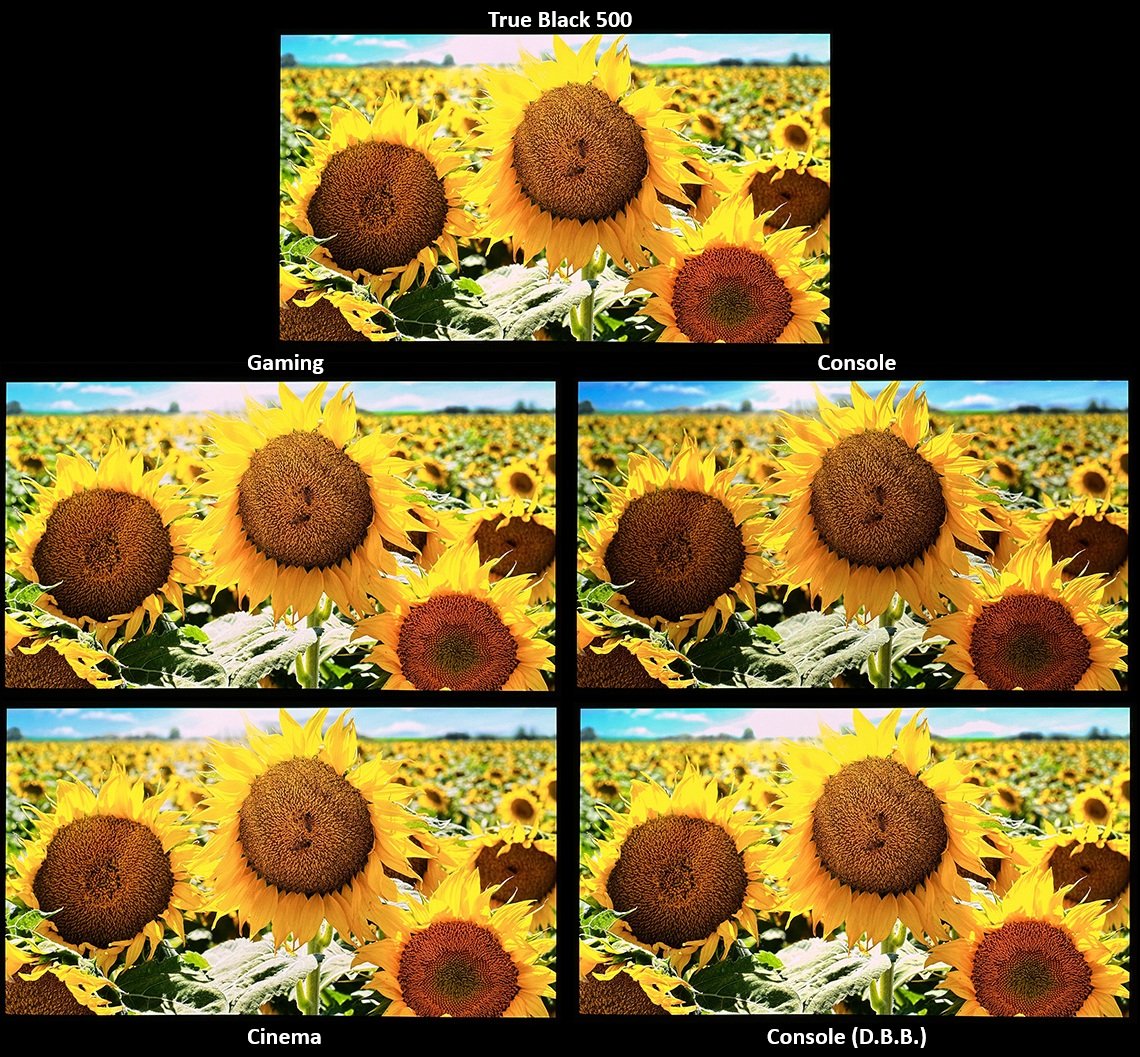
If you do want to use the Console HDR mode then Asus also provide a familiar ‘Dynamic Brightness Boost’ (D.B.B.) option which is only available in that mode, and which basically makes Console mode behave the same as the Gaming and Cinema modes. This then shows very similar luminance measurements in real scenes, and visually looking the same across all scenes. You can see an illustrative example above compared all 5 modes, most noticeably showing the darker default Console mode appearance.
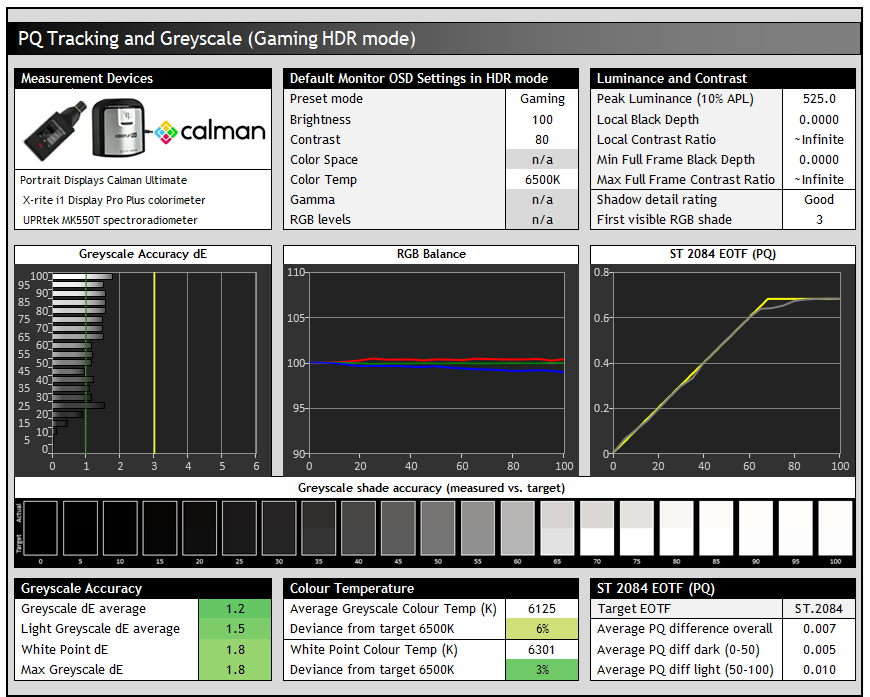
The greyscale temperature was very good in all of the modes, being only slightly too warm by about 3% from our D65 (6500K) target). This left us with good greyscale accuracy and a dE of 1.2, as well as good shadow detail with the first visible greyscale shade being RGB 3 in HDR content.
Note that at the moment we’re exploring ways to capture the EOTF performance more accurately in each mode, as our current results on this screen, using a range of different test scenarios, don’t seem to be indicative of real-world experience and we’re concerned that the dynamic brightness boost behaviour is not being activated during those normal test pattern scenarios. This hasn’t been the case on other Asus screens we’ve tested in the past, and we’ll update the review later on after CES with some more detailed EOTF information so that we can evaluate accuracy further in each mode.
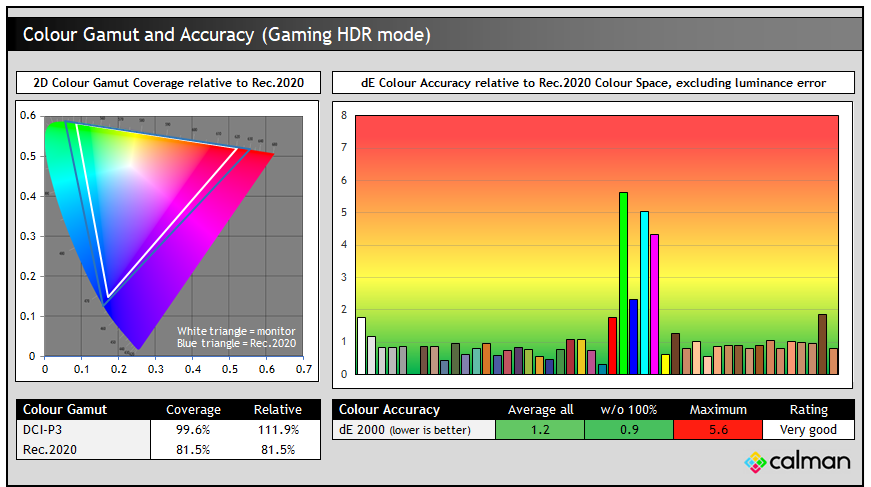
Colour accuracy was also very good for HDR content with a dE 1.2 average measured, and an impressive wide colour gamut which covers 81.5% Rec.2020, a small increase actually compared with the original PG32UCDM which reached 78.9% coverage.
Gaming

The PG32UCDM3 is well-suited to gaming thanks to its OLED panel, high resolution and high refresh rate. Powering 4K at up to 240 fps will be a challenge for many systems, so keep that in mind when considering any monitor of this spec. The OLED panel is also well-suited to HDR gaming thanks to its excellent hardware capabilities and amazing contrast.
Refresh Rate
| (at native resolution) | Refresh Rate |
| Maximum Refresh Rate DisplayPort | 240Hz |
| Maximum Refresh Rate USB type-C | 240Hz |
| Maximum Refresh Rate HDMI | 240Hz |
| VRR range | 48 – 240Hz |
| ClearMR certification tier | |
The screen has a native 240Hz refresh rate which is supported by adaptive-sync for Variable Refresh Rates (VRR) from compatible systems. At the time of testing, certifications under the NVIDIA ‘G-sync Compatible’ scheme is still pending, but it has already passed the AMD ‘FreeSync Premium Pro’ certification scheme. Unlike alternative WOLED- technology monitors, there’s no dual-mode function on this panel. If that’s of interest to you, check out the Asus ROG Swift PG32UCDP or ROG Strix XG32UCWMG.
Gaming Features
| Other Features | |
| Variable Refresh Rate (VRR) support | AMD FreeSync Premium Pro certified NVIDIA certification pending |
| OLED VRR Anti-flicker | |
| Black Frame Insertion (BFI) | |
| Dual-mode support | |
| Gaming extras | FPS counter Crosshair Sniper Timer Stopwatch Display Alignment Shadow Boost |
| Emulated gaming sizes | 24.5″ and 27″ sizes Square – full, equivalent, pixel by pixel modes |

There’s a wide range of gaming extras available on this screen as well including an ELMB (Extreme Low Motion Blur) mode which offers a BFI (Black Frame Insertion) function. We’ll test this in a moment. There’s also a large range of extra settings and modes in the menu as listed above, all the familiar ROG modes and settings are available.
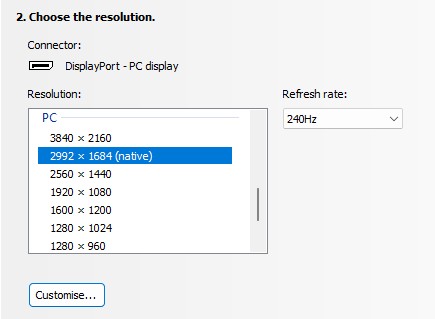
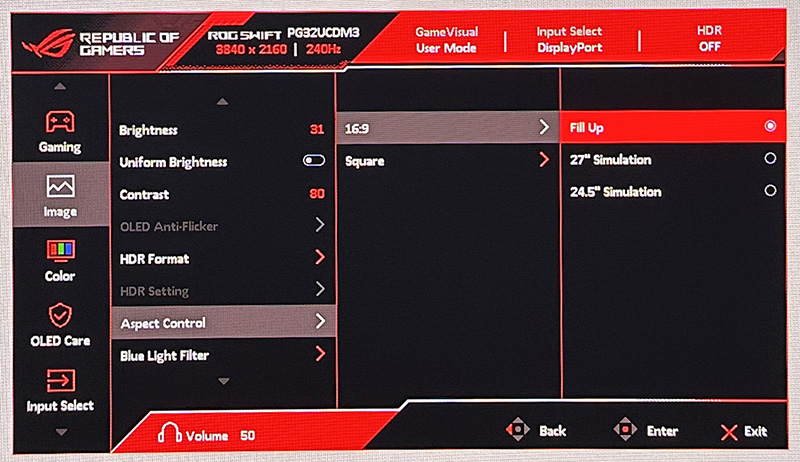
There’s also various aspect ratio control modes including options to simulate a smaller 24.5″ sized screen which runs at 2992 x 1684, or 27″ which runs at 3288 x 1850 natively for 1:1 pixel mapping on a smaller screen size. The square modes are also useful for non-16:9 gaming situations if you need them. These could be useful if you want a lower resolution and smaller gaming area to focus on instead of the full 32″ screen size.
Response Times
As discussed in our detailed article about Response Time Testing – Pitfalls, Improvements and Updating Our Methodology we are using an improved and more accurate method for capturing G2G response times and overshoot, based on figures that are more reflective to what you see visually on the screen in real-World usage. Our article linked above talks through why this is better and how we arrived at this improved method in much more detail.
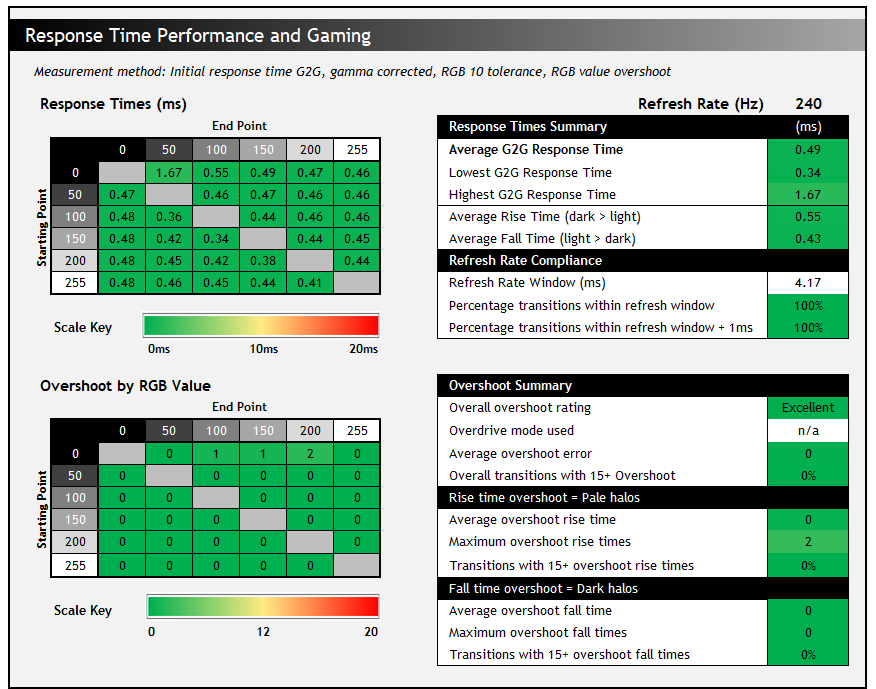
The above G2G response times are consistent at all refresh rates, including 240Hz, 120Hz and 60Hz and during VRR situations with changing frame rates. Thanks to the OLED panel the response times are super-fast and near-instant, with an average of only 0.49ms G2G measured. All transitions can keep up easily with the frame rate demands, and there was also no visible overshoot evident which is great news too, so overall there was nice and clean pixel transition times.
Our thanks to the following manufacturers for support in the build of our test system:
 | AMD Ryzen 9 7950X | Buy the latest AMD CPUs here |
 | Asus ProArt B650-Creator | Buy Asus motherboards here on Amazon |
 | Corsair DDR5 RAM | Buy here on Amazon |
 | Corsair H100i Elite Capellix AIO cooler | Buy Corsair coolers here on Amazon |
| Corsair iCUE RGB Elite Fans | Buy here on Amazon | |
 | NVIDIA RTX 5070 | Buy NVIDIA RTX graphics cards here on Amazon |
| We may earn a commission if you purchase from our affiliate links in this content – TFTCentral is a participant in the Amazon Services LLC Associates Programme, an affiliate advertising programme designed to provide a means for sites to earn advertising fees by advertising and linking to Amazon.com, Amazon.co.uk, Amazon.de, Amazon.ca and other Amazon stores worldwide. We also participate in a similar scheme for Overclockers.co.uk, Newegg, Bestbuy and some manufacturers. |
Motion Clarity
We captured some pursuit camera photos of the screen at it’s native 240Hz refresh rate and compared it against other modern OLED panels with lower and higher refresh rates supported. These photos are designed to capture real-world perceived motion clarity and gives you a good indication of how the screen looks in real use, beyond G2G response time measurements as you track moving objects across the screen.
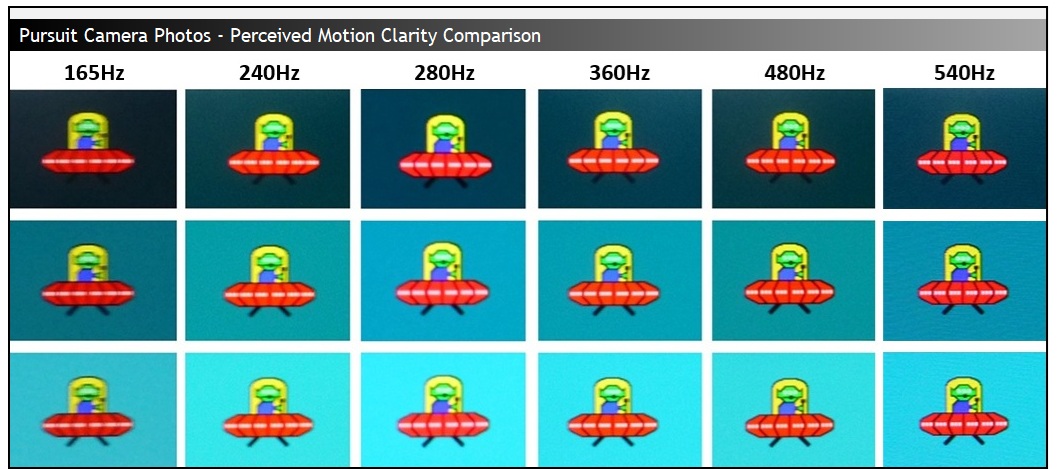
With all the recent increases in OLED refresh rates, 240Hz could arguably be considered quite “slow” nowadays in the OLED market when we have so many 360Hz, 500Hz and even 540Hz monitors being released. Even the mid-tier OLED monitors being released are now offering a small improvement at 280Hz (e.g. the Asus ROG Strix XG27AQWMG). We’re really being spoiled now with OLED refresh rates, but 240Hz is still excellent and it provides clean and clear motion clarity which looks very good, we don’t think it should be considered slow really.
Competitive gamers may see further benefits with motion clarity in looking at faster refresh rates, but at the moment all the 4K resolution OLED monitors max out at 240Hz (at their native res) and so the PG32UCDM3 is in keeping with all of those models. Higher refresh rates would also offer improvements with end to end system latency and frame rate support.
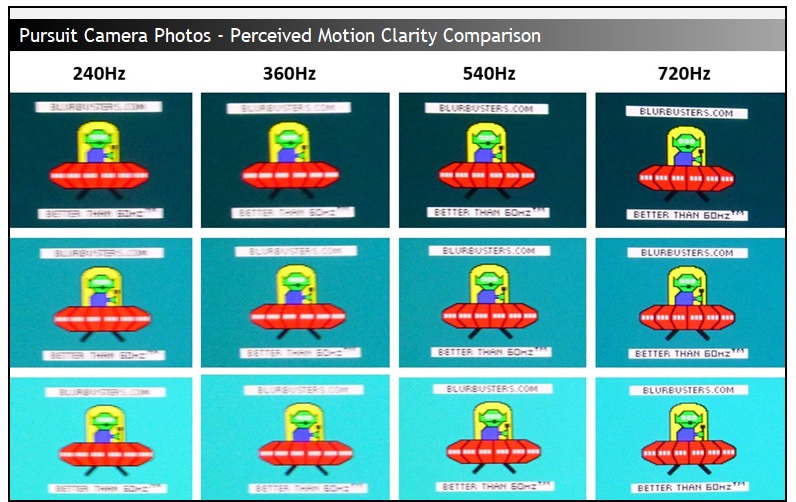
It’s smaller moving details that tend to benefit most from the increases in refresh rate beyond 240Hz, and we’ve added in some scrolling text to the UFO tests above to capture that above when comparing this monitor to other high refresh rate OLED’s. The moving text becomes much clearer and easier to read by the time you reach 540Hz, and even more so at 720Hz which was truly impressive.
VRR Flicker
All OLED monitors can show flicker and gamma fluctuations in VRR situations and this is something we studied and tested in detail in our article here. Asus have included their OLED Anti-flicker feature on this screen to give you a mode that will hopefully help reduce flicker, should you experience any in your usage. Remember that just because a screen can show flicker, doesn’t mean you’ll necessarily experience it during your usage and from your system. Please see our detailed article for loads more information about this issue on OLED monitors.
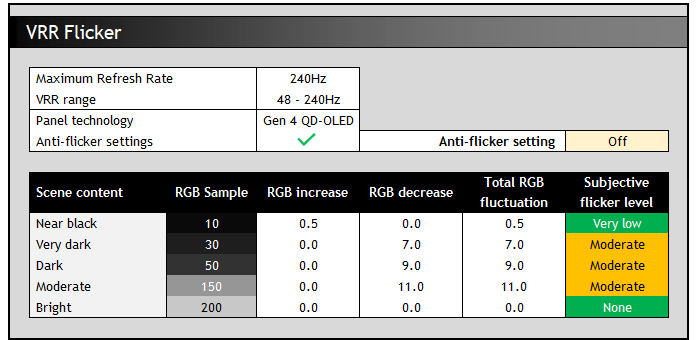
We tested the screen in normal ‘off’ mode and found there was moderate levels of visible flicker in dark and moderate scenes. Unlike WOLED panels, the gamma is not directly tied to the frame rate and so flickering behaves a bit differently. You get consistent spikes of flicker in terms of their amplitude, but the frequency of those spikes increases as your frame rate lowers.
So, the trick with QD-OLED panels is to try and keep frame rates not only consistent but also as high as possible to reduce the frequency of any spikes. Situations where you cross the LFC boundary also cause noticeable flicker at the lower end of the refresh rate range. On this screen the gamma shift seemed to be darker rather than lighter, and so in overall darker scenes this kept flicker at fairly low levels visually, but it was a bit more pronounced in moderate to lighter scenes.
Asus include their VRR Anti-flicker modes on this screen with settings for ‘middle’ and ‘high’ available, but at the time of testing these didn’t seem to be working correctly. We saw no change to the active VRR range in either mode, and the same flicker measurements too. We’ve reported this back to Asus and we’ll re-test it at a later date once a firmware update has been provided to fix these modes.
Lag
Read our detailed article about input lag and the various measurement techniques which are used to evaluate this aspect of a display. The screens tested are split into two measurements which are based on our overall display lag tests and half the average G2G response time, as measured by our oscilloscope. The response time element, part of the lag you can see, is split from the overall display lag and shown on the graph as the green bar. From there, the signal processing (red bar) can be provided as a good estimation of the lag you would feel from the display. We also classify each display as follows:
Lag Classification (updated)
- Class 1) Less than 4.17ms – the equivalent to 1 frame lag of a display at 240Hz refresh rate – should be fine for gamers, even at high levels
- Class 2) A lag of 4.17 – 8.33ms – the equivalent of one to two frames at a 240Hz refresh rate – moderate lag but should be fine for many gamers. Caution advised for serious gaming
- Class 3) A lag of more than 8.33ms – the equivalent of more than 2 frames at a refresh rate of 240Hz, or 1 frame at 120Hz – Some noticeable lag in daily usage, not suitable for high end gaming
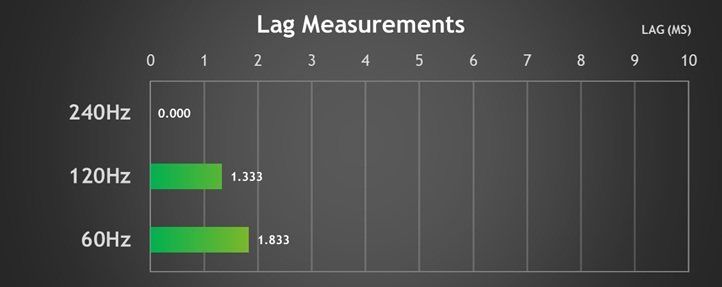
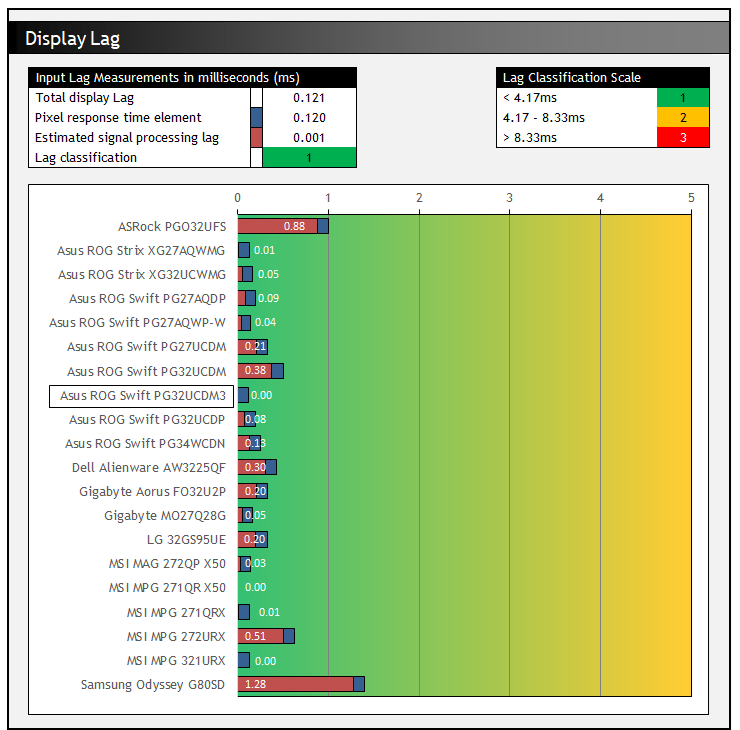
There is an extremely low lag on the PG32UCDM at native refresh rate, basically nothing at all from our tests which makes it perfectly fine for competitive gaming situations. There was slightly higher input lag for fixed 120Hz and 60Hz input signals (applicable for consoles and Blu-ray players), but this is still very low and is only applicable for fixed Hz input sources anyway. It’s the lower 240Hz number that applies in VRR situations, even when your frame rate drops for PC connectivity.
Gaming Shadow Detail
| Preset mode | Shadow Detail Rating and first visible greyscale shade |
| Default Racing and User modes | Moderate (5) |
| RTS mode | Weak (6) |
| FPS mode | Good (3) |
| sRGB Cal mode | Excellent (1) |
| Calibrated (with ICC profile active) | Excellent (1) |
| HDR mode | Good (3) |
We can also evaluate the shadow detail results a bit more since this is an area that can impact darker game titles, and is important to many gamers. The native panel performance was moderate using the Racing or User preset modes, regardless of which colour space you selected, with the first visible greyscale shade being RGB 5. Through calibration and profiling this can be improved a lot though, but you’d be reliant on the profile being recognised and retained by your game which is rare.
The FPS mode improves shadow detail but is configured to 2.0 gamma and has very saturated and vivid colours, so not everyone would want to entertain using that configuration. The sRGB Cal mode improves things a lot (RGB 1) thanks to the sRGB gamma curve used, but that’s clamped to the smaller sRGB colour space all the time and is pretty inflexible in settings. It might be useable though for SDR gaming if you’re happy with the smaller colour space.
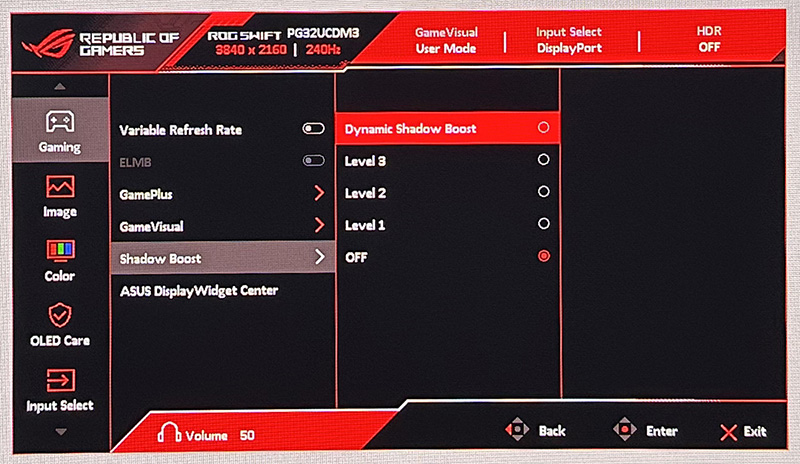
Most gamers will probably want to stick with the full gamut native custom mode for the most colourful image, and Asus provide a ‘Shadow Boost’ setting in the menu for tweaking things. This mostly impacts mid grey shades though, not improving the near-black detail that much. You get slight improvements if you move to Levels 1 – 3 (RGB 4 now visible). The ‘dynamic shadow boost’ mode brings out RGB 2 which is good, but raises the brightness of lighter grey shades a lot more so it’s fairly drastic. You can experiment with this setting a bit in your gaming to see if it helps bring out some of the detail in dark games. In HDR you don’t have access to the black stabilizer settings, although shadow detail was already good (RGB 3).
ELMB / BFI Mode

Like other recent Asus OLED monitors, the PG32UCDM3 has an added BFI (Black Frame Insertion) mode for blur reduction. Asus call this ELMB (Extreme Low Motion Blur) and it’s the alternative to a strobing motion blur reduction backlight you might find on some LCD monitors. Rather than the backlight being strobed off and on rapidly (because there is no backlight on an OLED panel), a black frame is inserted periodically in to the image instead. This is a useful feature to boost the motion clarity in gaming if you can’t power the full 240Hz properly.
ELMB activation and operation
horizontal scale = 5ms
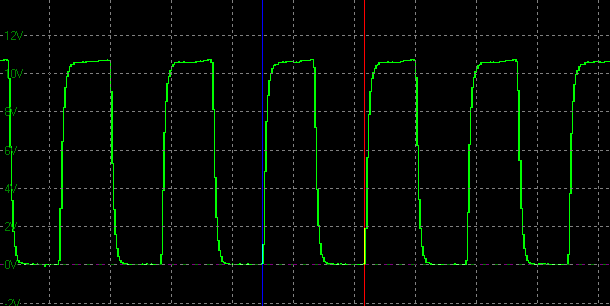
ELMB is available when using a fixed 120Hz refresh rate only on this screen, with the panel operating at its native 240Hz behind the scenes and a black frame being inserted every 120Hz. There’s no support for any other refresh rates and you can’t use this function at the same time as VRR, or in HDR mode unfortunately. It’s a bit clunky to operate still as you have to first disable VRR in the menu (and Uniform Brightness mode if you were using that), switch your refresh rate in Windows to 120Hz, and then enable ELMB in the menu. Then you’d have to reverse those steps if you want to return to normal 240Hz VRR operation.
| Motion Blur Reduction Mode | ||
| Motion Blur Reduction mode / BFI | | |
| Refresh rates supported | 120Hz only | |
| 60Hz single strobe operation | | |
| Blur reduction available with G-sync/FreeSync VRR | | |
| Available in SDR mode | | |
| Available in HDR mode | | |
| Viable with games consoles | At 120Hz | |
| Lag penalty (relative to native mode) | ~7ms | |
| Brightness capability (SDR, max refresh rate supported) | ||
| Brightness control available | | |
| Independent brightness between on/off modes | | |
| Motion blur OFF – Max brightness | 514 nits (UB = off) | |
| Motion blur ON – Max brightness | 156 nits (UB = off) | |
ELMB Performance
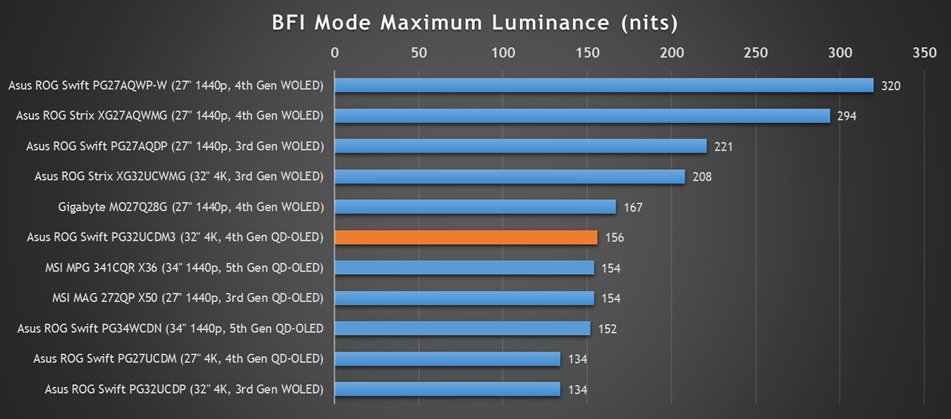
On this screen the luminance can be adjusted up to 156 nits which is very typical for a QD-OLED panel and on par with other modern monitors we’ve tested which use this technology. We’ve seen some recent 4th Gen WOLED monitors reach a lot higher though, so it does feel like QD-OLED is lagging behind in BFI brightness at the moment.
It operates with a uniform brightness behaviour as well in this mode, even though oddly it forces you to disable that setting in the menu before you can enable ELMB. The brightness setting is also remembered independently between the on and off modes which is useful, and you can adjust brightness if you want to lower it at all.
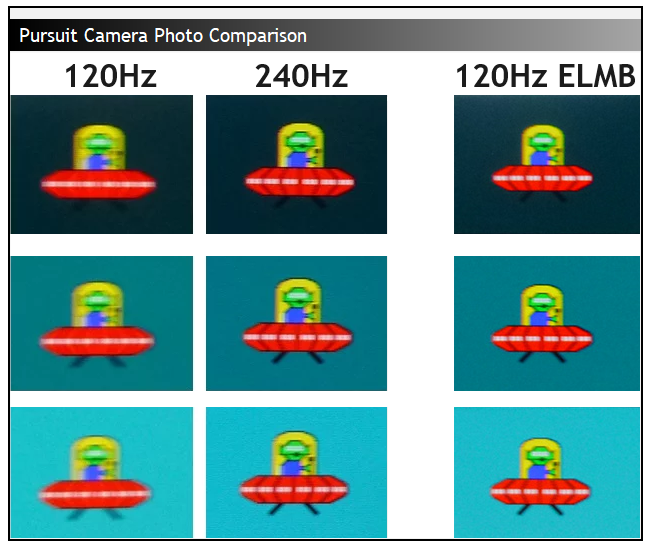
Given the 50:50 duty cycle of the BFI function, the motion clarity at the maximum 120Hz is the same as the normal 240Hz mode, and we can refer to the motion clarity photos above again to consider how that would look in practice. This gives you a good way to shortcut your way to 240Hz-like motion clarity, even if you can only power your system up to 120fps. It’s also potentially a useful boost for games consoles which can operate at 120Hz maximum anyway.
Motion Clarity Equivalence
120Hz ELMB = 240Hz regular
This clarity is the same across the entire screen thanks to the super-fast response times of the OLED panel, you don’t need to worry about which area of the screen is the cleanest and clearest, like you do on an LCD screen with a strobing blur reduction backlight.
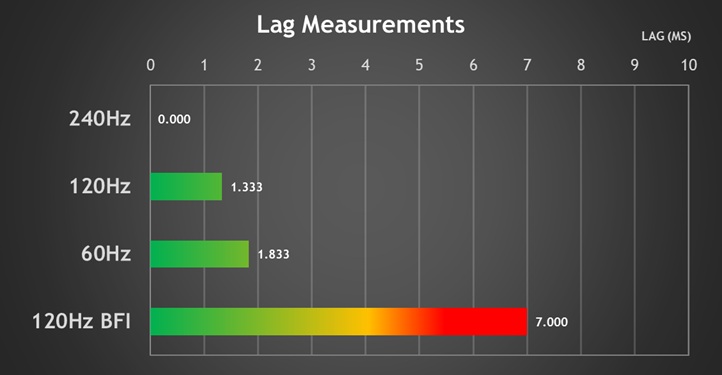
In a new test, we’ve also measured the input lag when using ELMB mode. There’s a small increase in lag when you change from 240Hz to 120Hz (~1.8ms) due to the switch to a non-native resolution, and then an additional ~5.2ms or so penalty from the ELMB operation. This adds a moderate amount of lag for faster gaming situations so it’s worth keeping that in mind. Although if you’re a competitive gamer, hopefully you’ll just be pushing up to 240fps anyway and gaming in normal mode where the lag is then super-low / zero.
Console Gaming
The screen has a native 3840 x 2160 “4K” resolution, allowing for excellent support of modern games console features and capabilities. The OLED panel is well-equipped to handle HDR gaming as well.
| Console Gaming | |
| Native panel resolution | 3840 x 2160 “4K” |
| Maximum resolution and refresh rate supported | 4K @ 120Hz |
| 4K at 24Hz support | |
| 4K at 50Hz support | |
| HDMI connection version | 2.1 |
| HDMI-CEC auto switch | |
| HDMI-VRR (over HDMI 2.1) | |
| Auto Low Latency Mode (ALLM) | |
| Black Frame Insertion (BFI) support | 120Hz operation |
| HDR10 support | |
| Dolby Vision HDR support | |
| Integrated speakers | |
| Headphone connection | |
| Ultra high speed HDMI 2.1 cable provided | |
There was excellent console support from this screen. 4K 120Hz works fine along with support for features like VRR and 4K 24Hz content (for stutter-free movie playback). You can use the ELMB function at 120Hz which is potentially useful for boosting motion clarity in gaming to 240Hz-like levels, which we will discuss ed in the previous section. This model can support both HDR10 and Dolby Vision HDR formats, you just need to switch to the relevant mode in the OSD menu to make DV available if you want to enable that and have a compatible console.
Note that there are no integrated speakers on this model unlike some competing screens, and so you’ll need to connect headphones or some kind of external soundbar/speaker system when using a console. That’s one potential gap for the PD32UCDM if you’re looking to play console games or connect other external devices but that’s one of the few things it’s missing.
Console Gaming Monitor Guide
If you’re looking to buy a new monitor for console gaming, this guide should help you understand the specs and features to look out for.
[View here]
Conclusion

The PG32UCDM3 is another excellent QD-OLED monitor in the Asus range and it offers better performance and a wider range of extra features than the original PG32UCDM model from a couple of years ago. Asus have also offered an interim update model (PG32UCDMR) in the meantime, which offered some of the updates, but there’s some further improvements on the panel side offered here from the v3 model.
The new 4th Gen QD-OLED panel offers some reasonable improvements to both SDR and HDR brightness, although they’re perhaps not quite as significant as we’d hoped. A small improvement in both areas compared with the older 3rd Gen panel really, but obviously still welcome. Improvements to panel durability and lifespan are hard to quantify and measure, but there should be some benefits there too with this newer panel. We think the more significant and noticeable update is the new BlackShield Film coating, which does a pretty good job of improving perceived black depth and eliminating the annoying purple tint you got on older gen panels in brighter room conditions. That’s a good change, not perfect by any means, but definitely better. There’s improvements to panel hardness and scratch resistance too which are also welcome.
While these features were also added to the PG32UCDMR refresh last year, the addition of full-speed DisplayPort 2.1 connectivity, an upgrade to the USB-C connection power delivery and the inclusion of their Neo Proximity Sensor are all solid updates on this new model compared with the original. It retains other high-end features like a KVM switch, PiP/PbP modes, HDMI 2.1 etc as well which makes it a very good all-round monitor.
Accuracy was very good for general usage and there’s a good range of emulation modes and options available. We’d have loved to have seen Samsung Display’s updated RGB-stripe pixel layout too, but text clarity is already very good to be honest on this high pixel density panel.
Gaming capabilities remain very strong too with very good motion clarity, great console support, near-instant response times, super-low input lag and a potentially useful ELMB mode. VRR flicker was moderately high on this model and the anti-flicker modes were not working at the time of testing so we’ll come back to update that once a firmware update has been provided. ELMB mode is useful but adds a moderate amount of input lag and doesn’t offer as high a brightness as some modern WOLED panels.
For owners of the existing PG32UCDM (buy that version here) it’s not worth spending all that money again on either of the updated models, but for those interested by a new 32″ OLED monitor this provides an improved feature-set and an improved panel which are definitely worth looking at, providing the retail price isn’t too drastically different to the original model, which will likely end up on sale once this is released. The PG32UCDM was already super-popular and very well regarded, and this new v3 model is even better.
[Update 9/1/26] Asus tell us that the PG32UCDM3 should be available towards the end of Q1, and on their product page they list it with a price of $1,299 USD. Further information: The Asus product page is available here

| Pros | Cons |
| New 4th Gen panel with some reasonable brightness improvements for SDR and HDR | VRR anti-flicker not working at the time of testing |
| BlackShield Film improves black depth quite nicely | ELMB mode not as bright as some modern WOLED screens |
| Updated connectivity and features compared with original PG32UCDM model | We would have liked a more noticeable brightness upgrade for SDR and HDR from the new 4th Gen panel |
See also: 5th Gen QD-OLED Review
Check out our review of the new Asus ROG Swift PG34WCDN, a 34″ ultrawide monitor with a new 5th Gen QD-OLED panel, unveiled today and being showcased at CES 2026
[View here]
We may earn a commission if you purchase from our affiliate links in this article- TFTCentral is a participant in the Amazon Services LLC Associates Programme, an affiliate advertising programme designed to provide a means for sites to earn advertising fees by advertising and linking to Amazon.com, Amazon.co.uk, Amazon.de, Amazon.ca and other Amazon stores worldwide. We also participate in a similar scheme for Overclockers.co.uk, Newegg, Bestbuy , B&H and some manufacturers.