
NVIDIA G-sync Pulsar Explored – A New Standard for Monitor Motion Blur Reduction
Introduction
NVIDIA G-sync Pulsar is an exciting new gaming technology for the monitor market, and it’s now finally launched and available to buy in several monitors. The technology was first announced all the way back in January 2024 and we first saw a prototype of the technology in an Asus screen later that year at Gamescom in August 2024.
It feels like it’s been a long time coming, but 2 years on and it’s finally been brought to market and available to buy! NVIDIA G-sync Pulsar is the company’s latest innovation which combines their proprietary strobing blur reduction technology (ULMB 2) with Variable Refresh Rates (VRR) for the first time, offering gamers a killer combination for an impressive gaming experience.
In this article we’ll explain a lot more about what Pulsar is, how it works and how it performs, and we’ll be testing the performance using a new monitor from Asus, the ROG Strix Pulsar XG27AQNGV. You can also find a full review of that monitor here with all the usual testing and evaluation beyond just G-sync Pulsar. We’ll also cover all the updates which NVIDIA have recently added with a new firmware too.

G-sync Pulsar Monitors Now Available
At CES 2026 in January NVIDIA announced the release of 4 new monitors which will be the first to market to offer G-sync Pulsar. Those models are:
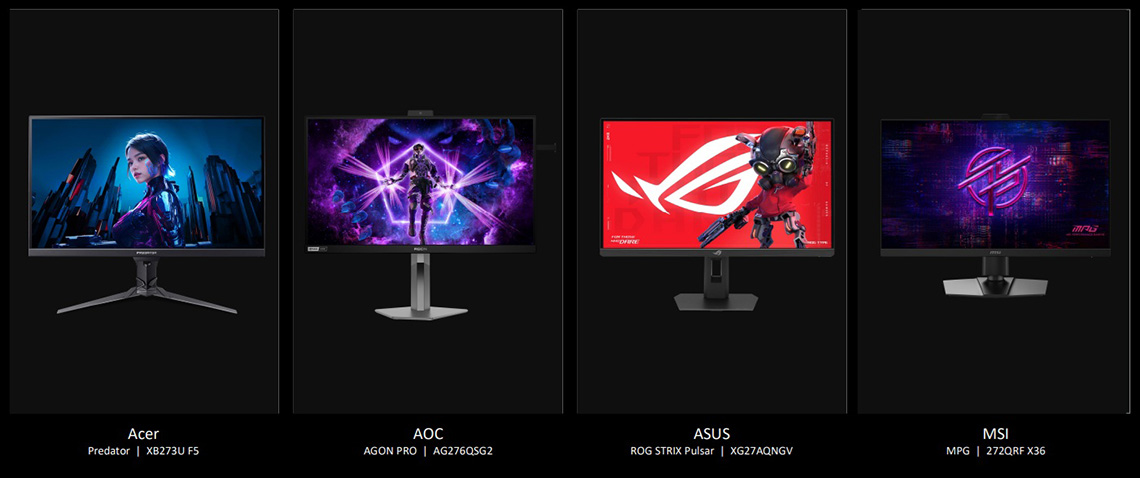
They are each available to buy now in various regions, you can check latest pricing and availability using our affiliate links here:
Blur reduction backlights explained
Modern LCD panels typically have two parts, the backlight and the LCD panel. As new information is scanned out to the display, the display will drive an electrical signal that forces the crystals to transition to change the image. This is the part which is subject to the panel’s “response time”, which you will typically see quoted and measured as a G2G figure. The light passing through the LCD panel comes from the backlight which is traditionally lit the entire time, and this is where the challenge begins.
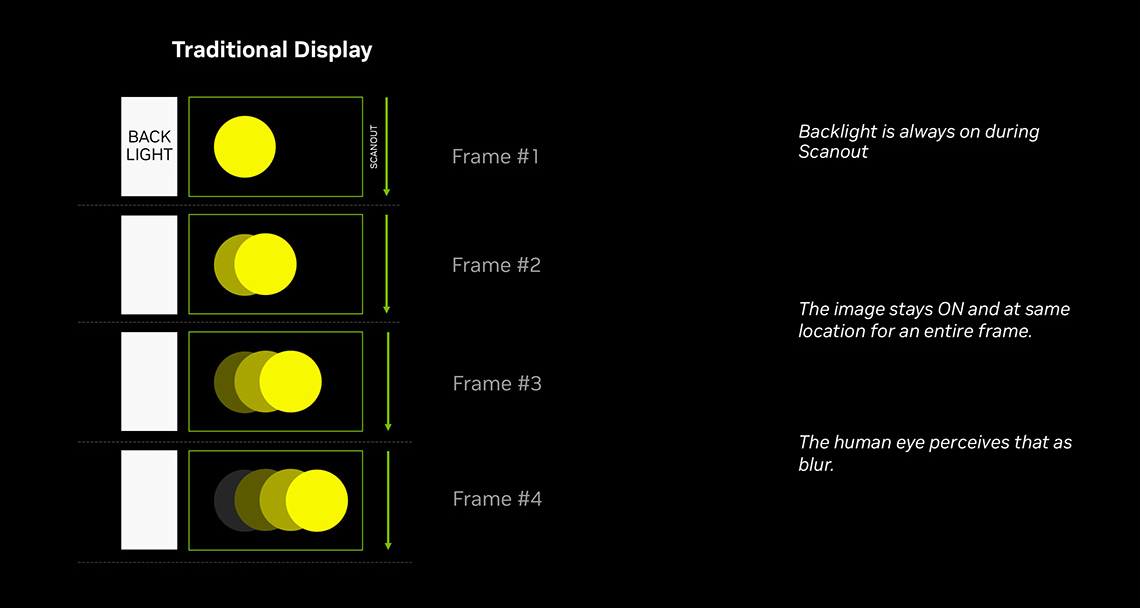
The blurriness of a moving object is caused by motion hold on these “sample and hold” displays, where the image is held until the next scan-out occurs. Since the backlight is always on, the image we see does not gracefully slide from one side to the other. Rather, it holds in a single position and then fades to the next which is what the human eye perceives as blur.
This scan-out is synced to the refresh rate of the display, and so the higher the refresh rate, the more often the image will be updated. This is one of the reasons why higher refresh rates fundamentally improve perceived motion clarity on sample and hold displays like LCD’s and OLED’s.
If you’ve followed the gaming monitor market for a while you’ll probably be familiar with strobing blur reduction backlights. These modes are available on many gaming monitors and strobe the backlight of the display off and on rapidly during gaming to help improve the perceived motion clarity of moving images on these kind of sample and hold displays. The backlight can be turned off during the “hold” part of the image to hide that part of the image, and then briefly turned on when the image is updated. The amount of “on” time relative to “off” time is called the ‘duty cycle’ and often operates with something like a 25% rate (i.e. on for 25% of the frame time).
These technologies are designed to reduce the persistence of an image on the retina as our eyes track movement on-screen. By pulsing the display’s backlight, these displays can significantly increase the clarity and visibility of content in motion, enabling you to track and shoot targets in fast-paced games with increased precision, or just enjoy any kind of motion with better overall clarity.
The evolution of blur reduction backlights and NVIDIA ULMB
NVIDIA’s own strobing blur reduction backlight has gone through a couple of iterations over the years, right back to 2014 in fact when they launched ULMB (Ultra Low Motion Blur) as a feature of their original Native G-sync hardware module. In 2023 this was updated to ULMB 2, offering improved brightness and motion clarity performance. We explored and testing ULMB 2 in depth here if you want to know loads more about it. G-sync Pulsar screens can also operate in ULMB 2 mode if you want. That’s available at various fixed refresh rates, and it’s only when you combine it with G-sync VRR that it operates in Pulsar mode. More on all that in a moment.
These ULMB 2-capable screens delivered approximately 4x the motion clarity of the underlying panel refresh rate and so for instance you could play a game at 250 frames per second and the screen would provide motion clarity effectively quadruple that of your refresh rate, so at 1000Hz! They’re a great way to short-cut your way to amazing motion clarity without needing to power all the additional frames, and for displays that have a lower native refresh rate as well.
As NVIDIA say, “for gamers demanding the highest levels of clarity and motion smoothness, whether that’s in immersive single-player games, competitive multiplayer, or esports tournaments, G-SYNC Pulsar displays are an amazing new option, delivering a smoother, higher fidelity experience than high refresh rate, low resolution displays.”

The limitations with traditional blur reduction backlights
Fixed refresh rates only
The limitation of most blur reduction backlights, including NVIDIA ULMB 2, is that they can only be used at a fixed refresh rate, and you have to sacrifice Variable Refresh Rates (VRR) when you want to use them. This means potential issues with tearing and stuttering that VRR is designed to address.
Complicated activation and setup
The user experience around activation of these features is also often very clunky, usually requiring you to (at least) disable VRR in the OSD menu, ensure you’re set to a supported refresh rate, then enable ULMB or the equivalent blur reduction mode. Only to have to reverse those steps when you want to return to normal off mode, or VRR gaming. Then on top of that you’ve got to consider what your realistic frame rates are going to be for your system and games, and you’d often have to ensure you had a steady, locked refresh rate in game as well. Some of these modes operate with a single brightness setting as well between on and off operation, often meaning you need to change brightness each time you enable or disable the setting. All quite complicated to use.
Strobe cross-talk
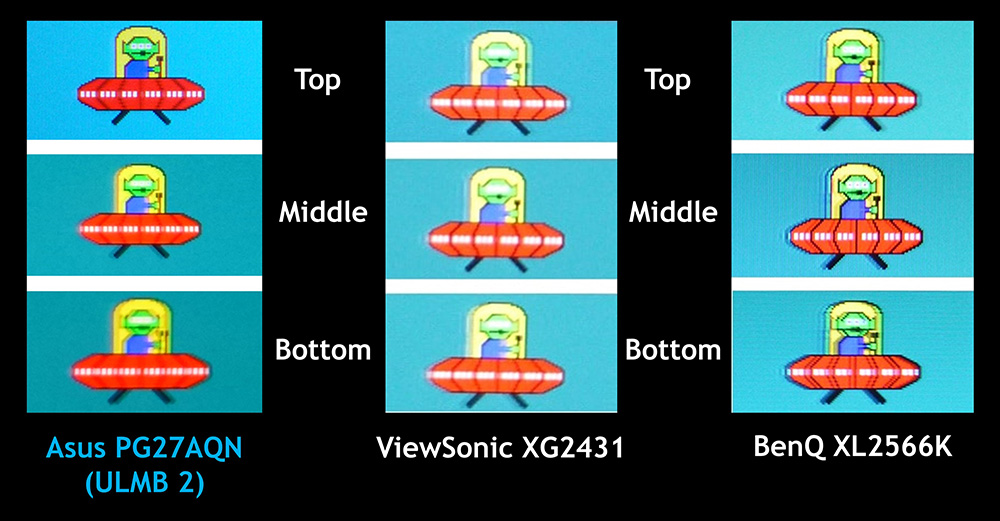
In actual use you would also commonly see issues with ghost images in certain areas of the screen, caused by ‘strobe crosstalk’, where the strobe timing and display scan-out timing are not aligned. Typically the manufacturer configuration means that you get the clearest and cleanest looking motion in the middle area of the screen, but then the top and bottom areas show more ghosting and image artefacts. You don’t get a clean image across the whole screen unfortunately which may limit the value of the mode for certain gaming situations where you’re not only focused on the middle region of the screen. In some cases it may even make the screen look worse with strobing enabled than just leaving it off.
Some screens offer strobe timing controls which might allow you to tweak which sections of the screen look the cleanest, but that’s quite rare and won’t overcome the challenges with variation across the screen overall.
Reduced brightness
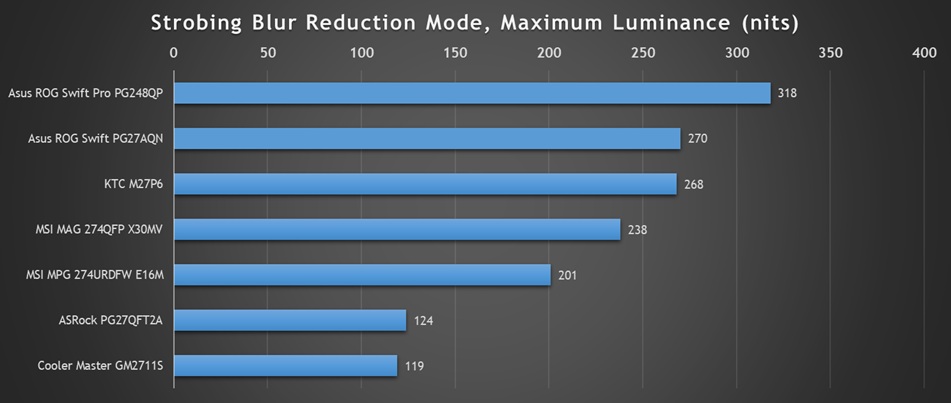
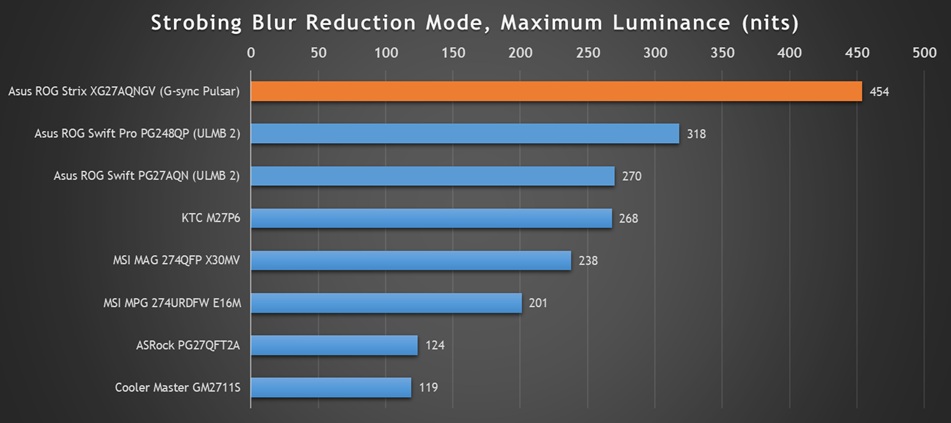
With the backlight being strobed off and on rapidly, this often results in a much lower maximum brightness for the display when you are using the strobing feature. Above is a comparison of the maximum luminance measured across various LCD’s with strobing blur reduction modes available.
NVIDIA enhanced display brightness and set appropriate targets for their ULMB 2 update in 2023, and those models perform well (the Asus PG27AQN and PG248QP at the top). Mini LED backlit screens often perform well too, thanks to their generally much brighter backlights (e.g. the KTC and MSI models on the graph). Some models may end up being too dark for many people with the strobing mode enabled, even when pushing up to maximum brightness levels. In some cases that may make them practiucally useless.
Response time challenges
Of course one underlying challenge of these modes is the response times of the underlying LCD panel. They need to be fast to keep up, free from overshoot issues and excessive smearing and blurring. VA panels are often very slow anyway and show often high levels of black smearing, which causes problems in strobing mode. IPS panels are often too slow to reliably keep up with the high refresh rates too if the overdrive tuning is not efficient, or the panel is just slow.
Where ULMB 2 is used NVIDIA have worked alongside panel and display manufacturers to optimize and tune response times for the best performance, which usually means you get very good response time tuning. That approach continues here with the latest G-sync Pulsar displays. NVIDIA even introduced a feature called ‘vertical dependent’ overdrive which allows them to tune the overdrive for different areas of the screen to speed up response times and improve overall motion clarity, timed alongside the strobing behaviour. That’s another reason why ULMB 2 screens often perform better than in-house strobing modes.
Slow backlights
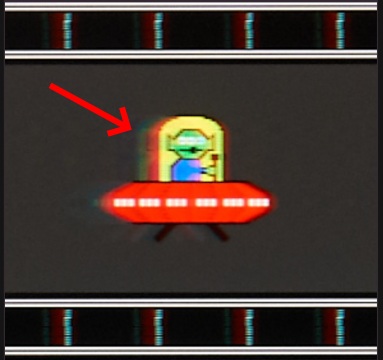
On certain types of backlights which are used on some screens to produce a wide colour gamut, namely KSF backlights, there can often be a reddish trailing visible when using the blur reduction modes, which is caused by the slower phosphor decay of the red element of the backlight. That’s a common trait on KSF backlights and a challenge that needs to be considered when implementing strobing blur reduction backlights. Quantum Dot approaches to wide colour gamut don’t suffer from the same issues.
ELMB-sync and other custom blur reduction + VRR approaches
We’ve seen a few manufacturers attempt their own blur reduction mode + VRR implementations in the past. For example Asus have introduced their own “ELMB-sync” feature on several gaming monitors, and Gigabyte have a feature called ‘Aim Stabilizer Sync’ as well. However, these modes don’t usually work that well in VRR situations, especially at lower refresh rates where the strobing behaviour doesn’t work very well and can lead to lots of smearing, flickering or other problems.
For instance here’s some motion clarity tests from the Gigabyte M27Q3 at a lower refresh rate range, courtesy of Monitors Unboxed from a Gigabyte ‘Aim-stabilizer Sync’ monitor (their blur reduction + VRR mode):
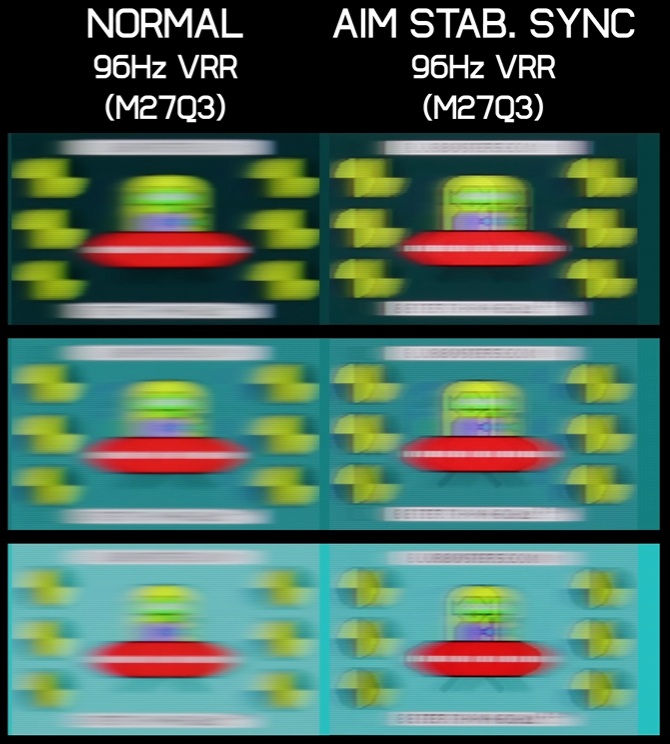
What we’ve typically seen from these custom implementations is a small VRR range window in which the blur reduction benefits apply, usually for the upper end of the VRR range, and beyond that the results are not nearly as good. Potential flickering challenges for lower frame rate frequencies also apply where sometimes single-strobe behaviour becomes more noticeable to the human eye. Challenges with strobe cross-talk and panel brightness that we’ve explained above remain as well so there’s still various problems to overcome.
How does G-sync Pulsar work?
G-sync Pulsar is the most advanced strobing blur reduction technology launched so far. Most importantly it allows the use of a strobing blur reduction mode (ULMB 2) at the same time as variable refresh rates (VRR) for the first time; all tuned, optimized and developed by NVIDIA in conjunction with the panel and display manufacturers. A lot of time, effort and investment has been put in to this new technology which is the pinnacle of LCD motion clarity performance at this time.
NVIDIA say that “for over a decade, our engineers have pursued the challenge of marrying the fluidity of VRR timing with the precise timing needed for effective advanced strobing. The solution was a novel algorithm that adds a compensation pulse that shifts flicker outside of the human vision perception, and dynamically adjusts strobing patterns to varying render rates.”
Not only does it offer blur reduction and VRR at the same time, but it combines all the following capabilities in to a single solution:
- Strobing blur reduction operation, akin to ULMB 2
- G-sync VRR support
- Rolling-scan backlight operation (explained more below)
- Finely tuned panel overdrive control for optimal response times
- Variable overdrive, controlling response times and overshoot levels as frame rate varies
- Vertical-dependent overdrive to optimize response times for different sections of the screen when strobing is used
Rolling scan backlight
One of the key capabilities of the new G-sync Pulsar technology is the way the backlight has been configured. Rather than a simple off/on flashing of the entire backlight at once, which causes challenges with strobe crosstalk and ghost images, as we explained earlier, the backlight has been split in to multiple zones. There’s multiple stacked backlight segments as shown in the images and video below with a rolling backlight scan which turns them off and on in sequence. There’s 10 in total on these initial Pulsar monitors being released at the moment.
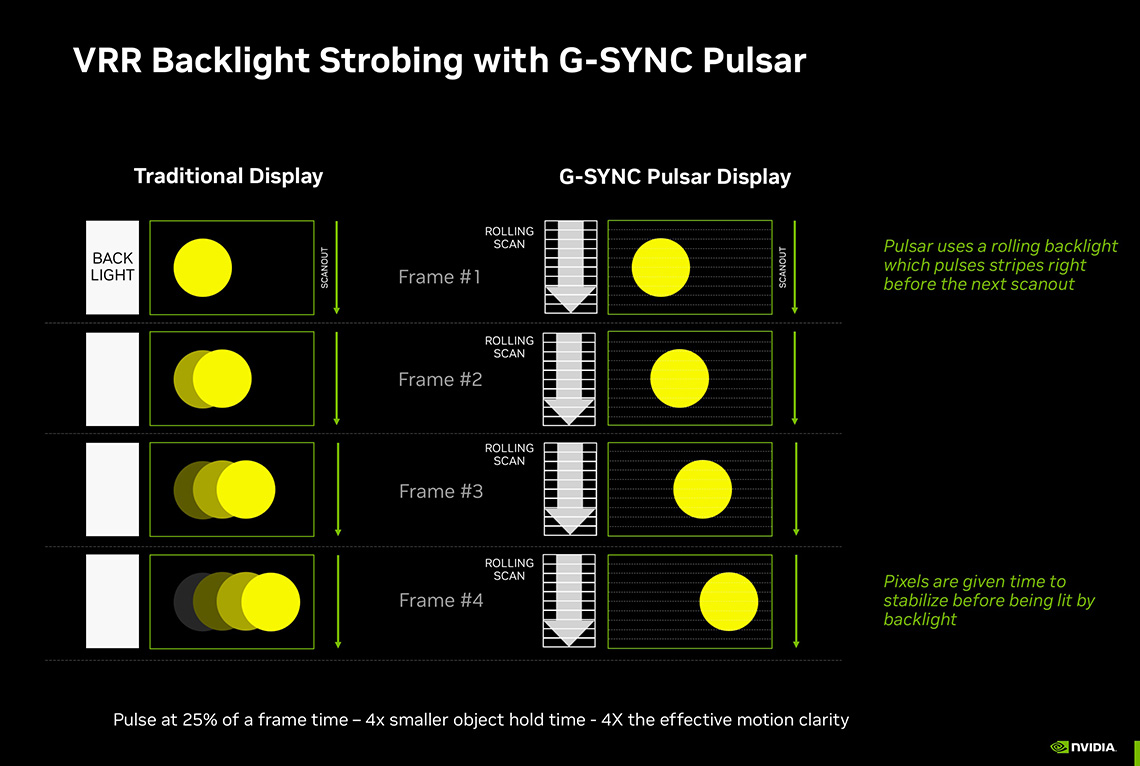
These segments can be independently lit, and they are scanned/pulsed from top to bottom at a constant speed (independent of VRR FPS). Each section is lit-up just before the LCD pixels are updated which gives pixels maximum time to settle so that every object is correct and at the correct position when illuminated.
With this ‘rolling scan’ scheme, pixels are given almost a full frame time to achieve the right values before being backlit and showing objects at the correct location. This helps reduce strobe cross talk and ghosting issues and provides a cleaner image across the entire screen area. We’ll provide some analysis of full screen motion clarity a bit later to see how this performs in practice.
It’s not the first time we’ve seen this kind of approach, other popular solutions like BenQ’s DyAc 2 technology (above) offers a slightly different multi-zone backlight solution to improve total screen clarity which works well, but their technology can only be used at fixed refresh rates still. It doesn’t work with VRR unfortunately.
G-sync Pulsar strobe behaviour
The timing of the pulsing / strobing of the backlight is in sync with the active frame rate of the screen, and varies within the VRR range as your frame rate varies. You can see some example measurements below from our oscillograph during VRR situations at different refresh rates:
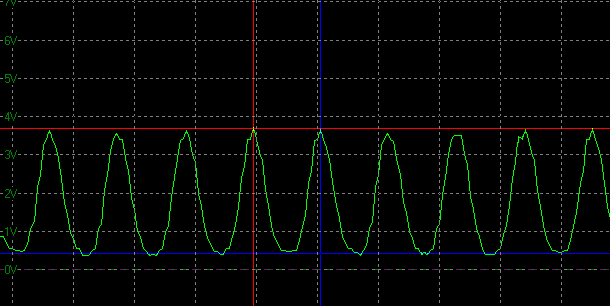
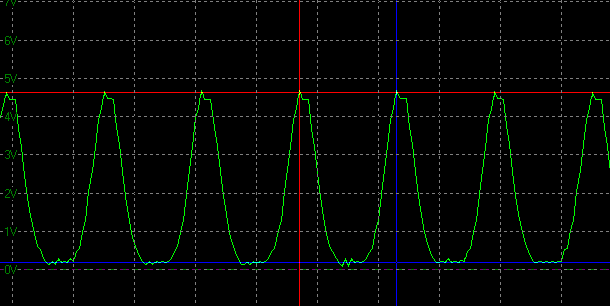
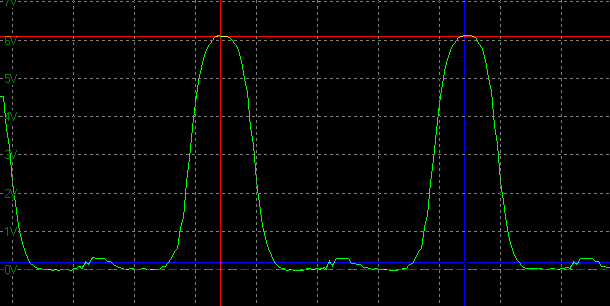
To ensure that brightness doesn’t fluctuate noticeably as the strobe behaviour changes, the amplitude (height) and the length (width) of each strobe is changed as the frame rate changes. This helps account for the longer “off” periods for lower frame rates. The result is a consistent brightness free from visible variation and flicker during Pulsar operation which is obviously great news.
One observation you might make from the above oscilloscope graphs is that the on and off periods seem to be split 50/50. Remember though that this is just for measurement at a single point on the screen and because there is a rolling scan backlight, each segment is lit up individually in turn. Each segment operates with a 25% duty cycle (on for 25% of the frame), but with multiple segments being detected by the sensor, it looks like the above.
Compensation pulses
When VRR frame rate varies, each screen segment is briefly pulsed a second time with a ‘compensation pulse’ to compensate for the variation in frame rate and push the flicker outside of human visual perception. Otherwise if you try and vary the pulse proportional to a variable refresh rate it causes perceived flicker. This was such a challenge NVIDIA say, that they nearly abandoned strobing + VRR altogether, until the idea for this compensation pulse was introduced to shift the flicker to a higher frequency outside of the perceptual range.
Strobe behaviour with a gradual and slow change in frame rate
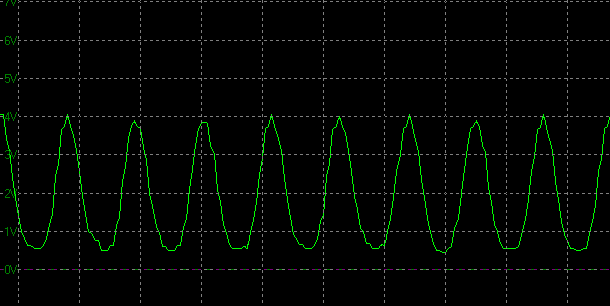
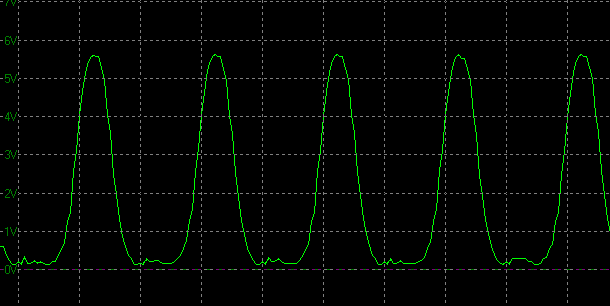
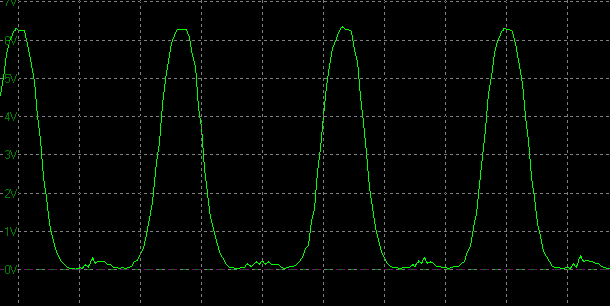
It’s actually even cleverer than NVIDIA explain. The compensation pulse mostly seems to be used during significant and rapid frame rate changes, and then disappears as the frame rate settles again. If the change in frame rates is subtle and slow, the compensation pulse isn’t needed and instead you get a gradual change in the strobe height and width like in the examples above. You can flick between the 360Hz, 250Hz and 150Hz results to see how that behaves during a gradual frame change.
Strobe behaviour with a rapid change in frame rate
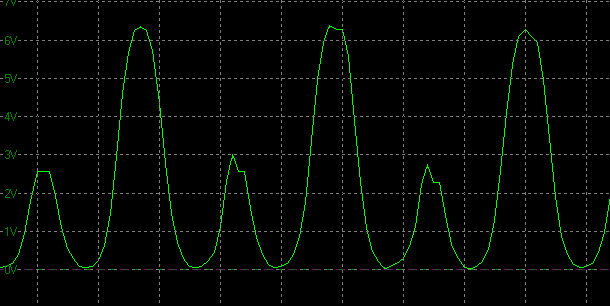
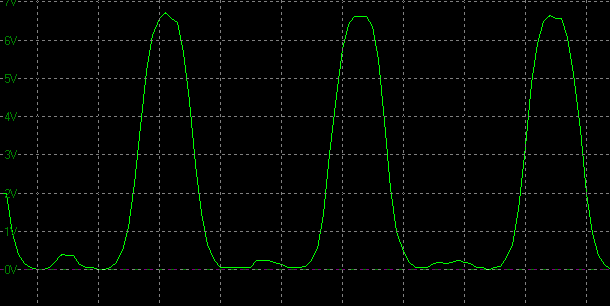
If the frame rate changes rapidly, the compensation pulse is added to help avoid flicker and ensure a smooth experience. In the examples above you can see the compensation pulse appear in the second graph (“127Hz rapid change”) as the smaller second peak, and is introduced when the frame rate varies quickly between 360 fps and 127 fps. After a few seconds at 127 fps this compensation pulse settles and is no longer needed as you can see from the “127Hz settled” graph where the smaller secondary peak disappears. It is used a bit more regularly at lower frame rates, even if the changes are slow and gradual, but the same behaviour can be observed in many different situations.
If the frame rate remains low it may introduce a small compensation pulse, with larger pulses only really being needed for larger frame rate swings. Even where those large pulses are needed during large frame rate swings, as frame rates stabilize again, the size of the pulse is reduced gradually.
G-Sync Pulsar pulses at 25% of a frame time (a 25% duty cycle) and the pulse happens right before the next scan-out, right before pixels are overwritten with the next frame. This means any object hold time is 4x smaller as well, resulting in 4x the effective motion clarity. In other words, at 250 fps with Pulsar, you get the effective motion clarity of a theoretical 1,000 Hz monitor rendering at 1,000 fps. In the case of this 360Hz monitor you can get up to an equivalent of a theoretical 1440Hz refresh rate maximum.
Additional technical information
The below video from NVIDIA is worth a watch as well, explaining how Pulsar works and some of the development that went in to it with the product team:
The latest firmware update
During the writing of this article and our testing, NVIDIA released a new firmware for the 4 Pulsar monitors, which is v1.1.4 from their point of view. According to the firmware update process our unit was originally running v1.0.6 which was the version before that, although in the Asus OSD menu it was labelled as (their firmware) MCM101. After the update, that now shows as MCM102.
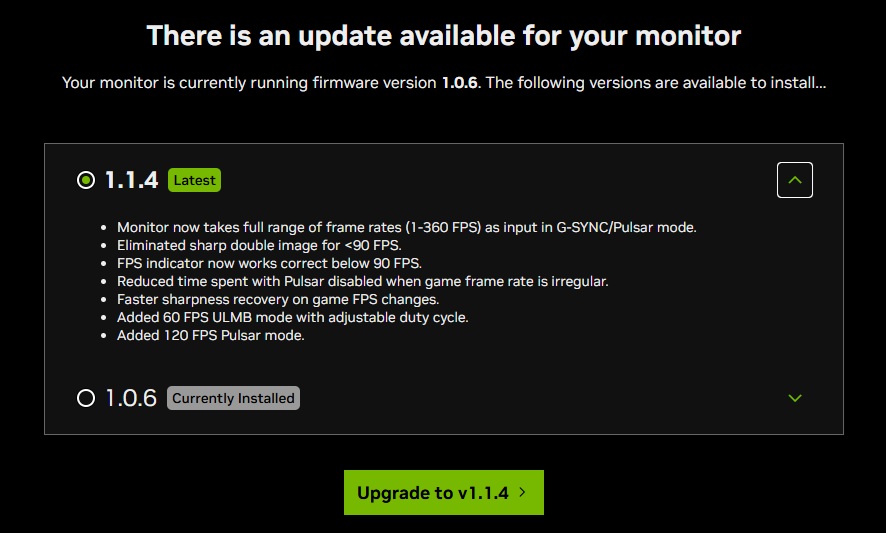
Anyway, this new firmware provides a range of gaming and Pulsar-related updates and improvements which we will talk about in the following sections. The process itself was super-easy by the way, it’s done via a browser interface from the NVIDIA website and you just need to have a USB cable connected between the monitor’s service port and your PC. You enter the firmware update mode in the on-screen menu, and follow the steps on the screen. It took around 5 mins to complete although we had to find our own USB-A to micro-USB cable as Asus don’t provide one in the box for some reason.
G-sync Pulsar activation
Enabling G-sync Pulsar is really simple, you enable G-sync from your NVIDIA control panel and then just activate Pulsar from the OSD menu and it just works. You don’t need to worry about disabling VRR or be concerned with the (varying) frame rates you experience during games as the strobing will be adjusted and aligned to your ever-changing frame rates dynamically and automatically. It’s super easy to activate and use.
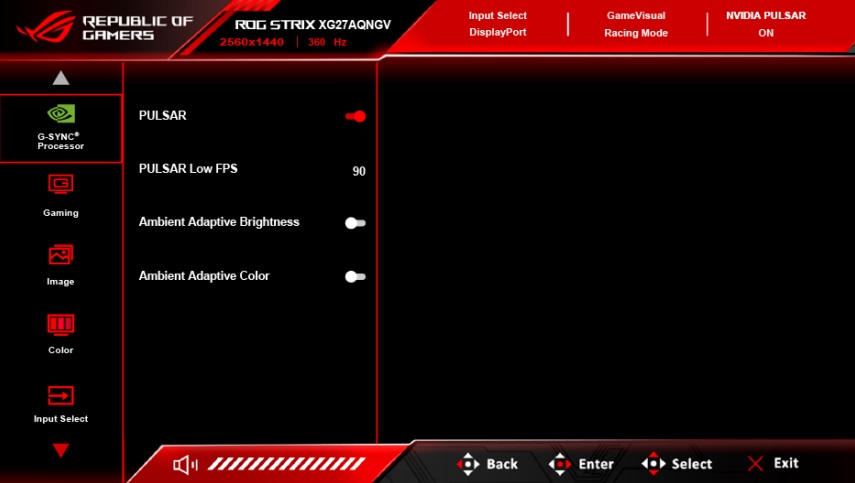
Pulsar only works with NVIDIA GPU’s at this time
We should point out that at this stage G-sync Pulsar can only be used with an NVIDIA GPU, it isn’t available if you’re using an AMD or any other vendor GPU. You can use G-sync VRR and you can use ULMB 2 mode at a fixed refresh rate, but not the two combined for G-sync Pulsar which is probably the key reason why you’d buy these particular monitors.
NVIDIA tell us that “a stable operation of Pulsar requires fine tuning in the driver, which is only available with G-SYNC enabled on GeForce GPUs…It’s related to frame pacing and frame delivery.” That provide a technical explanation at this time and it’s hard to know if in the future anything will change here.
Back in the early days of NVIDIA G-sync VRR we had the same situation, you could only use G-sync VRR with NVIDIA cards, until NVIDIA later opened up support (via adaptive-sync) for other GPU brands later. That meant that those screens with a Native G-sync module and native G-sync support could be used even if you had an AMD GPU, opening up support for other great capabilities that the module offered like variable overdrive for instance. We’d like to see NVIDIA make this same move with Pulsar to open up support for other GPU’s if it’s possible in the future. That way more people can enjoy this exciting and impressive new gaming tech.
‘Pulsar Low FPS’ control
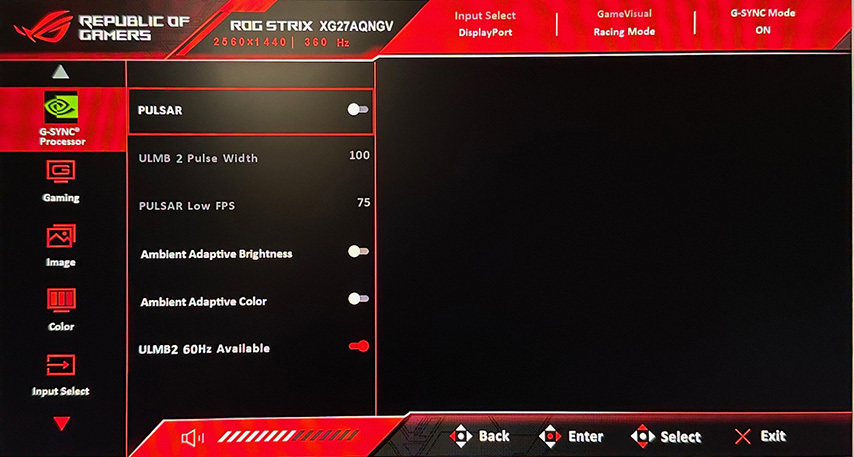
The only additional setting other than an on/off toggle is a user adjustable setting called ‘Pulsar Low FPS’. It adjusts at which frame rate Pulsar turns off to prevent perceived flicker at the lower end of the refresh rate range. By default, it is set to turn off at 90 fps but can be turned down as far as 75 fps on the current firmware. Note that this is the frame rate that it turns off at, so if set to 90fps it will mean Pulsar remains active from 91 – 360Hz, and turns off at 90 fps and below.
90Hz NVIDIA consider to be an optimal lower limit, with some potential for flicker for anything lower down to 75Hz. We saw more obvious flicker when frame rates were in the 75 – 85Hz range in our usage, but sensitivity will vary.
No further change to the lower FPS limit for Pulsar planned
At one point there was mention of NVIDIA extending this lower limit down to 48fps via a future firmware update, but we’ve been told that the extra flicker during VRR Pulsar operation has made this unusable. Instead, and since the main interest in lower frame rate support was for enthusiast 60Hz ULMB operation, they’ve introduced a fixed refresh rate 60Hz mode for ULMB 2 instead as part of the new v1.1.4 firmware as you can see in the new menu screenshot above. Pulsar will remain with a 75fps lower limit as it is now.
G-sync Pulsar Performance
Motion clarity
If you’ve already read our review of the Asus ROG Strix XG27AQNGV you’ve probably seen some of these results already, but we will include them here for completeness.

First up let’s compare the motion clarity at 360Hz with Pulsar (or ULMB 2) enabled using the familiar TestUFO tools which we configured via a method that allowed us to use them at the same time as VRR, to thoroughly test Pulsar behaviour. Like earlier, we used a faster 1920px/sec scroll speed for the UFO tests which can help capture the differences visible between modern super-high refresh rate displays.
You can see major improvements in perceived motion clarity as you track moving objects across the screen and the improvement is drastic when you enable Pulsar. Moving objects are far sharper and much clearer to track and we were really impressed. This helps make even small details like the scrolling text easy to see. There’s some minor crosstalk ghosting behind certain parts of the image, most visible on darker backgrounds, but in practice and in normal gaming situations this is very hard to see and at low levels. This improves a bit as the refresh rate lowers too.
The motion clarity you can experience here is the equivalent of a theoretical 1,440Hz display as Pulsar can deliver 4x the motion clarity of its native refresh rate. That’s all without needing to power frame rates that high too, you “only” need to be able to push up to 360fps to achieve that insane motion clarity. With a 1440p resolution that’s already a challenge for many systems, but regardless of the frame rate you achieve, you’re going to get a big boost in perceived motion clarity thanks to the strobing backlight.
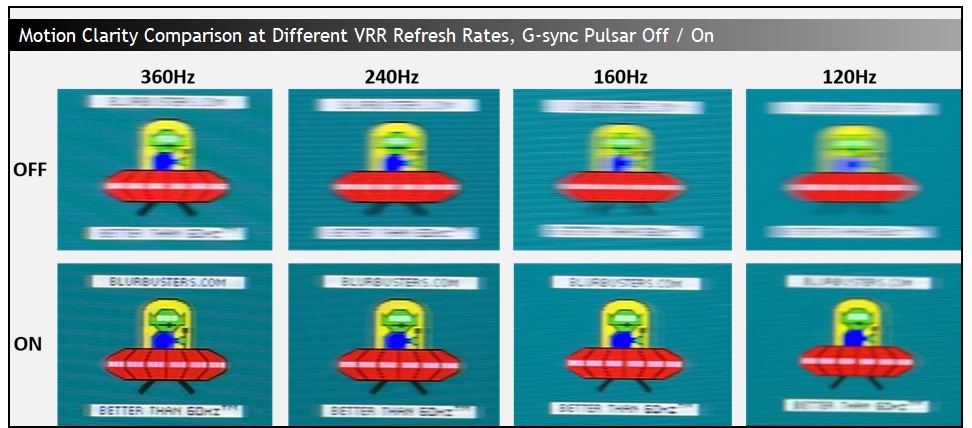
The benefits of Pulsar are even more drastic at lower frame rates compared with the off mode. You get some small reduction in motion clarity as frame rate lowers from 360fps to 120fps with Pulsar enabled, but the moving images were still sharp and crisp. If you turn Pulsar off, the perceived motion blur increases drastically as frame rate lowers due to the sample and hold nature of the LCD panel and the slower frame times. So the benefits of Pulsar extend across a wide range of refresh rates, even at lower fps.
In addition to the TestUFO photos provided above, there’s a couple of useful pursuit camera videos provided by NVIDIA worth including here. You’ve probably seen this NVIDIA demo video comparison before, but here’s the classic side by side comparison video which shows the motion clarity improvements between Pulsar off and on. In the video below, a pursuit camera recorded Counter-Strike 2 running identically on a 360Hz G-Sync monitor with and without G-Sync Pulsar.
It’s not just for fast FPS-type games either. NVIDIA say that “for immersive games, G-SYNC Pulsar’s ability to maintain consistent smoothness and clarity enhances the player’s sense of being part of the game world, free from immersion-breaking blur. A pursuit camera recording Anno 117: Pax Romana exemplifies this massive improvement with G-SYNC Pulsar enabled, providing more clarity when navigating the map to locate structures or units in a busy scene.” As shown in this demo video:
Strobe cross talk
One other consideration with G-sync Pulsar is how the motion clarity looks across different parts of the screen. It’s typical for strobing blur reduction backlights to look the clearest and cleanest in the middle of the screen, but then show ghost images and blurring at the top or bottom of the screen. This is caused by strobe crosstalk, where there is a mismatch between the timing of the strobe and the scan-out of the image for different portions of the screen. Sometimes manufacturers provide a strobe timing setting which lets you tweak which sections of the screen appear the clearest, but you pretty much always end up with some sections looking worse than others.
For instance here’s a few examples, including from the ULMB 2- enabled Asus PG27AQN. You can see the variation in clarity at different parts of the screen on these different implementations.
Thanks to one of the new Pulsar innovations – the rolling scan backlight, the motion clarity is as good at the top and bottom of the screen as it is in the middle:
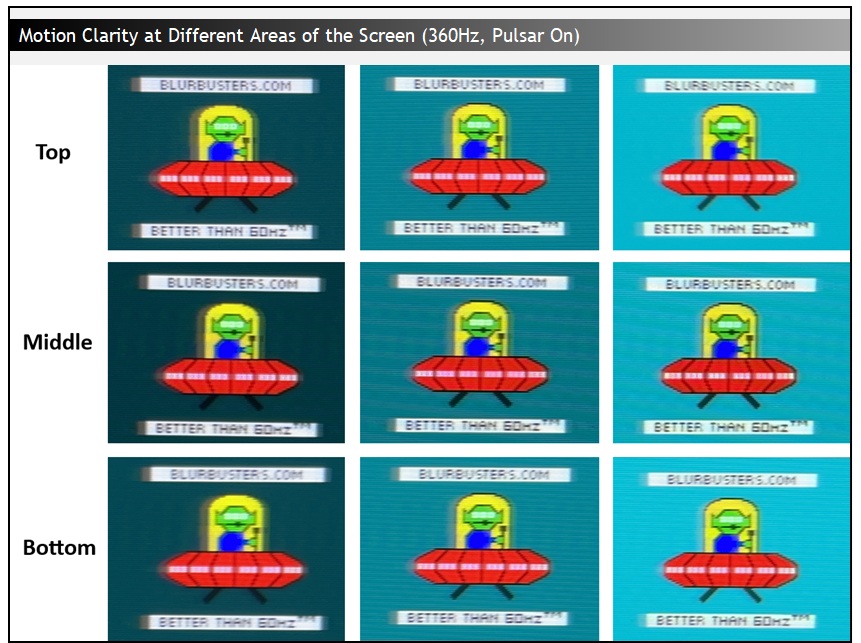
You get excellent motion clarity across the whole screen which is a great update compared with the vast majority of strobing blur reduction backlights we’ve tested in the past. Overall we were super-impressed with the performance of G-sync Pulsar when it comes to motion clarity and gaming experience.
Pulsar brightness
The Asus screen we’re testing can also get really bright with Pulsar on, actually reaching the same maximum luminance in our measurements as the off mode if you want. This gives you a very impressive brightness range to use, even for brighter room conditions and it can reach far brighter than any other strobing blur reduction mode we’ve tested in the past, exceeding the ULMB 2 screens and the Mini LED monitors we’ve tested as well:
The brightness control is available during Pulsar operation as well, and remembered independently between the off/on states which is great news. Again this makes it super-easy to enable Pulsar when you want to for gaming.
ULMB 2 operation
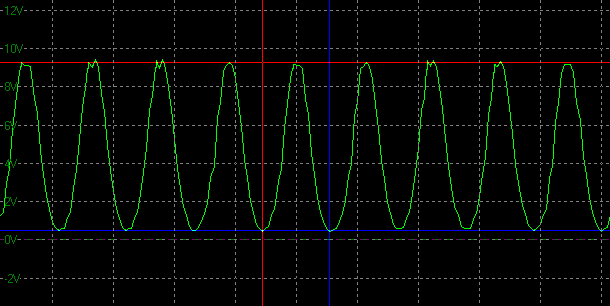
If you disable G-sync from the NVIDIA control panel, or are using a non-NVIDIA GPU then you have access to the ULMB 2 feature at various fixed refresh rates. It was originally available at 360Hz and 240Hz when we started our testing, but NVIDIA later released the firmware update which added support for 120Hz and 60Hz strobing which is great to see. The 60Hz mode is being added for enthusiasts but will exhibit more noticeable flicker at such a low frequency so use at your own risk.
ULMB at 360Hz
ULMB at 240Hz
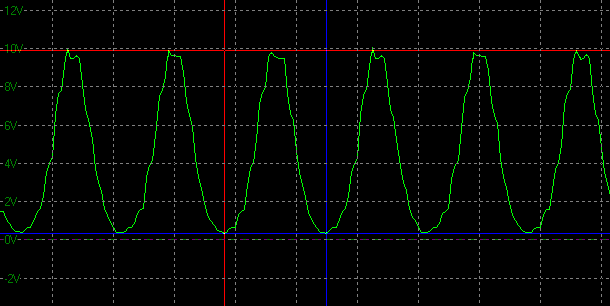
The pulsing operates at a fixed frequency in ULMB 2 mode, in sync with the refresh rate of the screen as shown above. There’s no need for compensation pulses as there’s no VRR capability here, just a fixed strobing. This still operates with the rolling scan backlight which has a duty cycle of 25% for each of the 10 segments.
| Motion Blur Reduction Mode | ||
| Motion Blur Reduction Backlight |  | |
| Refresh rates supported | 360, 240Hz only (120 and 60Hz from new firmware) | |
| 60Hz single strobe operation | | |
| Strobe length / Pulse width control | | |
| Strobe timing control | Not required | |
| Available in SDR mode | | |
| Available in HDR mode | | |
| Brightness capability (SDR, max refresh rate supported) | ||
| Independent brightness control available | | |
| Motion blur OFF – Max brightness | 44 – 454 nits | |
| Motion blur ON – brightness range | 111 – 454 nits | |
Pulse width control
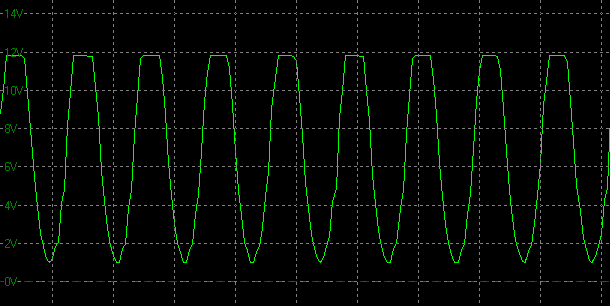
For ULMB 2 operation they’ve also added a strobe length control (via the ‘pulse width’ setting) although apparently it may not be introduced on all of the 4 initial Pulsar screens (confirmed present on Asus and Acer models). This isn’t available when using Pulsar, as the pulse width is controlled dynamically during VRR situations to avoid brightness variation, and to account for the different frequency of the strobing. Those who like to adjust things for blur reduction modes will be pleased with the addition though for static ULMB 2 usage.
The Pulse width setting changes the “on” portion of the strobe which in some situations can help improve perceived motion clarity further, especially at lower ULMB refresh rates. However, the trade off is that when you lower the pulse width, the brightness of the screen is also impacted. You still have access to the normal brightness control so it’s likely you’ll be able to find a nice balance to get the screen to your desired brightness.
Pulse width = 100
Pulse width = 50
| 360Hz | Pulse Width setting | ||
| 100 | 50 | 10 | |
| Max luminance (nits) | 454 | 246 | 51 |
We measured the maximum luminance at 360Hz with the brightness control turned up to max (setting of 500) and at different pulse width settings to give you an idea. At 360Hz though we didn’t feel that the change really made any noticeable difference to perceived motion clarity. Still, if you’re going to reduce brightness, shortening the pulse width is probably the better way to do it.
ULMB 2 performance
When using ULMB 2 obviously you lose VRR support, but depending on how you configure the pulse width setting you can reach the same brightness range as Pulsar mode, and the motion clarity looks the same as it does during VRR at those same refresh rates. By adjusting the pulse width you can improve motion clarity a little further as well in ULMB 2 mode. Obviously you need to be more mindful of your achieved frame rates in the games you play, and may need to set frame caps etc like you would with other normal fixed refresh rate-only blur reduction modes.
ULMB 2 at 60Hz
Where we did feel that the pulse width setting made a much more noticeable difference to motion clarity was at lower refresh rates. This 60Hz mode was added in the newly released v1.1.4 firmware as we discussed earlier. When you enable this mode the flicker is really obvious on Windows desktop and static images, but it’s less noticeable in dynamic content thankfully. The higher your overall brightness, the more obvious the flicker is as well, since the difference between the on and off states becomes more apparent.
Some people may find the flicker too noticeable and it could cause headaches or eye strain, but some people may like it for the impressive motion clarity improvements it offers.
| 60Hz | Pulse Width setting | ||
| 100 | 50 | 10 | |
| Max luminance (nits) | 454 | 245 | 50 |
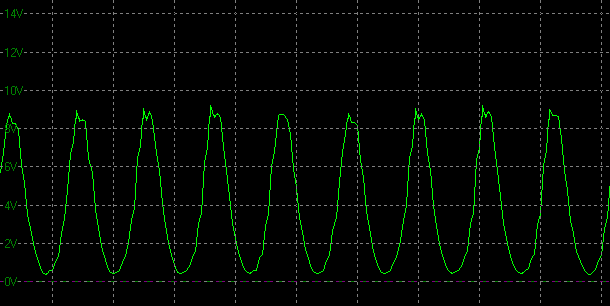
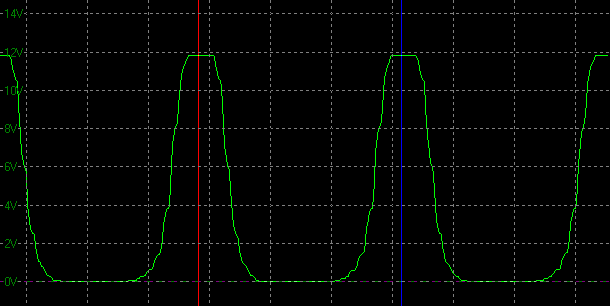
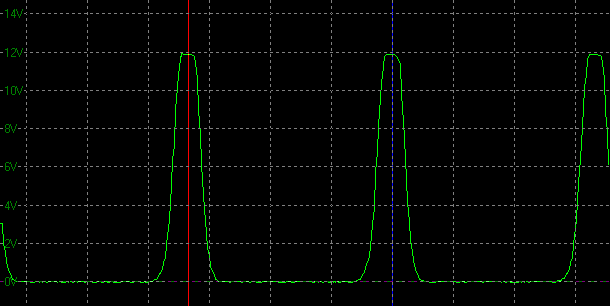
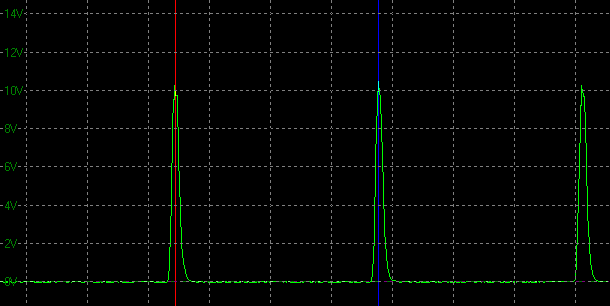
You can get the same brightness levels at 60Hz as at 360Hz when using this mode and adjusting the pulse width setting. But changing the pulse width is the better way to lower your overall brightness at these lower refresh rates, as it also directly impacts motion clarity in a very noticeable way. As we said, the lower the brightness ends up being, the less the flicker becomes as well. You can see the strobing behaviour at 60Hz below as you adjust the pulse width, the on time of the strobe.
Pulse width = 100
Pulse width = 50
Pulse width = 10
With a reduced Pulse Width setting the 60Hz ULMB 2 motion clarity can even look a bit better than the 360Hz mode which is amazing. The minor crosstalk you see at higher refresh rates disappears here, which is common for lower refresh rate strobing. There’s also more time for the G2G pixel transitions to be hidden during the “off” part of the strobe which improves sharpness further.
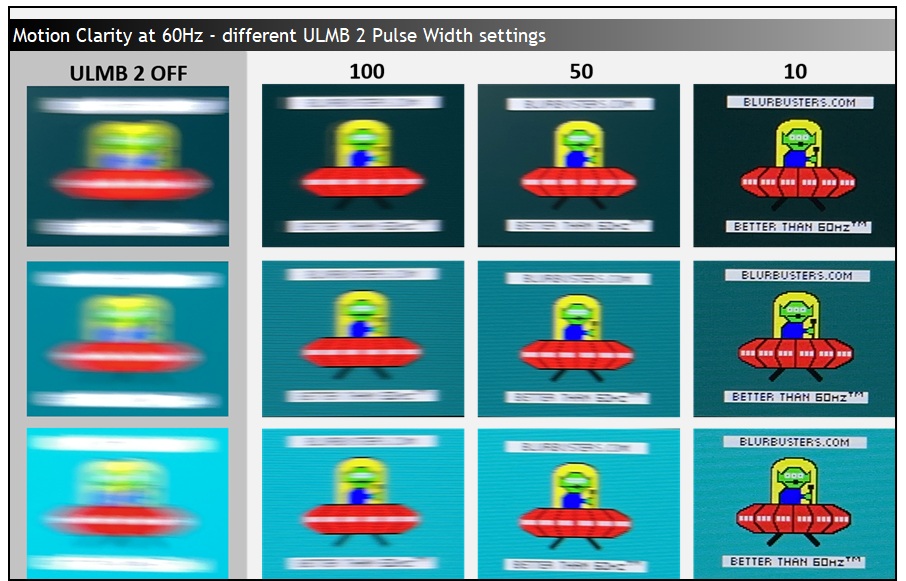
Obviously there’s a brightness trade-off as you reduce the pulse width, and the minimum 10 setting is probably going to be too dark for most gamers as it only reaches ~50 nits maximum. Below about 35 is where the motion clarity really starts to look amazing at 60Hz, but you’ll need to find a level that offers an appropriate brightness for your usage.
So overall you can get a really impressive motion clarity potential using this mode, as long as you don’t find the flicker problematic. Keep in mind of course that at lower refresh rates other factors like end to end system latency, the stroboscopic effect and frame rate support come in to play when comparing it to 360Hz. It’s not only about motion clarity. We’re sure enthusiasts will love this newly added mode though.
Why such a long wait, and what’s next for Pulsar?
The specs of the first wave of LCD display may feel a little…underwhelming to some people for a modern monitor, with all the super-high refresh rates and OLED screens being released, all the Mini LED backlights and the new wave of 1000Hz+ gaming monitors even. But these new monitors are all about the NVIDIA G-sync Pulsar technology and the exceptional motion clarity they can deliver for gamers.
The slightly ageing panel and spec is due to a long co-development cycle between NVIDIA, the panel manufacturer AU Optronics and the monitor brands; and at CES 2026 NVIDIA explained to us that it took a long time to get the technology working correctly as they wanted, and to migrate their G-sync software and capabilities across from their older in-house ‘G-sync module’ to the new MediaTek scalers that they are now using.
By using mainstream scalers and embedding their G-sync capabilities into those, they can reduce costs (the old module was expensive), potentially bring capabilities to more displays (the MediaTek scalers are widely adopted), and they’re no longer sacrificing connections and other features like they did with their own module. The Asus screen we are testing here can offer 2x HDMI 2.1 connections for instance which were not available on any of the earlier Native G-sync modules. Now NVIDIA no longer need to develop and produce their own in-house module to get G-sync features working, so this is a positive step forward.
Getting the G-sync features working on the MediaTek scaler has taken some time, longer than they had originally anticipated, which is why it’s taken 2 years to go from Pulsar announcement to monitor releases. Now that they’ve gotten everything working properly, NVIDIA tell us it should now be much quicker to bring other G-sync / Pulsar displays to market where display manufacturers want to adopt the technologies.
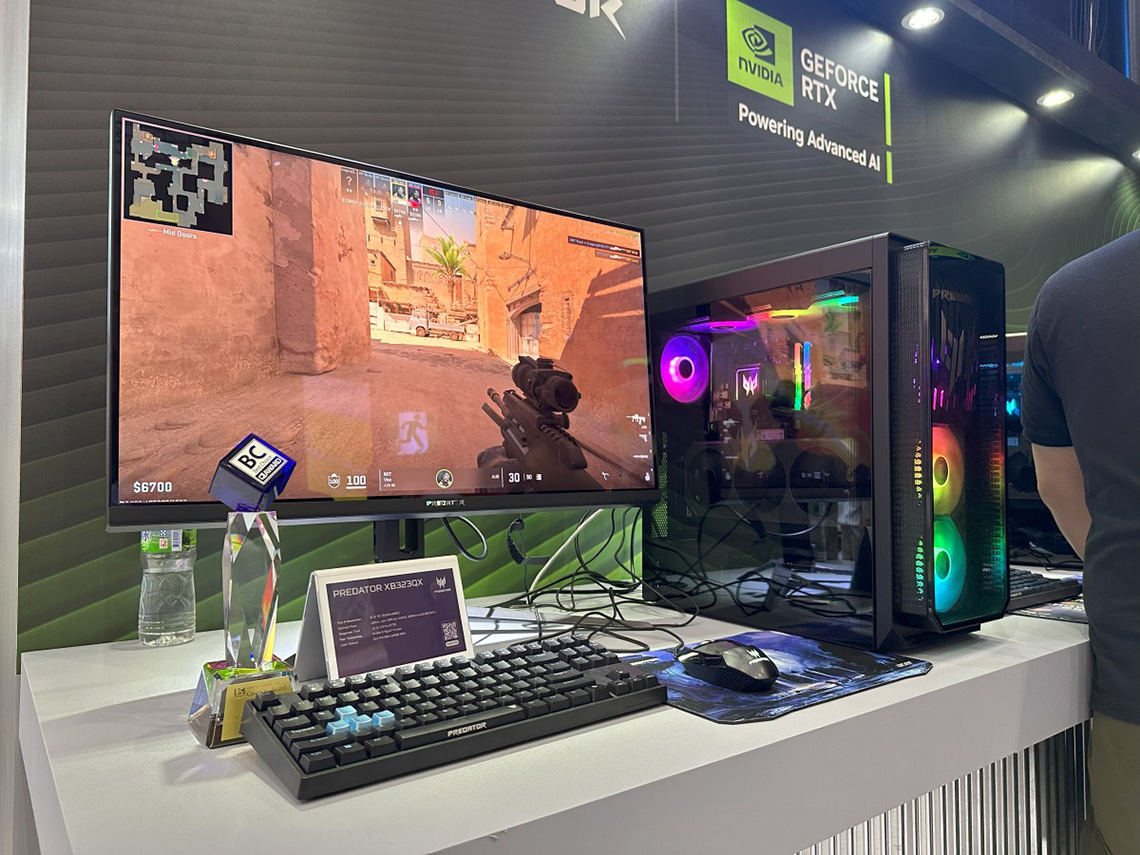
The only other Pulsar monitor we’ve seen announced so far is a 31.5″ sized 5K gaming model from Acer (Acer Predator XB323QX – pictured above) that was unveiled first of all at CES 2025 in January last year, and that we again saw as a prototype at Computex 2025 last May. This model has a 5120 x 2880 native resolution at 165Hz, and a dual-mode function for 2560 x 1440 at 330Hz. NVIDIA tell us this is still being developed, and hope that it should be completed soon now that they’ve overcome the challenges with getting their G-sync technologies working fully on the MediaTek scaler.
NVIDIA also told us they’re already exploring how to get Pulsar working with other technologies like Mini LED and maybe even OLED (although of course this doesn’t have a backlight so would involve a different approach), although there’s no official news or announcements on either at this time. They confirmed Pulsar was certainly a live project and other future options were being explored.
G-sync Pulsar vs. the Fastest OLED Displays
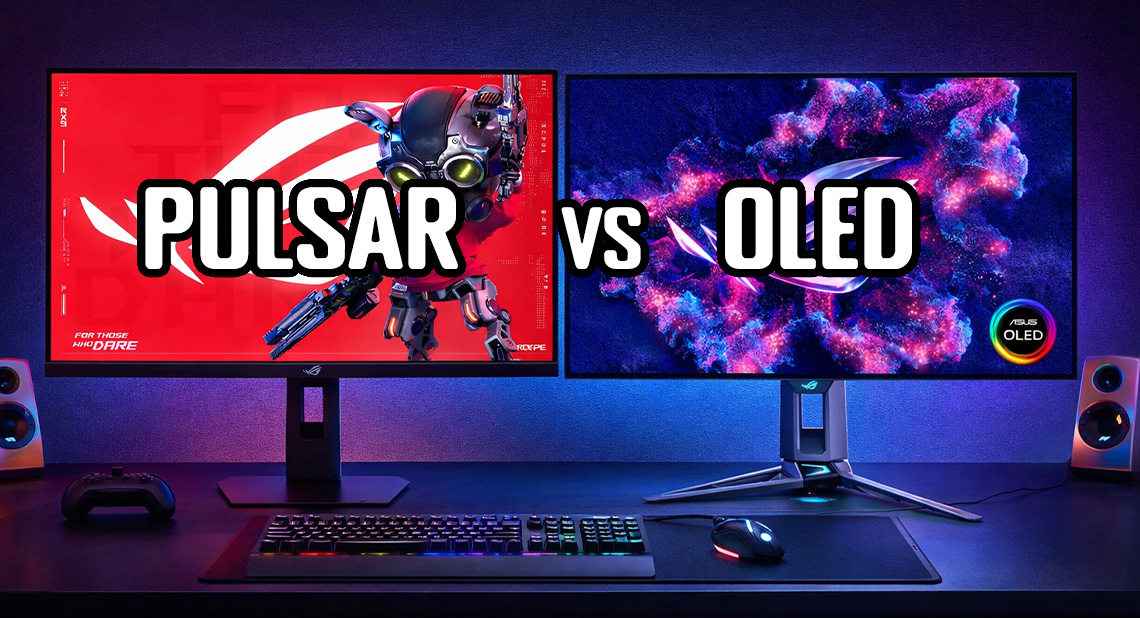
One obvious area of comparison would be against modern OLED monitors, which are available with refresh rates up to 540Hz at the moment for the same 2560 x 1440 resolution. Some can support 720Hz but only when dropping to a much lower 1280 x 720 resolution, but we should still compare those to the performance of Pulsar. Due to their near instant response times, there is an approximate 1.5x motion clarity benefit on an OLED screen compared with an LCD screen at the same refresh rate. So for instance, a 540Hz OLED should look roughly the same as a theoretical 810Hz LCD, and at 720Hz is should look similar to a theoretical 1,080Hz LCD. We’ll use the Asus ROG Swift PG27AQWP-W for these comparisons.
Here’s some pursuit camera comparisons of real-world motion clarity between the Pulsar monitor at 360Hz and a 540Hz OLED:
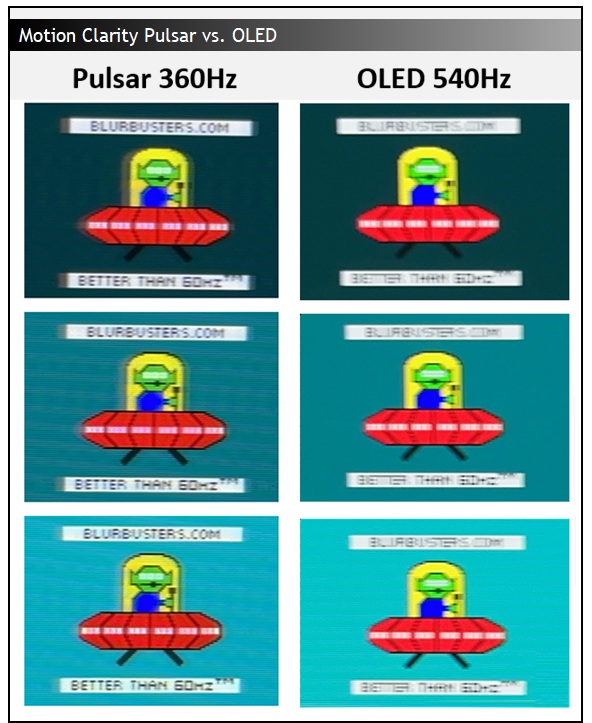
You can see that the moving objects look sharper and clearer on the Pulsar screen since its equivalent motion clarity is 1,440Hz, compared with ~810Hz of the OLED monitor. Obviously both are super-fast and super-clear, we’re talking about minor overall differences that to many general gamers may not even be detectable and it will depend on the game they’re playing as well. Still, with small details like the scrolling text sections, the Pulsar monitor has the edge and looks clearer.
Keep in mind for this comparison that:
- Both screens have the same 1440p resolution but on the OLED to get this motion clarity you’d need to be able to power consistent frame rates of 540 fps during VRR situations. On the Pulsar monitor you “only” need to be pushing 360 fps.
- If you’re willing to turn VRR off you could use OLED BFI (an equivalent to ULMB) to reach the same motion clarity at half the refresh rate, so in that instance you only need to reach 270 fps which is more achievable. You’d lose VRR support though. The resulting motion clarity would be the same as the normal 540Hz mode.
- Assuming normal mode is used, in VRR situations OLED motion clarity drops off more rapidly as frame rates lower, compared with the Pulsar monitor which retains super-clear motion clarity even at lower frame rates thanks to the strobing. This is shown below
- The Pulsar mode does strobe the backlight off an on rapidly and some people may not enjoy that or find it causes headaches and eyestrain. It’s great for improving motion clarity, but not everyone like these features or finds them comfortable to use.
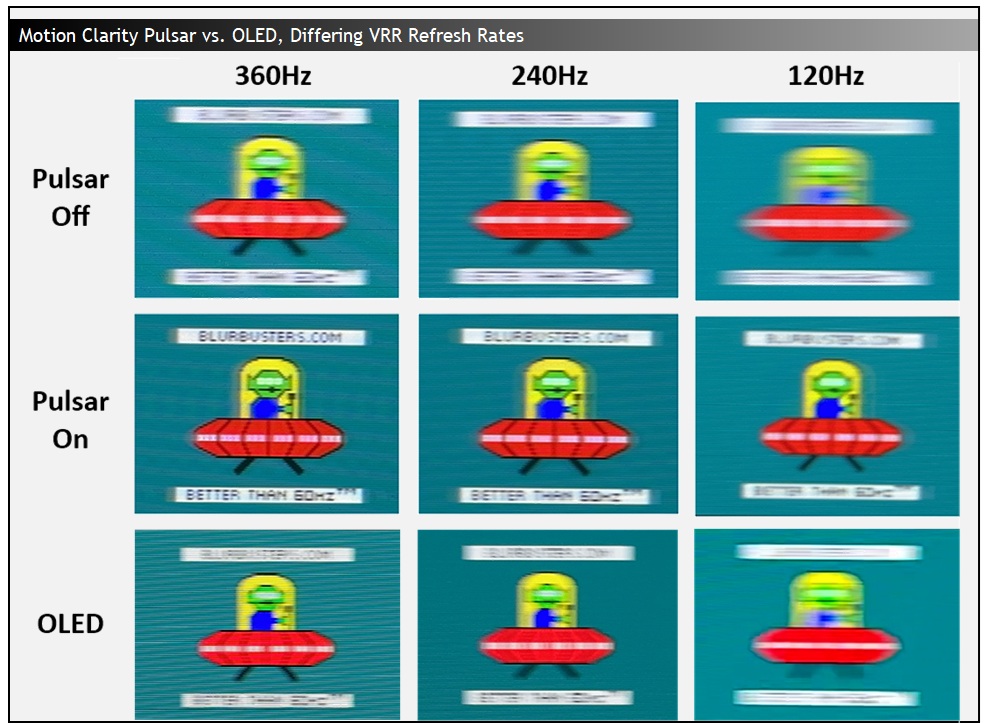
The Pulsar strobing makes even more significant differences at lower frame rates when compared to non-strobing operation of both LCD’s and OLED’s.
And compared with an OLED monitor running at the maximum 720Hz currently available. In this situation the equivalent motion clarity of the OLED is ~1,080Hz and getting even closer to the 1,4440Hz of the Pulsar monitor, creating a smaller gap even in the most extreme usage situations.
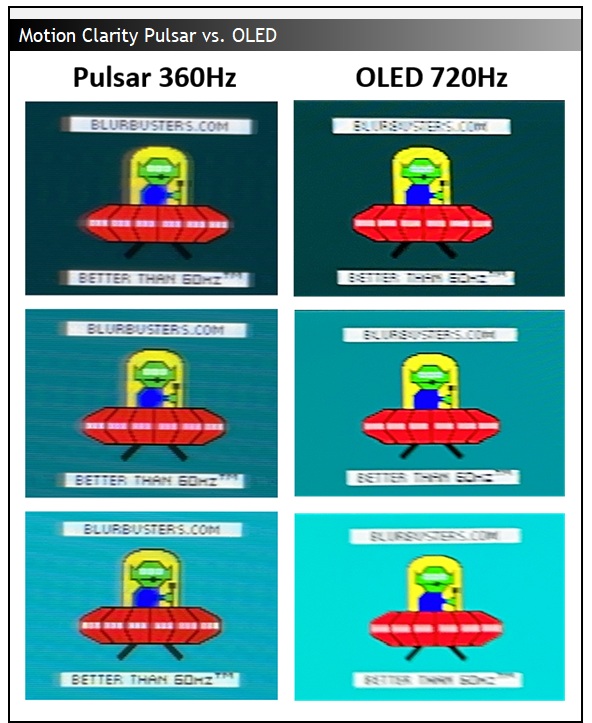
Keep in mind for this comparison that:
- The 720Hz OLED mode only operates at a MUCH lower resolution of 720p, you’re giving up a lot of image detail and clarity for that refresh rate.
- Like the point above about the 540Hz 1440p mode, to get this motion clarity you’d need to be able to power consistent frame rates of 720 fps (or 360 fps if using BFI mode at a fixed refresh rate without VRR). On the Pulsar monitor you “only” need to be pushing 360 fps.
- OLED motion clarity drops off more rapidly as frame rates lower, compared with the Pulsar monitor which retains super-clear motion clarity even at lower frame rates thanks to the strobing as we showed earlier.
- The Pulsar mode does strobe the backlight off an on rapidly and some people may not enjoy that or find it causes headaches and eyestrain. It’s great for improving motion clarity, but not everyone like these features or finds them comfortable to use.
Other OLED vs Pulsar considerations
This is only a comparison of potential motion clarity between these first wave of Pulsar monitors and top-end, high refresh rate OLED monitors. There’s a lot more to overall gaming experience and monitor performance than just motion clarity though. Higher refresh rates can improve gaming experience in other ways, such as improved stroboscopic effect, reduced end to end system latency, and overall frame rate support. Motion clarity is one part of it, but not the only consideration.
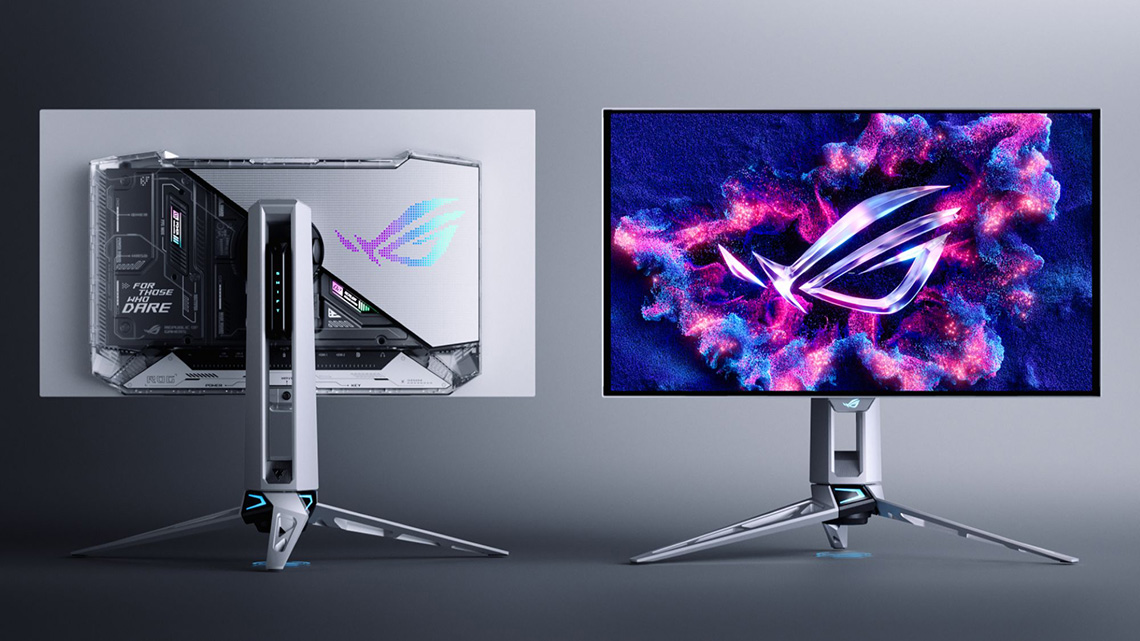
The OLED monitors also offer wider viewing angles, no pale off-angle IPS glow, wider colour gamut and more vivid colours, and most significantly they offer far better black depth and contrast ratios. The current Pulsar monitors are ~1000:1 contrast ratio IPS LCD panels, and they simply can’t compete with OLED monitors for contrast and black depth, and that’s noticeable in many gaming situations. HDR hardware capabilities are also basically non-existent on the Pulsar monitors, whereas OLED monitors perform very well in this area and so if modern HDR gaming is important to you, there’s no contest here.
We think Pulsar monitors fit an existing niche of gamers who are focused only really on fast-paced, competitive games, who don’t care about HDR gaming and are already interested in, or using strobing blur reduction modes. That’s an established audience, and Pulsar fits in to that space very nicely as an excellent approach to the strobing technology. It’s better than other strobing approaches we’ve seen in the past and works really well. Pulsar certainly doesn’t render OLED monitors redundant or obsolete as some people seem to comment, there’s just far more to it than simply considering motion clarity alone.
G-sync Pulsar vs. New 1000Hz+ Gaming LCD’s
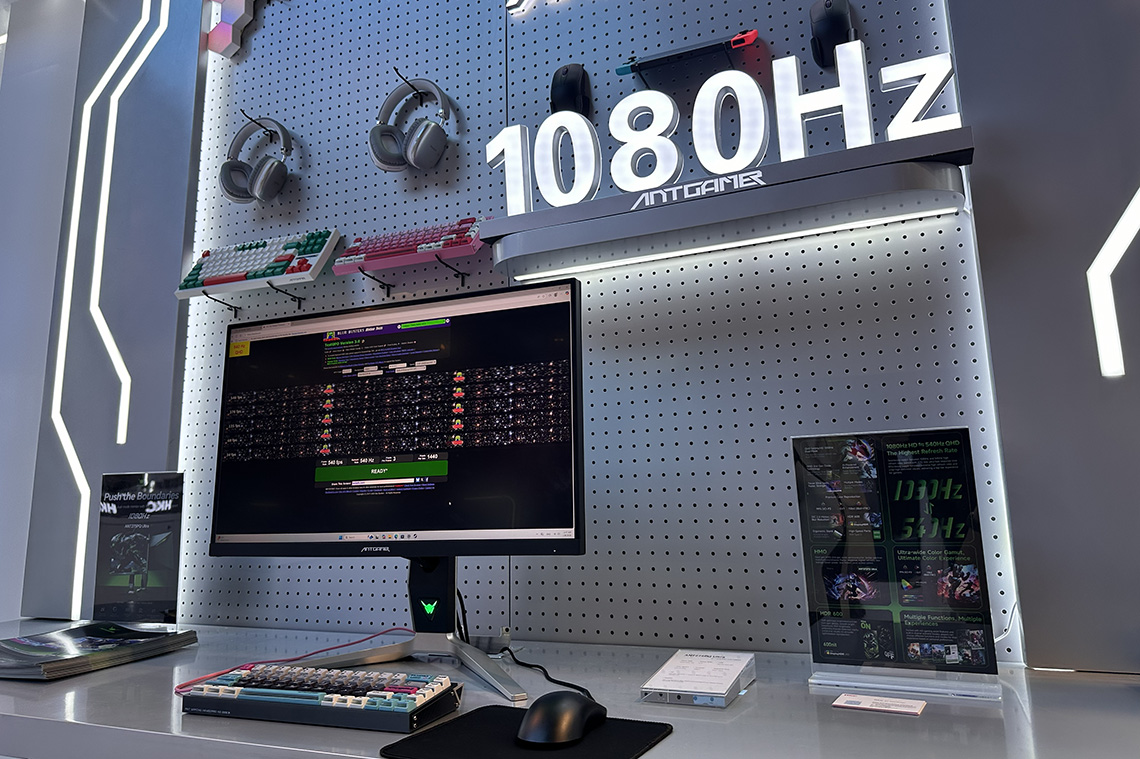
What about the newly announced 1000Hz+ gaming monitors that we’ve seen unveiled this year? We’ve seen quite a few models announced already from Acer, Samsung, Philips, AOC and HKC for instance (see our CES 2026 round-up for more info). How will these compare with the Pulsar monitors? These have not been released yet, and we’ve not had a chance to test them to really examine their performance, but there are some key things to keep in mind even at this stage.
The main thing to remember with these upcoming screens is that like the OLED comparison we covered above, the 1000Hz+ refresh rate mode only operates at a MUCH lower resolution of 720p, you’re giving up a lot of image detail and clarity for that refresh rate. You’d have to be able to power 1000fps+ as well which is a massive challenge for any system, with many games not even supporting that kind of frame rate anyway. And since these are all IPS-type panels, there could be concerns around response times and whether they can realistically keep up. If they can’t, we could see additional smearing, blurring and overshoot artefacts. In the best case scenarios they could potentially look like the 720Hz OLED example above when compared to Pulsar, but only at a very low resolution, and likely with additional smearing and overshoot challenges to worry about.
G-sync Ambient Adaptive technology
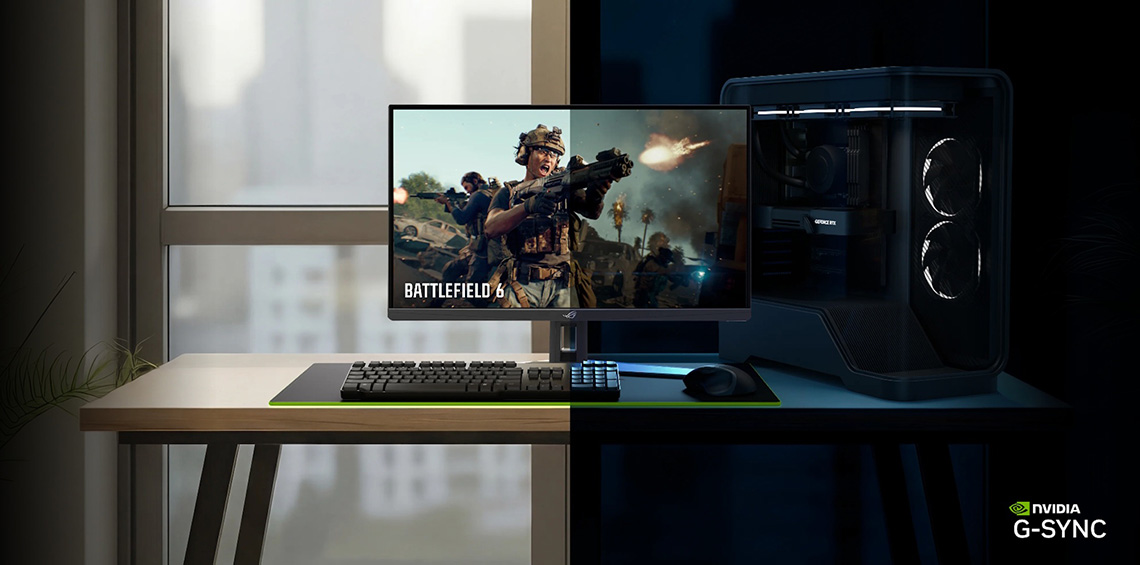
One additional bonus feature – the G-Sync Pulsar monitors launched during Q1 also include another new technology called ‘G-Sync Ambient Adaptive Technology’. This utilizes a built-in light sensor (on the top of the monitor in the case of this Asus screen) to give users the option to automatically tune colour temperature and/or brightness based on the ambient lighting in the room, for optimal viewing at any hour of the day or night. You can “avoid being blinded at night, and ensure you see enemies even on the brightest days, without having to manually change your monitor settings throughout the day.” This seems to work quite well, responding nicely to changing ambient light conditions and adjusting the image accordingly.
Summary
Hopefully that’s been a useful explanation of what G-sync Pulsar is, how it works and how it performs. As we said earlier, we think Pulsar monitors fit an existing niche of gamers who are focused primarily on fast-paced, competitive games, who don’t care about HDR gaming and are already interested in, or using strobing blur reduction modes. That’s an established audience, and Pulsar fits in to that space very nicely as an excellent approach to the strobing technology. It’s better than other strobing approaches we’ve seen in the past and works really well, offering some excellent performance and a great user experience.
It’s certainly taken a while to get to market, but it’s reassuring that NVIDIA are continuing to invest in this technology and develop it further and that they’ve said it should now be quicker and easier to develop new screens now that they’ve overcome the initial challenges. The first 4 monitors are now available (linked below) and we look forward to Acer’s 31.5″ 5K gaming monitor hopefully before too long which offers a larger size and resolution with G-sync Pulsar. We’d love to see Pulsar developed for Mini LED and even OLED monitors in the future too, hopefully NVIDIA can get that working.
The 4 G-sync Pulsar monitors released this year are available to buy now in various regions, you can check latest pricing and availability using our affiliate links here:
We may earn a commission if you purchase from our affiliate links in this article- TFTCentral is a participant in the Amazon Services LLC Associates Programme, an affiliate advertising programme designed to provide a means for sites to earn advertising fees by advertising and linking to Amazon.com, Amazon.co.uk, Amazon.de, Amazon.ca and other Amazon stores worldwide. We also participate in a similar scheme for Overclockers.co.uk, Newegg, Bestbuy , B&H and some manufacturers.