
iiyama Gold Phoenix GB3290QSU
Introduction
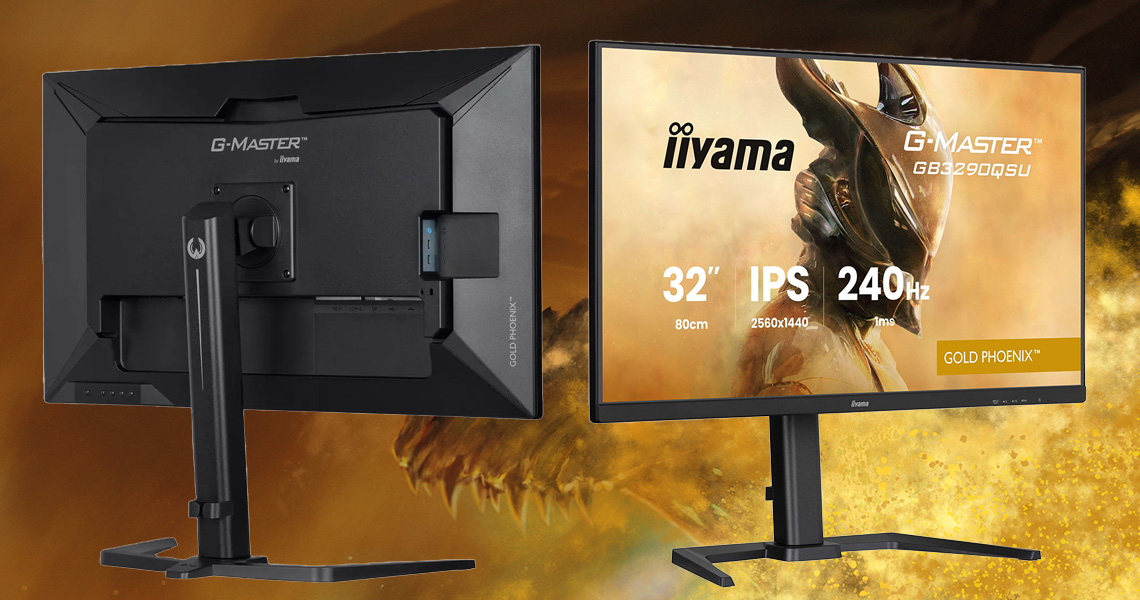
We’ve recently published an article rounding up a wide range of affordable, budget-friendly iiyama monitors that have been released during Q4 2025 in their G-master series, with a choice of sizes, technologies and specs. We’ve now received one of their latest 32″ class models released during November in their top-tier Gold Phoenix range, the GB3290QSU. It’s built around an IPS LCD panel with a 2560 x 1440 resolution and a 240Hz refresh rate, which is actually a rare combination in this space. You can only find a few 32″ LCD screens with 1440p and 240Hz+ refresh rates, most of which are VA-based. So it’s unusual to find an IPS screen of this size and spec.
It offers a good range of connections and extras including HDMI 2.1 for console gamers, a 4-port USB hub with a mix of USB-A and USB-C ports, and a fully adjustable stand too. It offers a good feature set at an attractive price point, and we’ll put it through all our usual testing to see how it performs.
Useful Related Article
A round-up of iiyama’s new gaming monitor launches for Q4, with a range of sizes, resolutions and features on offer, all at affordable price points that won’t break the bank
[View here]
Key Specs
- 31.5″ screen size, flat format
- IPS technology LCD panel
- 2560 x 1440 resolution
- 240Hz refresh rate
- 1ms MPRT spec with strobing blur reduction backlight mode
- Adaptive-sync support for VRR, including AMD ‘FreeSync Premium’ certification
- Wide colour gamut with 95% DCI-P3 coverage spec (not actually listed in spec)
- 1x DisplayPort 1.4 and 2x HDMI 2.1 video connections
- 2x USB-A (5Gbps, 4.5W) and 2x USB-C (5Gbps, 7.5W) data ports
- Integrated 2x 4.5W stereo speakers and 1x headphone jack for audio
- Tilt, height, swivel and rotate stand adjustments

Design and Features
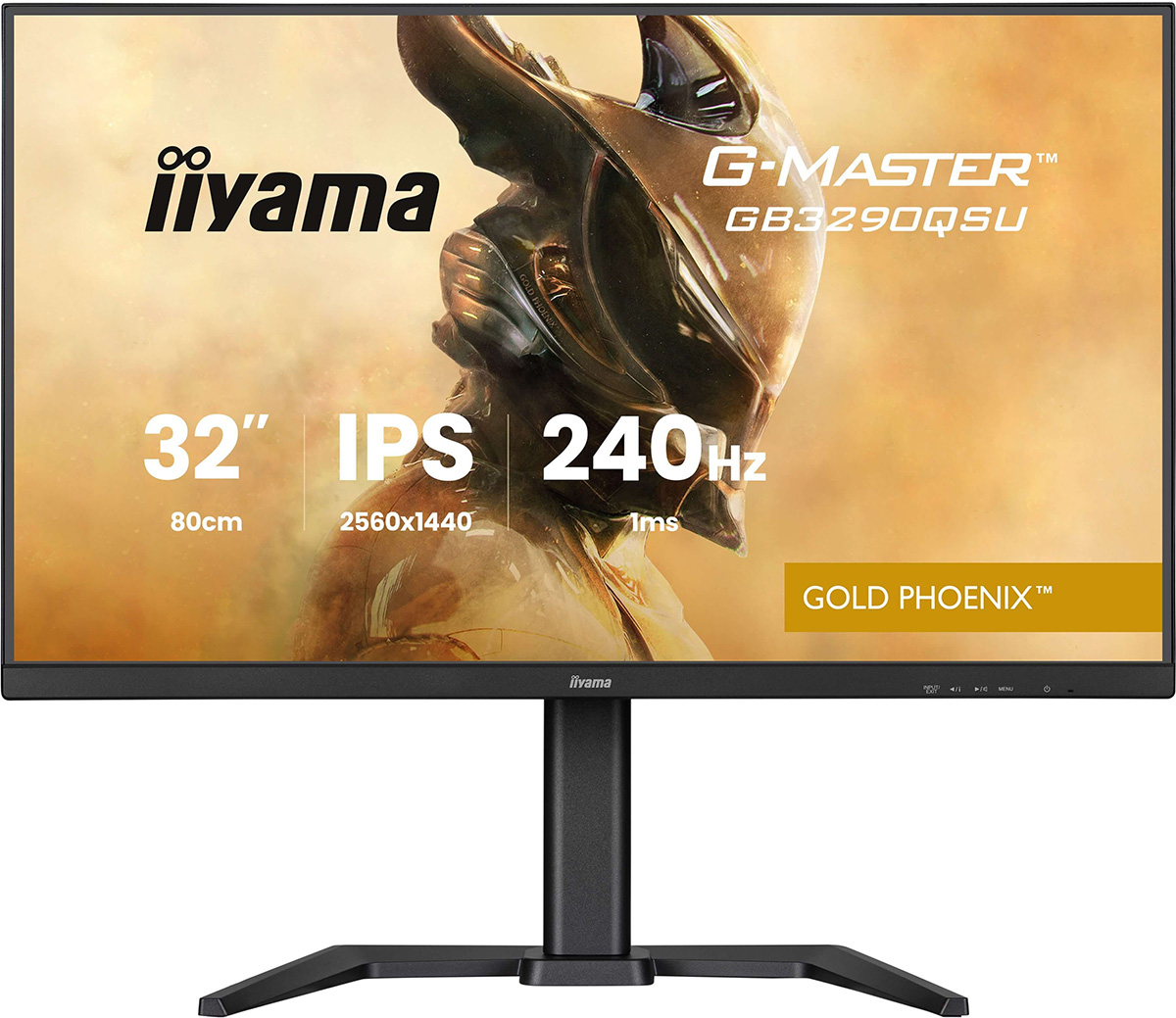

The GB3290QSU comes in a black design with a 3-side “borderless” panel. Taking in to account the black panel edge, it has a ~7.5mm total border along the sides, ~8mm along the top and a thicker traditional ~23mm black plastic bezel along the bottom. There’s a dark grey “iiyama” logo on the front and some subtle labelling for the OSD menu controls as well in the bottom right area.
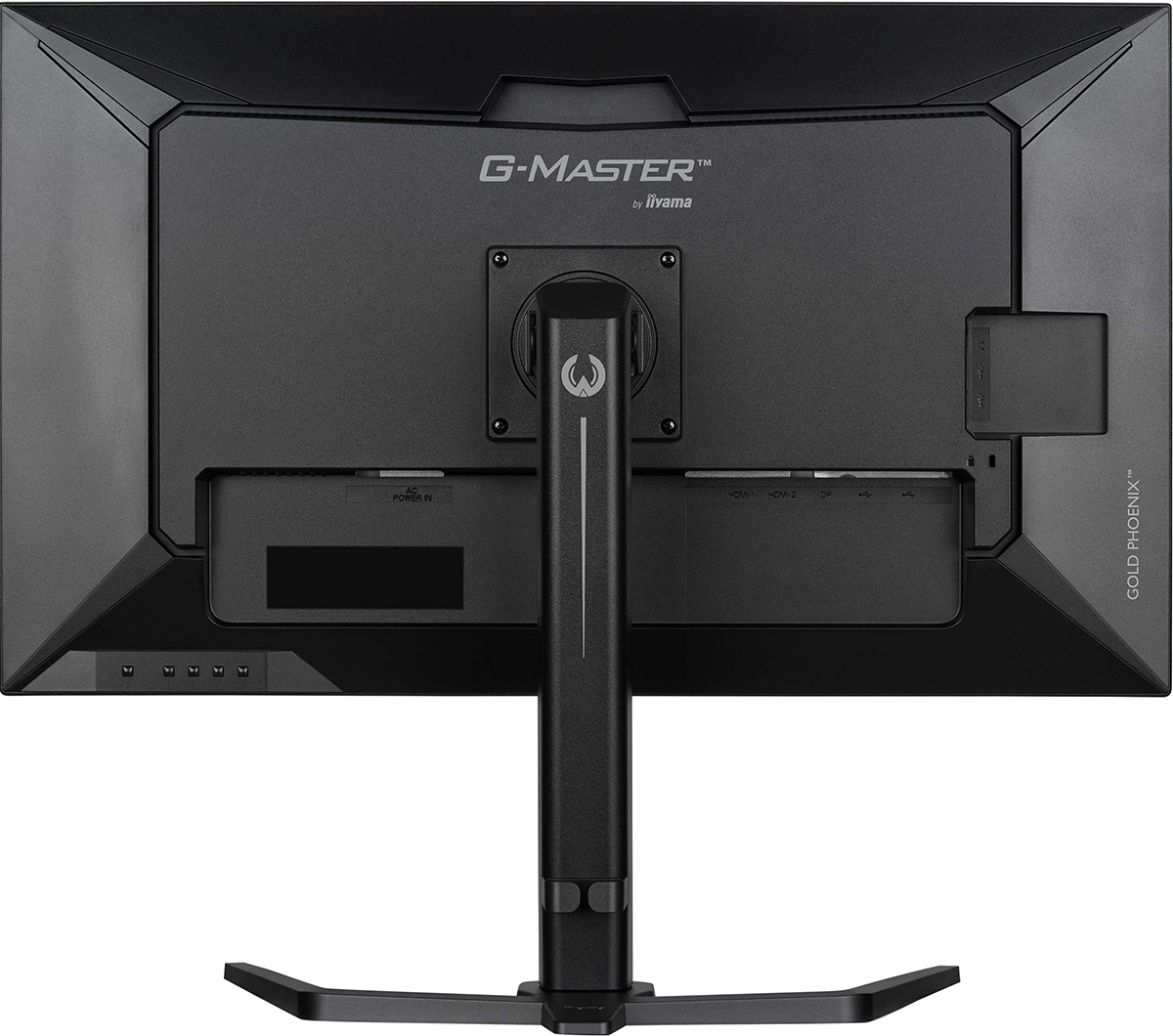
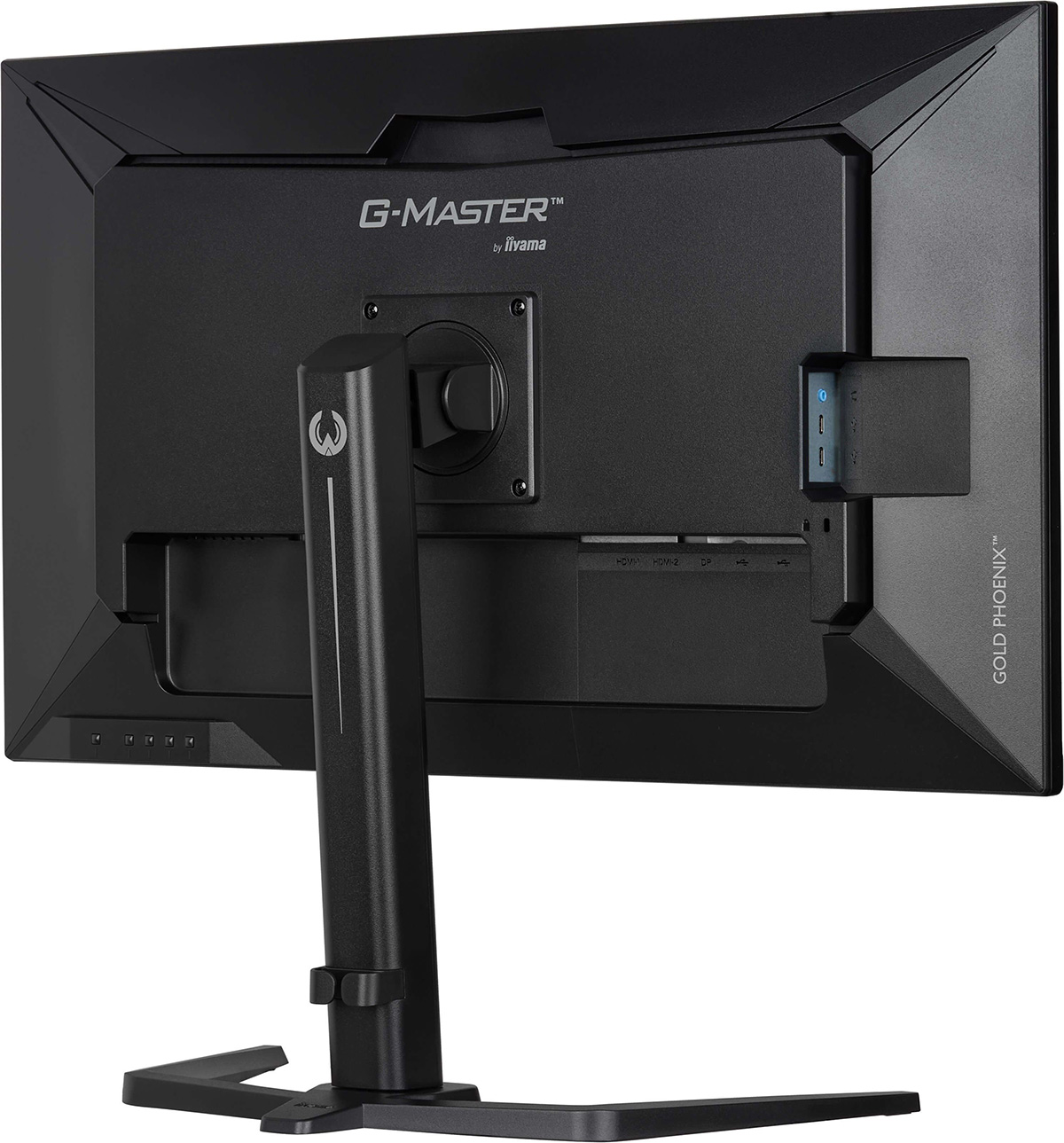
The rear of the screen is encased in a matte black plastic enclosure as shown above. The arm of the stand needs to be screwed in to the attachment on the back of the screen when you unbox it, but that’s easy using the simple, attached hand-screw. Likewise the foot of the stand then needs to be connected to the bottom of the arm using the attached hand-screw there. You can remove the whole arm and the mounting bracket section from the back of the screen if you wish to VESA mount it (100 x 100mm).
There is a carry handle built in to the enclosure on the back which is useful, along with a cable tidy clip on the back of the arm.
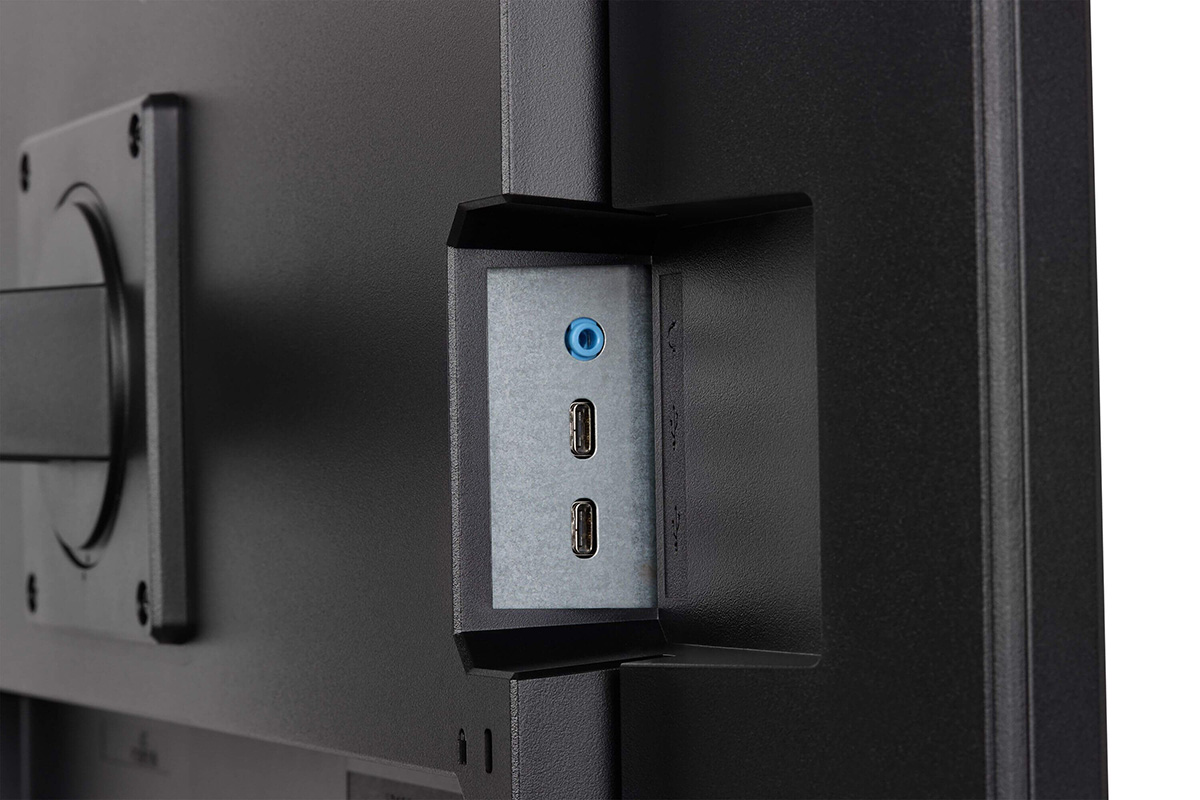
You can see also that most of the connections are in the usual place underneath where the arm connects, but there’s also a small section on the right hand side (when viewed from the rear) where there’s easy-access connections for 2x USB-C (data only, 5Gbps, 7.5W power delivery) and 1x headphone jack. It’s nice to see those available on the side section for quick access.

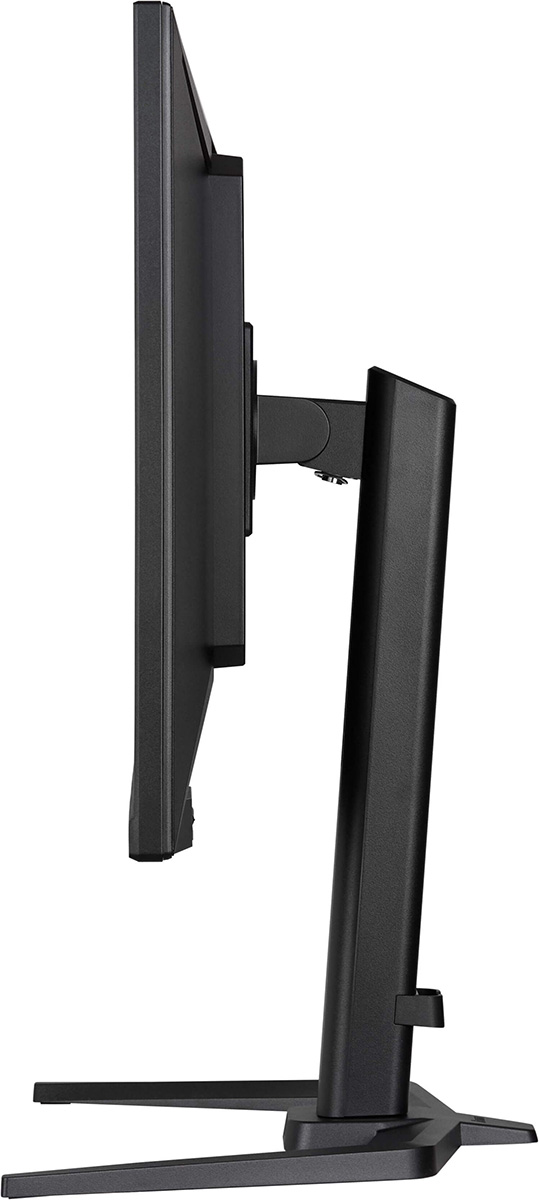
The screen has a pretty thin side profile and has an integrated power supply, so you only need a normal kettle lead power cable. The foot of the stand is a U-shape and profiles a wide and stable base for the large panel. The stand provides a full range of tilt, height, swivel and rotate adjustments which are all smooth and pretty easy to use. There is a bit of wobble to the screen when you’re moving it around from where the arm attaches to the back, but overall it remains pretty stable on the desk.
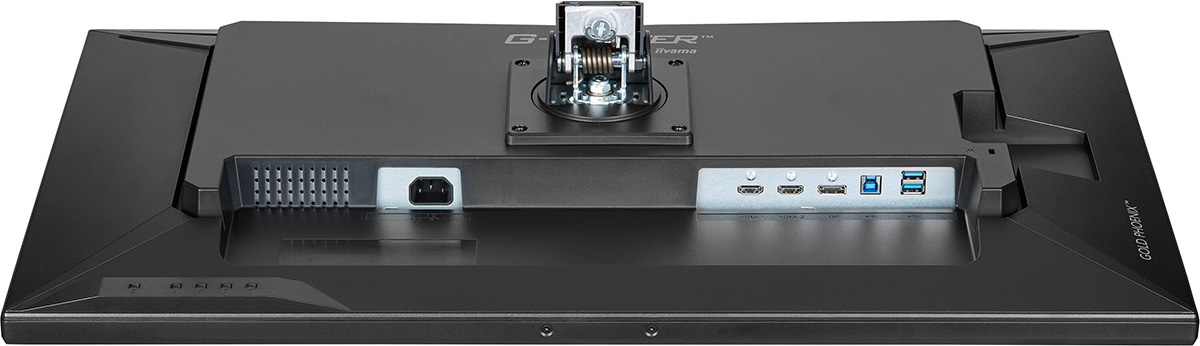
As well as the few quick-access connections we discussed earlier, the back of the screen includes 1x DisplayPort 1.4 (with DSC) and 2x HDMI 2.1 video connections. There’s also 2x USB-A data ports (5Gbps, 4.5W power delivery) and a USB-B upstream port to connect back to your PC.
OSD menu
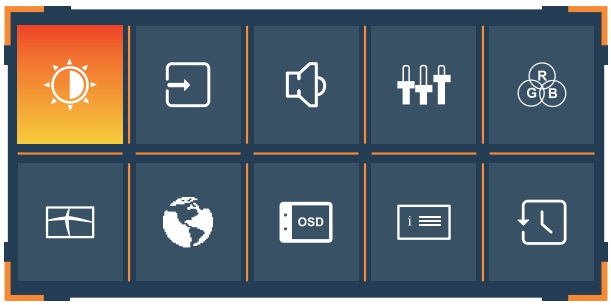
The OSD menu is controlled through 4 pressable buttons on the back-right hand side of the screen (when viewed from the front). They’re marked on the front bezel so you can tell what each button will do. There’s a quick launch menu that pops up if you want to go in to any of the specific setting areas, and selecting any of these will open up the relevant section in the main menu.
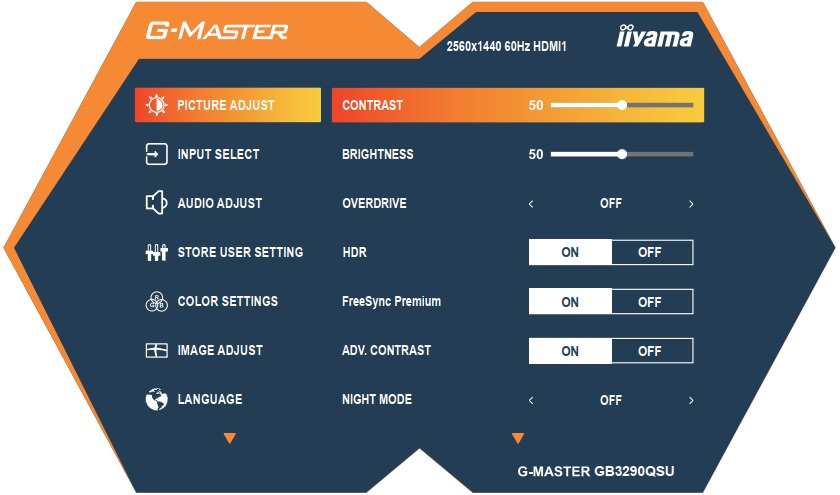
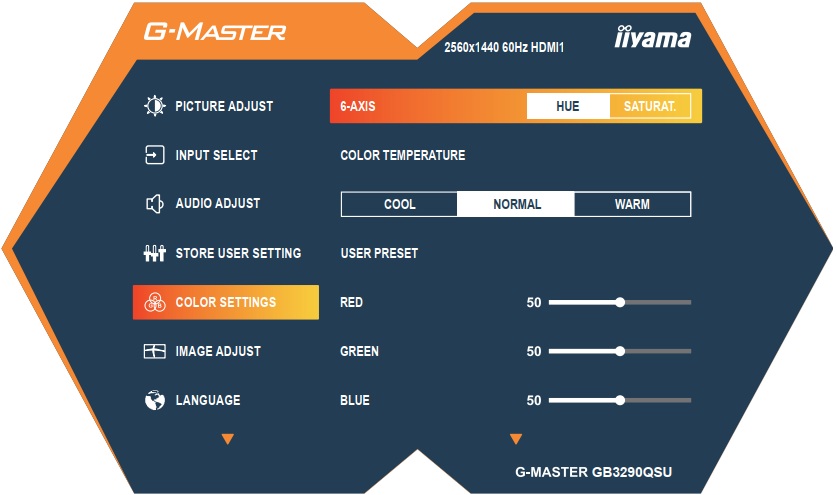
The menu provides a pretty good range of options although it’s not as simple and intuitive to navigate as screens with a joystick toggle for control, that we’ve become quite accustomed to on modern monitors. The menu it a little laggy too and so it was a little slow to use sometimes and find the settings you wanted.
Brightness and Contrast
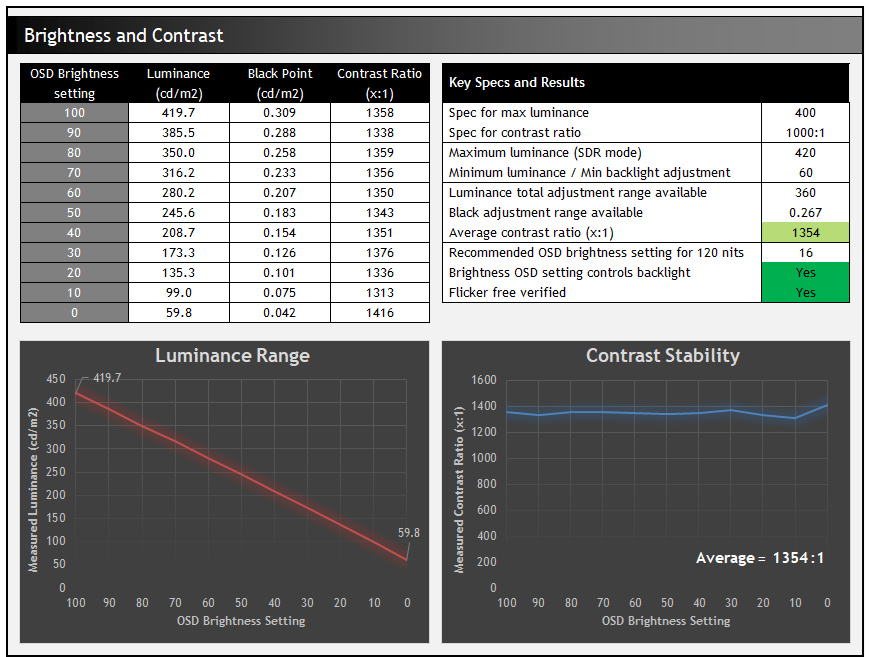
The screen offers a good backlight adjustment range with luminance between 420 and 60 nits available. This slightly surpasses the spec of 400 nits at the upper end of the range, and at the lower end should be adequate for most users in darker room conditions. The contrast remained stable across the adjustment range and exceeded the 1000:1 spec quite nicely, reaching 1354:1 average which was decent for an IPS-type panel.
Testing Methodology Explained (SDR)

Performance is measured and evaluated with a high degree of accuracy using a range of testing devices and software. The results are carefully selected to provide the most useful and relevant information that can help evaluate the display while filtering out the wide range of information and figures that will be unnecessary. For measurement, we use a UPRtek MK550T spectroradiometer which is particularly accurate for colour gamut and colour spectrum measurements. We also use an X-rite i1 Pro 2 Spectrophotometer and a X-rite i1 Display Pro Plus colorimeter for various measurements. Several other software packages are incorporated including Portrait Displays’ Calman color calibration software – available from Portrait.com.
We measure the screen at default settings (with all ICC profiles deactivated and factory settings used), and any other modes that are of interest such as sRGB emulation presets. We then calibrate and profile the screen before re-measuring the calibrated state.
The results presented can be interpreted as follows:
- Gamma – we aim for 2.2 gamma which is the default for computer monitors in SDR mode. Testing of some modes might be based on a different gamma but we will state that in the commentary if applicable. A graph is provided tracking the 2.2 gamma across different grey shades and ideally the grey line representing the monitor measurements should be horizontal and flat at the 2.2 level, marked by the yellow line. Depending on where the gamma is too low or too high, it can have an impact on the image in certain ways. You can see our gamma explanation graph to help understand that more. Beneath the gamma graph we include the average overall gamma achieved along with the average for dark shades (0 black to 50 grey) and for lighter shades (50 grey to 100 white).
- RGB Balance and colour temperature – the RGB balance graph shows the relative balance between red, green and blue primaries at each grey shade, from 0 (black) to 100 (white). Ideally all 3 lines should be flat at the 100% level which would represent a balanced 6500K average colour temperature for all grey shades. This is the target colour temperature for desktop monitors, popular colour spaces like sRGB and ‘Display DCI-P3’ and is also the temperature of daylight. It is the most common colour temperature for displays, also sometimes referred to as D65. Where the RGB lines deviate from this 100% flat level the image may become too warm or cool, or show a tint towards a certain colour visually. Beneath this RGB balance graph we provide the average correlated colour temperature for all grey shades measured, along with its percentage deviance from the 6500K target. We also provide the white point colour temperature and its deviance from 6500K, as this is particularly important when viewing lots of white background and office content.
- Greyscale dE – this graph tracks the accuracy of each greyscale shade measured from 0 (black) to 100 (white). The accuracy of each grey shade will be impacted by the colour temperature and gamma of the display. The lower the dE the better, with differences of <1 being imperceptible (marked by the green line on the graph), and differences between 1 and 3 being small (below the yellow line). Anything over dE 3 needs correcting and causes more obvious differences in appearance relative to what should be shown. In the table beneath the graph we provide the average dE across all grey shades, as well as the white point dE (important when considering using the screen for lots of white background and office content), and the max greyscale dE as well.
- Luminance, black depth and contrast ratio (static) – measuring the brightness, black depth and resulting contrast ratio of the mode being tested, whether that is at default settings or later after calibration and profiling. We aim for 120 cd/m2 luminance which is the recommended luminance for LCD/OLED desktop monitors in normal lighting conditions. Black depth should be as low as possible, and contrast ratio should be as high as possible.
- Shadow detail – this is evaluated with the screen configured to a 200 nits white luminance for consistency between different monitors, and viewed in a dimly lit room. This first 16 greyscale shades are measured using our UPRTek MK550T spectro device (0.002 nits lower limit) for shades near-black, and the results are plotted on a graph relative to a target gamma curve (usually 2.2 gamma). Where the measurement line crosses the 0.01 nits point on the Y-axis is typically the visual threshold for where we would start to be able to detect luminance compared with black (0.00 nits). We combine these objective measurements with visual tests using a grey shade test pattern to determine the first visible shade, and then rank the shadow detail performance accordingly.
- Gamut coverage – we provide measurements of the screens colour gamut relative to various reference spaces including sRGB, DCI-P3, Adobe RGB and Rec.2020. Coverage is shown in absolute numbers as well as relative, which helps identify where the coverage extends beyond a given reference space. A CIE-1976 chromaticity diagram (which provides improved accuracy compared with older CIE-1931 methods) is included which provides a visual representation of the monitors colour gamut coverage triangle as compared with sRGB, and if appropriate also relative to a wide gamut reference space such as DCI-P3. The reference triangle will be marked on the CIE diagram as well.
- dE colour accuracy – a wide range of colours are tested and the colour accuracy dE measured. We compare these produced colours to the sRGB reference space, and if applicable when measuring a wide gamut screen we also provide the accuracy relative to a specific wide gamut reference such as DCI-P3. An average dE and maximum dE is provided along with an overall screen rating. The lower the dE the better, with differences of <1 being imperceptible (marked by the green area on the graph), and differences between 1 and 3 being small (yellow areas). Anything over dE 3 needs correcting and causes more obvious differences in appearance relative to what should be shown. dE 2000 is used for improved accuracy and providing a better representation of what you would see as a user, compared with older dE methods like dE 1994, as it takes into account the human eye’s perceptual sensitivity to different colours.

Default Setup
The screen comes out of the box with the “i-Style” preset mode set to off, and the colour temperature seemingly configured to use the default RGB 100,100,100 settings. There is an additional setting to use cool, normal or warm colour temperature but this is not active out of the box.
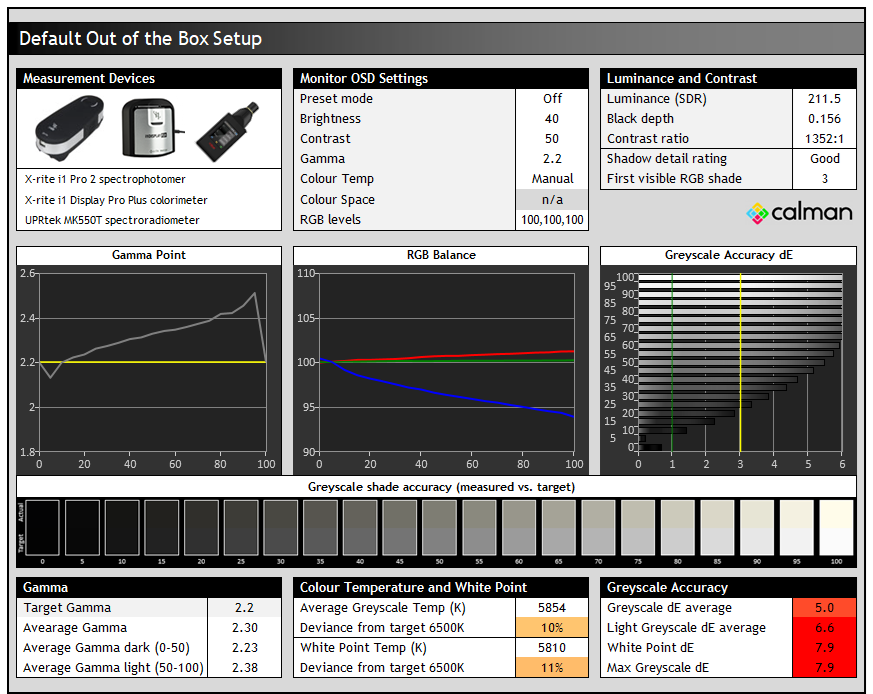
The default setup of the screen was quite a way off from our targets. Gamma was too high in mid to light grey shades which caused a loss of lighter detail, and we measured a 2.30 gamma average. The main issue out of the box was the RGB balance shown on the middle graph, with the blue channel being under-represented, causing a warmer colour temp (5854K average) and a brownish tint to to grey shades and resulting in a poor greyscale accuracy overall. This was with the default RGB levels at 100 each, but manual adjustments to those should be able to correct this nicely. Contrast was good for an IPS-type panel at 1352:1, and shadow detail was also good with the first visible greyscale shade being RGB 3.
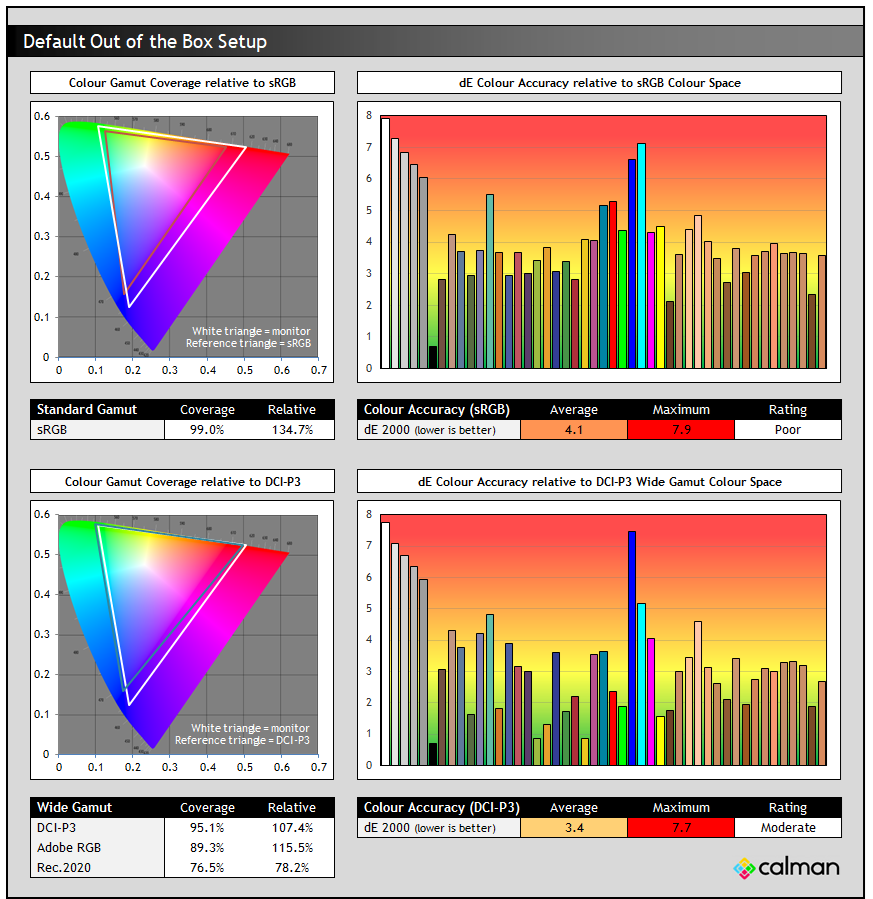
From a colours point of view we were actually surprised to see that this screen offers a wide colour gamut, covering 95% DCI-P3. That’s not listed in the iiyama spec, they only mentioned a 96% sRGB coverage, but the screen extends a considerable way beyond this, covering (relatively) ~135% of sRGB. This means it can support wider gamut content mastered in the DCI-P3 colour space pretty well, with 95% absolute coverage, but some over-extension in blue shades which results in 107% relative coverage of DCI-P3. You can see this over-coverage in the bottom left hand CIE diagram.
With the wide gamut of the backlight, the accuracy of sRGB / SDR colours was poor with a dE average of 4.1, although that’s common on any wide gamut screen when it’s running with its native colour space. It’s made a bit worse here by the warm colour temp in the default mode. The accuracy of DCI-P3 colours was a bit better because of the closer match of the colour space of the screen, although only rated as moderate with dE 3.4 average measured.
No sRGB emulation mode available
iiyama do not provide any emulation modes on this screen unfortunately and so it will always operate with its wider colour gamut, unless you have a way to calibrate and profile the screen yourself. This could be restrictive for those who want a more accurate setup for sRGB and SDR content, although we think a lot of people in this segment will be happy with the more saturated and vivid colours for gaming and multimedia.
While this is a budget-friendly gaming screen we’d still have still liked to have seen an sRGB emulation mode available and it’s a shame that’s missing. Using Windows 11 ‘Auto Color Management’ or profiling the screen yourself (or trying our calibrated ICC profile too) are other alternative ways to clamp the colour space back to sRGB if you need to.
Optimal OSD Adjustments
We experimented with various settings to see what was possible through only some simple adjustments in the OSD menu and you can see the results of this below.

Note that we ended up manually adjusting the RGB channels in the colour menu to get a better balance and a better white point. You could also maybe use the defined colour temp modes, with the “normal” mode being closer to the 6500K target than the out of the box settings. We measured each mode as follows: Cool = 8626K, normal = 6195K, warm = 5399K. You’ll probably get optimal performance by using our RGB levels listed above though.
Just this simple adjustment to the RGB channels improved things massively. We now had an excellent RGB balance on the middle graph and a great greyscale and white colour temp which was basically spot on with our 6500K target. It also improved gamma a little and the greyscale accuracy was now excellent with dE 1.0 average. Contrast ratio had dropped a little to 1210:1 due to the adjustment of the RGB channels, but remained strong for an IPS-type panel.
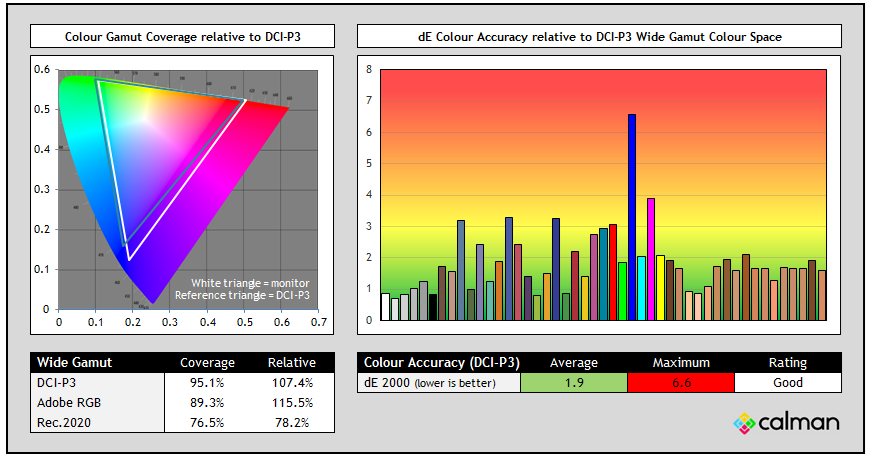
Correcting the colour temp also improved the accuracy of DCI-P3 colours nicely, now down to dE 1.9 average and the only major error being in blue shades where the monitor’s colour space extends beyond the DCI-P3 reference space quite a bit (107% relative coverage). Overall these simple OSD menu tweaks improved things very nicely. Further improvements to the gamma and colour accuracy can be made through calibration and profiling…
Calibration

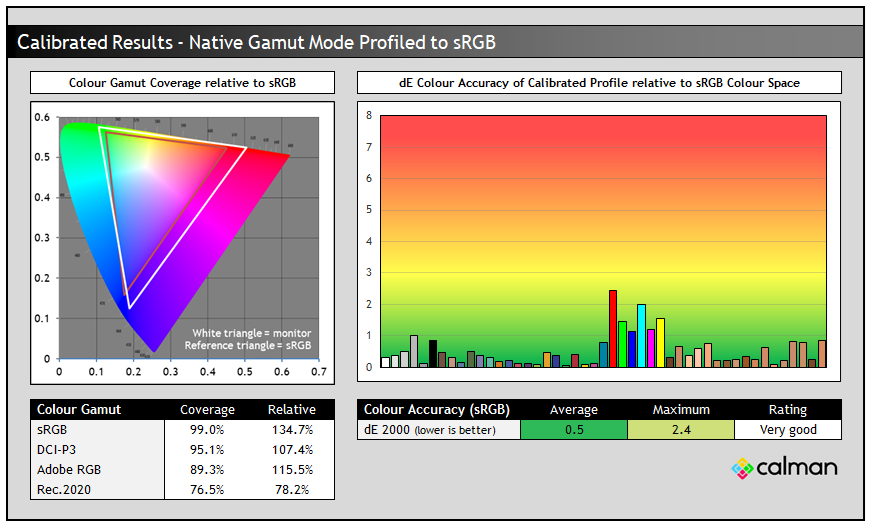
Calibration and profiling can produce some very good overall results and could be useful though if you wanted to operate the screen within its native wide gamut mode, but then map the colour space back to something else like sRGB for instance for colour-aware applications (e.g. Photoshop). You would need a suitable calibration device and software for this, or you could also try our calibrated ICC profile.
The screen was profiled to 2.2 gamma, 6500K colour temp and to the sRGB colour space. The screen was operating in its native wide gamut mode, but this profile will be used in colour-aware applications to map back to sRGB in this instance. Overall the calibrated results were very good as you’d hope.
Get the best settings for this screen
- On our Patreon Insider tier and above you can find our full ‘Best settings guide’ for this screen which includes all our recommended calibrated settings and ICC profile for SDR mode, as well as other best settings guidance for other options and gaming.
- If you only want just our standard SDR settings and calibrated profile, that is available via our ICC database (without all the other best settings guide).
ICC Profiles and Monitor Calibration Database
Find the recommended settings and a calibrated ICC profile for your display.
[View here]
General and Office
The IPS-type panel used for this screen offers decent all round performance including wide viewing angles and a stable image quality that you’d expect from this technology. Being an IPS panel the viewing angles are good, but there’s familiar pale “IPS glow” when viewing darker content from an angle as with the vast majority of IPS panels. Overall it offers wider viewing angles and better overall image than VA and TN Film panels.
Being an LCD, you don’t have to worry about image retention and burn-in like you do with OLED panels. That’s important for office monitors like this which are going to be used typically for a lot of static content and work. It also features a standard RGB sub-pixel layout like nearly all LCD’s do, so you don’t have any text clarity concerns like you might on OLED panels too.
The resolution of 2560 x 1440 is fairly low on a large 31.5″ sized screen which often offer a 3840 x 2160 “4K” resolution, and it is more suited to multimedia and gaming usage. The lower resolution makes it much easier to push frame rates in gaming than 4K, and is preferred by some users who want a larger screen size, but a more modest resolution.
For office and general usage you have a lower pixel density of ~93 PPI which means larger text size than this same resolution on a typical 27″ monitor. This is still pretty comfortable, and is better than something like 1080p on a 27″ monitor (only ~82 PPI). It doesn’t look as sharp as a higher pixel density screen, certainly not as good as a 4K resolution 31.5″ model, but at the same time it is comfortable for some users, especially from a more distant viewing position and you don’t need to worry about OS scaling. The resolution also provides a nice desktop area to work with, including decent support for split screen working. The screen has a light matte anti-glare (AG) coating which is the same as other modern IPS LCD panels.
Backlight dimming
We confirmed a flicker free backlight operation at all brightness levels which was great news. No need for PWM dimming here:

| Flicker | |
| Flicker free verified |  |
| PWM / flicker frequency | n/a |
Blue Light
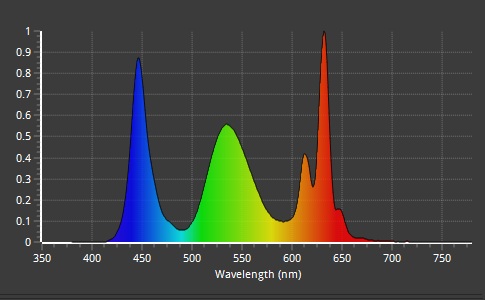
| Blue light output | |
| Blue peak wavelength | 447 nm |
| Blue light portion | 29.72% |
| Low blue light modes available | |
| Low blue light mode temp | Around 5800K to 4700K range |
The spectral distribution at a calibrated 6500k is shown above, with the blue peak measured at 447 nm wavelength and a 29.72% blue light percentage. There some ‘Blue Light Reducer’ settings in the menu which each lock access to the colour settings and have differing colour temps, as well as locked and pre-defined brightness settings. This makes them pretty restrictive to use. The modes are:
- Level 1 = 5843K white point, 104 nits luminance (locked at brightness setting of 40)
- Level 2 = 5271K white point, 71 nits luminance (locked at brightness setting of 30)
- Level 3 = 4668K white point, 36 nits luminance (locked at brightness setting of 20)
Feature set
| Features | Notes | |
| USB type-C connectivity (DP Alt mode) |  | |
| USB type-C power delivery | | |
| Daisy chaining support | | |
| KVM switch | | |
| PiP and PbP support | | |
| USB data ports | | 2x USB-A and 2x USB-C |
| Easy access USB data ports | | The 2x USB-C are on left hand side |
| Integrated speakers | | 2x 4.5W |
| Audio output / headphone out | | Easy access on the side of the screen |
| Mic input | | |
| Integrated webcam | | |
| Ambient light sensor | | |
| Motion sensor | | |
| Stand adjustments | | Tilt, height, swivel, rotate |
| VESA mount support | | 100 x 100mm |
| Integrated Power supply | | Only a kettle lead needed |
| Tripod socket | | |
| Firmware updates | | |
| Fan-less design | |
Since this is a screen aimed at gaming primarily, and also has a focus on price, there’s a limited range of extra features as you might expect. There’s no USB type-C video connectivity, KVM switch or PiP/PbP support which are increasingly common on higher end gaming screens. However, there are 2x USB-A and 2x USB-C data ports, a headphone connection and some moderate 2x 4.5W integrated speakers too which could be useful to some people. The stand is fully adjustable, so it’s good to see it’s offering some extra features and isn’t completely stripped back for the purposes of lowering costs.
Gaming
The GB3290QSU is aimed primarily at gamers and sits in their upper tier of their ‘G-master’ gaming screens. It’s got a 1440p resolution which is going to be far easier to power than a 4K resolution that is also common on screens of this size. This will allow you to push frame rates instead of image detail, and makes the screen more suitable to lower-end and mid-range systems and graphics cards. While it lacks the image detail and sharpness that a 4K panel can offer, it still provides a good image for gaming and multimedia content, and if you’re gaming from a more distant viewing position or using a console for instance, the difference will be less noticeable.
| (at native resolution) | Refresh Rate |
| Maximum Refresh Rate DisplayPort | 240Hz |
| Maximum Refresh Rate USB type-C | |
| Maximum Refresh Rate HDMI | 240Hz |
| VRR range | 48 – 240Hz |
| VRR certifications | FreeSync Premium |
| ClearMR certification tier | |
There is a 240Hz refresh rate which would be considered “mid-tier” nowadays when you consider all the very high refresh rate OLED monitors around, but in the IPS LCD market 240Hz is near the upper end of available refresh rates really. Adaptive-sync allows for support of variable refresh rates (VRR) from compatible NVIDIA and AMD systems, and the screen is certified under the AMD ‘FreeSync Premium’ scheme for re-assurance around VRR performance. Since this is using an IPS LCD panel there was no visible flicker during VRR situations, which is an issue on OLED monitors.
Gaming extras
| Other Features | |
| Overdrive settings | Off, and Levels 1 – 5 |
| Variable overdrive support | |
| Single overdrive mode experience | |
| Dual-mode function | |
| Motion blur reduction mode | |
| Gaming extras | Gaming preset modes Black Tuner |
| Emulated gaming sizes | Full, aspect, 1:1 and emulation modes for: 17, 19, 19.5 ,21.5 ,23 ,24 and 27″ sizes |
There’s a few gaming extras on offer as well including most usefully a strobing blur reduction backlight mode (tested in a moment), and a wide range of aspect ratio controls. We would have liked to have seen options for things like crosshairs, FPS counters etc which are very common on gaming screens and can be useful to some users. The ‘Black Tuner’ function raises the brightness a bit in darker games and could be useful in some cases, although it does also raise blacks a bit at the same time.
DSC switch
There is a setting in the menu to disable DSC if you want, and you can turn this off if you really need to, but you’ll be limited to 1440p @ 240Hz and 8-bit colour depth, instead of full 10-bit colour depth support. Using HDMI doesn’t help either as those ports are actually 24Gbps and would need DSC to reach 10-bit as well. Only disable this if you’ve got an older NVIDIA graphics card and specifically want to use features like DSR/DLDSR or have problems. Those are available from an RTX 50 series card anyway even when using DSC, and for most people there would be no reason to disable DSC in the menu.
HDR capabilities
We will only briefly mention HDR as there are very limited HDR hardware capabilities on this screen. It’s an LCD panel and has no local dimming, not even edge-lit which would offer enhanced contrast. It can support a 10-bit colour depth and has a wide colour gamut so there’s some colour capabilities there, and while the screen can accept an HDR10 input signal the capabilities are very limited.
You also have to manually enable and disable HDR in the menu it seems which is unusual, there’s no intelligent switching between SDR and HDR modes available. Our recommendation would be to leave Windows HDR off and treat this as an SDR-only screen. If you want a screen more capable of supporting HDR gaming and content, you’d be better looking at an OLED monitor.
Response Times
As discussed in our detailed article about Response Time Testing – Pitfalls, Improvements and Updating Our Methodology we are using an improved and more accurate method for capturing G2G response times and overshoot, based on figures that are more reflective to what you see visually on the screen in real-World usage. Our article linked above talks through why this is better and how we arrived at this improved method in much more detail.
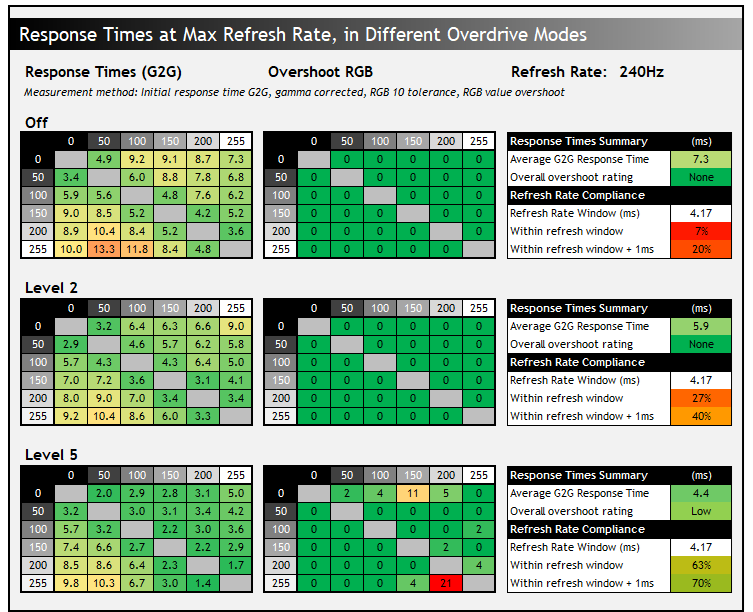
We measured the response times and carried out various visual tests first of all at the maximum 240Hz refresh rate, while using the screen in each of the available overdrive modes. There’s a setting for ‘off’ (the default) and then levels 1 – 5 available. As you move up through the overdrive levels the response times improve a little with each step and you can some small improvements to motion clarity. With the overdrive turned off the response times were too slow to keep up with the frame rate properly with a poor refresh rate compliance, and this resulted in some added smearing to the moving image. It wasn’t terrible though as there’s no majorly slow transitions, but it could have been sharper.
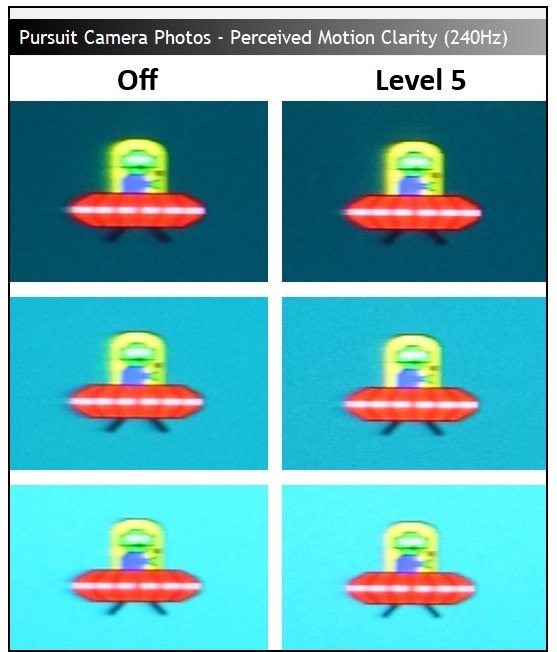
The motion clarity and sharpness improves a little as you move up each step of the overdrive control and is optimal at level 5 where the average G2G response time has improved from 7.3ms to 4.4ms G2G. There was a small amount of overshoot creeping in to our measurements but in practice this was not visible at 240Hz. However, we also need to consider the impact of VRR on response times as frame rates fluctuate.
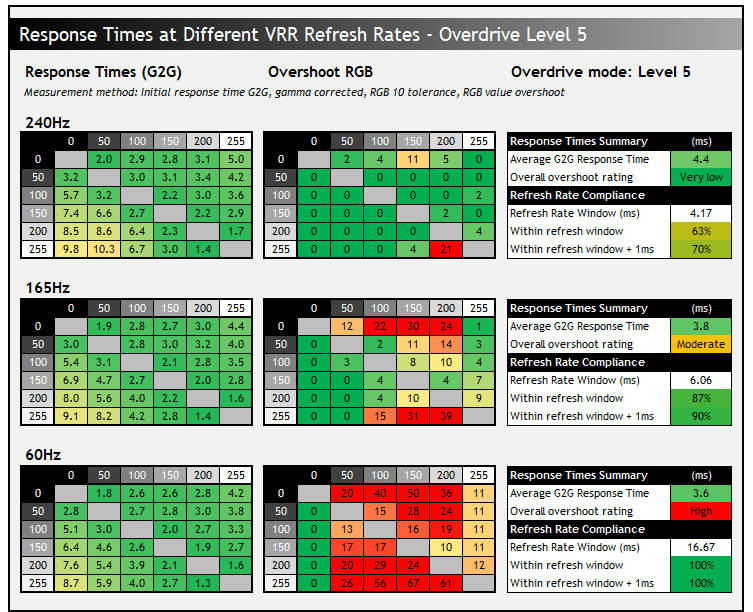
If we were to stick with the maximum Level 5 overdrive setting that was optimal at 240Hz, you can see that as frame rates lower during VRR situations the overshoot increases significantly. There is no “variable overdrive” supported here, a feature that can sometimes help control overshoot by slowing down the response times a bit as the refresh rate lowers. Instead, we have an increase in the overshoot at lower frame rates, and actually also the G2G response times speed up a bit too (the reverse of what variable overdrive would do). This means that you get noticeable pale halos and artefacts at the lower end of the VRR range.
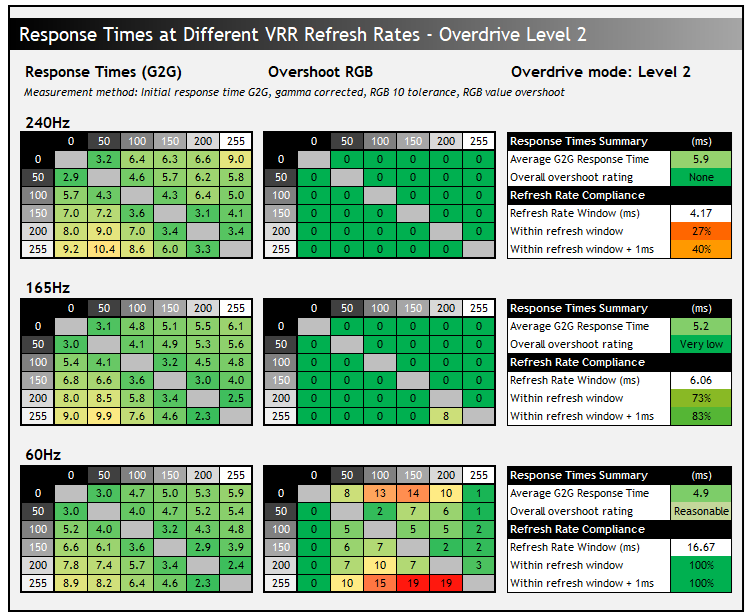
A better balance is to use one of the middle overdrive settings, and we found Level 2 to be optimal overall for VRR gaming, and for fixed 60Hz devices too. It isn’t quite as fast at the upper end of the VRR range, but in practice it doesn’t look a whole lot different to level 5 anyway, but at the bottom end of the VRR range it looks much better. You get a little bit of overshoot still, but it’s reasonable in practice and far better than at level 5. This gives you a single overdrive mode experience which is good news, avoiding endless changing of the setting depending on different VRR gaming situations. You can just set and forget really.
Level 3 pushed things a little too far for VRR, so we think Level 2 will be optimal for VRR gaming and 60Hz devices. If you’re only going to be gaming at a fixed 240Hz with VRR turned off, you could use Level 5 instead. For fixed 120Hz input devices you could also use Level 3.
Blur Reduction mode
| Motion Blur Reduction Mode | ||
| Motion Blur Reduction Backlight | | |
| Refresh rates supported | 120, 144, 240Hz | |
| 60Hz single strobe operation | | |
| Blur reduction available with G-sync/FreeSync VRR | | |
| Strobe length control | (Levels 1 – 7) | |
| Strobe timing control | | |
| Brightness capability (SDR, max refresh rate supported) | ||
| Brightness control available | | |
| Independent brightness between off/on modes | | |
| Motion blur OFF – Max brightness | 420 nits | |
| Motion blur ON – Max brightness | 229 nits (Level 1) 111 nits (Level 7) | |
iiyama provide a motion blur reduction mode in the OSD menu which is available at several fixed refresh rates (120, 144 and 240Hz but not at 60Hz), but cannot be used at the same time as VRR. You have to first disable FreeSync (VRR) from the menu, and then you can activate this function, with levels between 1 and 7 available. It would have been nice if you could just enable this whenever, and the screen turn off adaptive-sync for you when you do, and then re-enable it when you turn blur reduction back off. It’s a little bit cumbersome to have to make multiple changes.
Each setting level operates with a fixed brightness, you do not have independent control to adjust brightness when using this feature. You don’t need to bother altering your brightness setting though thankfully before you enable it, the screen will just boost you to the max setting and lock the brightness control when you enable blur reduction which makes it easy to use, regardless of what you were set to in the ‘off’ mode.
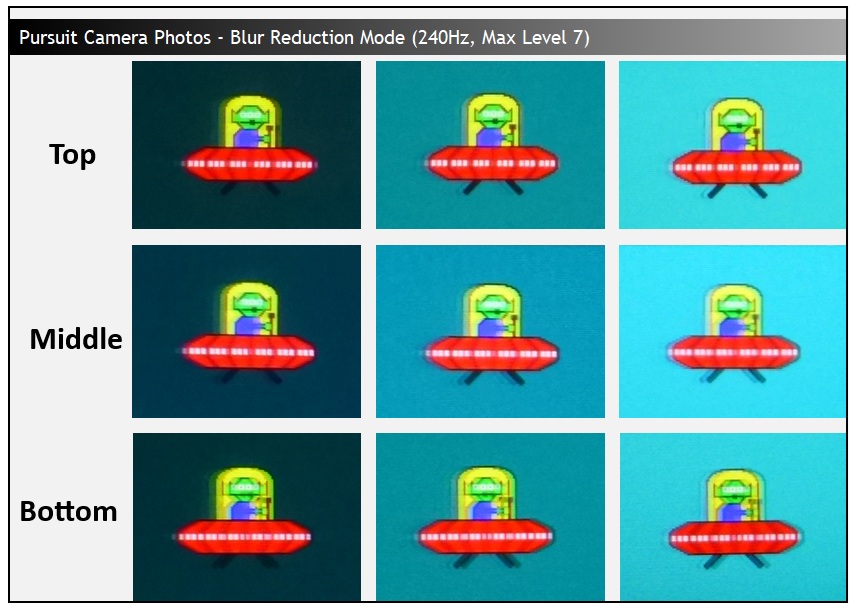
Each level makes small adjustments to the strobe length, gradually shortening the “on” time of the strobe as you move up through the levels, which has only a small impact on perceived motion clarity, but a noticeable impact on brightness. Selecting the best mode will really be about trying to find your preferred brightness level, but there are small improvements in clarity as you move to the higher levels.
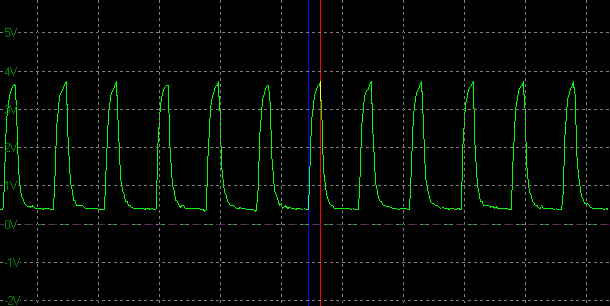
For example we measured a luminance of 229 nits at level 1, which is therefore the brightest you can get using blur reduction mode. The “on” period of the strobe was 2.125ms out of the 4.17ms total frame time at 240Hz. As you move up the levels the “on” time reduces slightly, until it reaches 1ms at Level 7. That looks a little clearer and cleaner but has a much lower luminance of 111 nits. So basically you have the ability to adjust brightness between around 111 and 229 nits when using this mode by changing the strobe length, with the darker modes also providing a small improvement in clarity.
You can see from the provided pursuit camera photos that there are improvements to the sharpness of the moving image although the image is clearest in the upper area and worse at the bottom. There’s no control over the strobe timing, which could have allowed customisation of where the strobe crosstalk / ghosting is most focused on the screen. In practice the moving image looks sharper and clearer and it’s easier to track moving objects.
It also looks pretty similar at different refresh rates and you still have the ability to adjust the overdrive setting if you want in each mode. If you’re using blur reduction at 240Hz we’d leave overdrive on level 5 (the max), but if you are using it at 120Hz or 144Hz you’ll probably want to drop to Level 3 overdrive to reduce some visible overshoot artefacts. We did notice some weird screen artefacts on the lower refresh rates in some situations when using this mode, mostly on solid backgrounds like in the UFO tests, but these were not really visible in 240Hz mode, which would be recommended if you’re going to use it.
Console Gaming
The screen offers a native 1440p resolution but includes “Virtual 4K” support, allowing you to input a 4K resolution source if you want, including setting the console to a maximum 4K @ 120Hz. It’s probably preferrable to input at 1440p though so you can maximise frame rates, but graphically rich games may show some improved clarity if you select 4K.
| Console Gaming | |
| Native panel resolution | 2560 x 1440 (1440p) |
| Maximum resolution and refresh rate supported | 3840 x 2160 (4K) |
| Virtual 4K support | |
| 4K at 24Hz support | |
| 4K at 50Hz support | |
| HDMI connection version | 2.1 |
| HDMI connection bandwidth | 24 Gbps |
| HDMI-CEC auto switch | |
| VRR support | |
| Auto Low Latency Mode (ALLM) | |
| HDR10 support | |
| Dolby Vision HDR support | |
| Blur reduction mode support | |
| Integrated speakers | |
| Headphone connection | |
| Ultra high speed HDMI 2.1 cable provided | |
There’s support for VRR and you can also use the blur reduction mode with the console set at 120Hz if you want which can help improve motion clarity and sharpness pretty well. There’s also some integrated 2x 4.5W integrated speakers which can make console gaming easier, without needing to worry about separate speaker systems and audio setup. That’s good to see included even though this is a budget-friendly gaming screen.
The screen has very limited HDR capabilities and so while it will support an HDR10 input signal (you’d need to also enable HDR from the OSD menu), the performance is not very good. This isn’t a screen for HDR gaming and you’d be better looking at an OLED panel if that’s a priority for you.
Lag
Read our detailed article about input lag and the various measurement techniques which are used to evaluate this aspect of a display. The screens tested are split into two measurements which are based on our overall display lag tests and half the average G2G response time, as measured by our oscilloscope. The response time element, part of the lag you can see, is split from the overall display lag and shown on the graph as the green bar. From there, the signal processing (red bar) can be provided as a good estimation of the lag you would feel from the display. We also classify each display as follows:
Lag Classification (updated)
- Class 1) Less than 4.17ms – the equivalent to 1 frame lag of a display at 240Hz refresh rate – should be fine for gamers, even at high levels
- Class 2) A lag of 4.17 – 8.33ms – the equivalent of one to two frames at a 240Hz refresh rate – moderate lag but should be fine for many gamers. Caution advised for serious gaming
- Class 3) A lag of more than 8.33ms – the equivalent of more than 2 frames at a refresh rate of 240Hz, or 1 frame at 120Hz – Some noticeable lag in daily usage, not suitable for high end gaming
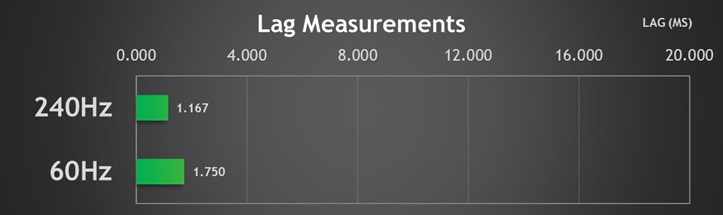
There is an extremely low lag on the GB3290QSU measured at 1.167ms average at 240Hz (only marginally more at 60Hz) and most of that will be made up from the pixel response times, leaving us with a near-zero signal processing delay which is great.
Conclusion
The iiyama GB3290QSU is a good, affordable gaming LCD screen. It’s larger 32″ screen size make it an interesting alternative to the wide range of 27″ models you will find with this kind of spec, increasing immersion for gaming and giving you something more comfortable for a more distant viewing position. You won’t find many screens of this spec at all actually with a 32″ IPS panel, 1440p resolution and 240Hz refresh rate. The LG 32GQ850 is one of the few others we could think of which has the same panel spec, although it has some additional features and is priced a lot higher as a result.
From a gaming point of view the response times were decent enough, they could have been a bit faster but there was at least a single overdrive mode experience and low levels of overshoot once you’ve found the optimal mode, and the resulting motion clarity was pretty good. Balancing G2G response times and overshoot are tricky without variable overdrive, and so without that available it was a decent balance thanks to the user controls provided. We’ve probably been spoilt by all the super-fast OLED panels in the last couple of years, but for an IPS panel it was pretty good.
Input lag was super low, console support was overall good too and the blur reduction mode was a useful additional feature and did a nice job of improving motion clarity. Obviously you should be aware the resolution and image detail is not going to be as good as a 4K resolution panel in this size (but easier to power at least), and the HDR capabilities are very limited and so it’s a screen suited to SDR gaming pretty well, but not HDR gaming. We’d have liked to have seen a few more gaming settings and extras available perhaps and a less clunky operation for the blur reduction mode.
It’s geared mainly towards gamers, although it’s IPS panel provides solid all round performance in other areas too, including the usual wide viewing angles and stable image. The default setup needed some tweaks to improve accuracy, but that was easy enough to do and produced some good results, even without further calibration. We’d have liked to have seen an sRGB emulation mode provided on the monitor though, that’s a potential gap on any wide gamut screen like this for some users.
It was good to see that despite being price-focused, the screen has a decent set of features including USB-A and USB-C ports, some reasonable integrated speakers (not great, but better than the most basic 2x2W you often see), and a fully adjustable stand. It doesn’t feel like you’re having to sacrifice all the extra features that might be handy in the interest of driving down the price. You’ll find other features like USB type-C video inputs, KVM switches, PiP/PbP support and the likes on higher end gaming screens, but not at this kind of price.
The GB3290QSU is available in the UK at a price of £319.99 at the time of writing. You can check latest pricing and availability using our affiliate link above.
| Pros | Cons |
| Rare 32″ IPS panel with 1440p res and 240Hz refresh rate | Very limited HDR capabilities and support |
| Decent feature set even at a low price point | Missing an sRGB emulation mode |
| Decent gaming performance | More limited in some modern features, but to be expected given the price bracket |
Useful Related Article
A round-up of iiyama’s new gaming monitor launches for Q4, with a range of sizes, resolutions and features on offer, all at affordable price points that won’t break the bank
[View here]
We may earn a commission if you purchase from our affiliate links in this article- TFTCentral is a participant in the Amazon Services LLC Associates Programme, an affiliate advertising programme designed to provide a means for sites to earn advertising fees by advertising and linking to Amazon.com, Amazon.co.uk, Amazon.de, Amazon.ca and other Amazon stores worldwide. We also participate in a similar scheme for Overclockers.co.uk, Newegg, Bestbuy , B&H and some manufacturers.