
Gigabyte’s New HyperNits Feature Improves HDR Brightness – Tested and Explored
Disclaimer: this article includes sponsored promotion by Gigabyte, but all content, testing, opinions and commentary are our own
Introduction
A common challenge across many OLED monitors is that images can appear overly dark in some of the HDR modes which are designed to open up access to the highest peak brightness of the panel. These “peak x nits” modes can typically reach 1000 – 1500 nits depending on the panel and display, but often then end up looking darker than other available modes which cannot reach anywhere near the same peak brightness and are often capped to a much lower level around 400 – 500 nits. This is a long-standing challenge that we’ve explored in detail in the past in our dedicated article here, and throughout our OLED reviews since.
Gigabyte have listened to reviewer and customer feedback and have been looking for ways to improve HDR brightness across their OLED screens and have recently introduced a new feature to try and resolve this challenge. ‘HyperNits’ is a new setting being offered on many of their new OLED monitors, and also being rolled out retrospectively to some of their existing range via a firmware update. As Gigabyte explained to us, HyperNits offers “a smart tuning feature leveraging a unique algorithm to intelligently reshape the EOTF curve” .
Gigabyte say that HyperNits boosts brightness by up to 30% while preserving critical highlight detail in HDR content. Two modes will be offered, so that users can choose between HyperNits High for maximum brightness enhancement or HyperNits Medium for a more gentle 20% lift in darker environments.
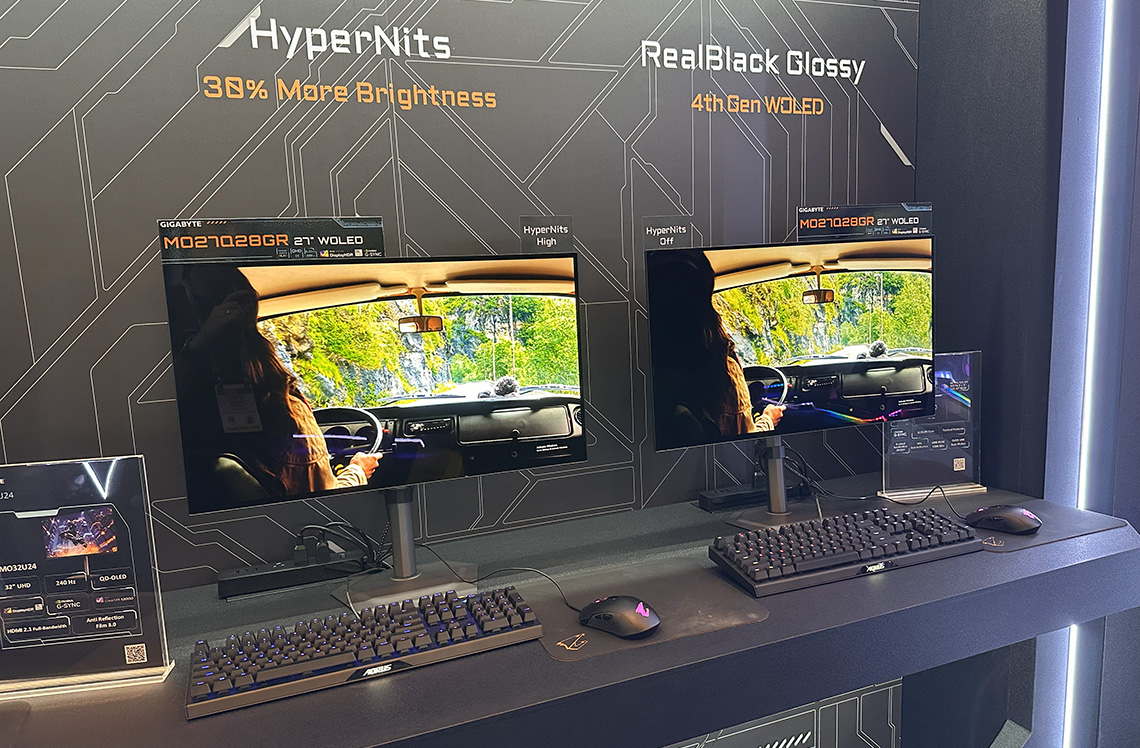
We first saw a demo of this feature at CES 2026 in January and talked about it a bit more when we introduced some of Gigabyte’s latest glossy WOLED monitors in January. We’ve now got with us two of these new RealBlack glossy WOLED monitors for testing, and we wanted to take a more detailed look at HyperNits to see how it performs.

New models tested featuring HyperNits
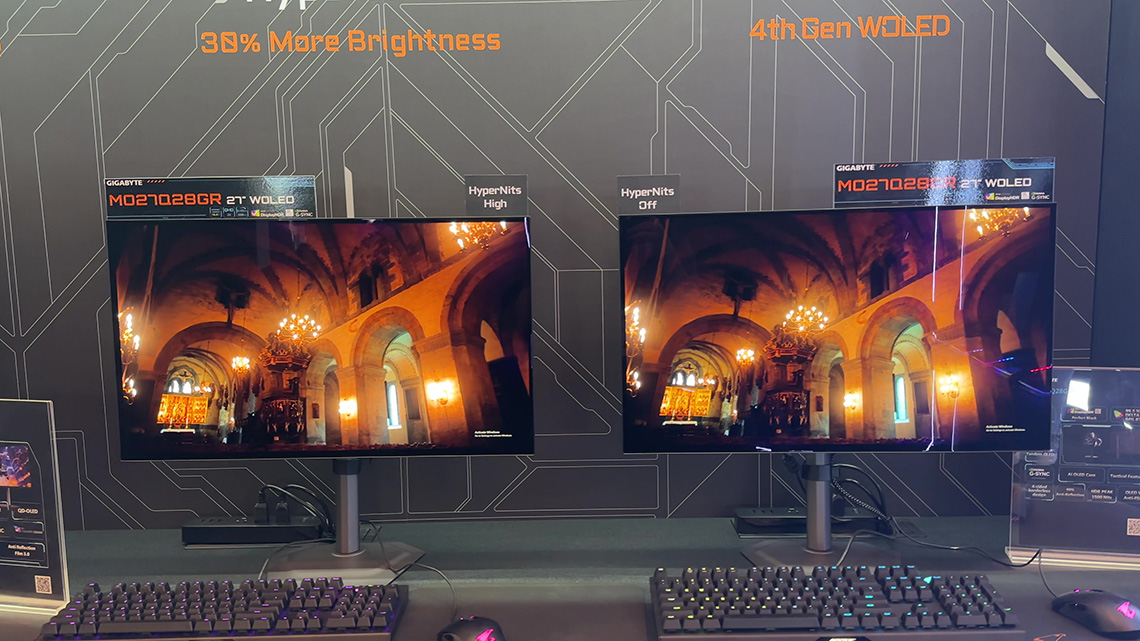
We’ll be testing a couple of their new screens which have this feature. We’ve got with us now the new Gigabyte MO27Q28GR, which is a ‘RealBlack’ glossy coated version of their super-popular MO27Q28G model (review here). We’ll also be looking at the Gigabyte GO27Q24G, a new model with a glossy WOLED panel that should be releasing widely during Q2. Key specs and details listed below as well as affiliate links to check pricing and availability:
| Image | Model name | Key specs and features | Affiliate links |
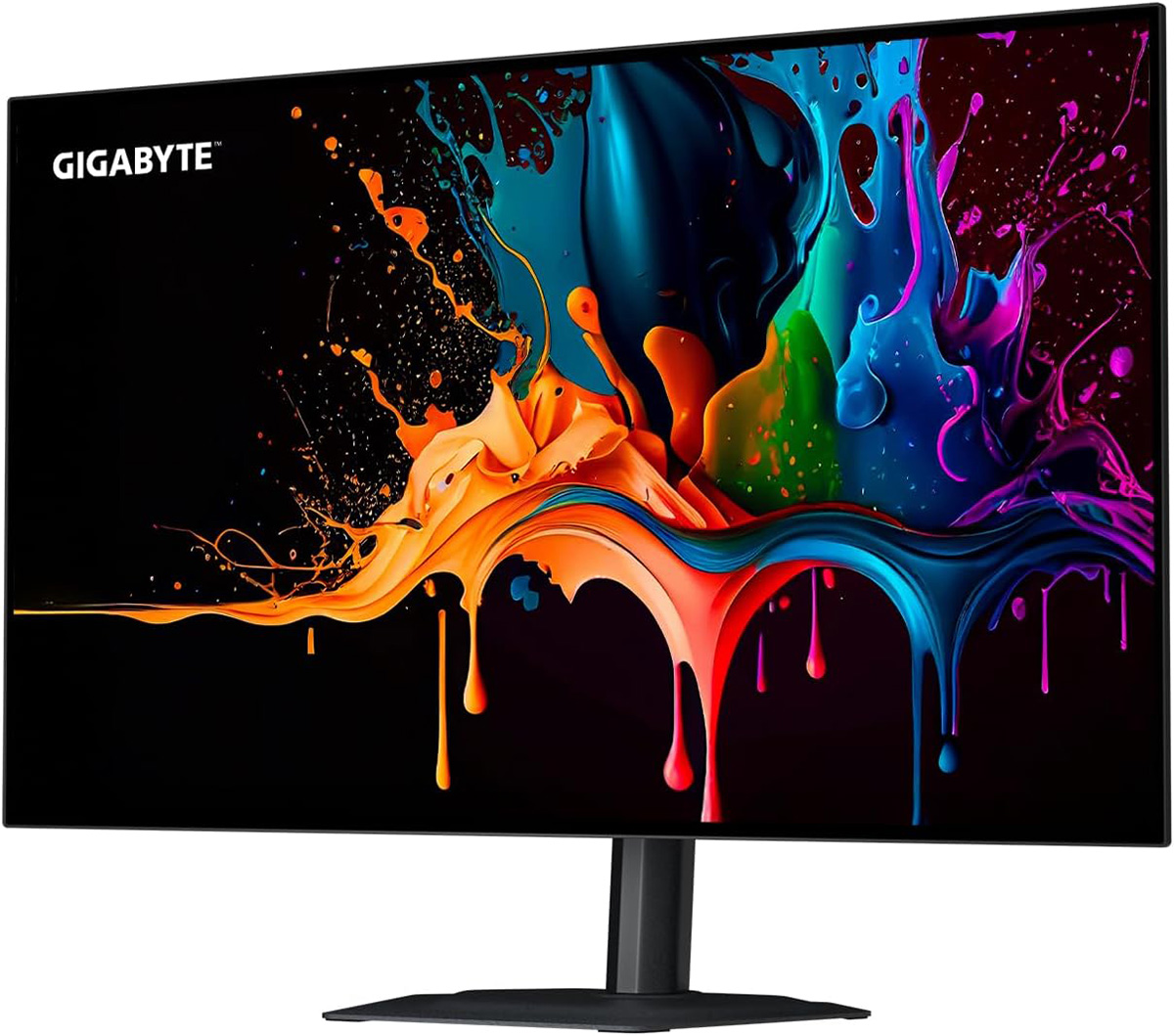 | MO27Q28GR | 27″ 4th Gen Tandem WOLED panel 2560 x 1440 resolution 280Hz refresh rate 1500 nits peak brightness |  |
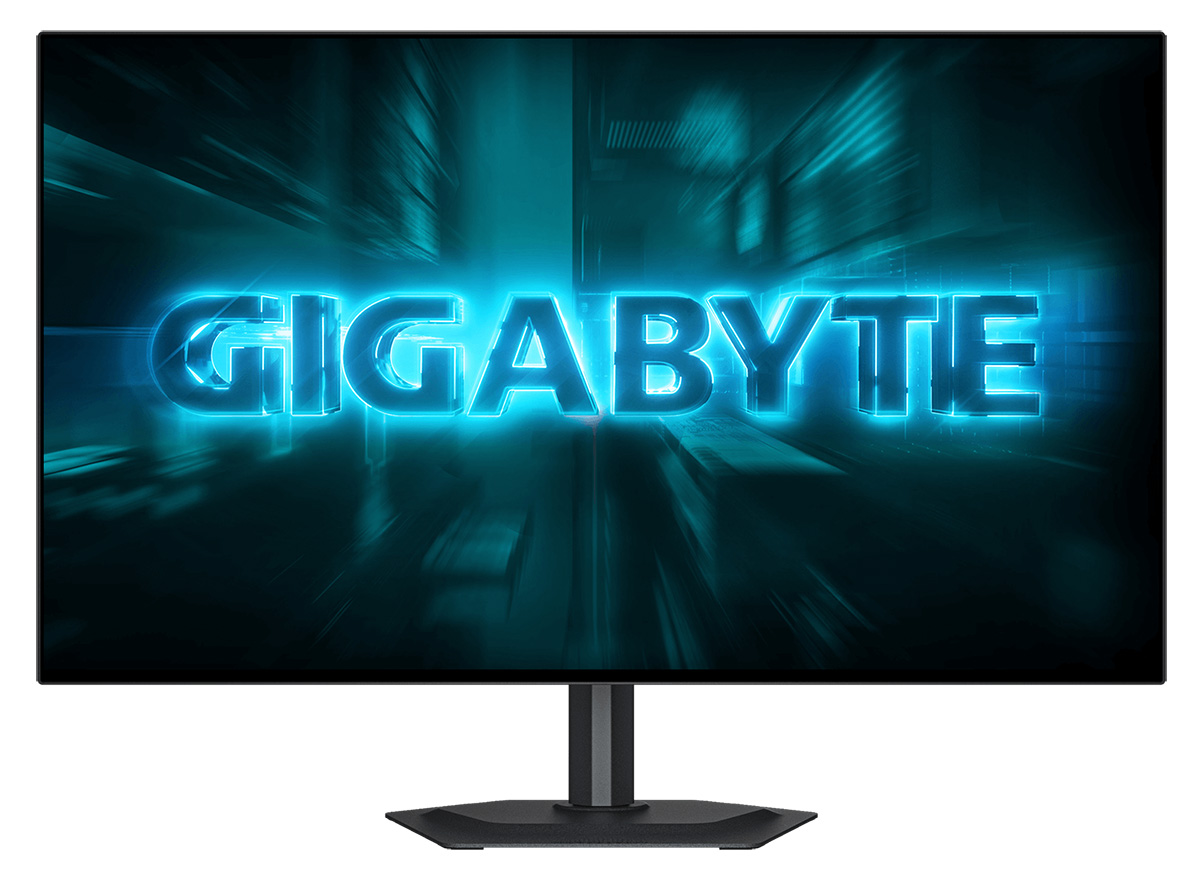 | GO27Q24G | 27″ 3rd Gen WOLED panel with MLA+ 2560 x 1440 resolution 240Hz refresh rate 1300 nits peak brightness | |
Other models which will feature HyperNits
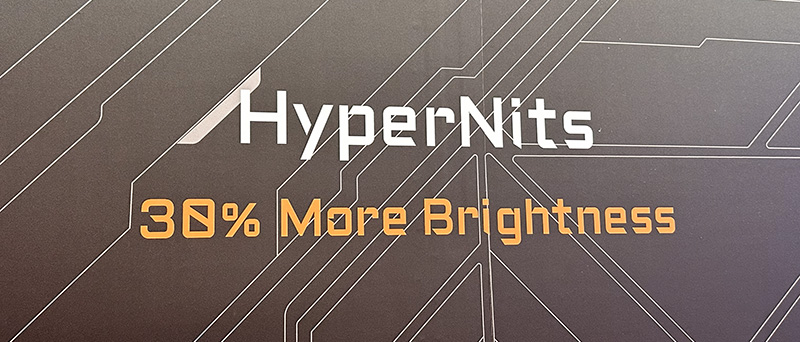
The new HyperNits feature will also be included on the other new monitors they showcased at CES like the MO32U24 and MO34WQC36 which were covered more in our CES round-up video here if you want to know more about those new screens.
Gigabyte tell us that the plan is to also make this feature available via a firmware update to some existing OLED monitors in their range as well. The first model was the original MO27Q28G (matte coating version) which has already received this via a firmware update (F07) which you can find here. Others in plan include the MO27Q2A, MO27U2 and MO32U2.

Our Testing
HDR modes
Like other recent Gigabyte OLED monitors these two new screens offer a wide range of HDR modes, settings and configurations to choose from. Each mode is basically a preset configuration of different settings, and in many of the modes you can change these settings if you want. The main setting which also impacts brightness in HDR is the APL stabilize setting which is available in the OLED care menu. The defaults for each mode are shown below:
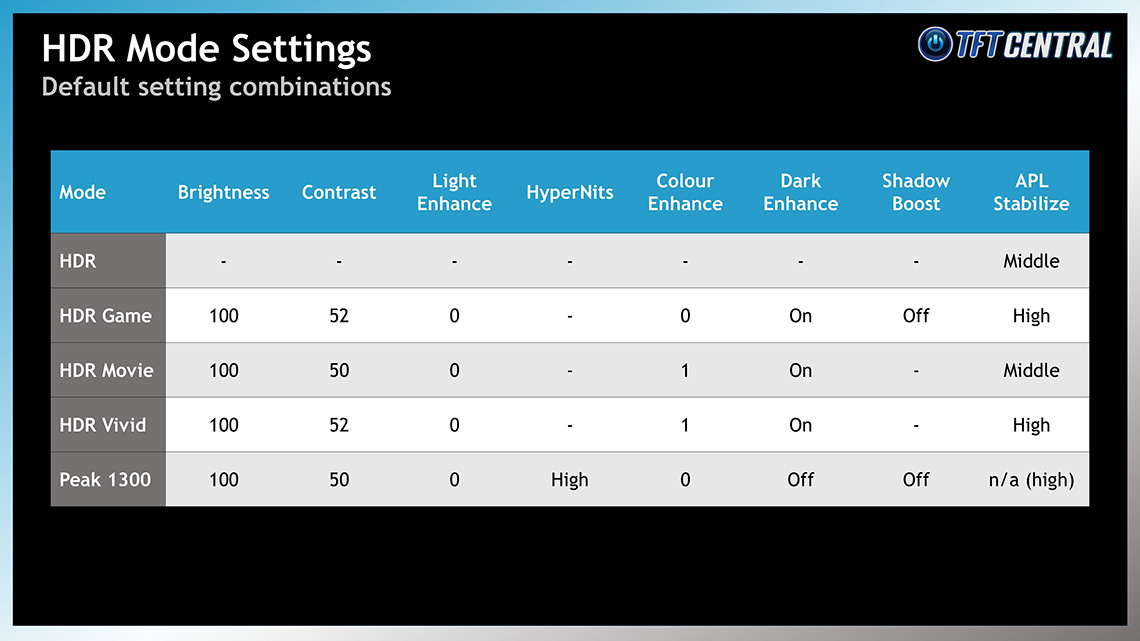
You can see that the normal “HDR” mode has most of it’s settings locked and behaves like a traditional “True Black” mode that we’ve seen on loads of OLED monitors before. The ‘Peak’ mode is the only one to offer access to the HyperNits feature we want to test, and you will also spot a new ‘Shadow Boost’ setting which we will also explore later.
Peak White Luminance Measurements
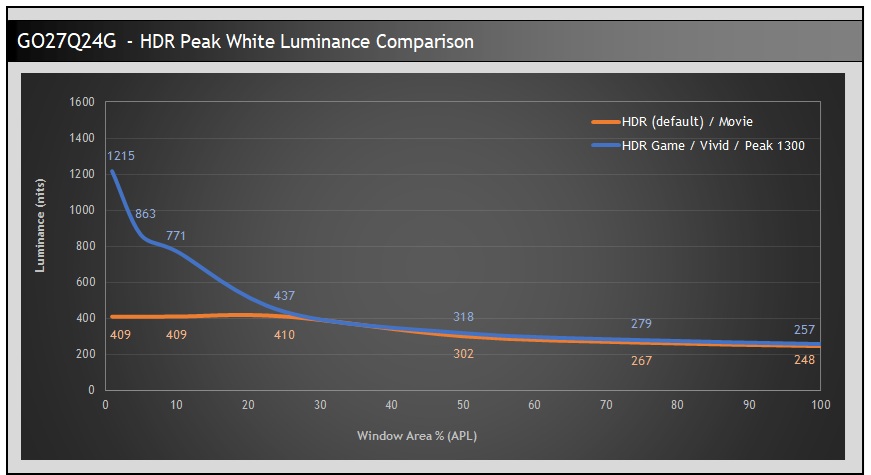
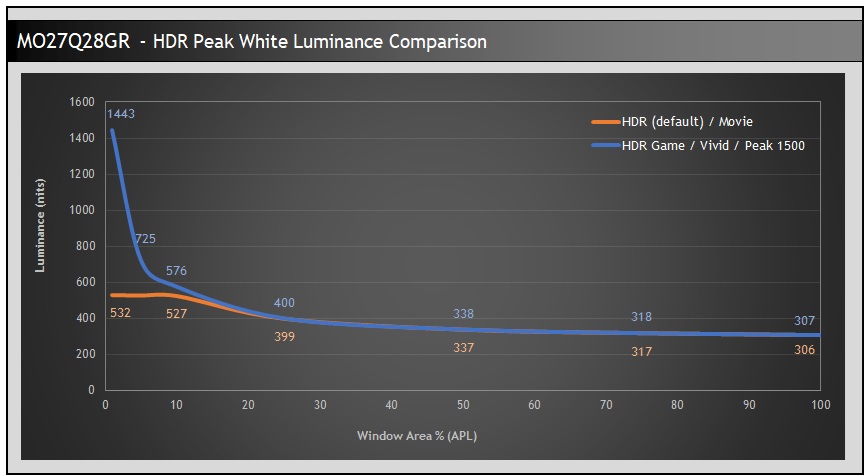
You can see from the default settings table that the HDR default mode and movie mode are set with APL stabilize on medium, whereas the Game, Vivid and Peak modes have it set to high. A quick comparison of the peak white luminance performance at different APL shows the variation between the different modes, impacted by the APL stabilize setting.
These measurements alone don’t tell the full story, but you can see that those modes with APL stabilize on high can reach much higher peak brightness in each case. The HyperNits feature makes no difference to these specific measurements, it can’t change the peak white luminance capabilities of the panel, it adjusts overall scene brightness via tweaks to the EOTF which cannot be captured in these limited tests. We’ll look at other metrics in a moment which can measure that better.
Note also that those modes set on the APL stabilize medium setting only reach ~410 nits (GO27Q24G) or ~532 nits (MO27Q28GR) maximum, and are locked to lower, primarily to conform to the VESA DisplayHDR 400 / 500 True Black certification process and significantly reduce ABL dimming during changing content.
EOTF Measurements
It’s the “Peak 1300” / “Peak 1500” mode which we want to test here, since that’s the only mode which offers access to the new HyperNits setting. For a more complete view of HDR performance and brightness we measured the EOTF in each HyperNits mode, at a range of different APL, from low APL % which represent overall darker scenes with bright highlights, to higher APL % which represent overall brighter scenes; right up to 100% full screen white.
HyperNits = Off
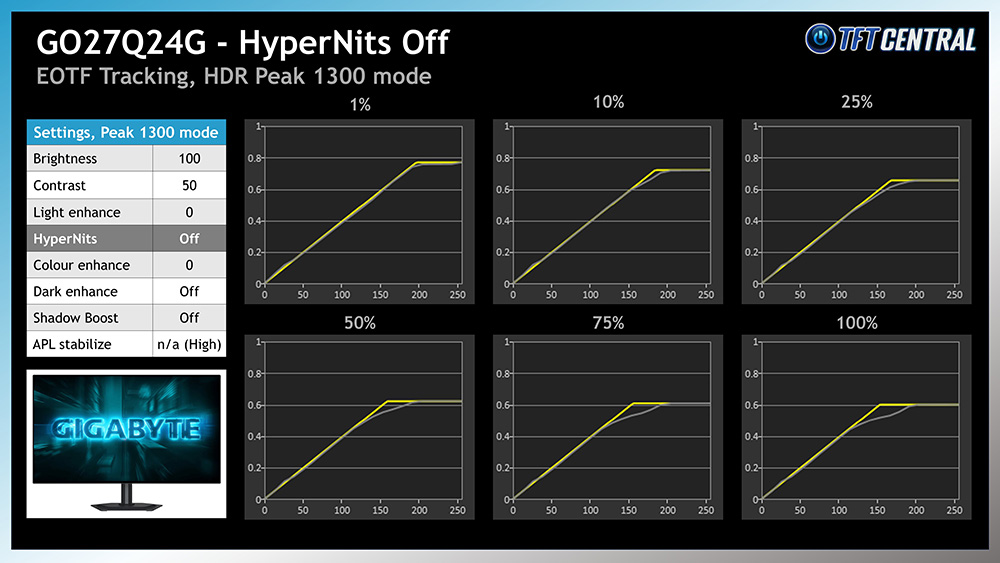
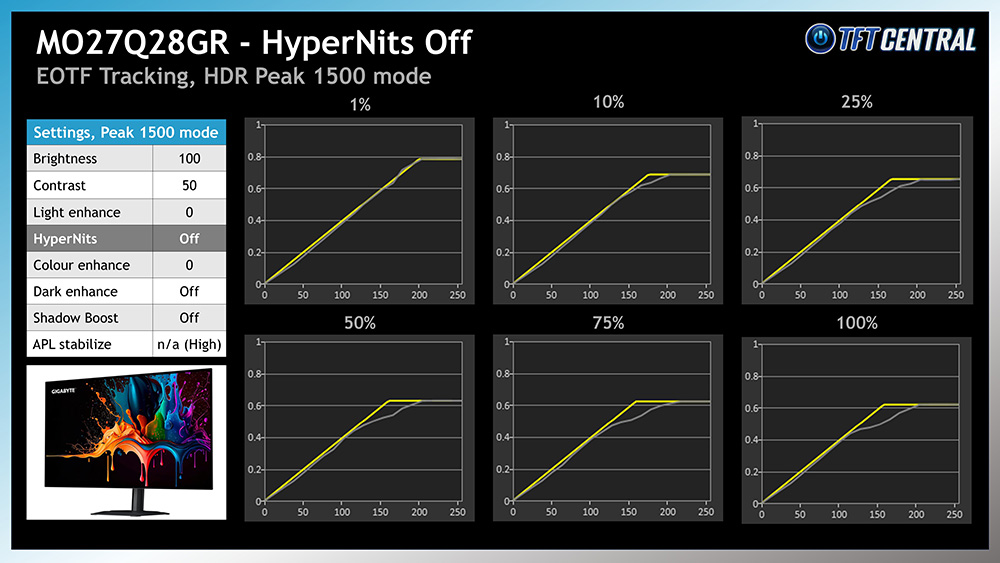
In the HyperNits = Off mode we saw familiar performance for these “peak” modes. The EOTF tracking was nice and accurate for lower APL scenes, but as the scenes got brighter and the APL increased, you see some increasing roll-off for mid-to-light grey shades in the middle of the graph. The grey luminance measurement line dips progressively more below the yellow target line, resulting in those grey shades being darker than intended. This has an impact on overall HDR scene brightness, and they end up looking darker than they should be.
In fact, the brighter overall scenes (higher APL %) can look darker as a result of this poor EOTF tracking than the HDR 400 / 500-type modes, despite those modes not being able to reach anywhere near the same peak luminance. The EOTF tracking is what’s important here, and it’s a topic we’ve explored in detail in the past if you want to know more about it.
HyperNits = Medium
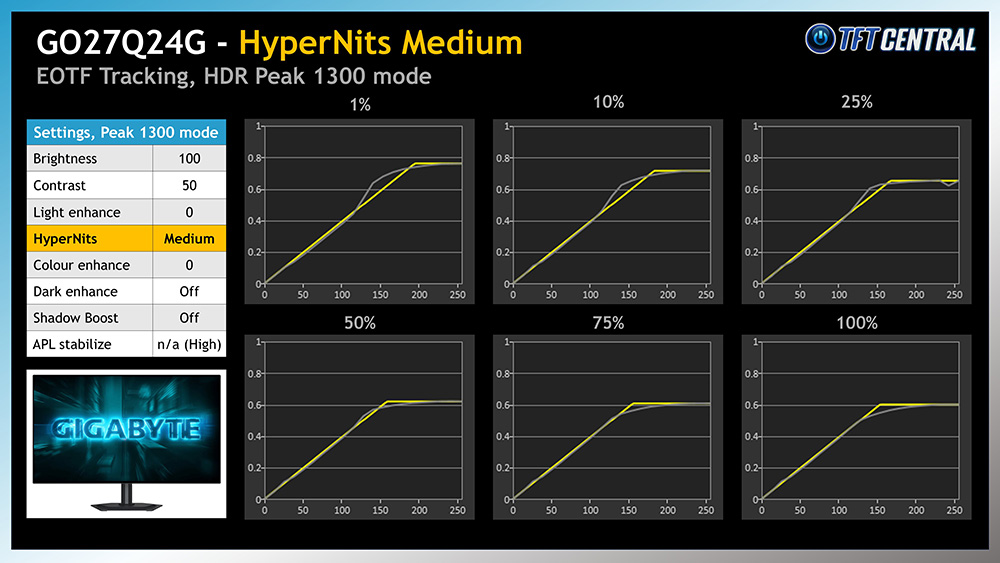
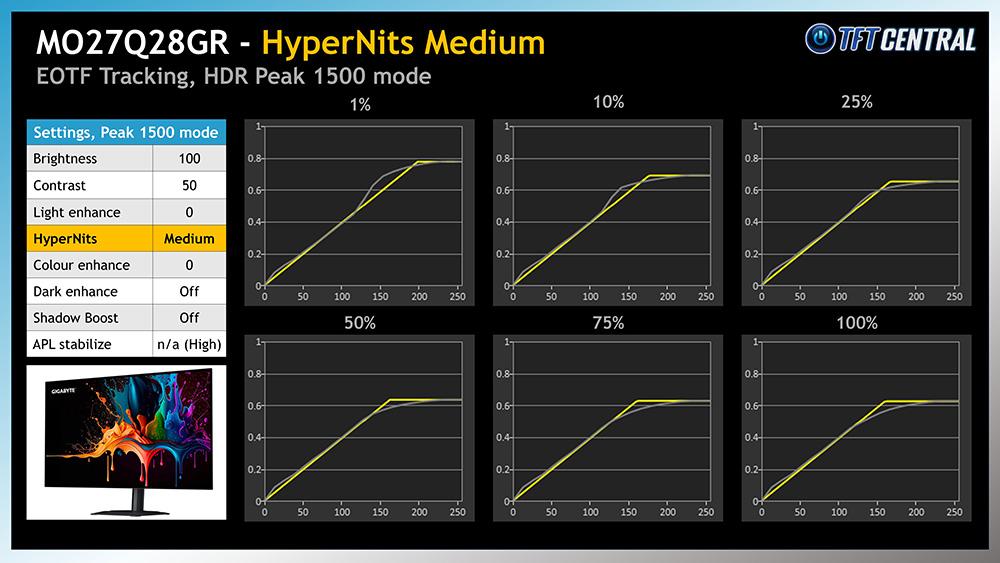
There’s two HyperNits modes available on these new screens – Medium and High. If we move up to the ‘medium’ mode first of all you can see the impact this has on EOTF tracking. In the lower APL scenes you get some minor over-brightening of the EOTF in some of those mid-to-light grey shades, which can have a small impact on grey shade detail in some cases but mostly it just increases the overall perceived brightness.
This over-brightening is done in the lower APL scenes in order to maintain a better EOTF accuracy in the higher APL scenes, with a less pronounced roll-off than we’d seen before. This avoids the darkening of the image due to that poor EOTF tracking quite nicely. We’ll take a look at some real-world brightness measurements and comparisons in a moment.
HyperNits = High
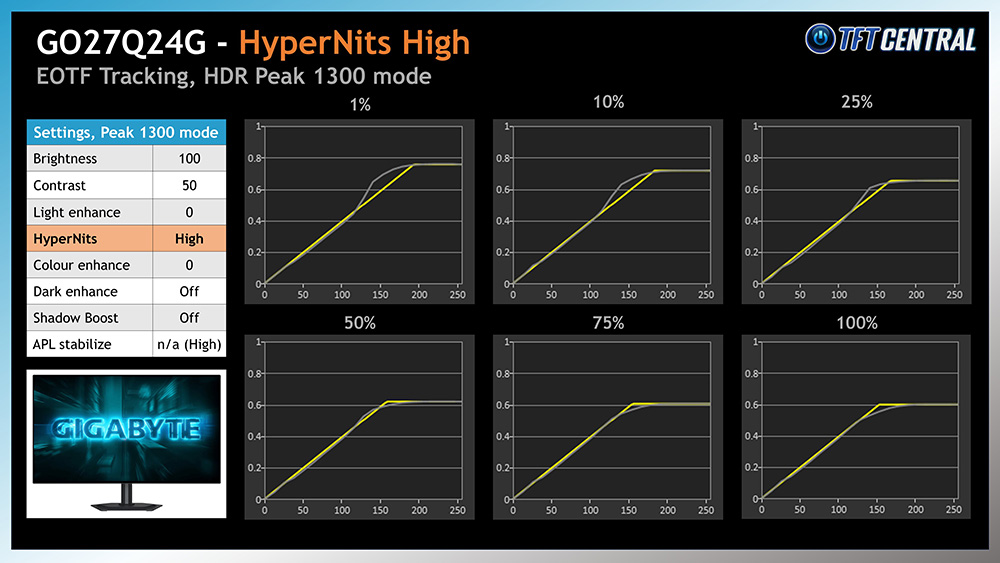
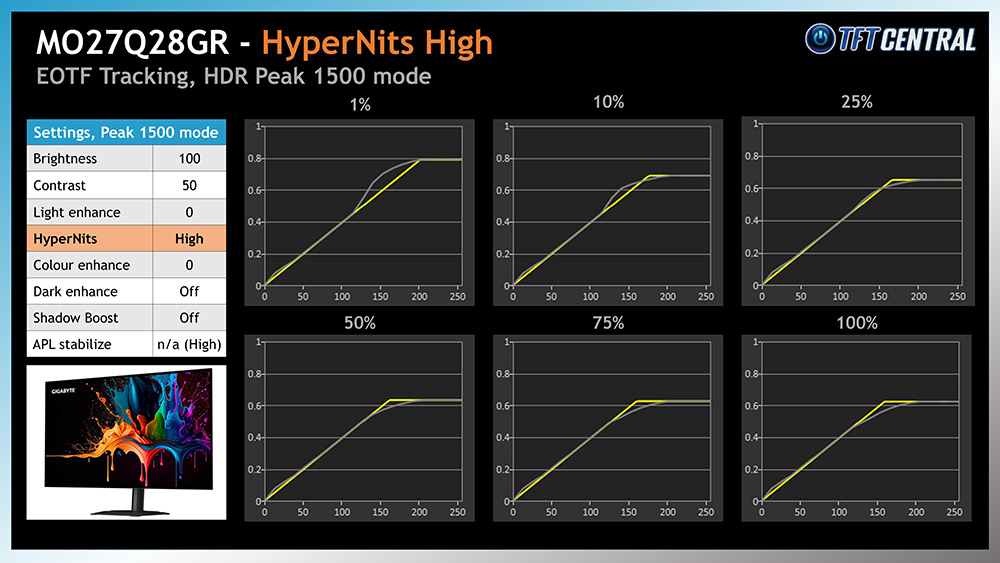
The HyperNits = High mode takes things a little further, pushing the over-brightening a little more in low APL scenes but helping to retain an even better EOTF tracking in those higher APL scenes. This has a further positive impact on real-world HDR brightness in various scenes.
Average greyscale luminance and perceived brightness
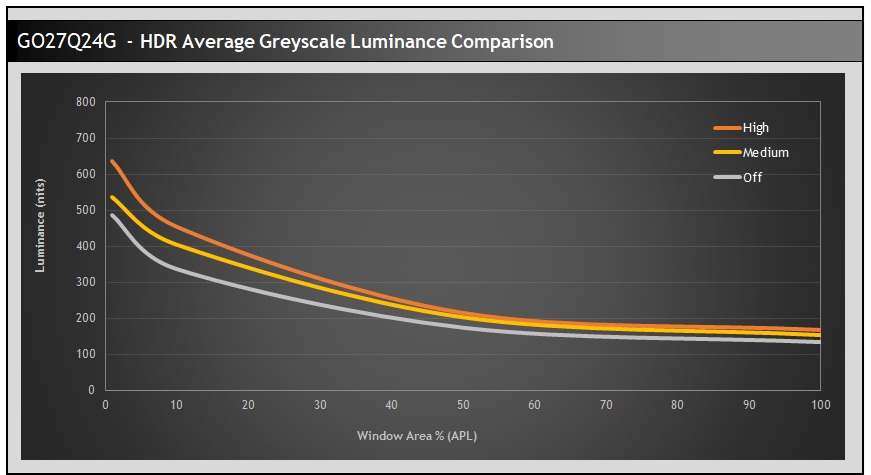
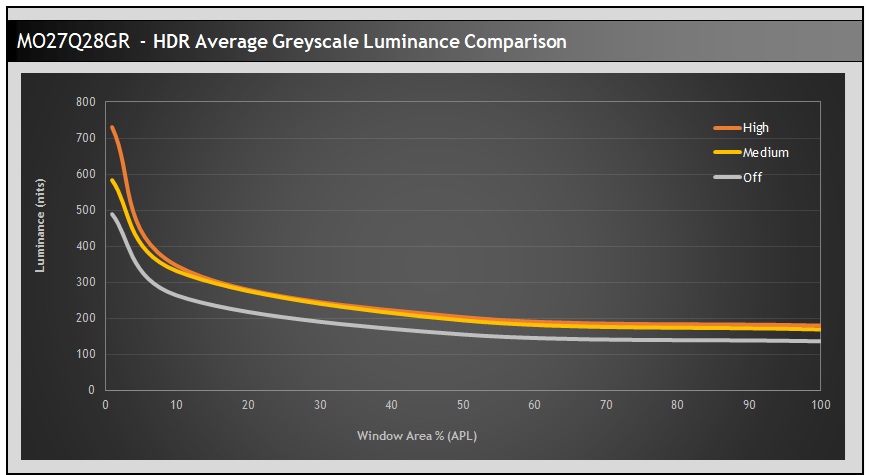
We can also compare the average greyscale luminance in each HyperNits mode, a metric which can help capture differences in luminance as a result of the EOTF differences, and one that is more directly relatable to real-world HDR experience than simply referring to only the peak white luminance measurements we showed earlier.
Typical differences in greyscale luminance between HyperNits modes
| Monitor | Off vs. High | Off vs. Medium |
| GO27Q24G | ~29% | ~15% |
| MO27Q28GR | ~32% (max 49%) | ~24% |
For the GO27Q24G we measured a ~29% difference in greyscale luminance between the off and high modes, and ~15% between the off and medium modes. For the MO27Q28GR we measured ~32% difference in luminance between the off and high modes in most scenes, with a more pronounced improvement of ~49% in the lowest APL scenes where there was a more drastic change to the EOTF and the capability to reach very high peak brightness around 1500 nits. There was ~24% difference between the off and medium modes overall on that model.
These are variations in the luminance measurements between the 3 modes. We can also convert this to an XCR score which can allow us to compare the perceptual brightness difference to the user between each mode.
On the GO27Q24G there is ~6% improvement in perceived brightness between the off and medium modes, and ~11% between the off and high modes. For the MO27Q28G there is ~9% improvement in perceived brightness between the off and medium modes, and ~13% between the off and high modes.
Real-scene HDR tests
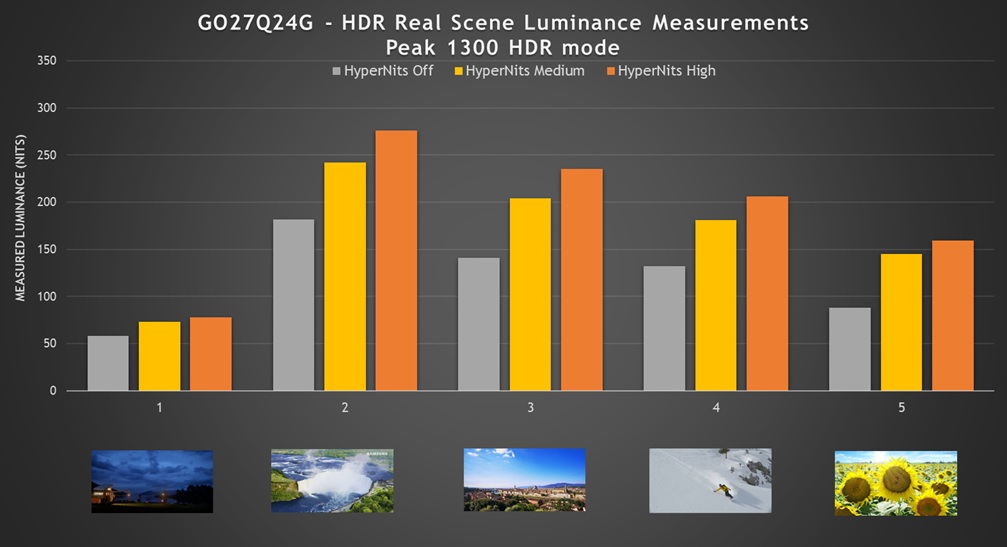
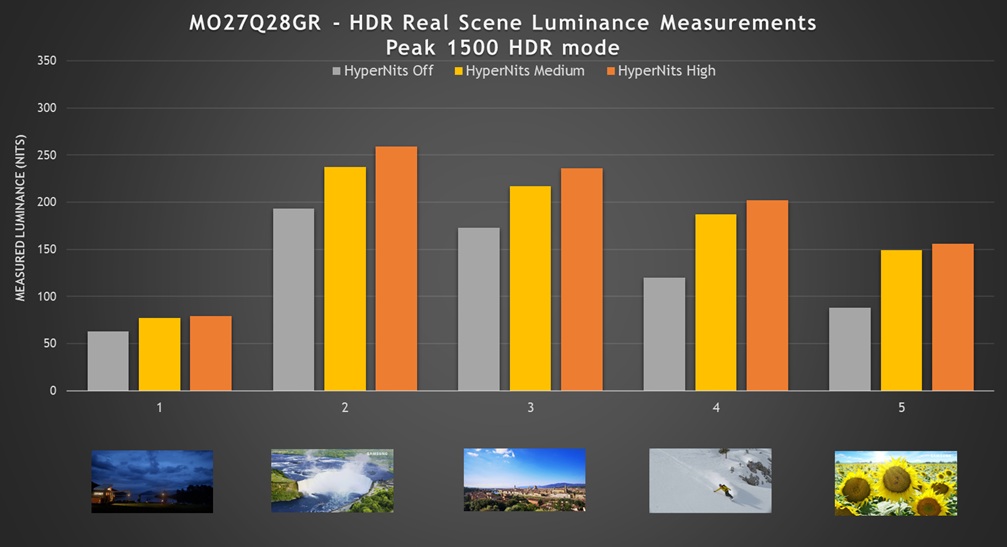
We also measured a range of different real world scenes, designed to capture a selection of different APL’s and content types with a consistent measurement area on each scene used. You can see that the luminance increases as you increase the HyperNits setting as expected. Some scenes showed more drastic differences between each of the modes, but on average for the GO27Q24G there was a 41% luminance improvement between the Medium and off modes, and a 58% improvement between the High and Off modes. On the MO27Q28GR there was a 39% luminance improvement between the Medium and off modes, and a 48% improvement between the High and Off modes.
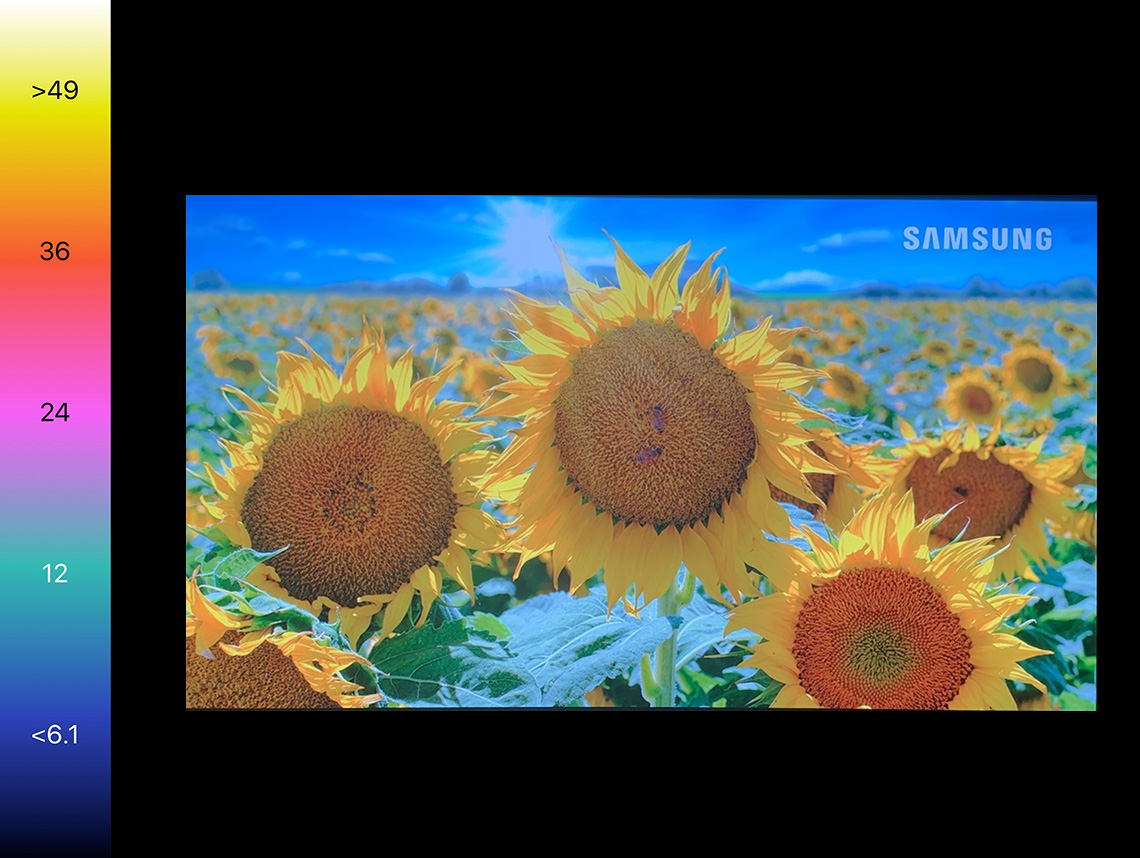
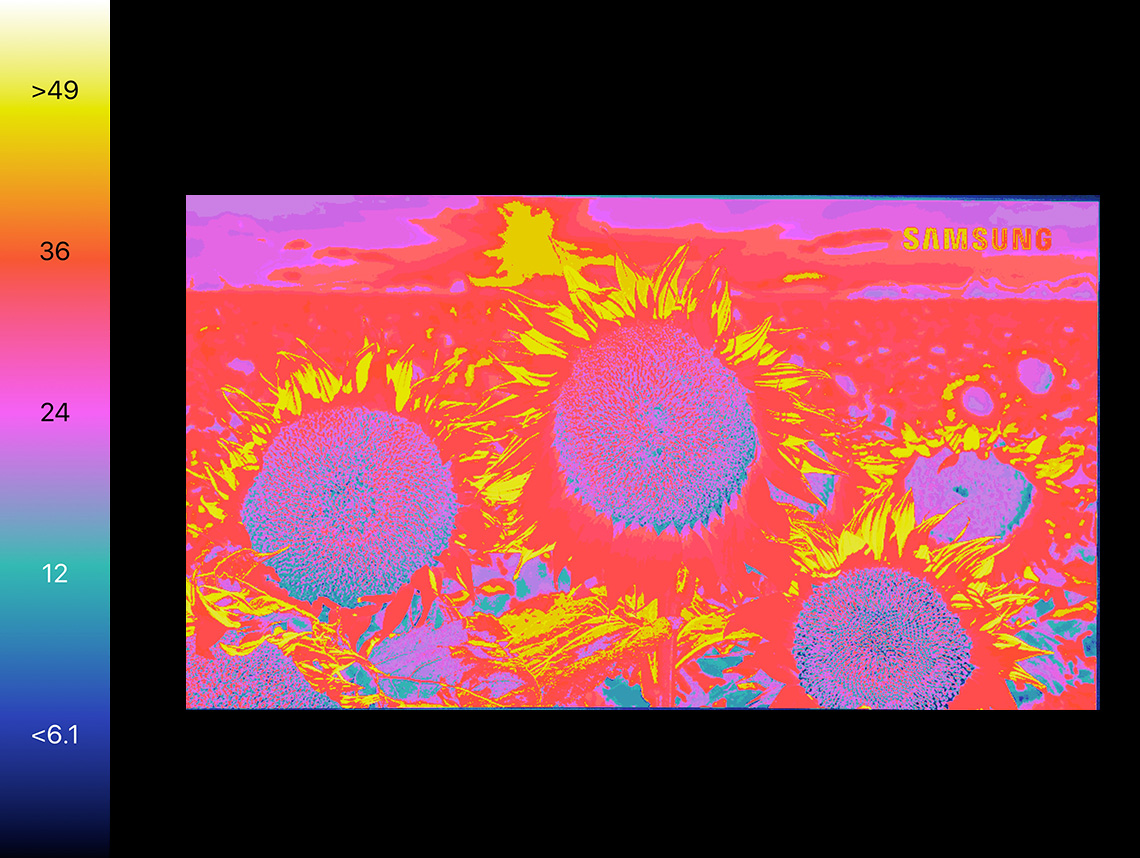
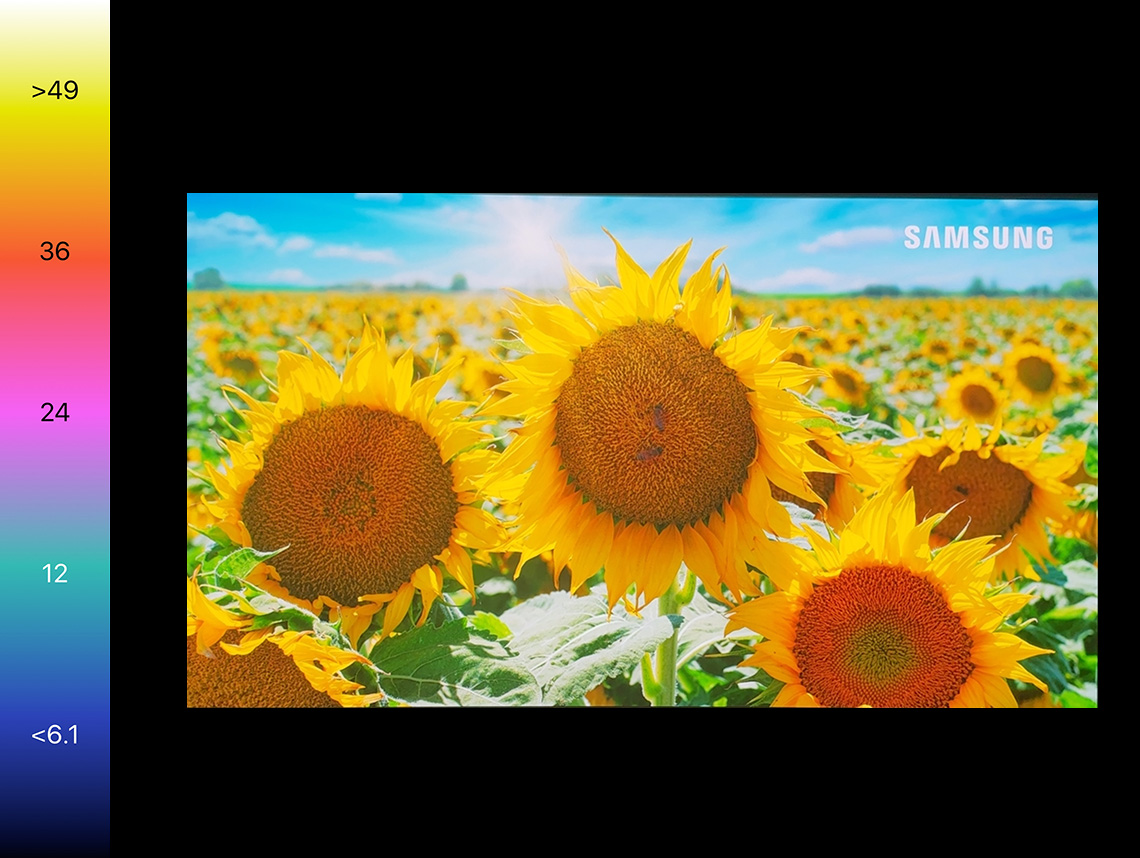
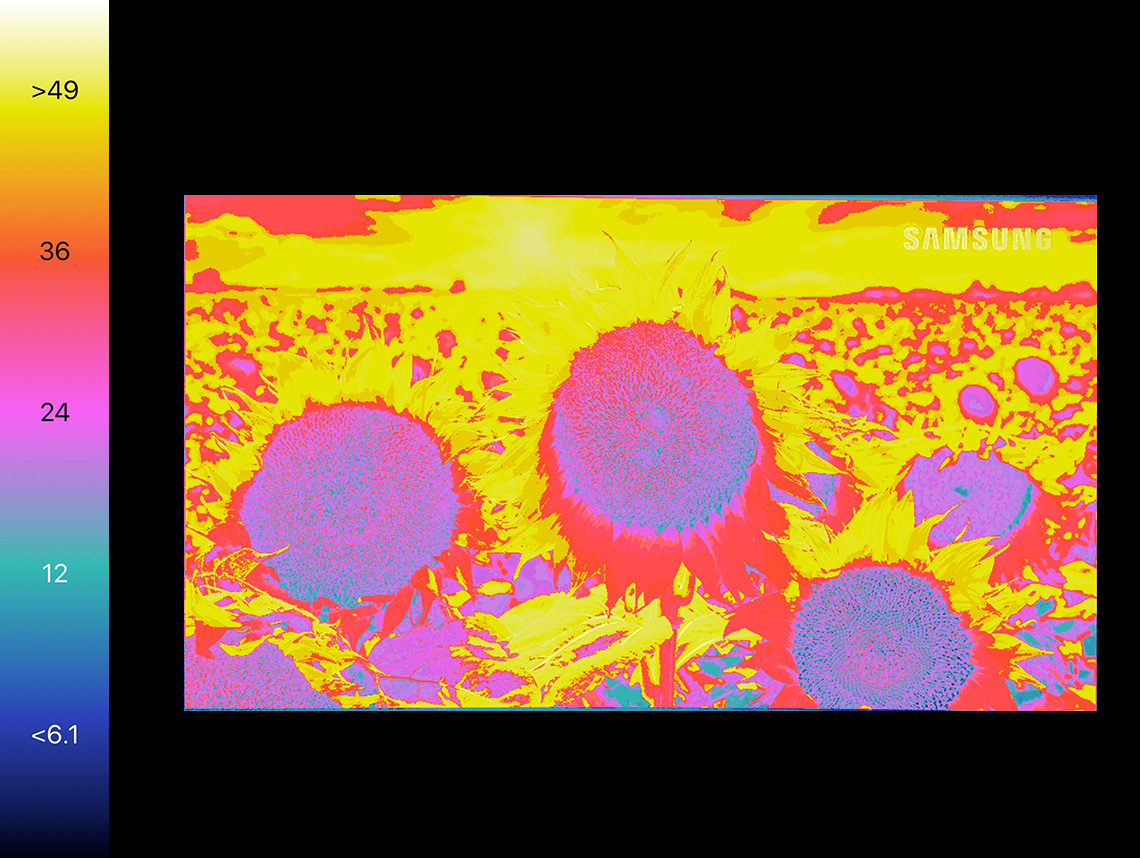
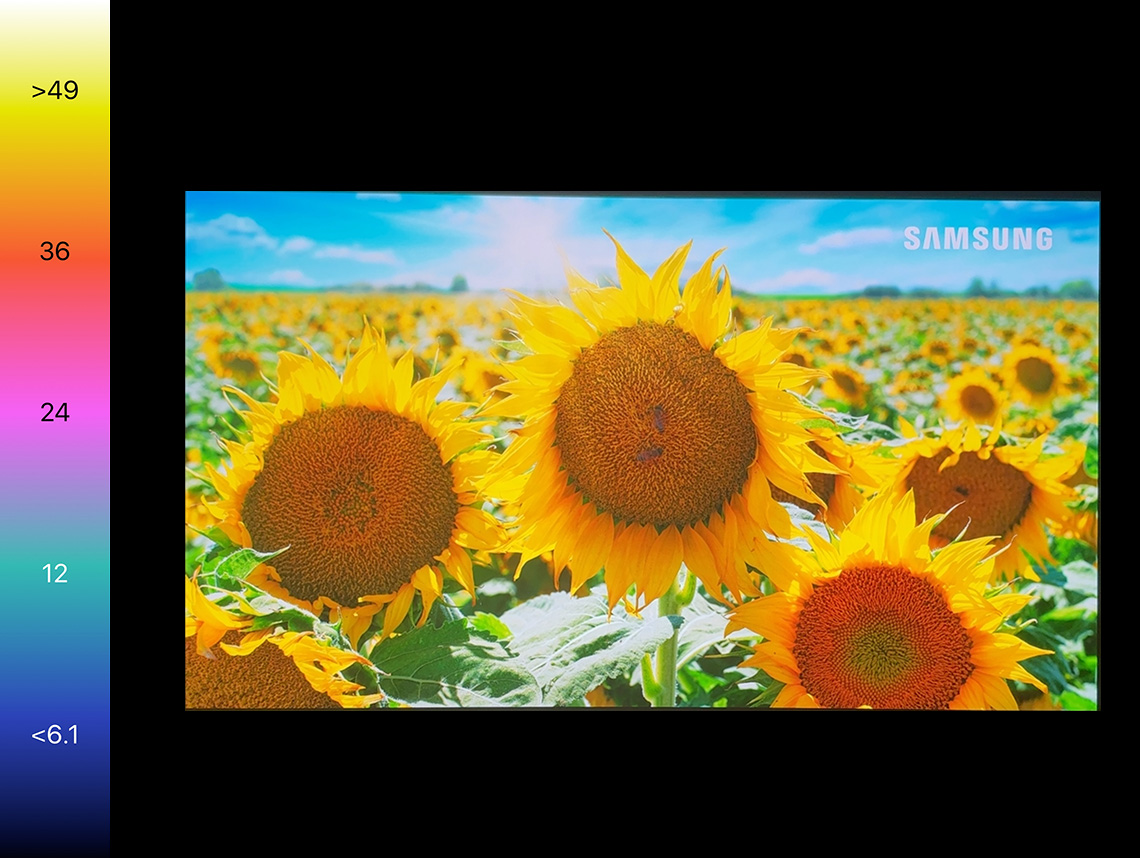
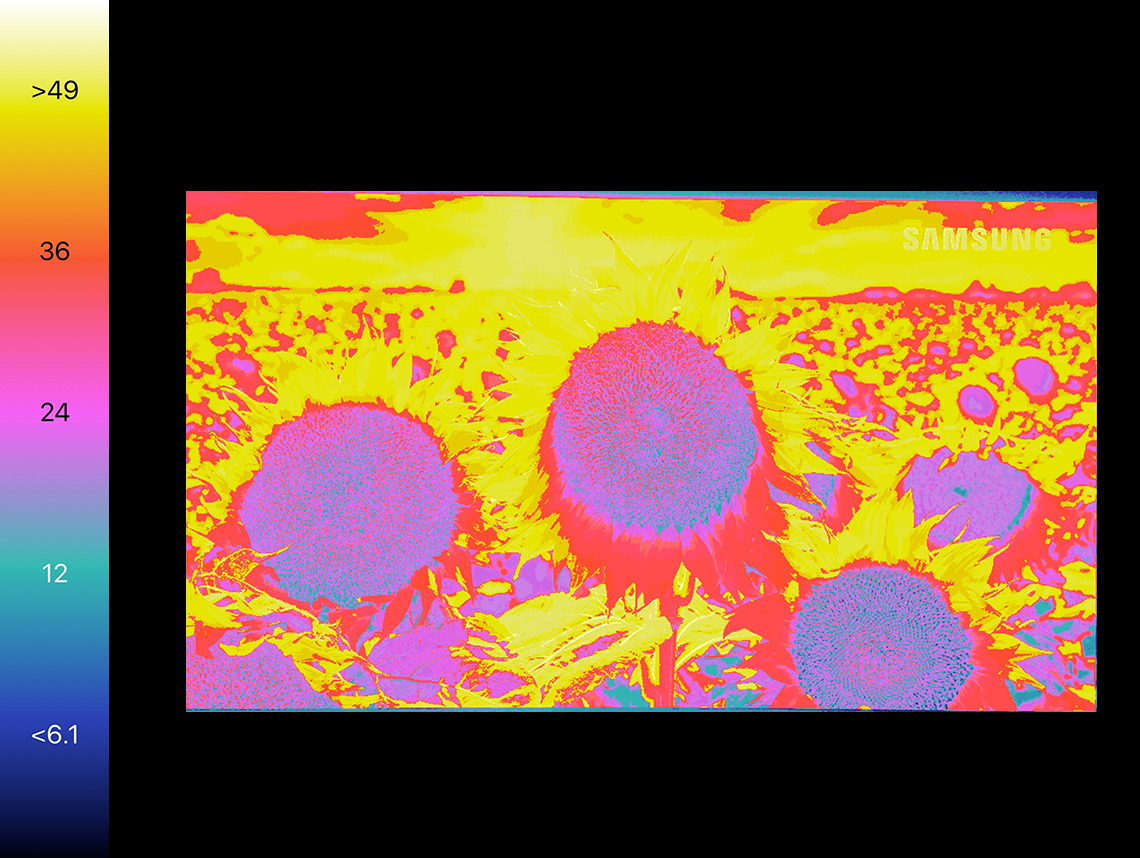
The above photos and heatmaps were captured for the GO27Q24G using the same heat scale, and give an indication of the approximate visual differences between each of the three modes quite nicely as well. You can see the brightness improvements as you move up to the medium and high modes here quite well.
Visually you can definitely see the improvements to brightness as you cycle between the different modes during usage; especially in the higher APL scenes where the off mode is over-darkened without HyperNits.
We compared the MO27Q28GR (with HyperNits) side by side with the original MO27Q28G (HyperNits off) which brought out some of these improvements as well. It’s not always obvious in some scenes, but as the content varies and you go between different scenes, there’s definitely improvements in the brightness when using this new setting. We preferred to just use the maximum ‘high’ setting for the maximum improvement.
Colour Improvements
One other benefit of the HyperNits setting is that it improved the vividness and saturation of colours compared with the ‘off’ mode. This is quite obvious in practice as you cycle between the different settings during real usage. This brings this mode in line with the other HDR modes in the menu, enhancing the appearance of HDR content nicely when this setting is enabled.
The New ‘Shadow Boost’ Setting
With the HyperNits update comes another new setting available in the Peak mode, and also within the ‘HDR Game’ mode. This one is called ‘Shadow Boost’ and its designed to improve near-black shadow detail in HDR content. There was already a setting called ‘Dark Enhance’ in the menu, so we measured both to see what each is doing.
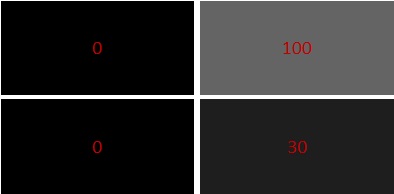
To do this we measured the luminance of dark grey shades in each configuration. We used RGB 0 (black) to 100 (mid grey) for a wider view of performance, and then honed in more on the darkest near-black shades from RGB 0 – 30 as well. Results below are from the MO27Q28GR.
Dark Enhance setting
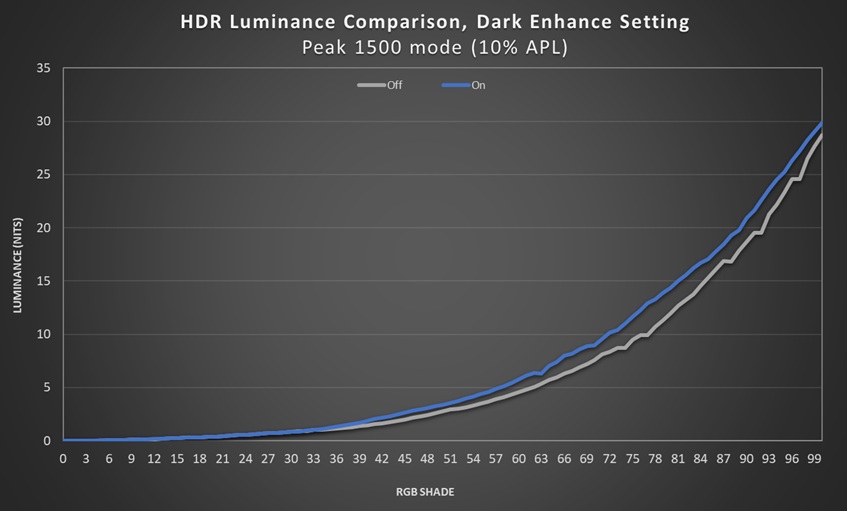
If we measure the luminance of the first 100 RGB shades you can see that the Dark Enhance setting improves the luminance of those dark to mid grey shades a little, which is designed to bring out a little more detail in overall dark games and movies. It’s a broader adjustment to help with overall darker content.
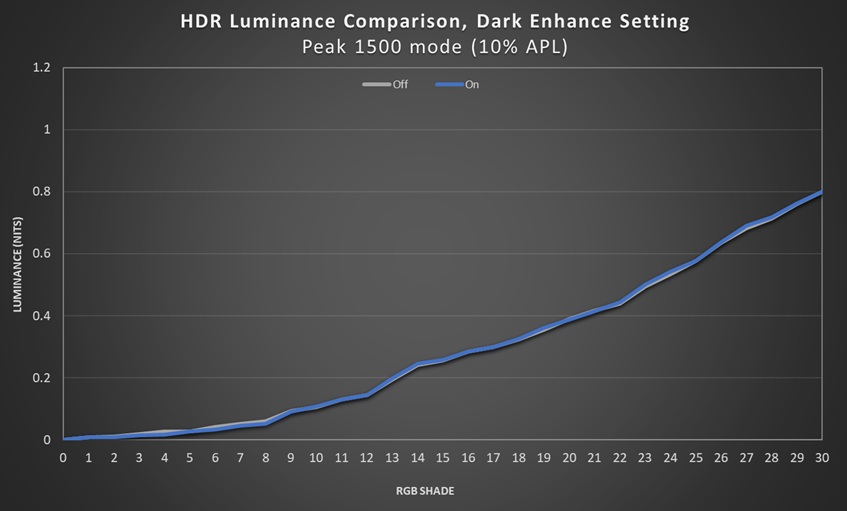
If we hone in on the darkest near-black shades from 0 – 30 you can see that there’s no adjustment being made in that area with this Dark Enhance setting though, it’s not impacting the very darkest near-black detail.
Shadow Boost setting
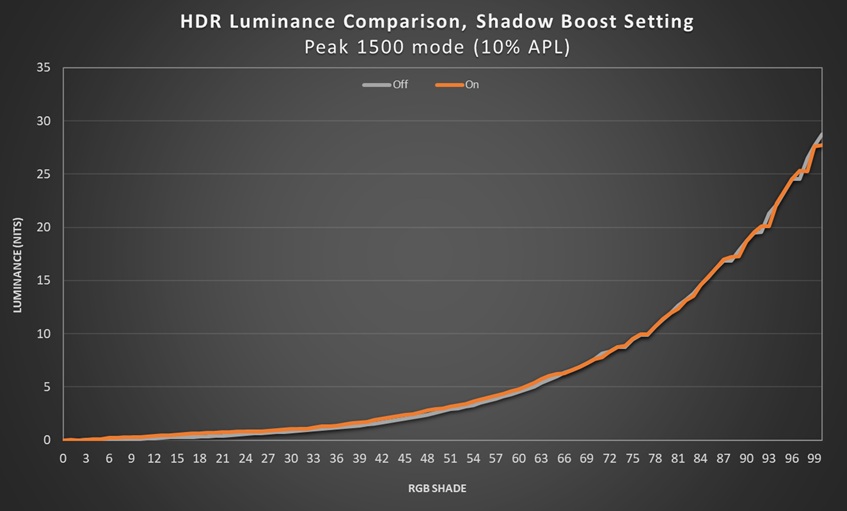
That’s where the Shadow Boost setting comes in. You can see that when comparing the 0 – 100 RGB shades, on this scale there’s no real difference between the off and on modes.
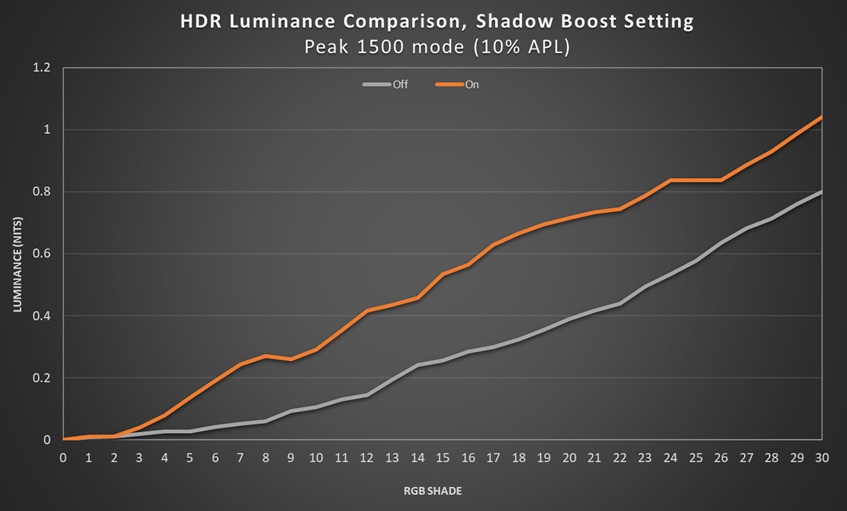
However when you hone in on the 0 – 30 near-black shades you can see the luminance is increased a fair amount now. This helps make those darkest shades a bit brighter and improves near-black detail nicely.
We should remember that shadow detail can vary on WOLED panels depending on the refresh rate you’re using, as we explored in our article here. The above measurements were taken at 60Hz for example. But regardless, this Shadow Boost setting can help bring out the detail in darker scenes quite well.
The only limitation at the moment is that you can’t enable both modes at the same time, although we’ve asked Gigabyte about the potential of opening up that option if possible. Right now it’s one or the other depending on your usage scenario.
Summary of HyperNits Benefits
The HyperNits setting does a good job of improving the Peak mode on these new screens which was otherwise not really been usable due to excessive dimming and weaker colours. Now with the update you get:
- Improved luminance in real content, especially in brighter scenes with minimal loss of tonal detail. Where loss of detail does occur due to the over-brightening, it’s the darker overall (low APL) scenes, but it is fairly low.
- The HyperNits mode can now reach a very similar brightness to the TrueBlack mode in brighter scenes, whilst also being able to deliver the full peak luminance of the panel in darker scenes. More comparisons on this below.
- The choice between a ‘Medium’ and ‘High’ setting for HyperNits gives you some additional flexibility, with the ‘Medium’ mode offering slightly less boosting of the luminance in lower APL scenes than the ‘High’ mode.
- More vivid and saturated colours, fixing the issues in this Peak mode when HyperNits is off, and now offering colours which look the same as the other HDR modes.
- The new ‘Shadow Boost’ setting which does a nice job of improving near-black detail.
Comparing HyperNits with Other HDR Modes
What about the new HyperNits modes compared with some of the existing options like ‘HDR Game’ and the ‘HDR’ (default) mode which is like a common True Black 500 mode?
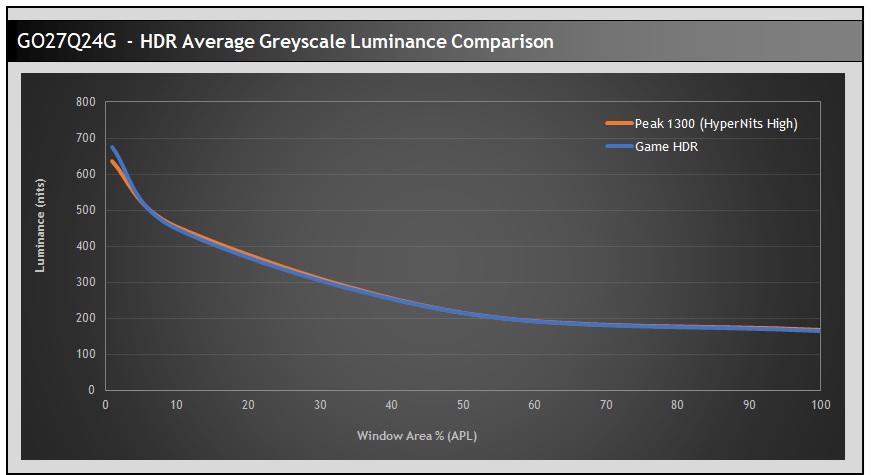
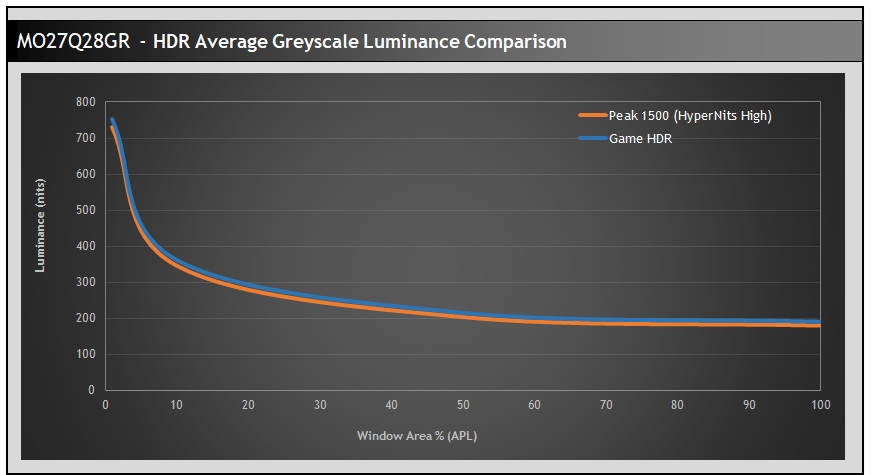
If we compare the average greyscale luminance again we can see that the Peak mode (HyperNits = High) and HDR Game mode behave very similarly to one another. Not surprising really considering they have very similar settings apart from a couple of tweaks. As we said earlier you can configure these two modes to basically the same settings if you wish, although with the improved Peak 1500 mode (with HyperNits) you now have the flexibility to have two differently configured modes which is good news.
The HDR Game mode has a slightly boosted contrast and ‘Dark Enhance’ enabled with the aim being to improve darker gaming situations. On the other hand the Peak 1500 mode could be more useful for movie and video playback with the flexibility to customise the other settings as you want. Both modes offer access to the new ‘Shadow Boost’ setting as well, but you now have two modes where you can configure things for different use-cases. At the moment since the ‘Dark Enhance’ and ‘Shadow Boost’ modes are mutually exclusive, you may wish to have one mode configured to use the first setting, and the other to use the second setting.
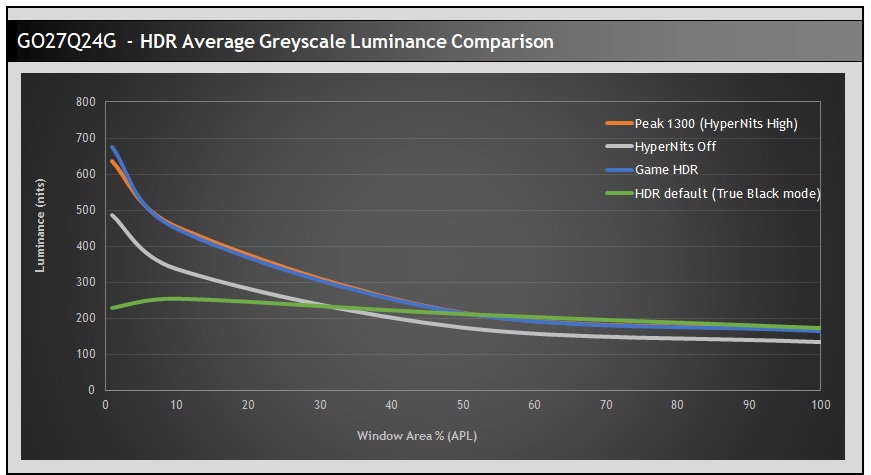
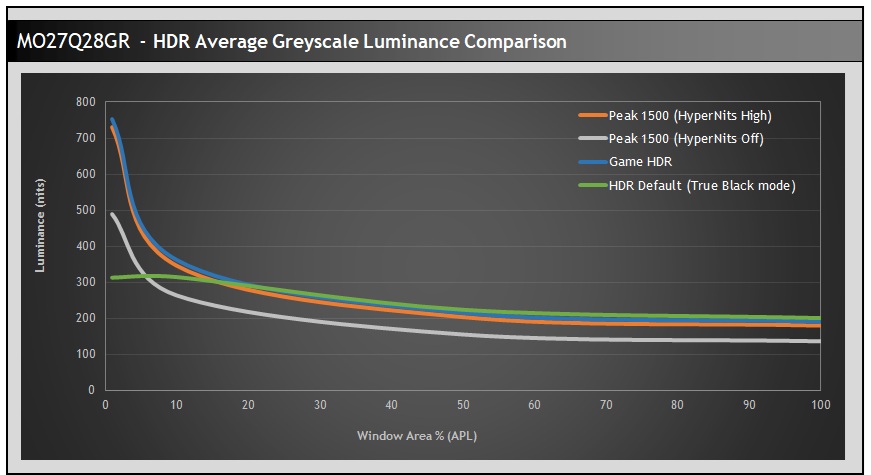
We can also add in the default ‘HDR’ mode, that has APL stabilize set to ‘Medium’ and is akin to the common ‘True Black 500’ modes you will see on other OLED monitors. As we said earlier, this mode is designed for the VESA DisplayHDR True Black certification and has less aggressive ABL dimming since it only reaches around 532 nits (MO27Q28G) or 409 nits (GO27Q24G) peak white luminance.
On the GO27Q24G you can see that this mode is very similar to the HDR Game and HyperNits High modes in the highest APL scenes but below around 50% APL the HDR Game and HyperNits high modes reach noticeably brighter. The HyperNits off mode is darker than all the other modes for most scenes, including the True Black equivalent mode in many cases.
On the MO27Q28GR it’s a similar story with the True Black mode being very close to the HDR Game and HyperNits High modes in most scenes, having an ever so slightly higher luminance by around 10 – 20 nits. In real usage these 3 modes look the same in those brighter HDR scenes visually. In the lowest APL scenes with bright highlights, the HDR Game and HyperNits High modes pull away and can reach much brighter levels. You can also see here the Peak 1500 mode with HyperNits turned off, where it is quite noticeably darker than all the other configurations, even the True Black-equivalent mode.
Different mode use cases
Gigabyte tell us that HDR Game has tone mapping that includes highlight roll-off to better preserve bright detail while enhancing contrast with the Dark Enhance setting. While HDR Peak + HyperNits is based on a higher peak luminance target (up to 1500 nits), and focuses on boosting mid-to-high brightness levels to deliver a more impactful overall image. The additional Shadow Boost setting gives further adjustments near black if needed.
So, while some overlap in achievable results is possible through manual adjustments, these modes are intentionally differentiated to provide distinct out-of-box experiences and flexibility.
Additional variation – Windows HDR Calibration Tool values
One additional note is that the Peak mode on these screens is the only mode which reports a peak luminance figure from the monitor EDID to Windows which aligns with the actual peak luminance of the panel (i.e. somewhere around 1300 nits or 1500 nits depending on the screen). The other HDR modes, including modes like HDR Game with APL Stabilize set to high, still all report a lower ~400 / ~500 nits figure to Windows instead, even though in practice they can reach much brighter.
We are exploring the implications and practical impacts of this situation which is a complicated topic, especially when most HDR games don’t use the Windows tool config anyway. But other HDR-related tools like Windows Auto HDR and NVIDIA RTX HDR may also rely on the reported EDID figures as well in some cases.
It’s a topic for another day, but for now the point is that if you have a situation where you think you might need that information to be reported at the higher figure, or are seeing problems related to configuration when using the other HDR modes with the lower figure, you can now use the Peak mode on the screen to get the high figure, and then use HyperNits to ensure you’re not sacrificing brightness and colour performance. If you have any useful insight in to this situation, using the Windows HDR Calibration tool etc please get in touch with us as we’d welcome useful feedback and input.
Gigabyte HyperNits HDR availability
The screens tested in this article are available now in some regions, with wider availability expected throughout Q2. You can check latest pricing and availability using our affiliate links below. Check the support pages for other existing models for firmware updates as and when they are released.
| Image | Model name | Key specs and features | Affiliate links |
| MO27Q28GR | 27″ 4th Gen Tandem WOLED panel 2560 x 1440 resolution 280Hz refresh rate 1500 nits peak brightness | |
| GO27Q24G | 27″ 3rd Gen WOLED panel with MLA+ 2560 x 1440 resolution 240Hz refresh rate 1300 nits peak brightness | |
We may earn a commission if you purchase from our affiliate links in this article- TFTCentral is a participant in the Amazon Services LLC Associates Programme, an affiliate advertising programme designed to provide a means for sites to earn advertising fees by advertising and linking to Amazon.com, Amazon.co.uk, Amazon.de, Amazon.ca and other Amazon stores worldwide. We also participate in a similar scheme for Overclockers.co.uk, Newegg, Bestbuy , B&H and some manufacturers.