
Thunderbolt Connectivity Explained
Disclaimer: this article includes sponsored promotion by Philips and inclusion of their 27E3U7903 Thunderbolt monitor, but all content, opinions and commentary are our own.
Introduction
In the last few months we’ve tested a couple of monitors that feature Thunderbolt connectivity and we thought it would be useful to explain this connection a little further, since it seems to be appearing on a few more monitors nowadays, especially those aimed at the professional and office space, or monitors which are geared towards Apple Mac users as well as PC. You might be wondering what this connection is, whether it will be compatible with your system and what benefits it might offer you compared with other connection types such as DisplayPort, HDMI or USB type-C. We’ll try and cover those questions in this article.
What is Thunderbolt?

Thunderbolt (referred to herein as TB in some places for ease) is a brand name for a connectivity protocol used to connect some peripherals, devices and monitors to a computer. It was originally developed in collaboration by Intel and Apple and is designed to offer simple, single-cable connectivity for tidier workspaces, flexible connectivity and easier usage.
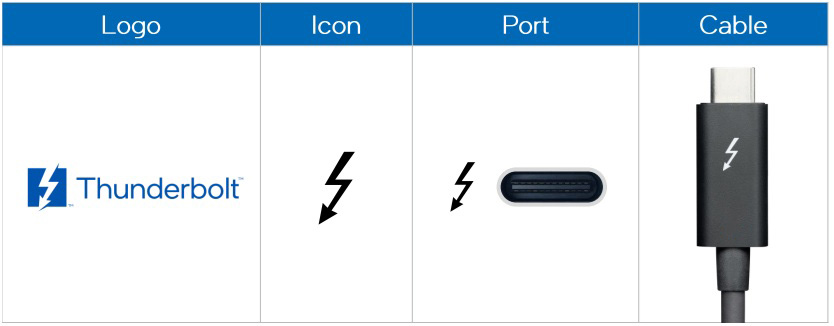
You’ll find the connection on many Apple laptops and Mac systems, as well as on some Windows-based notebooks too and it’s typically marked with a lightning logo. These ports are commonly found on PCs with the latest Intel Core mobile processors, or systems that are equipped with a specific Thunderbolt controller.
One annoyance is that there is only a single TB logo that is used to identify compatible devices, there isn’t a separate logo for each version that’s been released over the years (see below), so when considering a monitor or any other device with TB, you’d need to dig in to the specs to understand the version that’s supported.
Key Benefits of Thunderbolt
- Simple, single cable connectivity including a flippable and reversible cable
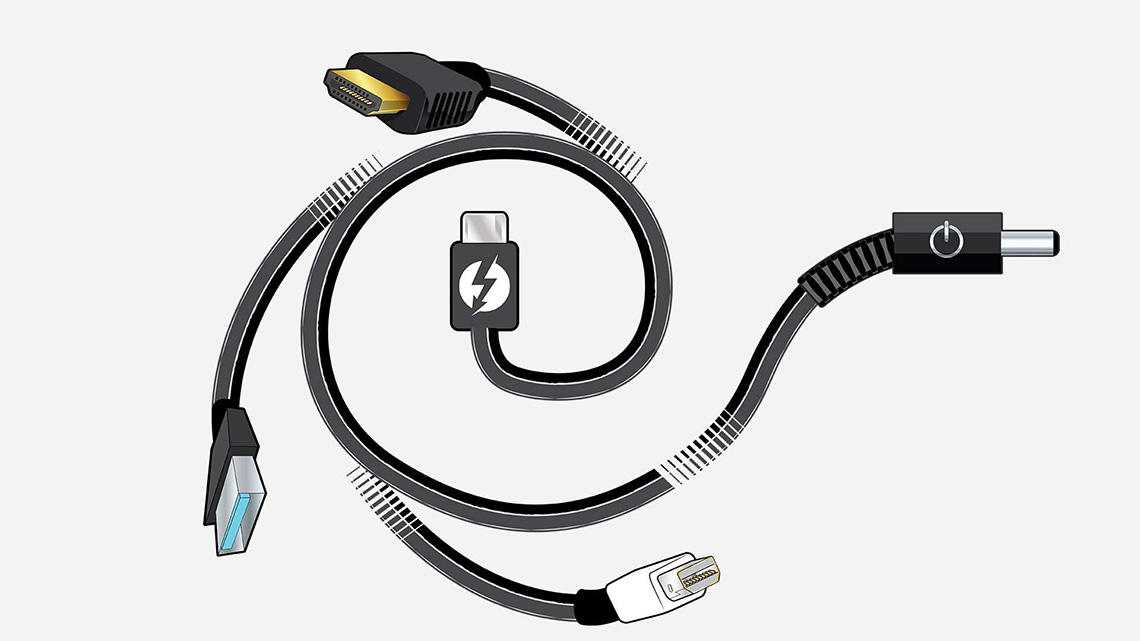
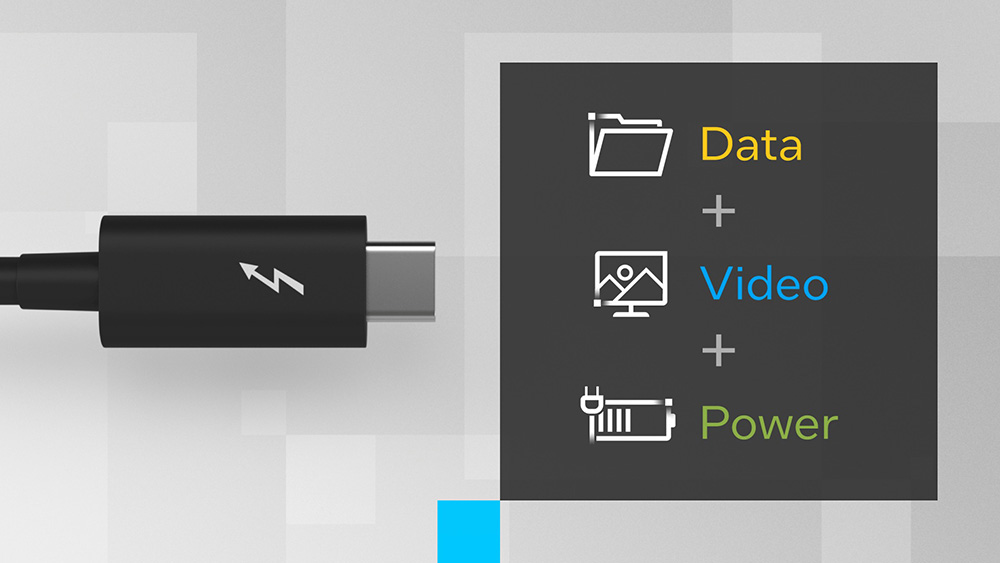
- Video, data and power can all be delivered over a single cable for monitors (plus other capabilities in some cases)
- Typically faster data transfer speeds than standard USB connections
- Simple certified cables – Thunderbolt cables are tested for quality and required to meet certification standards and it should be as simple as finding a certified cable for your Thunderbolt version.
What Else Can Thunderbolt Do?
Beyond the common delivery of data, video and power, Thunderbolt can also offer some further advanced capabilities (dependent on the TB generation, explained below). Other capabilities may include:
Use the PCIe bus
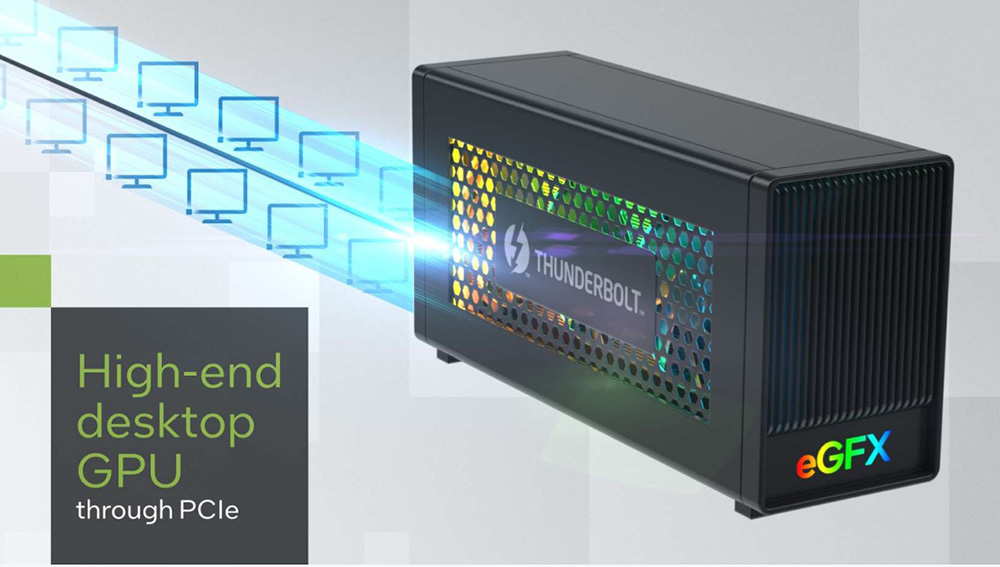
Thunderbolt can also support PCI Express (PCIe) signals and this allows components that use PCIe to be connected without having to install them internally in your system. This could include:
- External graphics cards – you can connect an external GPU to boost the graphical performance of a laptop or lightweight PC, allowing you to play more games at higher settings.
- External SSDs – Connect a high-speed external Thunderbolt SSD to expand the storage capacity of your system and achieve speeds on par with internal drives. For instance you could run games from an external NVMe SSD, which uses PCI-E and can operate at fast enough speeds to run very efficiently, despite it being connected externally instead of using a more traditional internal SATA SSD for instance.
- Video capture devices – connect an external capture device for live streaming and other uses.
Networking support
Thunderbolt IP networking lets you connect two Mac or Windows computers and establish a full duplex 10 Gbps Ethernet connection (20 Gbps on the latest TB generation in fact). If you have a Mac, you also have an option called Target Disk Mode. While earlier generations could use adapters for Gigabit Ethernet via the PCIe lanes, Thunderbolt 3 officially integrated Ethernet networking capabilities into its specification, allowing for peer-to-peer networking between two computers or connections to high-speed networks with an adapter.
Thunderbolt Generations Explained
Thunderbolt 1 and 2
Thunderbolt 1 was first introduced in 2011 on the Apple MacBook Pro and at the time the connector had the same physical form as a Mini DisplayPort connector, with an added lightning logo on it t represent the Thunderbolt branding. However, this connector combined DisplayPort and PCI-Express technologies in to a single cable allowing for support of (for the time) high resolution displays (1440p max) and high speed data transfer up to 10Gbps (available on two lanes for 2x 10Gbps). Limited power delivery was possible up to 10W as well.
Later on, Thunderbolt 2 was introduced with the same physical Mini DisplayPort connector but improved capabilities, with DisplayPort 1.2 now being supported (supporting 2x 1440p or 1x 4K displays), along with up to 20Gbps of data transfer bandwidth (from a single logical data channel this time) – double that of TB1. Power delivery remained the same as TB1.
Thunderbolt 3
Next came Thunderbolt 3 which doubled the data rate again to 40Gbps, and most significantly it switched to a new physical connector which is the same as USB-C. The USB-C connection type can be used to support “Thunderbolt Alt” mode, in a similar way to how it can be used to support “DisplayPort Alt” mode. From a monitor point of view some TB3 controllers supported only DisplayPort 1.2, and other later controllers could support DisplayPort 1.4 (with DSC).
With that switch to a USB-C connector also came the ability to significantly increase the power delivery, with up to 100W being available. TB3 also introduced Thunderbolt networking with 10Gbps Ethernet available, all still over that single cable connection, although passive cabling lengths were limited to 0.5m (or 2ms via an active cable) which was somewhat restrictive.
Thunderbolt 4
Let’s look at the most commonly featured TB version at the moment, and that is Thunderbolt 4. There are also some TB5 devices available, which we will look at in a moment. TB4 didn’t offer any major headline spec updates over TB3 but the main improvement is that laptop, peripheral and cable makers must now meet more stringent standards for TB4 certification.
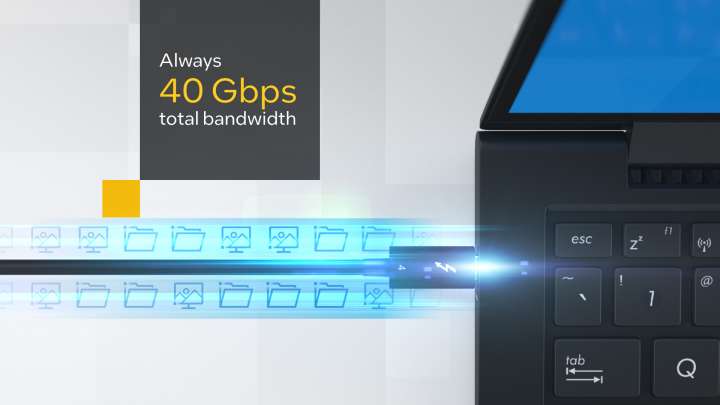
TB4 still supports up to 40Gbps of total bandwidth throughput, 100W required power delivery (with up to 140W optional) and 10Gbps Ethernet networking like TB3 had. However, TB4 brings several improvements and new features to the table when compared to Thunderbolt 3:
- Displays – Thunderbolt 4 can support dual 4K 60Hz monitors, as opposed to the single 4K monitor supported from most Thunderbolt 3 connections. It uses DisplayPort 1.4 with DSC and can support displays that use that DP generation.
- USB4 – TB4 supports this specification with 40Gbps data transfer speeds.
- PCIe speed – the minimum PCIe data requirements have increased from 16 Gbps to 32 Gbps. This means that high-speed external PCIe devices like storage and external graphics could see significant increases in transfer rates and performance.
- Security – VT-d based DMA protection helps prevent security threats by remapping requests from external devices and checking for proper permissions.
- Wake from sleep – This feature allows a PC to be brought out of hibernation with peripherals that are connected through a dock.
- Cables – passive cables are available up to 2m in length now, compared with 0.5ms from TB3.
Thunderbolt 5
Thunderbolt 5 was originally unveiled in Sept 2023 and offers further improvements to TB4. Devices using Thunderbolt 5 started to appear in late 2024, including various Apple Mac devices although it’s less common than TB4 at the moment as it’s very new. Improvements include:
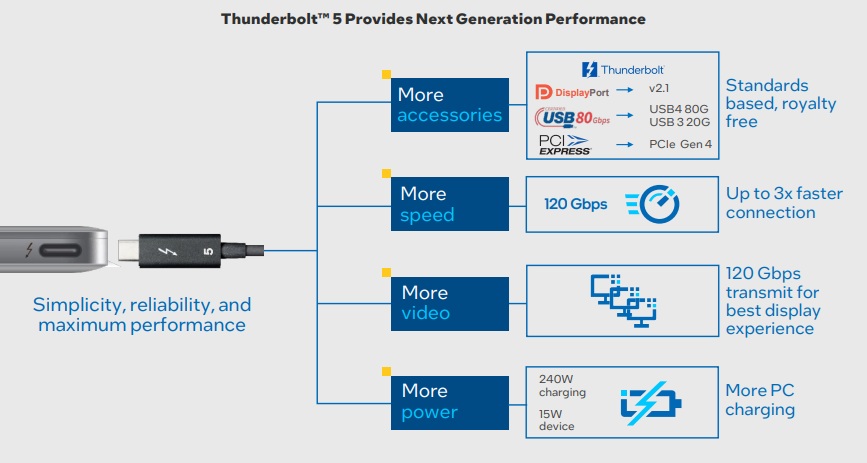
- Bandwidth – It offers symmetric bandwidth of 80 Gbps, double that of Thunderbolt 4. From a monitor point of view that now allows…
- DisplayPort 2.1 support – for the latest bandwidth capabilities of DisplayPort 2.1, up to 80Gbps for the maximum UHBR20 tier. This can support the latest display specs.
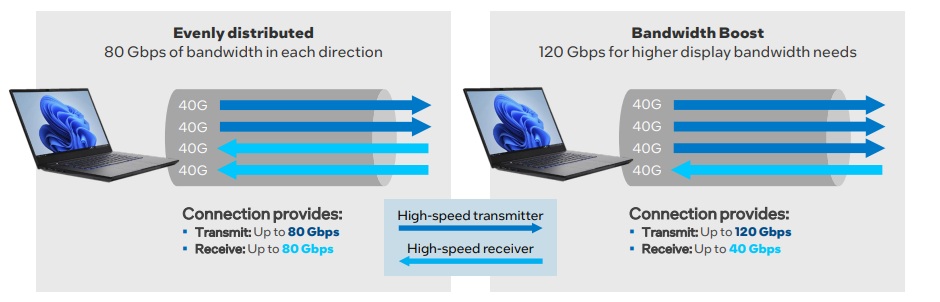
- Bandwidth boost – via a new feature, it can also offer unidirectional bandwidth of 120 Gbps (three times that of Thunderbolt 3 and 4) where needed.
- USB4 2.0 – TB5 now supports this specification with 80Gbps data transfer speeds.
- Power delivery – it has a required power delivery of 140W with support up to 240W now available.
- PCIe speed – it can support 2x the PCI Express data-throughput of TB4 (i.e. 64 Gbps) using PCI Express Gen. 4 × 4, for faster storage and external graphics
Quick Reference Table of Thunderbolt Generations
| Version | Year introduced | Connector type | Max symmetric bandwidth | Video | Power delivery | Max cable length |
| Thunderbolt 1 | 2011 | Mini DisplayPort | 2x 10 Gbps lanes | 2560 x 1600 (single display) | 10W | 3m |
| Thunderbolt 2 | 2013 | Mini DisplayPort | 20 Gbps | DisplayPort 1.2 4K (single display) 2560 x 1444 (dual display) | 10W | 3m |
| Thunderbolt 3 | 2015 | USB-C | 40 Gbps | DP 1.2 or some with DP 1.4 (with DSC) 4K @ 120 Hz (single display) 5K @ 60 Hz (single display) 4K @ 60 Hz (dual display) | 100W | 0.5m (passive) 2m (active) |
| Thunderbolt 4 | 2020 | USB-C | 40 Gbps | DisplayPort 1.4 (with DSC) 8K @ 60 Hz (single display) 4K @ 60 Hz (dual display) | Required 100W Available up to 140W | 2m |
| Thunderbolt 5 | 2023 | USB-C | 80 Gbps (bidirectional) 120Gbps (unidirectional) | DisplayPort 2.1 (with DSC) 8K @ 60 Hz (dual display) | Required 140W Available up to 240W | 1m |
Thunderbolt Docks
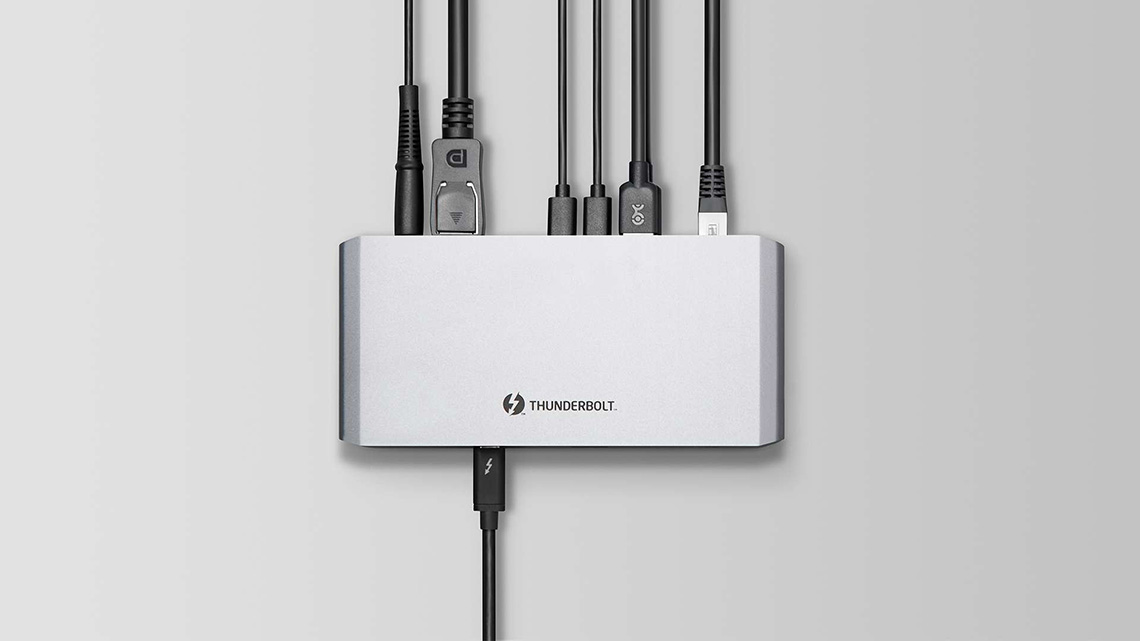
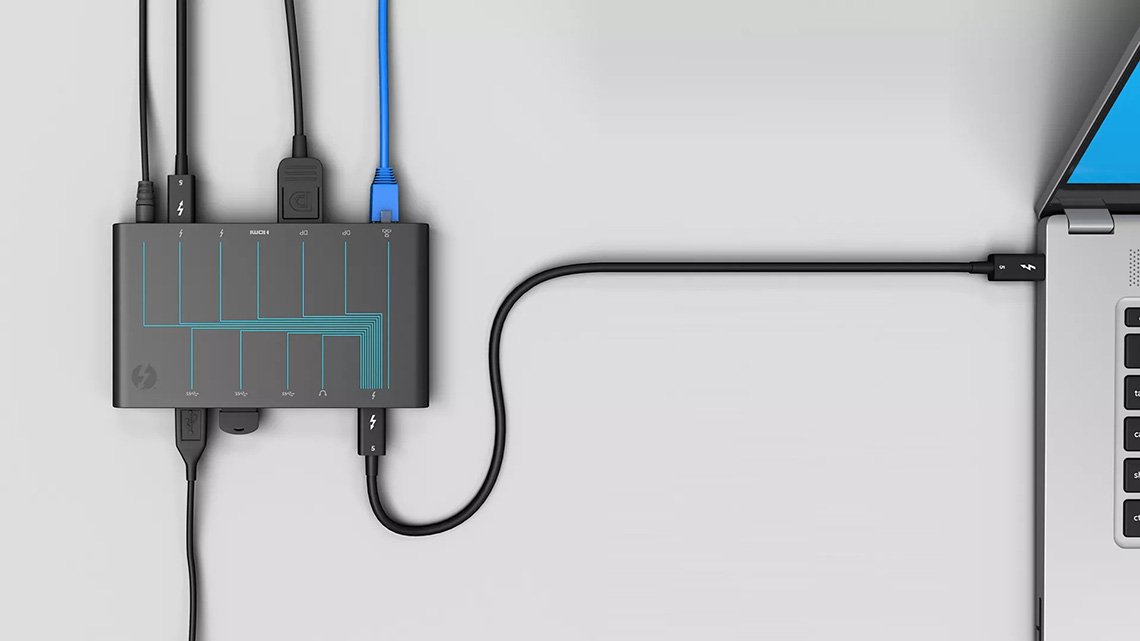
To help keep cabling simple and tidy, you can use a Thunderbolt dock to increase the connections available from your system. For example you could connect a keyboard, a mouse, external monitor, and SSD to a dock, and then connect that dock to a PC with just a single Thunderbolt 4 cable. The number of ports and their type will vary depending on the dock’s make and model but most Thunderbolt docks increase the number of Thunderbolt ports available and frequently feature additional ports for USB 3.0 Type-A, DisplayPort, and audio as well.
Since the Thunderbolt bandwidth is bidirectional the outgoing video signal won’t conflict with incoming data from peripherals or a storage drive and this allows you to make use of the bandwidth efficiently to maximise your speed.
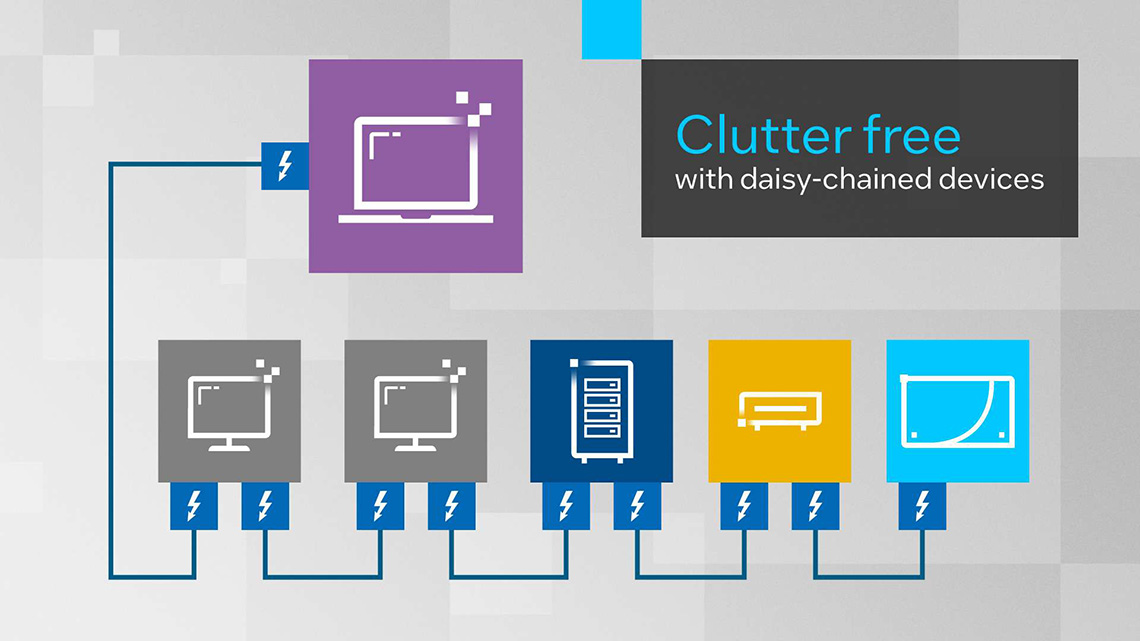
Thunderbolt also supports simple daisy chaining between compatible devices, with up to 6 devices in the chain supported.
Thunderbolt Monitors

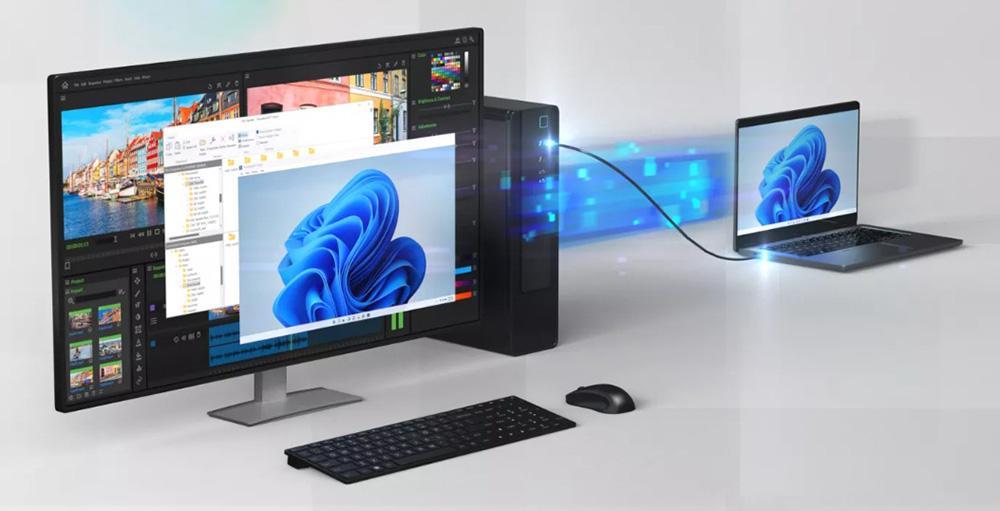
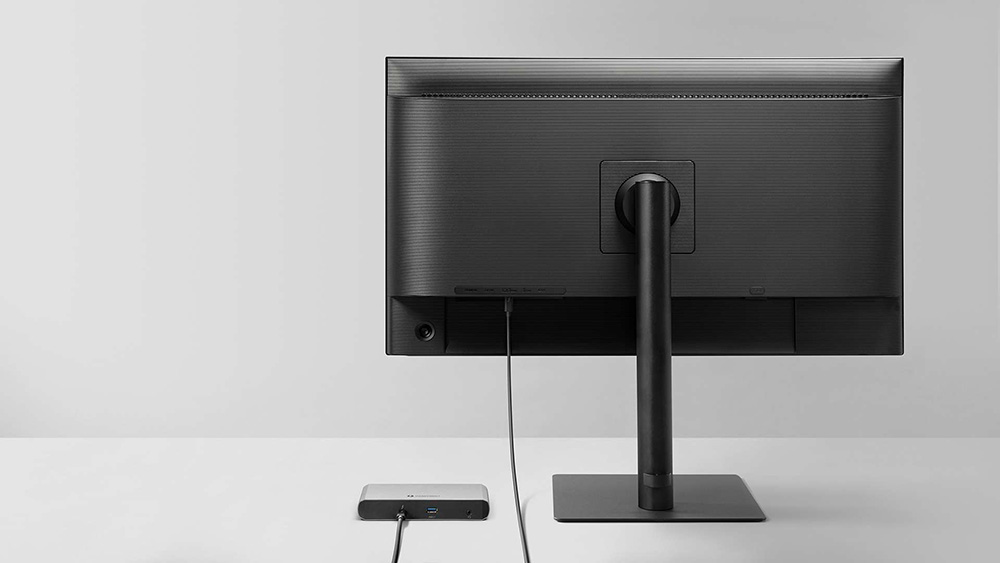
Monitors with a Thunderbolt connection basically act as a Thunderbolt dock, under the same principles explained above. You can connect a single cable from your Thunderbolt-compatible PC/laptop to your monitor, and then connect all your other peripherals and devices to that monitor. That helps keep cabling simple and tidy, and for laptops especially makes it very easy to come and go, with only a single cable that you need to connect up each time.
With the monitor supporting TB and acting as a dock, you can deliver data, video, power, Ethernet and everything else that TB is capable of across that connection, and between the other connected devices. Obviously you need to have a TB-capable PC/laptop as well to be able to make use of these capabilities, but if you do then a TB-capable monitor could be really useful.
Let’s take a look at a recent monitor we’ve reviewed which features Thunderbolt connectivity:
Philips Brilliance 27E3U7903
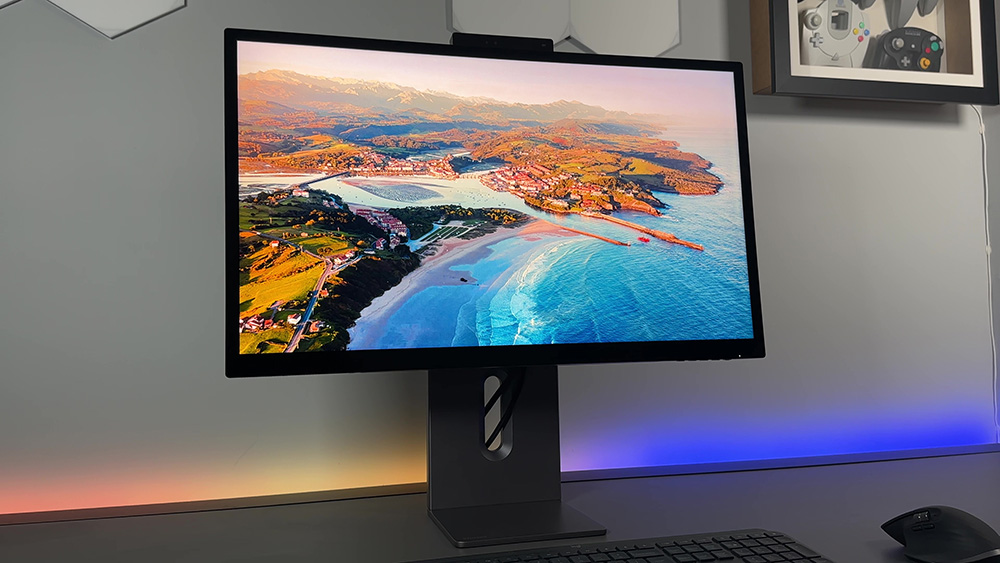
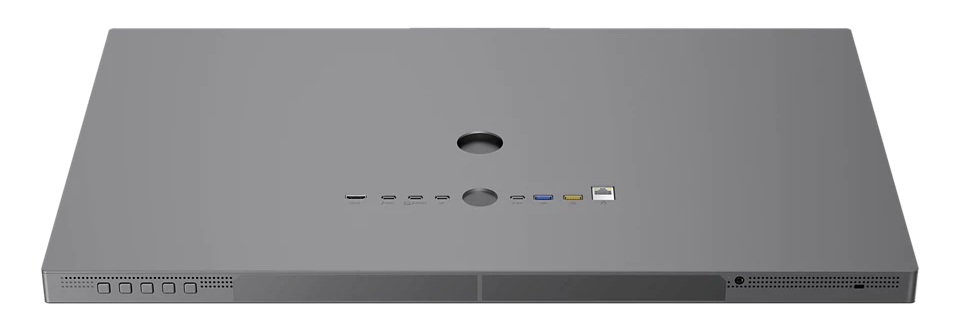
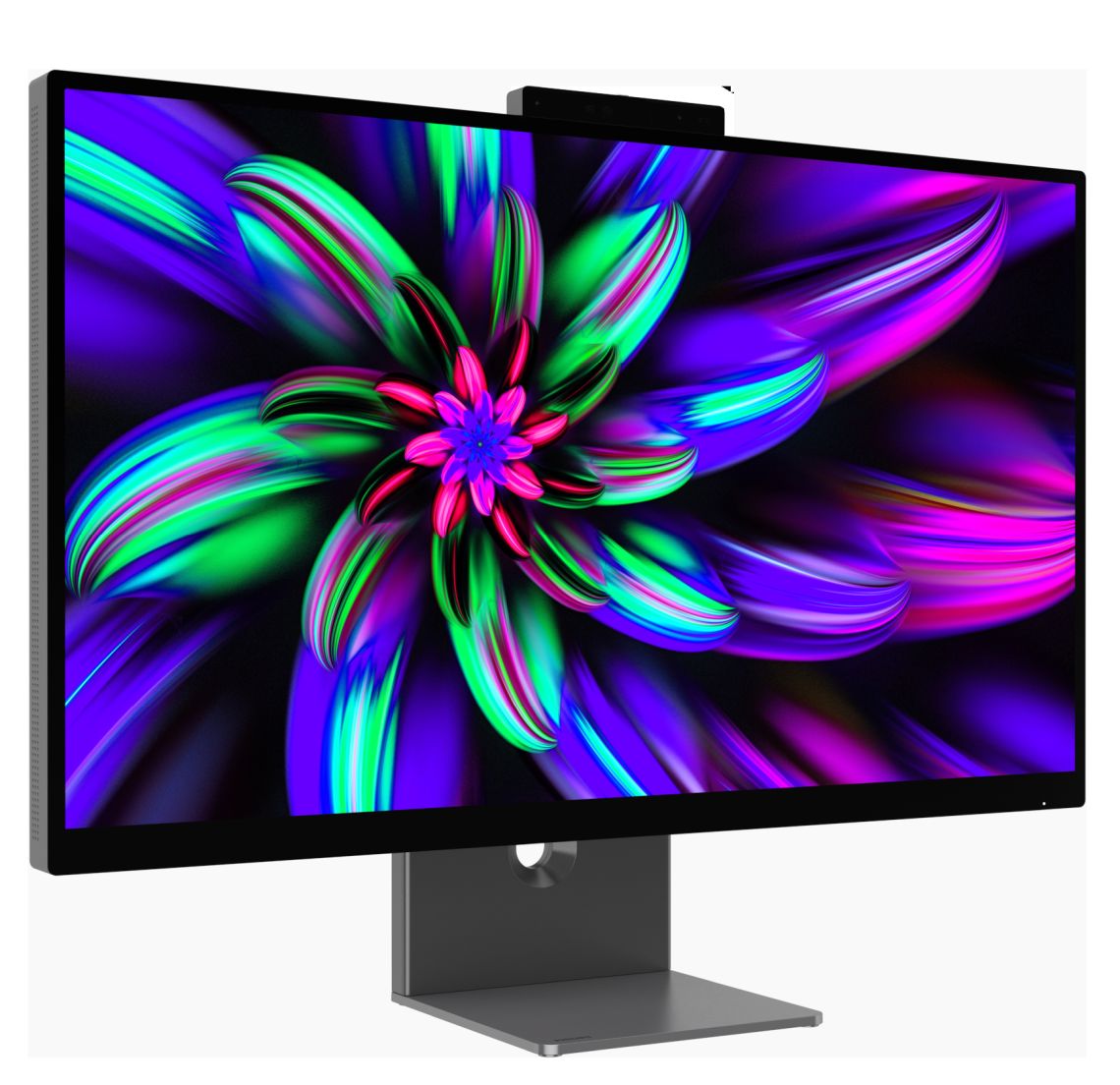
The Philips Brilliance 27E3U7903 is a recently reviewed monitor which has Thunderbolt 4 connectivity and can act as a Thunderbolt dock. It features a TB4 connection back to your compatible PC/laptop which can support:
- Video with a 5120 x 2880 “5K” resolution at 70Hz refresh rate
- Data transfer speeds up to 40Gbps total, bidirectional
- Power delivery up to 96W
- 1Gbps Ethernet, allowing you to use the 1x RJ45 Ethernet port on the monitor
- The monitor also features 1x Thunderbolt 4 output for daisy chaining, with an additional 15W power delivery supported for that
- The monitor also has 1x USB-A and 1x USB-C (15W) data ports, allowing it to function as a versatile connectivity hub
Here’s an example use-case of how you could utilise the Thunderbolt connectivity on this monitor:
- The Philips monitor is on your desk and various external devices are connected in to that:
- A keyboard and mouse are connected in to the USB-A data ports on the monitor, either using wired connections or using wireless dongles
- An external SSD is connected to the monitor via the USB-C data port for storage
- Your internet router is connected directly to the RJ45 Ethernet connection on the monitor for an uninterrupted, stable connection
- There is a second Philips monitor connected for a dual-screen setup, using the Thunderbolt 4 output from the first monitor
- You have a recent MacBook laptop that you want to use with this setup. You only need to connect it to the main Philips monitor using a single Thunderbolt 4 cable which will:
- Deliver power (up to 96W) and charging to the MacBook
- Will allow you to use both Philips monitors for extended desktop space and multi-screen setup
- Will allow you to use the mouse/keyboard and SSD storage using the data transfer to control your MacBook
- Will allow you to access the internet via the RJ45 Ethernet connection
All this is possible using just a single Thunderbolt 4 connection from the MacBook to the Philips monitor which can act as a Thunderbolt 4 hub.
What to Look For in a Thunderbolt-capable Monitor
Keep in mind that many monitors will offer a USB type-C connection nowadays, and while physically it looks the same as Thunderbolt, you would need a connector that specifically lists Thunderbolt in the specs if you want to take advantage of its capabilities, and you’d need to know which version is offered as well. It’s safe to assume with monitors that TB is only going to be supported where it’s specifically promoted on the product page and specs, otherwise the connection will almost certainly be a plain USB-C connection.
Thunderbolt vs USB-C
Thinking about monitors specifically TB connections can combine data, video and power all from a single cable. If that sounds familiar, that’s because it is similar to the display functionality offered from standard USB type-C connections, something we also explained in our recent article here. The actual physical connector for TB is the same as a standard USB-C connector too, and that’s been used for Thunderbolt 3, 4 and 5 devices.
However, the two are not the same thing. USB-C is a physical connector whereas Thunderbolt is a connectivity protocol which runs over that. While it looks like USB-C, the TB connection is capable of even more and TB certification also mandates higher minimum performance specs too.
- You can still plug in a USB-C device to a Thunderbolt port, it will work fine using normal USB-C capabilities and “fall back” to the USB protocol instead.
- You could plug a Thunderbolt device into a standard USB-C port, but you would be more limited in its potential capabilities.
You want both the device and the connections to be Thunderbolt for the full support of all features. Also note that you need a specific, certified Thunderbolt cable if you’re going to connect Thunderbolt devices, systems and monitors together.
- Normal USB-C cables may not function properly
- Thunderbolt cables can be used though with any USB-C port.
Thunderbolt vs USB4
It is also quite easy to confuse these two, as they both use the same physical USB-C connector, and since TB4 it has supported the USB4 data capabilities as well. However, plain USB4 comes in a few varieties and not every USB4 device can support the 40Gbps data rate, some operated at 20Gbps for instance. TB4 connections basically guarantee that the higher tier 40Gbps USB4 is supported over it.
TB4 also guarantees things like the ability to run dual 4K displays and a minimum PCIe data rate of 32Gbps. A USB4 hub also lacks the charging and wake-from-sleep requirements of Thunderbolt 4, as well as the 10Gbps networking capability.
Useful References and Further Reading
- Intel Thunderbolt 4 and Thunderbolt 5
- Philips Brilliance 27E3U7903 review
- Philips Brilliance 27E3U7903 showcase video
We may earn a commission if you purchase from our affiliate links in this article- TFTCentral is a participant in the Amazon Services LLC Associates Programme, an affiliate advertising programme designed to provide a means for sites to earn advertising fees by advertising and linking to Amazon.com, Amazon.co.uk, Amazon.de, Amazon.ca and other Amazon stores worldwide. We also participate in a similar scheme for Overclockers.co.uk, Newegg, Bestbuy , B&H and some manufacturers.